Table of Contents >> Show >> Hide
- What are third-party cookies (and why would you allow them)?
- Before you enable anything: the “keep it safe” checklist
- Way #1: Allow 3rd party cookies in Safari on Mac
- Way #2: Allow 3rd party cookies in Chrome (and Microsoft Edge) on Mac
- Way #3: Allow 3rd party cookies in Firefox on Mac
- Common “why is this still broken?” scenarios
- Conclusion
- Extra: Real-world experiences and “cookie drama” you’ll probably recognize (about )
You’re on a Mac. You’re trying to log in. The site spins… and spins… and then politely informs you that
“third-party cookies are blocked.” Which is basically the internet’s version of: “Have you tried turning it off
and on again?” (Spoiler: sometimes that actually works.)
The good news: allowing 3rd party cookies on a Mac is usually a two-minute fix. The better news: you don’t have
to open the privacy floodgates forever to get one stubborn website working. Below are three simple, browser-based
ways to enable third-party cookies on macOSSafari, Chrome/Edge, and Firefoxplus safer “do-this-first” tips and
troubleshooting.
What are third-party cookies (and why would you allow them)?
A cookie is a small piece of data a website stores in your browser. First-party cookies come
from the site you’re actually visiting (think: staying signed in, saving language preferences, remembering what’s
in your cart). Third-party cookies come from embedded services running on that pagelike a video
player, a login widget, a chat tool, or a payment provider.
Here’s when enabling third-party cookies on a Mac is legitimately useful:
- Single sign-on (SSO) portals that bounce you between domains during login
- Embedded course tools (common in LMS platforms like Blackboard with integrations)
- Checkout flows that use third-party payment/identity frames
- Scheduling/booking widgets embedded on business sites
- Support chat and helpdesk tools that load inside an iframe
And here’s the reason browsers increasingly block them: third-party cookies can also be used for cross-site
tracking (ads following you around like a clingy ex).
Before you enable anything: the “keep it safe” checklist
If your goal is “make this one website work,” you don’t need to permanently allow third-party cookies everywhere.
Try these guardrails:
- Prefer per-site allowances (Chrome/Edge and Firefox make this easier than Safari).
- Use a separate browser profile for work/school logins, so your main browsing stays tighter.
- Turn it on, do the task, then turn it back offespecially if you only need it for a one-time
form or training module. - Clear site data afterward if you’re done with that service for a while.
Way #1: Allow 3rd party cookies in Safari on Mac
Safari doesn’t present a big friendly button that says “Allow Third-Party Cookies (I Like Living Dangerously).”
Instead, Safari controls cookies through two main settings:
Block all cookies and Prevent cross-site tracking.
Step-by-step: Enable cookies (the non-negotiable part)
- Open Safari.
- Click Safari in the top menu bar, then choose Settings (or Preferences on older macOS).
- Go to the Advanced tab.
- Turn OFF (deselect) Block all cookies.
- Refresh the page and try the login/action again.
If the site still complains: allow cross-site behavior (the “maybe” part)
Some sites specifically need cross-site behavior during login or embedded content. In that case:
- In Safari Settings, open the Privacy tab.
- Turn OFF (deselect) Prevent cross-site tracking.
- Reload the website.
Tip: If you only need this for a short task (a training module, a payment verification, a single
SSO login), toggle it off, complete the task, and toggle it back on. Your future self will thank you.
Troubleshooting Safari when cookies “should” work but don’t
If you’ve enabled cookies and a site still loops you back to login, try these quick fixes:
- Clear website data for that site: Safari > Settings > Privacy > Manage Website Data,
then remove data for the problem domain. - Quit and reopen Safari (it’s boring advice, which is why it’s effective).
- Check Private Browsing: Private windows may behave differently for storage and tracking features.
- Disable strict privacy extensions temporarily if they block cookies/scripts.
One more Safari reality: per-site cookie exceptions are limited compared to Chromium browsers. If your workflow
depends on allowing third-party cookies for one site but not globally, Chrome/Edge may feel more surgical.
Way #2: Allow 3rd party cookies in Chrome (and Microsoft Edge) on Mac
Chrome and Edge (both Chromium-based) give you the cleanest controls: allow third-party cookies globally,
allow them for specific sites, or temporarily allow them when the browser detects a block.
Option A: Allow third-party cookies everywhere (fast, not always ideal)
- Open Google Chrome.
- Click the three-dot menu > Settings.
- Go to Privacy and security > Third-party cookies.
- Select Allow third-party cookies.
- Reload the site.
Heads-up: In Incognito mode, third-party cookies are commonly blocked by default.
So if you’re troubleshooting in Incognito, you may be diagnosing the wrong problem.
Option B (recommended): Allow third-party cookies for one site
This is the “I want my app to work, not my ads to party” setting.
- In Chrome, go to Settings > Privacy and security > Third-party cookies.
- Under the section for allowed sites (often labeled like Sites allowed to use third-party cookies),
click Add. - Enter the website address that needs the cookies.
- Save, then reload the page.
Option C: Temporarily allow third-party cookies for the site you’re on
Chrome can offer a quick toggle from the address bar when third-party cookies are blocked.
Turn them on for that site, finish what you need, and move on with your life.
Microsoft Edge on Mac: same idea, different menus
If you’re using Edge on macOS, cookie controls live in privacy/cookie settings:
- Open Microsoft Edge.
- Click the three-dot menu > Settings.
- Go to Privacy, search, and services > Cookies.
- To allow third-party cookies, make sure Block third-party cookies is OFF.
- For a tighter approach, add the site under an Allowed / Allowed to save cookies list (per-site allow).
Way #3: Allow 3rd party cookies in Firefox on Mac
Firefox takes a privacy-first approach with Enhanced Tracking Protection (ETP) and cookie
isolation features (often referred to as “cookie jars” / Total Cookie Protection concepts). That’s great for
privacyand occasionally annoying for embedded tools.
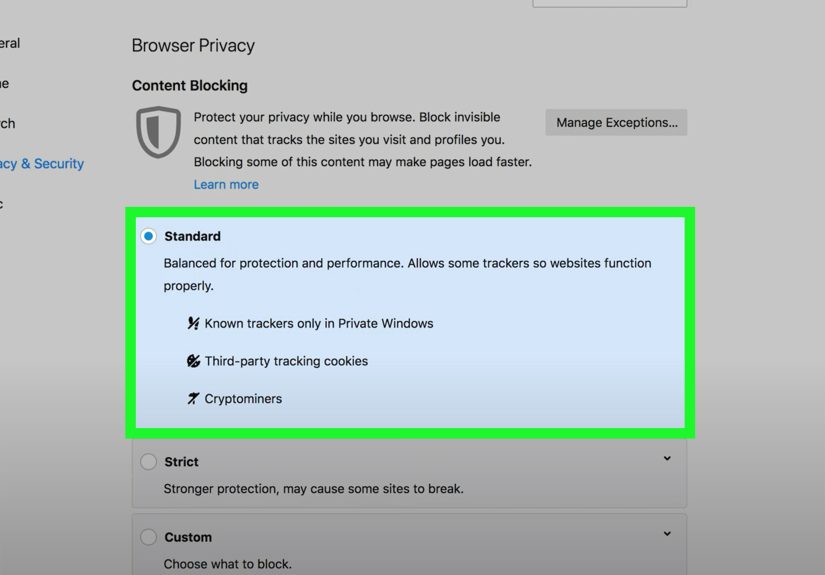
Option A: Use Standard Enhanced Tracking Protection
If you’re on Strict (or heavily customized settings), switching to Standard can reduce breakage
while still blocking many known tracking behaviors.
- Open Firefox.
- Go to Settings (or Preferences).
- Click Privacy & Security.
- Under Enhanced Tracking Protection, choose Standard.
- Reload the site and test again.
Option B (best balance): Disable ETP for a specific site
If only one site is misbehaving, don’t change your entire browser’s rules. Firefox makes per-site changes easy:
- Visit the site that’s failing.
- Click the shield icon near the address bar.
- Toggle Enhanced Tracking Protection OFF for that site.
- Firefox reloads the page; try the login/embedded tool again.
Option C: Custom cookie controls (advanced, use carefully)
If you want to keep some protection while allowing more cookie behavior, Firefox’s Custom mode
lets you tune cookie handling. This can help with sites that break because of cookie partitioning/isolation.
- Go to Settings > Privacy & Security > Enhanced Tracking Protection > Custom.
- Adjust the Cookies setting to a less restrictive option than “all cross-site cookies,” then test.
- If you’re tempted to dive into deep config settings, do it only if you’re comfortable with advanced browser preferences.
Common “why is this still broken?” scenarios
1) You changed settings, but you didn’t reload (or restart)
Some cookie/storage changes don’t fully take effect until a reload, and occasionally until the browser restarts.
Close the tab, reopen it, and try again.
2) You’re testing in Private/Incognito mode
Private windows often have stricter defaults for tracking and third-party storage. If the site works in a normal
window but not in Private, that’s a cluenot a mystery.
3) An extension is playing “privacy hero”
Ad blockers, tracker blockers, and script blockers can override browser cookie settings. Temporarily disable them
for the problem site (or use the extension’s “allowlist” feature).
4) The website is using embedded login/payment frames
This is the classic case where third-party cookies matter. Learning platforms, SSO, video tools, and embedded
widgets may rely on cross-site storage to complete authentication.
5) Browser ecosystems are changing
Many browsers are reducing reliance on third-party cookies and encouraging alternatives. So if a site is stuck on
an old approach, you may need a per-site exception, a different browser, or an updated workflow from the service.
Conclusion
Allowing 3rd party cookies on a Mac doesn’t have to be a privacy surrender. In Safari, you’ll typically enable
cookies (and only disable cross-site tracking if the site truly needs it). In Chrome and Edge, you can allow
third-party cookies globallyor better, only for the site that’s complaining. In Firefox, switching to Standard
protections or disabling protection per-site usually gets the job done without turning your browser into an
open buffet for trackers.
The practical strategy is simple: enable what you need, where you need it, for as long as you need it.
Then shut the door again. Cookies may be small, but they’re surprisingly good at overstaying their welcome.
Extra: Real-world experiences and “cookie drama” you’ll probably recognize (about )
Most third-party cookie problems don’t show up when you’re casually reading news or shopping for sneakers.
They show up when you’re doing something that involves embedded servicesthe kind of modern web experience
where five different companies are politely cooperating inside one browser tab.
A super common example is online learning. You log into a course platform, click a video, and suddenly the video
player is hosted by a different provider, inside an iframe, and it wants to remember who you are. If your browser
blocks cross-site cookies, the player may act like it’s meeting you for the first time every single click. The
result: login loops, blank embedded panels, or a cheery “Please enable third-party cookies” banner that feels like
it was written by someone who has never had to explain cookies to a human.
Another repeat offender: SSO. The “Sign in with…” flow often bounces you between domains (your company’s identity
provider, a verification step, and the app you actually want). When cookies can’t be shared the way the flow
expects, authentication may succeed and still failmeaning you enter the correct password and get rewarded with a
return trip to the login screen. It’s like Groundhog Day, but with fewer jokes and more sweat.
Payment widgets can be similar. Some checkout experiences embed fraud prevention, card verification, or alternate
payment methods in a third-party frame. Block cross-site cookies, and the verification frame can’t persist the
session it needs to finish. To you, it looks like the button does nothing. To the website, it looks like you
disappeared mid-transaction. To your bank, it looks like you’re practicing magic tricks with your credit card.
In practice, the least painful approach is usually the most targeted one: allow third-party cookies only for the
site you need. Chrome and Edge are great for this because you can add a single exception. Firefox is also strong
here, because you can disable protection per-site from the shield icon and keep your global settings intact.
Safari is the “all or nothing-ish” option, so many Mac users end up using Safari for everyday browsing and Chrome
(or Firefox) as the “this one site is being needy” browser.
If you’re troubleshooting with a friend or coworker, one tiny trick saves time: ask what browser and what mode
they’re in. Half the time, they’re in a Private window (or they installed a privacy extension that treats every
website like a suspicious raccoon). Switching to a normal window, turning off one extension for that site, and
reloading can fix the issue faster than any step-by-step guide.
Finally, don’t underestimate the “clean slate” move. Clearing site data for a single domain can instantly fix
weird behavior caused by old, conflicting cookiesespecially after a site updates its login system. It feels a
little dramatic, like moving to a new apartment because your old one had a weird smell. But it works, and you
don’t have to keep wondering which cookie is the problem child.