Table of Contents >> Show >> Hide
- Before You Start: Choose Your “Breakup Level”
- Way #1: Sign Out of Your Apple Account on the iPad (Full Disconnect)
- Way #2: Turn Off iCloud Sync for Specific Apps (Selective Unsync)
- Way #3: Turn Off iCloud Photos on One Device (Stop the Photo Avalanche)
- Way #4: Stop Messages & FaceTime from Appearing on the Other Device
- Way #5: Stop iPhone Calls from Ringing on the iPad (Calls on Other Devices)
- Way #6: Break the Last Tethers (Handoff, Focus Sync, Computer Sync, and Device Lists)
- A) Turn off Handoff (stops the “I was typing that over here!” effect)
- B) Turn off “Share Across Devices” for Focus (stops Do Not Disturb syncing)
- C) Stop computer syncing (Finder on Mac or iTunes on Windows)
- D) Remove the iPad from “associated devices” for purchases (optional but useful)
- E) Want it gone from your Apple Account device list?
- Common “Wait, Will This Delete My Stuff?” Questions
- Conclusion: Your Devices, Your Rules
- Real-Life Experiences & Scenarios (Plus What Usually Works)
Your iPhone and iPad are like two best friends who share everything: photos, messages, notes, even your “brilliant” 2 a.m. grocery list that just says
“eggs???”. Most of that “sharing,” though, isn’t your devices whispering to each other directlyit’s your Apple Account + iCloud
acting like the world’s most organized (and occasionally overenthusiastic) group chat.
The good news: you can absolutely disconnect and unsync an iPad from an iPhone. The better news: you don’t have to nuke your entire Apple ecosystem to do it.
Below are six easy, real-world waysfrom “stop syncing my photos, please” to “we’re breaking up and taking the Netflix password with us.”
Before You Start: Choose Your “Breakup Level”
There are two main reasons people want to unsync:
- Privacy: You share an Apple Account with a partner/kid/roommate and your messages, photos, and calls are spilling everywhere.
- Cleanup: You’re selling, gifting, or handing down an iPad and want it fully separated from your iPhone.
Quick rule of thumb:
If you want a clean, total disconnect, sign out of iCloud/Apple Account on the iPad (Way #1).
If you just want selective unsync, turn off specific iCloud and Continuity features (Ways #2–#6).
Way #1: Sign Out of Your Apple Account on the iPad (Full Disconnect)
This is the most complete “unsync” because it removes the iPad from your Apple Account and stops iCloud syncing across the board. It’s the best choice if
you’re selling, giving away, or permanently separating the iPad.
Steps (iPad)
- Open Settings.
- Tap your name at the top (your Apple Account banner).
- Scroll down and tap Sign Out.
- Follow the prompts. You may be asked whether to keep a copy of certain data on the iPad (like Contacts or Keychain).
What happens next?
- iCloud syncing stops on that iPad (Photos, Contacts, Notes, iCloud Drive, etc.).
- Services tied to your Apple Account (Apple Pay, subscriptions, Find My, iMessage/FaceTime with your Apple Account) will stop on that device.
Pro tip: If you’re handing the iPad to someone else, consider doing a full erase after signing out
(Settings > General > Transfer or Reset iPad > Erase All Content and Settings) so it’s truly “fresh start” clean.
Way #2: Turn Off iCloud Sync for Specific Apps (Selective Unsync)
Want to keep the same Apple Account on both devices (for purchases, downloads, subscriptions), but stop specific things from syncing? This is your sweet spot.
You can turn off iCloud syncing per applike Contacts, Calendars, Notes, Safari, Reminders, Health, and more.
Steps (iPhone or iPad)
- Go to Settings > tap your name > iCloud.
- Look for Apps using iCloud (you may need to tap Show All).
- Toggle off the apps you don’t want synced on that device.
- When asked, choose whether to Keep on My iPad/iPhone (keeps a local copy) or Delete (removes local data from that device).
Best use cases
- Stop Contacts/Calendars from merging across devices.
- Keep Notes private to one device.
- Prevent Safari bookmarks/history from “teleporting” everywhere.
Heads-up: Turning off iCloud for an app typically means changes stop syncing to that device. It doesn’t necessarily delete the data from iCloud.
Think of it like unplugging that app from the cloud for that one device.
Way #3: Turn Off iCloud Photos on One Device (Stop the Photo Avalanche)
If your iPad suddenly has every meme, screenshot, and accidental blurry pocket photo from your iPhone, you’re seeing iCloud Photos doing its job a little too well.
Turning off iCloud Photos on one device stops new uploads, edits, and deletions from syncing to that device.
Steps (on the device you want to stop syncing photos)
- Open Settings > tap your name > iCloud.
- Tap Photos.
- Toggle off Sync this iPad (or Sync this iPhone).
What happens to your photos?
- New changes stop syncing to that device.
- You may be prompted to download originals before turning it off, depending on your settings and what’s stored locally.
- If you use “Optimize Storage,” some full-resolution items may live mostly in iCloud; plan storage accordingly before you disconnect.
Real-life example: You share an iPad with family, but you don’t want your iPhone photos showing up there. Turn off iCloud Photos on the iPad,
and your iPhone can keep syncing photos to iCloud normally.
Way #4: Stop Messages & FaceTime from Appearing on the Other Device
Few things spark household chaos faster than a text meant for your friend popping up on the shared iPad in the living room like a surprise party you didn’t ask for.
Messages and FaceTime can “follow” you across devices in a few different ways:
iMessage address sharing, Text Message Forwarding, and Messages in iCloud.
A) Fix “iMessage shows up on my iPad” (Send & Receive)
- On the iPad: Settings > Apps > Messages.
- Tap Send & Receive.
- Under “You can be reached by iMessage at,” deselect addresses you don’t want tied to that iPad.
- If you want a full stop, sign out of Messages/your Apple Account inside Messages settings (where available).
B) Turn off Text Message Forwarding (SMS) from iPhone to iPad
- On the iPhone: Settings > Apps > Messages.
- Tap Text Message Forwarding.
- Turn off the toggle for your iPad.
C) Optional: Disable Messages in iCloud on the iPad
If you use Messages in iCloud, your iMessages can sync across devices. You can turn it off on the iPad to reduce cross-device syncing:
Settings > your name > iCloud > Messages > toggle off “Use on this iPad” (wording varies by version).
Quick sanity check: If multiple people share one Apple Account, the cleanest long-term fix is separate Apple Accounts plus Family Sharing. Otherwise,
you’re basically sharing a digital toothbrush. Technically possible. Socially questionable.
Way #5: Stop iPhone Calls from Ringing on the iPad (Calls on Other Devices)
If your iPad rings when your iPhone gets a call, that’s Continuity calling (sometimes labeled “Calls on Other Devices” or “Calls from iPhone”).
Great when you’re juggling laundry. Terrible when your iPad is a “kid iPad.”
Turn off from the iPhone (recommended)
- On iPhone: Settings > Apps > Phone.
- Tap Calls on Other Devices.
- Turn off Allow Calls on Other Devices, or just toggle off the specific iPad in the device list.
Turn off from the iPad (if you see the option)
On iPad: Settings > Apps > FaceTime > toggle off Calls from iPhone (wording may vary).
What changes?
- Your iPhone will still ring normally.
- Your iPad stops acting like a surprise landline extension.
- This does not affect iMessage unless you change message settings too (see Way #4).
Way #6: Break the Last Tethers (Handoff, Focus Sync, Computer Sync, and Device Lists)
Even after you tame iCloud, messages, and calls, Apple has a few “helpful” cross-device features that can make your devices feel glued together:
Handoff/Continuity, Focus sharing, and old-school Finder/iTunes syncing to a computer. There’s also the question of whether the iPad still appears on your account/device lists.
Let’s untangle all of that in one tidy sweep.
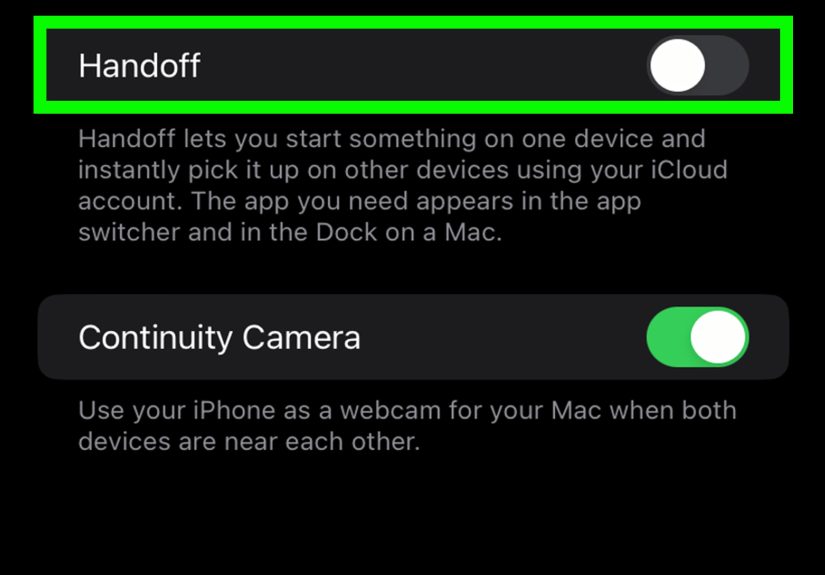
A) Turn off Handoff (stops the “I was typing that over here!” effect)
- On iPhone or iPad: Settings > General > AirPlay & Continuity (or similar).
- Toggle off Handoff.
This helps if apps, Safari pages, or clipboard content feel like they’re hopping between devices without permission.
B) Turn off “Share Across Devices” for Focus (stops Do Not Disturb syncing)
- Go to Settings > Focus.
- Turn off Share Across Devices.
If your iPad keeps going into Do Not Disturb just because your iPhone did, this is usually why.
C) Stop computer syncing (Finder on Mac or iTunes on Windows)
If you ever synced your iPhone/iPad to a Mac or PC, that connection can remain activeespecially if Wi-Fi sync was enabled.
- Connect the iPad (or iPhone) to your computer with a cable.
- On Mac: open Finder and select the device. On Windows: open iTunes (if used).
- Look for options like Sync this iPad over Wi-Fi or Automatically sync when this device is connected and turn them off.
- Apply/Save.
D) Remove the iPad from “associated devices” for purchases (optional but useful)
If your goal is to stop an old device from being linked to your Apple Account for media and purchases, you can remove it from your account’s associated device list.
On iPhone/iPad: Settings > your name > Media & Purchases > View Account > scroll and choose Remove This Device (where available).
E) Want it gone from your Apple Account device list?
If a device keeps reappearing in your Apple Account device list, Apple’s guidance is essentially: the device must be signed out of key services (iCloud, Media & Purchases,
iMessage, FaceTime, Game Center) or erased to permanently remove it. If you no longer have the iPad, you can also manage devices from your Apple Account on the web.
Common “Wait, Will This Delete My Stuff?” Questions
If I turn off iCloud syncing, do my photos/notes/messages disappear everywhere?
Not automatically. Turning off syncing on one device usually means that device stops updating from iCloud for that category. You’ll often get a choice like
Keep on My iPad (local copy stays) vs Delete from My iPad (removes local copy). The data in iCloud can remain and still be available on other devices.
Why do my iPhone and iPad still feel “connected” after I turned off iCloud?
Because iCloud isn’t the only glue. Calls, texts, Handoff, Focus syncing, Bluetooth proximity features, and computer sync can all create “ecosystem” behavior.
That’s why Ways #4–#6 existto unplug the sneaky stuff.
What’s the cleanest setup for families?
Separate Apple Accounts for each person, then share purchases via Family Sharing. It reduces accidental syncing, privacy surprises, and the dreaded “Why are my
mom’s contacts on my iPad?” moment.
Conclusion: Your Devices, Your Rules
Disconnecting an iPad from an iPhone isn’t about “breaking” Apple’s ecosystemit’s about making it behave. Whether you want a full separation (sign out on the iPad)
or a selective unsync (Photos off here, Messages off there), the key is knowing which feature is doing the syncing: iCloud, Messages/FaceTime, Calls on Other Devices,
Handoff, Focus sharing, or computer sync.
Pick the smallest change that solves your problem. Your future self will thank youespecially when your shared iPad stops announcing every incoming call like it’s a town crier.
Real-Life Experiences & Scenarios (Plus What Usually Works)
Below are a few “you might recognize this” situations people commonly run into when they try to disconnect an iPad from an iPhone. Think of these as practical
mini-storiesbecause settings menus are easier when you have a reason, not just a checklist.
1) The Shared iPad That Became the Family Confessional
Someone buys an iPad “for the kids,” signs in with the same Apple Account used on the iPhone, and suddenly the iPad is a full-time curator of everyone’s texts,
photos, and Safari history. The fix is usually not one magical switchit’s a combo: turn off Text Message Forwarding on the iPhone (Way #4B),
tighten Send & Receive on the iPad (Way #4A), and disable iCloud Photos on the iPad (Way #3). The result: the iPad stays useful
(apps, purchases, subscriptions still work) without becoming a floating privacy violation.
2) “Why Is My iPad Ringing? I Don’t Even Have a SIM Card!”
Continuity calling is both impressive and mildly terrifying the first time you hear it. People often assume the iPad is “mirroring” the iPhone, when it’s really just
relaying calls via the same Apple Account and Wi-Fi. Turning off Calls on Other Devices on the iPhone (Way #5) usually solves it instantly. If the iPad
is still noisy, double-check FaceTime settings for “Calls from iPhone.” Your iPad goes back to being a tablet instead of a second handset you never requested.
3) The “I Only Wanted Notes, Not Everything” Problem
A common expectation: “I want my Notes synced, but I want Photos and Contacts separate.” Totally doablejust not with a single master toggle. This is where
turning off iCloud sync per app (Way #2) shines. Toggle off Photos, Contacts, Safari, or anything else that feels too personal, but keep Notes on. It’s like choosing
what to share in a group chat instead of handing over your entire camera roll.
4) The Hand-Me-Down iPad That Won’t Let Go
Handing down an iPad is where people get stuck: the device still shows up in account lists, keeps asking for the old Apple Account password, or refuses to behave like
it belongs to the new person. The simplest “clean break” path is: sign out of the Apple Account on the iPad (Way #1), then erase it. If the iPad is already gone,
removing it from device lists often requires signing out of key services on the device firstor managing it through account tools. The takeaway: if you still have the iPad,
do the sign-out and reset while it’s in your hands. It’s faster than trying to do cleanup later.
5) The Invisible Threads: Handoff, Clipboard, and Focus Sync
Even after iCloud is tamed, some people notice odd cross-device behavior: a Safari tab icon appears on the other device, copied text is ready to paste across devices,
or Do Not Disturb mysteriously syncs everywhere. That’s not a hauntingit’s Handoff and Share Across Devices for Focus (Way #6A and #6B).
Turning those off can make the iPad feel independent again without changing your Apple Account setup at all.