Table of Contents >> Show >> Hide
- What “Index” Means in Excel (And Which One You Probably Want)
- Before You Build: A Tiny Checklist That Prevents Future Chaos
- Method 1: The Fast Manual Index (Great for Small Workbooks)
- Method 2: Create an Index with the HYPERLINK Function (Cleaner + Scales Better)
- Method 3: Build a Dynamic Index with Power Query (Auto-List Sheets Like Magic)
- Method 4: Add “Back to Index” Links on Every Sheet (Navigation = Happiness)
- Method 5: Create an Index That Links to Specific Sections (Not Just A1)
- Method 6: Automate the Index with VBA (Fastest for Big Desktop Workbooks)
- Method 7: Use Office Scripts for Excel on the Web (Automation Without VBA)
- Bonus: “Index” as in the INDEX Function (For Data Retrieval)
- Common Mistakes (So Your Index Doesn’t Become “Index (Broken)”)
- Conclusion
- Field Notes: Practical Experiences and Tips (500+ Words of Real-World Wisdom)
Excel workbooks have a special talent: they start as a tidy little file andtwo weeks laterturn into a
sprawling spreadsheet universe where Sheet17 is “final_final_v3” and nobody knows where the summary lives.
That’s where an Excel index comes in.
In this guide, you’ll learn multiple easy ways to create an index in Excelfrom quick manual
links to dynamic, auto-updating “table of contents” pages. We’ll also cover a bonus meaning of “index” in Excel:
the INDEX function for pulling data by position (because Excel loves reusing words just to keep
us humble).
What “Index” Means in Excel (And Which One You Probably Want)
People say “index in Excel” and might mean one of two things:
-
Navigation index (most common): An “Index” or “Contents” sheet that lists tabs and links you
to themlike a book’s table of contents, but with fewer paper cuts. -
Data index: Using formulas like INDEX (often with MATCH/XMATCH) to retrieve
a value from a table by row/column position.
This article focuses mainly on the navigation index (because it saves real time in big files),
then gives you a practical bonus section on INDEX the function.
Before You Build: A Tiny Checklist That Prevents Future Chaos
1) Clean up sheet names
If your tabs are named “Sheet1,” “Sheet1 (2),” and “PLEASE WORK,” your index will reflect that. Rename sheets
clearly (e.g., “Sales Summary,” “Q1 Pipeline,” “Assumptions”).
2) Decide what belongs in the index
Not every sheet deserves a red-carpet entry. Consider including:
- Dashboards and summaries
- Input sheets (assumptions, parameters)
- Key reports and outputs
- Reference tables people actually use
3) Pick an “Index Home Cell”
Most indexes link to A1 on each sheet. If your real “start here” is B2 or a section
header, choose a consistent target so navigation feels intentional.
Method 1: The Fast Manual Index (Great for Small Workbooks)
If you have under ~10 sheets, the manual method is quick, reliable, and doesn’t require formulas.
Step-by-step
- Create a new sheet at the front and name it Index or Table of Contents.
- In column A, type your main sheet names (one per row).
- Select the first sheet name cell (e.g.,
A3). -
Go to Insert → Link (or press Ctrl + K on Windows) and choose
Place in This Document. - Select the destination sheet and cell (often
A1), then click OK. - Repeat for the other entries.
Make it nicer in 60 seconds
- Add a title like “Workbook Index” in a larger font.
- Turn the list into an Excel Table for clean formatting.
- Add a “Description” column with what each tab is for.
When to use it: You want something simple and stable, and your sheet list doesn’t change daily.
Method 2: Create an Index with the HYPERLINK Function (Cleaner + Scales Better)
Want a clickable index that fills down automatically? Use the HYPERLINK function. The trick is
simple: store sheet names in cells, then build links that jump to each sheet.
Basic formula pattern
If cell A3 contains a sheet name (like Sales Summary), link to that sheet’s A1:
Why the weird quotes?
Excel gets picky when sheet names contain spaces (and humans love spaces). The #' and '
wrap your sheet name safely so the link works even if your tab is called Q1 Sales (North America).
Make it feel like a real table of contents
Set up your Index sheet like this:
- Column A: Section (e.g., “Reporting,” “Inputs,” “Archive”)
- Column B: Sheet Name (exact tab name)
- Column C: Link (formula)
- Column D: Notes (what’s inside, owner, refresh cadence)
Example link formula using a “Sheet Name” column in a table:
When to use it: You want the index to be easy to maintain and quick to extend.
Method 3: Build a Dynamic Index with Power Query (Auto-List Sheets Like Magic)
If you want your index to update when new sheets appear, Power Query can help you generate a list of worksheet
names, then you add hyperlinks beside them. This is a great “no VBA” approach for people who like automation but
also like sleeping at night.
High-level steps
- Go to Data → Get Data (Power Query) and pull workbook metadata (the goal: list sheets).
- Load the sheet list into your Index sheet as a table.
- Add a hyperlink column using the
HYPERLINKformula referencing the sheet name. - Refresh the query anytime sheets change.
Pro tip
Treat the output as your “source of truth,” then keep formatting in separate columns (so refresh doesn’t wipe
your aesthetics).
When to use it: Your workbook grows often, and you want the index to keep up with minimal effort.
Method 4: Add “Back to Index” Links on Every Sheet (Navigation = Happiness)
An index is greatuntil someone jumps to a sheet and then has to crawl back like it’s 2006 and browser back
buttons are illegal. Add a “Back to Index” link on each tab and you’ll feel like you installed indoor plumbing.
Simple approach
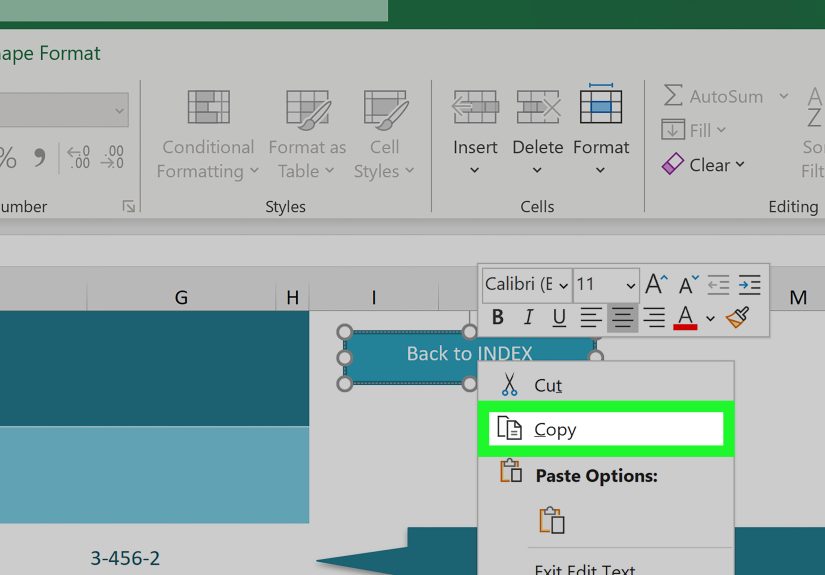
- Pick a consistent location, like cell
A1orE1. - Type Back to Index.
- Insert a link to your Index sheet (e.g.,
Index!A1). - Copy that cell and paste it across other sheets.
Formula approach (works great with consistent naming)
When to use it: Always. Seriously. This is the tiny feature that makes a workbook feel “designed.”
Method 5: Create an Index That Links to Specific Sections (Not Just A1)
Sometimes A1 is just a blank cell staring into space. If you want the index to jump to the real
start of each sheet (like “Inputs Begin Here”), use one of these approaches:
Option A: Link to a specific cell address
If the “start” is always in B4:
Option B: Use Named Ranges (best for long-term stability)
Named ranges are like bookmarks. If the section moves later, you update the name once and your index keeps
working.
- Select the destination cell/range (example: the “Start” header).
- Create a named range (Formulas → Define Name), like
Start_Sales. - Link to it using the Insert Link dialog or a formula-driven link strategy.
When to use it: Your sheets get rearranged often, or you want “professional-grade” navigation.
Method 6: Automate the Index with VBA (Fastest for Big Desktop Workbooks)
If you’re working in desktop Excel and you’re comfortable with macros, VBA can generate a full table of contents
in secondssheet names, hyperlinks, formatting, the whole deal.
What VBA automation typically does
- Creates (or recreates) a “Contents” sheet
- Loops through worksheets in the workbook
- Writes each worksheet name into a list
- Adds hyperlinks to the target cell on each sheet
- Optionally: skips hidden sheets, formats the output, adds page counts
Practical guardrails
- Keep the macro in a trusted file or personal macro workbook.
- Decide whether to include hidden sheets (usually: no).
- Don’t rebuild the index automatically on every open unless you enjoy suspense.
When to use it: You manage large workbooks with many tabs, and you want a one-click “rebuild index”
button.
Method 7: Use Office Scripts for Excel on the Web (Automation Without VBA)
If your team lives in Excel for the web (or you want automation that’s friendlier to modern environments),
Office Scripts can create a table of contents sheet and insert hyperlinks to worksheets.
Why this is useful
- Works well with cloud-first workflows
- Script is easier to share than a macro-enabled file
- Fits nicely with repeatable reporting processes
When to use it: You want a repeatable index build process in a web-based workbook environment.
Bonus: “Index” as in the INDEX Function (For Data Retrieval)
Now for the other “index” Excel loves: the INDEX function. While it won’t create a navigation
page, it will help you pull the correct value from a tableespecially when paired with MATCH/XMATCH.
INDEX basics
Think of INDEX as: “Given a range, tell me what’s at row X and column Y.”
Example 1: Get the 5th item from a list
If A2:A20 is a product list, this returns the 5th entry in that range:
Example 2: The classic INDEX + MATCH lookup (flexible alternative to VLOOKUP)
Suppose:
A2:A100= Customer IDsD2:D100= Customer EmailG2= the ID you’re searching for
Get the email for the ID in G2:
Example 3: Two-way lookup (row + column)
If you have a grid of values and need the intersection of a row label and column header, INDEX can do that when
MATCH finds positions:
When to use it: You need robust lookups, especially when columns move, tables expand, or you want
better control than older lookup functions.
Common Mistakes (So Your Index Doesn’t Become “Index (Broken)”)
1) Sheet names don’t match exactly
Hyperlinks and formulas that reference tab names are literal. “Sales Summary” is not the same as “Sales summary.”
Keep sheet names consistentand avoid trailing spaces.
2) Spaces and special characters break links
Use the safe pattern: #'Sheet Name'!A1 inside your HYPERLINK formula. It’s boring, but it works.
3) You link to the wrong “start” cell
If your “real content” starts at B12, linking to A1 feels like sending someone to a
party and giving them the address of the empty parking lot.
4) You forget the return path
Add “Back to Index” links. Future-you will be grateful, and future-you is notoriously hard to impress.
Conclusion
Creating an index in Excel iswhether it’s a simple manual list or a dynamic, automated table of contentsis one
of the highest ROI improvements you can make to a workbook. It makes files easier to understand, faster to
navigate, and less likely to trigger the ancient spreadsheet curse: “Where is the one tab I actually need?”
Start with the method that matches your workbook size and comfort level:
- Small workbook: Manual index + Insert Link
- Growing workbook: HYPERLINK formulas + a structured table
- Frequently changing workbook: Power Query list + hyperlink column
- Power user: VBA or Office Scripts automation
And if someone asks you about “INDEX,” you can calmly ask, “Do you mean navigation… or the function?” and watch
their eyes widen as they realize Excel has layers.
Field Notes: Practical Experiences and Tips (500+ Words of Real-World Wisdom)
In real workplaces, an Excel index isn’t just a “nice-to-have.” It’s often the difference between a workbook
people trust and a workbook people fear. When teams collaborate, files become living documents: tabs get added,
renamed, hidden, duplicated, and occasionally abandoned like a houseplant in a windowless office.
One pattern shows up constantly: as soon as a workbook passes about 12–15 tabs, users stop exploring. They jump
only between the last two sheets they touched, and everything else becomes “somewhere in there.” That’s where an
index sheet becomes social infrastructure. It gives a shared starting point and reduces the mental load of
remembering where anything lives.
Another practical tip: indexes work best when they are opinionated. A flat list of 40 sheet names is better than
nothing, but it’s still a long scroll. The best indexes group sheets into categoriesInputs,
Calculations, Outputs, Archiveso readers immediately know
where to click. This is especially useful for executives and non-Excel-native teammates who want outcomes, not
the full spreadsheet saga.
“Back to Index” links are the unsung heroes. Teams often build an index and then forget navigation on the
destination tabs. The result is a workbook that’s easy to enter and annoying to exitlike a hotel lobby with no
signs to the elevators. Placing a small, consistent “← Back to Index” link in the same cell on every sheet (top
left or top right) changes the experience dramatically. It also trains users to treat the file as a system,
rather than a pile of disconnected pages.
Dynamic approaches are powerful, but they come with a truth that’s worth saying out loud: automation is only
helpful if it’s predictable. Power Query-driven sheet lists are fantastic for files where tabs frequently change,
but they should be designed so a refresh doesn’t destroy formatting. The cleanest setup is to keep the query
output in its own table (sheet names only), then build your formatted index (categories, descriptions, owners)
alongside it. That way, refresh updates the list while your human context stays intact.
For formula-based indexes, the most common pain point is sheet naming. If your index references sheet names from
cells, any rename can break links. The practical workaround is to treat sheet names like public API endpoints:
rename carefully, and only when necessary. When a rename is unavoidable, update the index table in the same
change setdon’t leave it as a “later problem.” (Later problems have a habit of becoming “never problems.”)
Finally, add a tiny “About this workbook” block at the top of your index: purpose, last updated date, owner, and
a one-sentence instruction (“Start here → choose an output tab”). It sounds small, but it improves trust. People
don’t just want navigation; they want reassurance that this file has a map, a reason, and maybe even an adult
supervising it.
If you do only one thing today: create an Index sheet, add links to your top 5 tabs, and put a “Back to Index”
link on each of them. Your workbook will instantly feel less like a maze and more like a tool.