Table of Contents >> Show >> Hide
- Before You Fix Anything: A 60-Second Sync Reality Check
- The Fast Fixes (Try These FirstThey Solve a Lot)
- If It Still Won’t Sync: Follow This Proven Troubleshooting Ladder
- 6) Make Sure Your Fitbit Isn’t Trying to Sync With Another Device
- 7) Confirm Fitbit Has the Right Permissions (This Is a Top Cause)
- 8) Fix Background Restrictions and Battery Optimization (Android’s “Helpful” Sabotage)
- 9) Update Everything: Fitbit App, Phone OS, and Fitbit Firmware
- 10) Make Sure the Fitbit App Has Internet Access
- 11) Re-Pair the Device (Forget Bluetooth + Reconnect in Fitbit App)
- 12) Clear Cache (Android) or Reinstall the Fitbit App (iOS/Android)
- 13) Special Case: Fitbit Scales Don’t Sync the Same Way
- When It’s Not You: Check Fitbit’s Status Dashboard
- FAQ: Quick Answers to Common “Fitbit Won’t Sync” Questions
- Wrap-Up: The Simple Strategy That Usually Works
- of Real-World “Fitbit Not Syncing” Experiences (And What They Teach You)
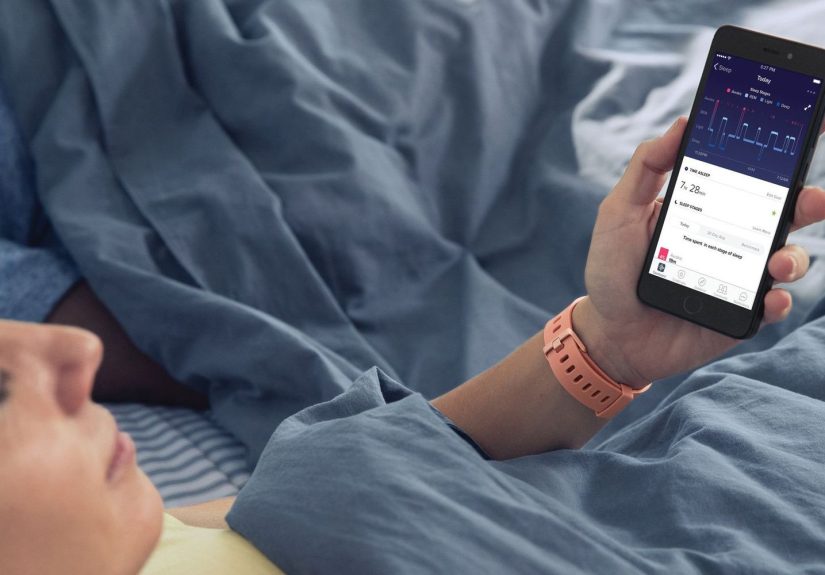
Your Fitbit has one job: quietly collect your steps, sleep, heart rate, and workout datathen hand it off to the Fitbit app like a responsible adult.
So when syncing breaks, it feels personal. The good news? Most Fitbit syncing issues come down to a few repeat offenders:
Bluetooth hiccups, phone settings that “helpfully” restrict background activity, permission pop-ups you tapped past, or a plain old app glitch.
Below is a practical, no-fluff troubleshooting ladderfrom quick wins to deeper fixesso you can get back to tracking your life instead of
yelling at your wrist.
Before You Fix Anything: A 60-Second Sync Reality Check
Start here so you don’t waste time chasing the wrong problem. Syncing requires three things to play nicely together:
your Fitbit, your phone, and Fitbit’s services.
- Is your Fitbit charged and awake? Low battery can limit connectivity, and a dead tracker syncs about as well as a rock.
- Is your phone online? The Fitbit app often needs an internet connection (Wi-Fi or cellular) to complete a sync.
- Is Fitbit having an outage? If tons of users are suddenly stuck, it might not be you. Check Fitbit’s official status dashboard.
If everything looks normal, move on. If there’s an outage, the most “proven fix” is patience (I know, rude).
The Fast Fixes (Try These FirstThey Solve a Lot)
1) Force a Manual Sync (Yes, the “Pull Down” Trick)
Automatic syncing is convenientuntil it isn’t. A manual sync forces the app to try again right now, instead of “whenever it feels like it.”
- Keep your Fitbit close to your phone (within a few feet).
- Open the Fitbit app and go to the Today tab.
- Press and hold on the screen and pull down to refresh. Watch for the sync progress.
- If you see your device listed, you can also try:
Today → Devices → Sync Now.
If your Fitbit syncs manually but not automatically, skip ahead to the sections on permissions, battery optimization, and background activity.
That’s usually where the “automatic” part gets sabotaged.
2) Force Quit the Fitbit App and Reopen It
Apps get stuck. It happens. Closing and reopening the Fitbit app can reset the connection without you needing to do anything dramatic.
- iPhone: Swipe up (or double-click Home on older models), find Fitbit, swipe it away, then reopen.
- Android: Open Recents, swipe Fitbit away, then reopen. If needed: Settings → Apps → Fitbit → Force stop.
3) Toggle Bluetooth Off and On (The Classic “Have You Tried Turning It Off?”)
Sync relies heavily on Bluetooth. A quick toggle refreshes the connection and clears minor hiccups.
- Turn Bluetooth off on your phone.
- Wait 5–10 seconds (give it a moment to forget its sins).
- Turn Bluetooth back on.
- Return to the Fitbit app and try syncing again.
4) Restart Your Phone (Because Phones Also Need Naps)
A reboot clears temporary glitches and restarts the Bluetooth stack. It’s shockingly effective for something so simple.
5) Restart Your Fitbit Device (Not a Factory Reset)
A restart power-cycles the tracker/watch and can fix syncing without erasing your data.
Fitbit explicitly recommends restarting for issues like syncing, frozen screens, or unresponsive devices.
The steps differ by model (Charge vs. Versa vs. Inspire), but the principle is the same: restart, then try syncing again.
If It Still Won’t Sync: Follow This Proven Troubleshooting Ladder
Now we move from “quick fixes” to “let’s actually diagnose what’s blocking the connection.”
Work in ordereach step builds on the last.
6) Make Sure Your Fitbit Isn’t Trying to Sync With Another Device
This one is sneaky: many Fitbit devices can only actively sync with one phone or tablet at a time.
If your Fitbit is paired to another phone nearby (or you still have the Fitbit app installed on an old phone),
it can cause connection conflicts.
- On any other nearby phones/tablets: turn off Bluetooth temporarily.
- If an old device is still paired: remove your Fitbit from that device’s Bluetooth list.
- Then try syncing again from your primary phone.
Real-world example: If you upgraded to a new iPhone but your old phone is still in a drawer (powered on, Bluetooth on),
your Fitbit may keep trying to “phone home” to the wrong device.
7) Confirm Fitbit Has the Right Permissions (This Is a Top Cause)
If you ever tapped “Don’t Allow” on a permission promptor your phone updated and tightened privacy rulessync can break quietly.
The Fitbit app needs permission to use Bluetooth, and on some Android setups, location or nearby-device access can affect scanning and syncing.
On iPhone: Check Bluetooth Access for the Fitbit App
- Open Settings
- Tap Privacy & Security
- Tap Bluetooth
- Make sure Fitbit is toggled On
Also make sure Bluetooth itself is enabled and your Fitbit is powered and nearby.
On Android: Check Permissions + “Nearby Devices” + Location Prompts
- Settings → Apps → Fitbit → Permissions
- Allow what the Fitbit app requests (commonly Bluetooth/Nearby devices and sometimes Location).
If the Fitbit app prompts you to turn on location, it’s often because certain Android versions tie Bluetooth scanning behaviors to location
privacy settings. You can usually control this in the Fitbit app permissions and your phone’s location settings.
8) Fix Background Restrictions and Battery Optimization (Android’s “Helpful” Sabotage)
If you’re on Android and syncing works only when the app is open, your phone may be restricting background activity.
This is extremely common on devices with aggressive battery-saving settings.
In Google’s Fitbit guidance, key settings to check include: background data, unrestricted mobile data,
and unrestricted/allowed background battery usage.
- Settings → Apps → Fitbit → Mobile data & Wi-Fi (or similar) → turn on Background data
- Settings → Apps → Fitbit → Battery → set to Unrestricted (wording varies by brand)
Pro tip: If you’re using a “power saver” mode, test syncing with it turned off temporarily. Some modes throttle Bluetooth and background tasks.
9) Update Everything: Fitbit App, Phone OS, and Fitbit Firmware
Outdated software can cause compatibility issuesespecially after a phone OS update.
- Update the Fitbit app: Check the App Store (iOS) or Google Play Store (Android).
- Update your phone: Install any pending iOS/Android updates.
- Update Fitbit firmware: If the app offers a device update, install it while your Fitbit is charged.
If syncing fails right after an update, restarting both phone and Fitbit is a smart follow-up step.
10) Make Sure the Fitbit App Has Internet Access
Your Fitbit and phone might be connected via Bluetooth, but the app may still need internet access to finalize syncing to your account.
- Turn off Wi-Fi and try cellular data (or the reverse).
- If you use a VPN, pause it briefly and test again.
- Confirm Low Data Mode / Data Saver isn’t blocking the Fitbit app.
If toggling networks suddenly fixes sync, the issue may be network-specific (router settings, captive portals like hotel Wi-Fi, VPN filtering, etc.).
11) Re-Pair the Device (Forget Bluetooth + Reconnect in Fitbit App)
If your Fitbit shows up but refuses to complete syncing, the pairing record can be corrupted.
Re-pairing refreshes the relationship status back to “it’s complicated, but we’re trying.”
- On your phone: Settings → Bluetooth → find your Fitbit → Forget / Unpair.
- Open the Fitbit app → Devices → your device → follow prompts to reconnect.
- Try a manual sync.
If you’re using multiple Bluetooth wearables (earbuds, car audio, smartwatch, etc.), temporarily disconnect a few and test sync again.
Less Bluetooth crowding can help isolate conflicts.
12) Clear Cache (Android) or Reinstall the Fitbit App (iOS/Android)
When an app’s temporary files get messy, clearing cache (Android) can clean things up without wiping your account.
If cache-clearing isn’t available (or doesn’t help), reinstalling the app is the next step.
Android: Clear Fitbit App Cache
- Settings → Apps → Fitbit
- Tap Storage
- Tap Clear cache
iPhone/Android: Reinstall the Fitbit App
- Delete/uninstall the Fitbit app.
- Restart your phone.
- Reinstall Fitbit from the official app store.
- Log in and set up syncing again.
If you’re reinstalling during a known Fitbit outage, be cautious: the app may have trouble logging in until services stabilize.
13) Special Case: Fitbit Scales Don’t Sync the Same Way
If your “Fitbit not syncing” issue is about a Fitbit scale, the fix depends on the model:
- Aria / Aria 2: typically sync via Wi-Fi to your Fitbit account. If Wi-Fi changed (new router/password),
you may need to reconnect the scale to the updated network in the Fitbit app. - Aria Air: uses Bluetooth with the Fitbit app and is set up through the app (not usually by pairing inside the phone’s Bluetooth menu).
So if you’re troubleshooting an Aria 2, focus on Wi-Fi network setup steps. If it’s an Aria Air, focus on Bluetooth, permissions, and the app being open.
When It’s Not You: Check Fitbit’s Status Dashboard
Sometimes syncing issues aren’t caused by your phone, your tracker, or the alignment of the planets. Sometimes it’s just… Fitbit.
If your app suddenly can’t sync, login acts weird, or data won’t load, check Fitbit’s official status dashboard.
If the dashboard shows an incident, skip drastic steps like factory resets. Wait for service restoration, then try a manual sync.
FAQ: Quick Answers to Common “Fitbit Won’t Sync” Questions
Why does my Fitbit only sync when the app is open?
Usually background restrictions. On Android, battery optimization and background-data settings can prevent the Fitbit app from running reliably in the background.
Adjust Fitbit’s app battery and background data settings to “Unrestricted” (or the closest equivalent on your device).
Why is Fitbit asking for location permission?
On some Android setups, location permission supports Bluetooth scanning behaviors and powers features like weather and GPS-related functions.
If you’re uncomfortable sharing location, you can manage those permissions in your phone settings, but be aware it may affect certain features.
Should I factory reset my Fitbit to fix syncing?
Only as a last resort. A restart is safe and doesn’t erase data. A factory reset can wipe device data and settings.
Try the steps above firstespecially re-pairing, permissions, and app reinstall.
My Fitbit connects to Bluetooth, but still won’t sync. Why?
Bluetooth pairing isn’t the same as a successful app sync. The Fitbit app may still be blocked by permissions, background limits,
a stuck app session, or an internet connectivity issue. Follow the ladder: manual sync → app restart → permissions → background/battery → re-pair.
Wrap-Up: The Simple Strategy That Usually Works
If you want the “greatest hits” version, here’s the order that fixes most syncing issues:
- Manual sync in the Fitbit app (pull down / Sync Now).
- Force quit Fitbit app → reopen.
- Toggle Bluetooth → restart phone.
- Restart Fitbit device.
- Check for conflicts with other paired devices (Fitbit can often sync with one device at a time).
- Fix permissions (Bluetooth + any requested Android permissions).
- Disable Android battery optimization / allow background usage.
- Update app/OS/firmware → re-pair if needed.
- Clear cache (Android) or reinstall app (both).
- Check Fitbit status dashboard if it feels widespread.
Most importantly: don’t jump straight to nuclear options. Sync problems are annoying, but they’re usually fixable without sacrificing your data to the tech gods.
of Real-World “Fitbit Not Syncing” Experiences (And What They Teach You)
If you read enough Fitbit forums, support threads, and “why is my watch gaslighting me?” posts, you start to see patterns.
Not personal patterns (because your Fitbit isn’t actually out to get you)… but very consistent, very fixable ones.
Here are some common real-life scenarios people run intoplus the lesson that saves time next round.
Experience #1: The “New Phone, Old Phone” Trap
A classic: someone upgrades their phone, signs into Fitbit on the new device, and assumes the old phone is irrelevant.
But the old phone is still sitting at home with Bluetooth enabled. The Fitbit devicedoing exactly what it was trained to dokeeps trying to connect
to the old pairing. The result is a sync that fails, stalls, or works “randomly” when the old phone is off.
The fix is simple: remove the old pairing and uninstall Fitbit on the old device (or at least turn off Bluetooth on it).
The lesson: Fitbit syncing isn’t just about your current phone. It’s about every phone your Fitbit still thinks it’s dating.
Experience #2: Android Battery Saver Becomes a Fitness Villain
Many users report that syncing works perfectly… until their phone decides to “optimize” apps.
Suddenly, Fitbit only syncs when the app is open, and the moment you leave the app, syncing stops like it got grounded.
This is especially common after Android updates or when a phone manufacturer’s battery manager gets aggressive.
The fix is to set the Fitbit app’s battery usage to Unrestricted (or allow background activity), and ensure background data is enabled.
The lesson: if you want automatic syncing, you have to teach your phone that Fitbit is not “optional background noise.”
It’s the point. It’s literally why the device is on your wrist.
Experience #3: The Permission Pop-Up You Dismissed in a Hurry
Another frequent story: the Fitbit app asks to use Bluetooth, and someone taps “Don’t Allow” because they’re busy, skeptical, or half-asleep.
Later, they wonder why syncing died. On iPhone, the Fitbit app’s Bluetooth access can be managed in Settings under Privacy & Security → Bluetooth.
On Android, permissions may include nearby devices and sometimes location-related prompts tied to scanning or features like weather/GPS.
The lesson: when a fitness app asks for Bluetooth access, it’s not being nosy. It’s trying to talk to the device you paid money for.
Experience #4: The “It’s Me, Not You” Outage Day
During major outages, people often try everything: reinstalling the app, resetting Bluetooth, rebooting phones, re-pairing devices,
and occasionally considering a dramatic career change into analog pedometers. But if the issue is on the service side, your local fixes can only do so much.
This is where checking Fitbit’s status dashboard saves sanity. If services are degraded, the smartest move is to wait, then try a manual sync once things recover.
The lesson: sometimes the most advanced troubleshooting skill is knowing when to stop troubleshooting.
Experience #5: The Sneaky “Scale vs. Tracker” Confusion
People also get stuck because not all Fitbit products sync the same way. Many trackers and watches sync through Bluetooth to your phone,
but some scales rely on Wi-Fi setup. If you changed routers, passwords, or internet providers, your scale might be faithfully trying to connect to a Wi-Fi network
that no longer exists. The fix is to reconnect the scale to the updated Wi-Fi network in the Fitbit app (for supported models).
The lesson: before you troubleshoot, identify what kind of device you’re troubleshooting. Bluetooth fixes won’t help Wi-Fi devices, and vice versa.
The big takeaway across all these experiences: syncing problems feel random, but they rarely are.
When you approach them in a smart ordermanual sync, app restart, Bluetooth refresh, device restart, permissions, background/battery limits,
and only then reinstall/re-pairyou turn “Fitbit not syncing” from a mystery into a checklist.