Table of Contents >> Show >> Hide
- Is It Normal for GPU Fans Not to Spin?
- Why GPU Fans Stop Spinning
- 1. Zero-RPM or Fan-Stop Mode Is Enabled
- 2. The GPU Is Not Warm Enough Yet
- 3. A Custom Fan Curve Is Misconfigured
- 4. Drivers or Firmware Are Glitching
- 5. Dust, Hair, or Other Obstructions Are Blocking the Fan
- 6. The GPU Is Not Seated Properly or Power Cables Are Loose
- 7. Case Airflow Is Poor
- 8. The Fan Motor, Bearing, or Control Circuit Has Failed
- Easy Fixes for GPU Fans Not Spinning
- Step 1: Check GPU Temperature First
- Step 2: Test the Card Under Load
- Step 3: Reset Fan Settings to Default
- Step 4: Create a Safer Manual Fan Curve
- Step 5: Update or Clean-Install the Graphics Driver
- Step 6: Power Down and Check the Hardware Connections
- Step 7: Clean the GPU and Case
- Step 8: Improve Airflow
- Step 9: Test Manual Fan Speed
- Step 10: Consider RMA or Repair
- Signs the Problem Is Serious
- Real-World Experiences With GPU Fans Not Spinning
- Conclusion
- SEO Tags
If you peek through your tempered-glass side panel, spot your GPU fans sitting completely still, and immediately picture your graphics card bursting into flames like a low-budget action movie, take a breath. In many cases, GPU fans not spinning is completely normal. In other cases, it is your PC’s way of saying, “Hello, I would like attention before I become expensive.”
Modern graphics cards are smarter, quieter, and sometimes a little too good at pretending nothing is wrong. Many newer GPUs use a semi-passive cooling design, which means the fans stay off during light tasks such as web browsing, video playback, or staring at your desktop wallpaper instead of doing actual work. But when the fans refuse to spin under gaming load, during stress tests, or while temperatures keep climbing, that is when troubleshooting becomes more than a hobby.
In this guide, we will break down why GPU fans stop spinning, when that behavior is normal, and the easiest ways to fix it. We will also cover software settings, fan curves, dust buildup, cable issues, airflow problems, and the unpleasant possibility that the fan itself is simply done being a fan.
Is It Normal for GPU Fans Not to Spin?
Yes, very often it is normal. A lot of modern graphics cards are designed to stay silent at idle. Brands use different names for this feature, but the idea is the same: when the GPU is cool and not drawing much power, the fans remain off to reduce noise and wear.
ASUS calls this 0dB mode on many cards. MSI has Zero Frozr. Gigabyte uses 3D Active Fan. XFX has Zero DB Fan System. Zotac markets FREEZE Fan Stop. In plain English, all of them mean, “The card is cool enough, so the fans are taking a coffee break.”
That means if your GPU fans are not spinning while you are checking email, watching YouTube, or opening seventeen browser tabs you absolutely need, there may be no problem at all. Some cards do not start spinning until the GPU reaches around the 50C to 60C range, depending on the brand, model, BIOS mode, and software settings.
When It Is Probably Normal
- The PC boots normally and displays video.
- The GPU temperature stays reasonable at idle.
- The fans start spinning during gaming or a stress test.
- You recently bought a newer card with fan-stop mode.
When It Is Probably Not Normal
- The GPU gets hot under load and the fans still do not move.
- You see crashes, black screens, throttling, or sudden shutdowns.
- Only one fan twitches, jerks, or tries to start but never fully spins.
- A manual fan-speed setting at 100% still does nothing.
Why GPU Fans Stop Spinning
1. Zero-RPM or Fan-Stop Mode Is Enabled
This is the most common reason. Your GPU may be working exactly as designed. Many manufacturers intentionally stop the fans at low temperatures and low power draw. That keeps the card quieter at idle and reduces unnecessary spinning. If the card starts cooling itself correctly once you launch a game, congratulations: you do not have a crisis, just a quiet GPU.
2. The GPU Is Not Warm Enough Yet
Some people check their graphics card at idle, see motionless fans, and assume doom. But if the GPU temperature is low, the fan controller may simply not have hit its start threshold. This is especially common in cool rooms, cases with strong airflow, or PCs doing lightweight tasks. A GPU under little load may not need active cooling at all.
3. A Custom Fan Curve Is Misconfigured
Fan-control software can be helpful, but it can also create chaos with the confidence of a toddler holding a permanent marker. Programs such as MSI Afterburner, ASUS GPU Tweak, AMD Software: Adrenalin Edition, Intel Graphics Software, or vendor utilities can override default fan behavior. A bad fan curve can keep the fans off too long, make them pulse oddly, or stop them from responding as expected.
This is not theoretical. Fan-control issues can come from software conflicts, aggressive low-noise settings, or a buggy profile that seemed like a brilliant idea at 1:00 a.m.
4. Drivers or Firmware Are Glitching
Sometimes the hardware is fine, but the software managing it is not. Corrupted graphics drivers, buggy utility software, or a bad update can interfere with normal fan control. Intel has even documented specific cases where zero-RPM fan behavior did not work correctly until a newer driver fixed it. That means a driver reinstall is not just an old forum superstition. Sometimes it is the actual answer.
5. Dust, Hair, or Other Obstructions Are Blocking the Fan
Dust loves GPUs. Pet hair loves GPUs. Mysterious fuzz that appears to be woven from socks and regret also loves GPUs. If debris builds up around the fan blades or heatsink, the fan may struggle to start, stall, or run unevenly. Even worse, dust acts like insulation, trapping heat where you least want it.
6. The GPU Is Not Seated Properly or Power Cables Are Loose
A partially seated graphics card or loose PCIe power connector can cause weird behavior, including unstable performance, no display, or fans not responding correctly. This happens more often than people like to admit, especially after moving a PC, upgrading parts, or confidently “just checking something real quick.”
7. Case Airflow Is Poor
Bad case airflow does not always cause fans to stop, but it can create strange thermal behavior. Heat gets trapped, temperatures spike unevenly, and the GPU may behave inconsistently under load. If the entire case is hot and stale, the graphics card has a harder time doing its job. Think of it as trying to cool off with a paper fan while standing in a parked car in July.
8. The Fan Motor, Bearing, or Control Circuit Has Failed
Sometimes the problem is not subtle. The fan itself may be worn out, stuck, or electrically dead. If you hear grinding, see wobbling, or notice a fan that only moves when nudged, the bearing may be failing. If the fan refuses to spin even with a manual override, the motor, header, or onboard control circuitry may be the real culprit.
Easy Fixes for GPU Fans Not Spinning
Step 1: Check GPU Temperature First
Before touching hardware, check the GPU temperature during idle and during load. If idle temperatures are normal and the fans spin once you start a game, the issue may be no issue at all. If temperatures keep rising under load while the fans stay at zero RPM, that is your signal to keep troubleshooting.
Use a reliable monitoring tool and watch both temperature and fan speed. This gives you an actual diagnosis instead of the classic troubleshooting method known as “staring harder.”
Step 2: Test the Card Under Load
Launch a game, benchmark, or GPU stress test for a few minutes and watch what happens. If the fans kick on once the card heats up, the semi-passive mode is doing its job. If the temperature climbs into uncomfortable territory and the fans still refuse to move, continue to the next fixes.
Step 3: Reset Fan Settings to Default
If you have ever touched a fan curve, reset it. Even if you only “adjusted one tiny thing,” reset it anyway. In many cases, a broken or overly conservative profile is the reason the fans do not respond correctly.
Open your GPU software and switch the fan control back to automatic or default settings. If you use multiple utilities, close the extras. Running two fan-control programs at once is a great way to make your graphics card receive mixed messages.
Step 4: Create a Safer Manual Fan Curve
If default settings are not working well, try a simple manual curve. Do not go wild. You are trying to make the fans start reliably, not prepare the PC for liftoff. A gentle curve that starts the fans earlier can help if the stock profile is too lazy or if the fans struggle to begin spinning at very low RPM.
If your GPU supports separate modes such as Quiet, Performance, or 0dB, test those too. Some models change fan-start behavior depending on the BIOS switch or utility setting.
Step 5: Update or Clean-Install the Graphics Driver
Driver bugs can absolutely affect fan control. Update your graphics driver from the GPU manufacturer or your card vendor. If the problem began after an update, a clean reinstall can help remove corrupted settings or broken profiles.
For AMD cards, a clean install or factory reset option can be useful. Intel has documented fan-curve issues fixed by newer drivers on specific Arc hardware. If fan behavior suddenly changed after software updates, do not ignore the software angle.
Step 6: Power Down and Check the Hardware Connections
Turn off the PC, unplug it, and ground yourself. Then check the basics:
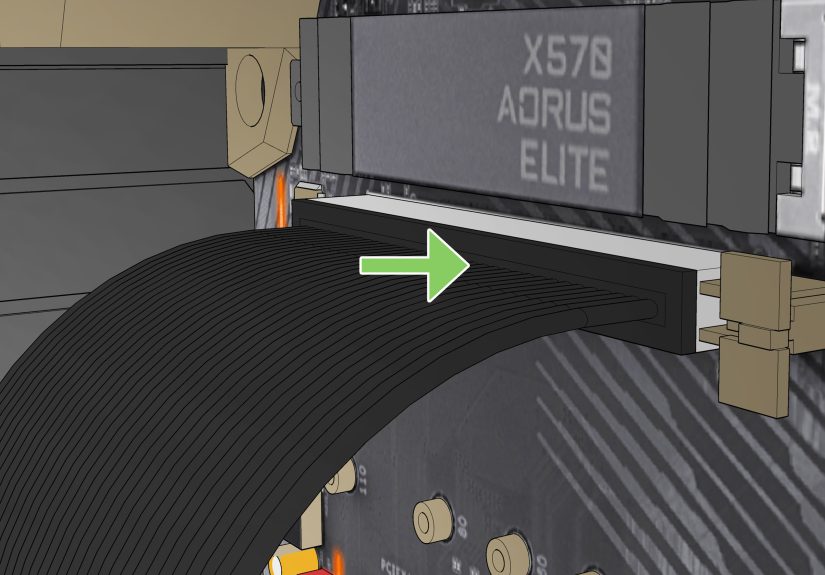
- Make sure the GPU is fully seated in the PCIe slot.
- Confirm every PCIe power cable is firmly plugged in.
- Inspect the card for sag, movement, or anything obviously loose.
- Look for fan wires brushing against blades.
Sometimes this really is the fix. Not glamorous. Not cinematic. Just a cable that was not fully clicked into place.
Step 7: Clean the GPU and Case
Use compressed air in short bursts to remove dust from the GPU shroud, heatsink, and surrounding case area. Hold the fan blades in place while cleaning so they do not spin wildly. Also check for pet hair, cable ties, or any obstruction preventing movement.
While you are there, clean intake filters and make sure your case fans are doing their jobs. A cleaner case often means a happier GPU.
Step 8: Improve Airflow
If your PC case feels like a toaster oven with RGB, airflow may be part of the problem. Make sure you have a sensible intake-and-exhaust setup, clear cable clutter, and enough fresh air reaching the graphics card. Better airflow will not repair a dead fan, but it can reduce thermal stress and prevent the GPU from cooking itself while you troubleshoot.
Step 9: Test Manual Fan Speed
Set the GPU fan speed manually to a high value using a trusted utility. If the fans still do not spin, or only one fan responds, you may be looking at a hardware fault. At that point, the likely fixes are fan replacement, warranty service, or full GPU repair.
Step 10: Consider RMA or Repair
If your card is under warranty and the fans will not spin under load even after cleaning, reseating, resetting fan curves, and reinstalling drivers, do not keep gambling with it. A graphics card is too expensive to treat like a science fair project once you have ruled out the easy stuff. Contact the manufacturer or seller and start the RMA process.
Signs the Problem Is Serious
- GPU temperatures rise quickly during gaming.
- You get black screens, freezing, or crashes.
- The fan makes grinding, clicking, or scraping sounds.
- The fan twitches but never fully starts.
- One fan works, but another never moves, even at high load.
- The card throttles performance heavily or shuts down.
If those symptoms show up together, do not keep pushing the GPU. Troubleshoot it, yes. Roast it, no.
Real-World Experiences With GPU Fans Not Spinning
In real life, this issue usually falls into one of three stories. Story one is the happy ending: someone notices the GPU fans are not spinning, assumes disaster, opens monitoring software, launches a game, and watches the fans start normally once temperatures rise. That person goes from “My graphics card is dead” to “Oh. It is just quiet.” Modern fan-stop modes create this exact panic every day.
Story two is the mildly annoying software saga. A user installs a tuning utility, tweaks a fan curve, forgets about it, then months later wonders why the card is running hotter than expected. The fans may stay off too long, cycle awkwardly, or behave differently after a driver update. Resetting the fan profile to default often fixes the problem in minutes, followed by a brief moment of silence while the user pretends this was all part of the plan.
Then there is story three: the hardware reality check. This is where the GPU looks fine at first, but during gaming the temperature climbs, the fans twitch, one blade wobbles, or there is a scraping sound that suggests the fan is fighting for its life. In these cases, cleaning might help if dust is the villain, but sometimes the fan bearing is simply worn out. A card can still display video and even run light tasks while its cooling system quietly fails in the background.
Another common experience happens after moving a PC. Someone transports a desktop to a new room, a new apartment, or a friend’s house, plugs everything back in, and suddenly the GPU behaves strangely. The culprit may be a slightly unseated card, a PCIe cable that looks connected but is not fully latched, or sag that changed just enough to create problems. Reseating the card and checking the power connectors often solves what felt like a major mystery.
Dust-related cases are also wildly common, especially in homes with pets, carpet, or PCs living on the floor like tiny gaming vacuum cleaners. Users pop open the side panel and discover a soft gray ecosystem growing inside the GPU shroud. Once the card is cleaned and the case airflow is improved, fan behavior often returns to normal and temperatures drop noticeably.
The most frustrating real-world experience is when the fans refuse to spin even with manual control set high. That is usually the moment people realize they are done troubleshooting and have entered replacement territory. It is not the answer anyone wants, but it is also better than pretending a clearly failing fan will somehow recover through positive thinking.
The big lesson from all these experiences is simple: do not judge the problem by the fan alone. Look at the full picture. If temperatures are fine and the fans spin under load, you are probably okay. If temperatures rise and the fans still sit there like decorative plastic flowers, act fast. Most fixes are easy, but only if you catch the problem before the GPU starts cooking itself.
Conclusion
If your GPU fans are not spinning, the cause may be completely harmless or a sign that something needs attention right away. Many modern graphics cards intentionally stop their fans at idle, so the first step is always to check temperatures and test behavior under load. From there, the most effective fixes are simple: reset the fan curve, update or reinstall drivers, clean out dust, verify the card and power cables are seated properly, and improve case airflow.
If none of that works and the fans still will not respond, especially during gaming, you are likely dealing with a failing fan or a hardware defect. At that point, repair or warranty service is the smart move. The good news is that this problem often looks scarier than it is. The even better news is that your GPU may just be quiet, not dying. PCs love drama, but sometimes they are only being mysterious.