Table of Contents >> Show >> Hide
- What Is an HDR File?
- The Two Most Common “HDR” Meanings
- How to Tell Which Kind of HDR File You Have
- How to Open an HDR Image File (Radiance HDR / HDRI)
- How to Open an ENVI/Remote-Sensing .HDR Header File
- How to Convert an HDR File (HDR to JPG/PNG/TIFF/EXR)
- Troubleshooting: “It Opened, But It Looks Wrong”
- HDR File vs “HDR” the Feature on Your Phone
- FAQ: Quick Answers (Because Nobody Has Time)
- Real-World Experiences With HDR Files (The “Why Is This Happening To Me?” Section)
- Experience #1: “I downloaded a free HDRI and it looks terrible”
- Experience #2: “My HDR render looks right, but my exported JPG looks wrong”
- Experience #3: “Someone sent me a tiny .HDR file and I can’t ‘open the image’”
- Experience #4: “The HDR opens, but it’s all blackdid I get scammed?”
- Experience #5: “Our team argued about HDR vs EXR like it was a sports rivalry”
- Conclusion
You’ve got a file ending in .HDR, and your computer is acting like it just found an alien artifact.
Totally normal. “HDR” can mean a few different things depending on where the file came fromphotography, 3D rendering,
or even scientific/remote-sensing data. The good news: once you figure out which kind of HDR file you have,
opening it is usually easy. The better news: you don’t need to be a wizardjust a curious human with the right app.
What Is an HDR File?
“HDR” usually stands for High Dynamic Range. In plain English, that means the file can store a much wider range
of brightness values than standard images like JPG or PNG. A regular photo is like a flashlight: bright in the middle,
kind of sad around the edges. An HDR image is more like the sun: it contains very bright values and very dark values
at the same time, and it doesn’t panic when you ask it to remember both.
The most common .HDR file on the internet is a Radiance HDR (RGBE) image. You’ll see it a lot in 3D and VFX
because it’s a popular format for HDRI environment maps (those 360° lighting “worlds” that make renders look real).
But .HDR can also be a header/metadata file used by imaging softwareespecially in remote sensingwhere the actual pixel
data lives in a separate “raw” binary file and the .HDR file explains how to interpret it.
The Two Most Common “HDR” Meanings
1) Radiance HDR Image (RGBE) the “real” HDR image
This is a standalone image file that stores high-range light information. It’s frequently used for:
- HDRI lighting in Blender, Maya, 3ds Max, Unreal, Unity, etc.
- Image-based lighting (IBL) so reflections and highlights look convincing.
- Photography HDR workflows where multiple exposures get merged (then tone-mapped).
2) ENVI/Remote-Sensing Header (.HDR) the “instructions sheet”
In geospatial/scientific workflows, .HDR is often a text-based metadata header. It tells software things like:
image width/height, number of bands, data type (byte/int/float), byte order, map projection, wavelengths, and more.
The actual image data is usually in another file (often no extension, .dat, .img, etc.).
Translation: if you double-click the .HDR and get a text file full of nerdy numbers, it’s not broken. It’s doing its job.
How to Tell Which Kind of HDR File You Have
Before you start installing random apps like you’re building a software shrine, do this quick detective work:
Step 1: Check what’s next to it
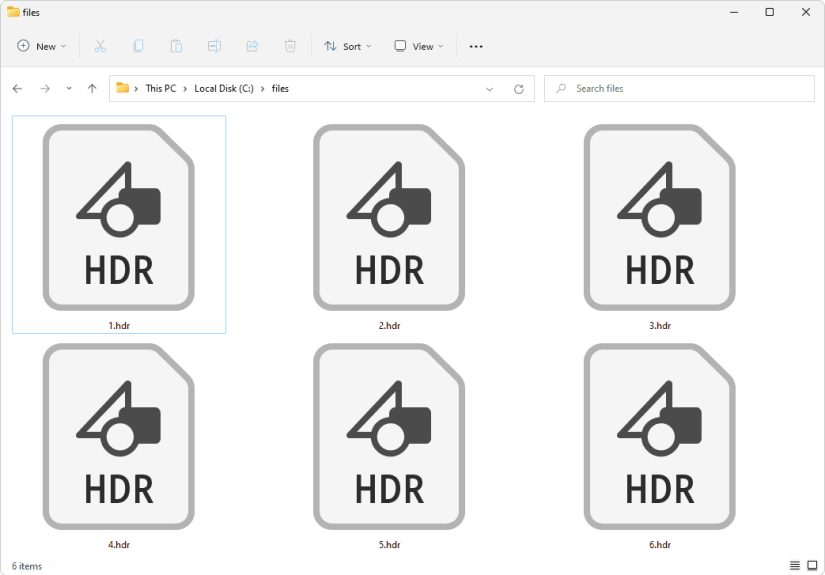
- If you see the .HDR sitting alone (or among other image files like .JPG/.PNG), it’s likely a Radiance HDR image.
-
If you see a matching “data” file with the same name (for example, scene.img plus scene.hdr),
the .HDR may be an ENVI-style header.
Step 2: Open it in a text editor (safe, I promise)
Right-click → Open with Notepad/TextEdit (or any text editor).
-
If it starts with something like #?RADIANCE and has a short header then binary-looking stuff,
it’s likely a Radiance HDR image. -
If it looks like readable text and includes metadata-style lines (often including the word ENVI),
it’s likely a header file.
Step 3: Look at the file size
- Radiance HDR images are usually a few MB to hundreds of MB depending on resolution.
- Header .HDR files are often tiny (KBs), because they’re basically “notes,” not pixels.
How to Open an HDR Image File (Radiance HDR / HDRI)
If your .HDR is an actual HDR image, you have lots of options. Choose your path based on what you want to do:
view it, edit it, or use it for 3D lighting.
Option A: Open HDR in Photoshop (view/edit)
Photoshop can open HDR images and work in 32-bit workflows. If the image looks “wrong” at first, don’t panic:
HDR files often need exposure/tone mapping to look normal on a standard display.
- Open Photoshop → File > Open → select the .HDR file.
- If it opens as 32-bit, use exposure controls (or Camera Raw / adjustments) to preview properly.
- If you need a standard image, convert: Image > Mode → 16 Bits/Channel or 8 Bits/Channel, then tone-map.
Tip: If you’re on an HDR-capable monitor, Photoshop can be configured for more accurate HDR display behavior.
If you’re not, Photoshop still worksyou’ll just be tone-mapping for an SDR world (which is most of the world).
Option B: Open HDR in Blender (use it as HDRI lighting)
This is one of the most common reasons people have .HDR files: lighting a 3D scene.
- Open Blender → go to World settings.
- Use nodes (Shading workspace) and set the world to an Environment Texture.
- Load the .HDR file and adjust strength/rotation as needed.
Reality check: An HDRI can look “washed out” as a background but still light your scene perfectly.
Lighting cares about values; your eyeballs care about pretty previews. You can have bothyou just might tweak exposure.
Option C: Open HDR in 3D/VFX apps (3ds Max, Maya, etc.)
Many 3D programs support Radiance HDR for environment maps and textures. Some pipelines prefer OpenEXR (.EXR)
instead because it’s widely used in professional compositing and rendering workflows.
If your software complains about .HDR, try converting it to .EXR (more on that below).
Option D: Use a viewer if you only need to preview
If you just want to see what’s inside the file (and you don’t want to launch a full creative suite),
look for a dedicated HDR viewer or a reputable online viewer. This is handy for quick checks like:
“Is this file actually a studio HDRI or is it just a blurry parking lot?”
How to Open an ENVI/Remote-Sensing .HDR Header File
If your .HDR is a header, here’s the key rule:
you usually open the associated data file, not the .HDR by itself.
Many tools automatically find the .HDR and read it as metadata.
Common ways to work with ENVI-style .HDR files
- ENVI: The header is first-class; you can view/edit metadata using ENVI’s tools and dialogs.
- GDAL-based tools: Often you select the main raster/binary file, and GDAL finds the .HDR automatically.
- MATLAB: Supports reading ENVI header metadata and using it to construct imagery objects (especially in imaging toolboxes).
Practical tip: If you only need the metadata, opening the .HDR in a text editor is often enough.
If you need the actual image, find the paired data file and open that in the right geospatial/scientific tool.
How to Convert an HDR File (HDR to JPG/PNG/TIFF/EXR)
Converting depends on what you mean by “convert,” because HDR is about extra brightness information.
If you convert to JPG, you’re squeezing a stadium into a studio apartment. It can still look greatyou just have to tone-map.
Convert HDR to JPG/PNG (for sharing)
- In Photoshop: open the file → adjust exposure/tone mapping → convert to 8-bit → Save As JPG/PNG.
- In many HDR/photo tools: choose an export option and select an SDR-friendly format with tone mapping.
Convert HDR to EXR (for pro pipelines)
If you’re doing VFX/CGI/compositing, .EXR is often preferred because it’s a modern HDR format designed for
computer imaging workflows and can store high dynamic range efficiently.
- Open the .HDR in a supporting app → export/save as .EXR.
- Use EXR if you want better pipeline compatibility (compositing, multi-pass workflows, etc.).
Convert ENVI header-based datasets
For ENVI-style data, conversion usually means converting the dataset (binary + header) into a standard raster format:
GeoTIFF, Cloud Optimized GeoTIFF, NetCDF, etc. That’s done in geospatial tools, not in Photoshop.
Troubleshooting: “It Opened, But It Looks Wrong”
Problem: The image looks very dark or almost black
- Cause: HDR values are outside normal display range.
- Fix: Increase exposure, use tone mapping, or adjust the viewer’s HDR exposure controls.
Problem: Colors look washed out or weird
- Cause: Color management or gamma interpretation differences across apps.
- Fix: Try another app (Photoshop/Blender), or convert to EXR and re-import.
Problem: Your “HDR file” is just text
- Cause: It’s a header file (common in ENVI/remote sensing).
- Fix: Locate the matching raster/binary data file and open that in ENVI/GDAL/MATLAB or a GIS tool.
Problem: Windows/macOS won’t open it by double-clicking
- Cause: Built-in image viewers often don’t handle HDR formats well.
- Fix: Open it from within a compatible app (Photoshop, Blender, 3D software, HDR viewer).
HDR File vs “HDR” the Feature on Your Phone
This trips up a lot of people: “HDR” can mean a feature (like HDR mode on a camera or HDR video)
or a file type (.HDR). Your phone’s HDR photo is usually saved as JPG/HEIC with tone mapping baked in.
A Radiance .HDR file is more like a container for raw-ish light values that your software can interpret in different ways.
FAQ: Quick Answers (Because Nobody Has Time)
Can I open an HDR file on Windows?
Yesusually with Photoshop, Blender, 3D software, or a dedicated HDR viewer. Windows’ default apps may not be reliable for .HDR.
Can I open an HDR file on a Mac?
YesPhotoshop and Blender are common options. Some macOS built-in viewers may not display .HDR correctly without conversion.
Is .HDR the same as .EXR?
They’re both used for HDR imaging, but they’re different formats. EXR is a newer, widely used format in VFX pipelines;
Radiance .HDR (RGBE) is older but still popularespecially for HDRI environment maps.
How do I know if my .HDR is a header file?
If it opens in a text editor and reads like metadata (often with ENVI-style fields), it’s likely a header, not an image.
Look for a matching data file with the same name.
Real-World Experiences With HDR Files (The “Why Is This Happening To Me?” Section)
HDR files have a funny way of showing up right when you’re trying to be productivelike a cat that chooses your keyboard
as its favorite bed. Here are some common, totally realistic scenarios people run into, and what usually works.
Experience #1: “I downloaded a free HDRI and it looks terrible”
A common first-time HDRI moment: you download a gorgeous “4K Sunset Industrial Studio” .HDR, open it in a basic viewer,
and it looks flat, gray, or oddly dark. The file isn’t necessarily badyour viewer might be displaying HDR values without
exposure adjustment. When you load that same HDRI into Blender as an environment texture, suddenly your scene lights up with
beautiful reflections and realistic highlights. The moral: HDR files are data-rich, but they need interpretation.
If you want it to look good as a background image, you’ll often tone-map it (or adjust exposure in your world shader).
Experience #2: “My HDR render looks right, but my exported JPG looks wrong”
This happens when you go from a high-range working space to a normal image format. In HDR, values can go above “white,” and
bright areas might hold detail that JPG can’t store. When you export to JPG without tone mapping, you can get clipped highlights,
crushed shadows, or a look that’s just… emotionally confusing. The fix is usually simple: before exporting, apply a tone-mapping
step (exposure, curves, highlight roll-off). Think of it like translating a joke into another languageyou can’t just copy the words
and hope for the best; you adapt it so it lands.
Experience #3: “Someone sent me a tiny .HDR file and I can’t ‘open the image’”
If the .HDR is only a few kilobytes, it’s probably a header. This is super common in remote sensing, lab imaging, and GIS workflows.
You open it and see rows of metadatasamples, lines, bands, data type, interleave, byte orderbasically the file saying,
“Hi, I’m the instructions.” The actual pixel data is usually in another file right next to it. People often try to open the header
in Photoshop (which is like trying to watch a movie by opening the subtitles file). The right move is to locate the paired raster file
and open the dataset in ENVI, a GIS app, or GDAL-based tooling.
Experience #4: “The HDR opens, but it’s all blackdid I get scammed?”
Not necessarily. Some HDR images have an extreme range: maybe most pixels are very dark, but the sun (or a bright light source) is
massively bright. On a standard display, without exposure control, that can appear nearly black. The usual solution is to raise exposure,
use auto-exposure in an HDR viewer, or view it inside the software it was meant for (render engines and 3D tools typically handle this well).
If exposure changes reveal detail, congratulations: the file is probably fine, and your monitor just needed a translator.
Experience #5: “Our team argued about HDR vs EXR like it was a sports rivalry”
In creative teams, .HDR often shows up as “the HDRI lighting file,” while .EXR shows up as “the serious professional format.”
In practice, teams may keep .HDR files for environment textures (because they’re common and widely supported) and use .EXR for
renders, compositing, multi-pass outputs, and pipeline consistency. When someone complains that an .HDR loads slowly or behaves oddly
in a specific app, converting to EXR can be a practical compromise. The real win isn’t choosing a format to feel superiorit’s choosing
the one that plays nicely with your tools and deadline.
Conclusion
An HDR file isn’t “mysterious”it’s just specialized. Most .HDR files are Radiance HDR images used for high dynamic range photography
and (very often) HDRI lighting in 3D software. Some .HDR files are metadata headers used in scientific and geospatial workflows.
Once you identify which kind you have, you can open it in the right tool, adjust exposure/tone mapping if needed, and convert it for sharing
without losing your sanity (or your highlights).