Table of Contents >> Show >> Hide
- Why Your Snapchat Email Matters More Than You Think
- Before You Start: 3 Quick Prep Checks
- How to Change Your Email on Snapchat: 10 Easy Steps
- Step 1: Open Snapchat and sign in
- Step 2: Go to your Profile
- Step 3: Tap the Settings gear ⚙️
- Step 4: Find the “Email” option under “My Account”
- Step 5: Tap “Email”
- Step 6: Delete the old email and type the new one carefully
- Step 7: Tap “Continue” (or “Save”)
- Step 8: Check your email for Snapchat’s verification message
- Step 9: Tap the verification link to confirm
- Step 10: Return to Snapchat and confirm it shows as verified
- Pro Tips to Avoid Problems (Because Life Is Already Hard Enough)
- Troubleshooting: Snapchat Email Change Not Working
- Privacy Check: Should You Let People Find You by Email?
- Security Upgrade: Do This Right After You Change Your Email
- FAQ: Quick Answers About Changing Snapchat Email
- Real-World Experiences: What It’s Like Changing Your Snapchat Email
- Conclusion
Changing your email on Snapchat is one of those “adulting” tasks that sounds boring… until you realize your old email was
your middle-school nickname or an address you haven’t opened since the last time people used “YOLO” unironically.
The good news: updating your Snapchat email is quick, painless, and doesn’t require a pep talk (okay, maybe just a small one).
In this guide, you’ll learn exactly how to change your email on Snapchat in 10 easy steps, how to verify it properly, what to do
if Snapchat won’t send the verification email, and a few security upgrades worth doing while you’re already in Settings.
Why Your Snapchat Email Matters More Than You Think
Your Snapchat email address isn’t just a formality. It helps with account recovery (like when you forget your password at the worst possible time),
identity verification, and sometimes discoverabilitydepending on your privacy settings. In other words, your email is the spare key you keep under the mat…
except you should probably keep it somewhere safer than under the mat.
Common reasons people update their Snapchat email
- You lost access to an old email account (school, work, or “I used AOL once and we don’t talk about it”).
- You want a dedicated “apps and logins” email for cleaner inbox management.
- Your email got compromised and you’re locking things down.
- You’re switching to a new primary email provider.
Before You Start: 3 Quick Prep Checks
1) Make sure you can access the new email inbox
Snapchat will send a verification email to confirm the change. If you type an email you can’t access, you’re basically
locking the front door and tossing the key into the ocean.
2) Update Snapchat to the latest version
Most “Settings is glitchy” moments are solved by updating the app. It’s not glamorous, but it works.
3) Have a backup sign-in method ready (recommended)
If possible, keep your phone number verified or set up two-factor authentication (2FA). That way, if email verification gets weird,
you still have a way back in.
How to Change Your Email on Snapchat: 10 Easy Steps
These steps work on both iPhone and Android. The menu labels may look slightly different depending on your app version,
but the overall flow is the same.
Step 1: Open Snapchat and sign in
Launch Snapchat and make sure you’re logged into the account you want to update. If you’re already in, congratsStep 1 is basically just “exist.”
Step 2: Go to your Profile
Tap your profile icon (Bitmoji or Story preview) in the top-left corner. This is your Snapchat headquartersminus the corporate snacks.
Step 3: Tap the Settings gear ⚙️
On your Profile page, tap the gear icon in the top-right corner to open Settings.
Step 4: Find the “Email” option under “My Account”
Scroll until you see Email. Snapchat usually groups account essentials (like email and mobile number) in the “My Account” section.
Step 5: Tap “Email”
Tapping Email opens the edit screen where you can update your email address.
Step 6: Delete the old email and type the new one carefully
Remove your current email address, then enter your new email. Go slow hereone typo and you’ll be staring at “Did I really just type gmaik.com?” for hours.
Step 7: Tap “Continue” (or “Save”)
Snapchat will prompt you to confirm the change. Depending on the version, the button may say Continue or Save.
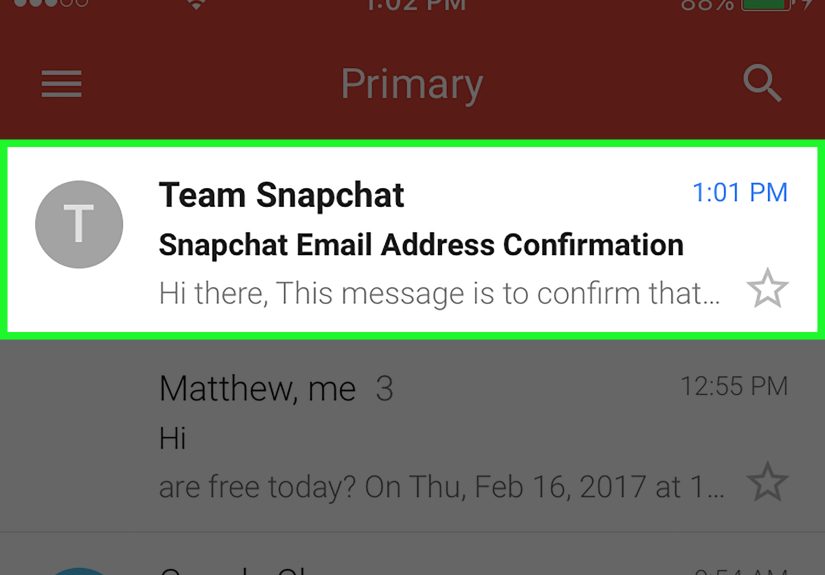
Step 8: Check your email for Snapchat’s verification message
Open the inbox for your new email address and look for a verification email from Snapchat. If you don’t see it, check Spam/Junk and Promotions tabs too.
Step 9: Tap the verification link to confirm
Open the Snapchat email and click the verification link. This step locks in the change and helps prove the email actually belongs to you.
Step 10: Return to Snapchat and confirm it shows as verified
Head back into Snapchat Settings and look at your Email field. If everything went smoothly, your new email should be listed and verified.
If the gear icon was red before (a common “verify me” indicator), it should no longer be screaming for attention.
Pro Tips to Avoid Problems (Because Life Is Already Hard Enough)
Double-check for typos before you hit Continue
Most email-change disasters are not dramatic hacker storiesthey’re spelling mistakes. If your new email is
firstname.lastname, don’t accidentally turn it into firstnamelastname and wonder why nothing arrives.
Don’t reuse the same email across multiple Snapchat accounts
Snapchat typically expects a unique email (and/or mobile number) per account for verification. If you’re trying to reuse the same contact info,
Snapchat may block verification or throw errors.
Use an email you’ll keep long-term
Avoid temporary or work/school addresses that could disappear. Future-you will thank present-you. Probably with snacks.
Troubleshooting: Snapchat Email Change Not Working
If you followed the steps and something still went sideways, don’t panic. Snapchat can be pickybut it’s usually fixable.
Problem: “I didn’t get the verification email”
- Wait a few minutes and request a new verification email from Settings.
- Check Spam/Junk/Promotions (and any “Focused Inbox” filters).
- Search your inbox for “Snapchat” or “verify.”
- Make sure your email provider isn’t auto-blocking Snapchat emails via rules or filters.
Problem: The email is correct, but the link doesn’t work
- Try opening the verification email on a different device (or a desktop browser).
- Copy/paste the link into a browser instead of tapping it.
- Request a fresh verification emailolder links can expire.
Problem: Snapchat keeps asking me to “validate” after sign-in
This usually means your account needs verification for a contact method (email or mobile). Go into Settings,
update your email, and verify it (or verify your phone number) so Snapchat stops nagging.
Problem: I can’t log in, and I don’t have access to my old email
If you can’t log in, you typically can’t change the email inside the app until you regain access. Try password reset using
any verified contact method you still control (email or phone). If you’ve lost access to both, recovery may not be possible.
Privacy Check: Should You Let People Find You by Email?
Snapchat may allow others to find your account using your email address (depending on your settings). If you prefer staying more private:
- Open Snapchat Settings ⚙️
- Tap Email
- Look for an option like “Let others find me using my email address” and toggle it off (if available)
Translation: if you don’t want your email to act like a digital breadcrumb trail, turn that off.
Security Upgrade: Do This Right After You Change Your Email
Since you’re already in Settings, take two extra minutes to tighten your account security. It’s like brushing your teeth after flossingannoying, but worth it.
Turn on Two-Factor Authentication (2FA)
2FA helps protect your account if someone guesses (or steals) your password. Snapchat commonly offers SMS-based verification or authenticator app options.
Review connected devices (if available)
If you notice logins you don’t recognize, change your password immediately and review device/session settings.
Change your password if you updated email due to a security concern
If your old email was compromised, update your Snapchat password too. Use a unique password you don’t reuse elsewhere.
FAQ: Quick Answers About Changing Snapchat Email
Can I change my Snapchat email on the web?
Email verification is generally handled inside the Snapchat app, not via the web. Use the mobile app for the smoothest experience.
Does changing my email affect my friends, Snapscore, or Memories?
Noyour content and connections stay the same. You’re updating a contact method, not your identity.
Will Snapchat notify my friends if I change my email?
Typically no. This is an account-setting change, not a public profile update.
What if I typed the wrong new email?
Go back to Settings → Email and correct it immediately. Then verify the correct address. The faster you fix it, the fewer headaches later.
Real-World Experiences: What It’s Like Changing Your Snapchat Email
Let’s talk about what happens in the real worldwhere you’re changing your Snapchat email while standing in line for coffee, your phone is at 12% battery,
and your inbox is a chaotic museum of coupon codes.
The most common “experience” people have is the instant confidence boost of finally ditching an email they made in 2009. You know the one:
sk8erBoi4eva or princesscupcakequeen. Switching to a cleaner email feels like finally replacing that cracked screen protector
you didn’t realize how bad it was until it was gone.
Another surprisingly common moment: you change the email, then immediately forget to verify it because you got distracted by a Snap,
a notification, or the irresistible urge to open your camera and check your own face from eight angles. Then, days later, you try to reset your password
and wonder why Snapchat is acting like it has never met you before. The fix is simple: verify right away. Treat the verification email like a pizza delivery
it’s best when it’s fresh, and you should definitely not leave it sitting outside for hours.
A lot of users also discover they have multiple inbox “filters” that silently reroute Snapchat messages. If you’re using Gmail,
the verification email may land in Promotions. If you’re using Outlook, it might end up in “Other” or a focused inbox category.
And if you’re using a custom domain with aggressive security, the email might be quarantined. In practice, the winning strategy is:
(1) search your inbox for “Snapchat,” (2) check Spam/Junk, and (3) request a new verification email after a few minutes.
One more real-life scenario: people change their Snapchat email during a “security reset weekend” after hearing about breaches or suspicious logins.
This is smartbut the best results come from bundling tasks: update email, verify it, enable 2FA, and change your password.
Doing only one piece is like installing a fancy lock… on a door made of cardboard.
Finally, there’s the privacy angle. Plenty of users don’t realize their email can sometimes be used for discoverability, depending on settings.
After changing their email, they’ll do a quick privacy sweep and turn off “find me by email” options if available.
The emotional result is oddly satisfying: you feel a little more in control of your online footprintlike you just deleted 1,000 unread emails
and achieved inner peace for a full eight seconds.
Conclusion
Changing your email on Snapchat is fast: open Settings, update your email, verify it, and you’re done. The real win is what comes after
a safer recovery path, fewer login headaches, and a chance to tighten privacy and security settings while you’re already in the right menu.
Do the verification step immediately, keep a backup sign-in method (like a verified phone number or 2FA), and your future self will thank you.
Possibly with coffee.