Table of Contents >> Show >> Hide
- What “Clear Data” Means on WhatsApp
- How to Delete Individual WhatsApp Messages
- How to Clear an Entire Chat on WhatsApp
- How to Delete a Chat on WhatsApp
- How to Free Up Storage in WhatsApp Without Nuking Everything
- How to Clear WhatsApp Data on Android
- How to Clear WhatsApp Data on iPhone
- What Happens to Backups, Exports, and Linked Devices?
- How to Protect Your Privacy Going Forward
- Common Mistakes People Make When Clearing WhatsApp
- The Best Cleanup Strategy for Most Users
- Experiences Related to Clearing Data, Messages, and Chats on WhatsApp
- Conclusion
WhatsApp is fantastic right up until it starts behaving like a digital attic. One day it is a neat little messaging app. The next day it is hoarding blurry screenshots, ten-minute voice notes, three hundred “good morning” images from the family group, and enough duplicate videos to make your phone beg for mercy. If you have ever opened your storage settings and seen WhatsApp sitting there like it pays rent, this guide is for you.
The tricky part is that WhatsApp gives you several different cleanup tools, and they do not all do the same thing. Deleting one message is different from clearing a chat. Clearing a chat is different from deleting a chat. Deleting app data is different from uninstalling the app. And if backups are involved, things get even more interesting. In other words, if you use the wrong broom, you may sweep away something you wanted to keep.
This in-depth guide breaks down exactly how to clear data, messages, and chats on WhatsApp on iPhone, Android, and linked devices. You will learn what each option does, what it does not do, and how to clean up your WhatsApp storage without accidentally deleting your digital life story.
What “Clear Data” Means on WhatsApp
Before tapping anything dramatic, it helps to understand the language. People often say they want to “clear WhatsApp data,” but that phrase can mean several very different actions.
1. Delete individual messages
This removes one message or a small selection of messages from a chat. It is the right move when you sent the wrong photo, made a typo, or posted a message into the wrong group while half-awake and fully overconfident.
2. Clear a chat
This removes the messages inside a conversation while usually keeping the chat thread itself in your list. Think of it as cleaning out a room without demolishing the house.
3. Delete a chat
This removes the conversation from your chat list. Depending on your settings and what has already been backed up, media and other remnants may still live elsewhere on your phone or in backups.
4. Manage storage
This is the targeted cleanup option. Instead of deleting an entire conversation, you can remove large videos, forwarded memes, documents, and other storage-hungry files. This is often the smartest choice if your goal is to free up space without deleting important text history.
5. Clear app cache or app storage
This happens at the phone level, not just inside WhatsApp. On Android, you may be able to clear cache or clear storage for the app. On iPhone, there is no simple one-tap WhatsApp cache button, so the process is different.
How to Delete Individual WhatsApp Messages
Let us start with the smallest cleanup job. If you only need to remove one or a few messages, deleting them directly is faster than clearing an entire chat.
On iPhone and Android
Open the conversation, press and hold the message you want to remove, then select the delete option. In many cases, WhatsApp lets you delete the message for yourself or, within a limited window and under the right conditions, delete it for everyone in the chat.
Delete for Me removes the message only from your view. The other person can still see it. Delete for Everyone attempts to remove it from all participants’ chats, though recipients may still have seen it in notifications, screenshots, or backups. Technology is powerful, but it still cannot wrestle a screenshot out of somebody’s camera roll.
This option is best for cleaning up mistakes, not for major storage management. Deleting a handful of messages will not make a dramatic dent if the real problem is a six-gigabyte pile of videos from the neighborhood soccer team group.
How to Clear an Entire Chat on WhatsApp
If a conversation is full of clutter but you do not want to remove the chat from your list, clearing the chat is usually the sweet spot. This is ideal for old group threads, temporary event chats, or conversations that became museums of random media.
Why clear a chat instead of deleting it?
- You keep the contact or group thread visible.
- You wipe out old message clutter.
- You can start fresh without losing the relationship entry itself.
Typical steps
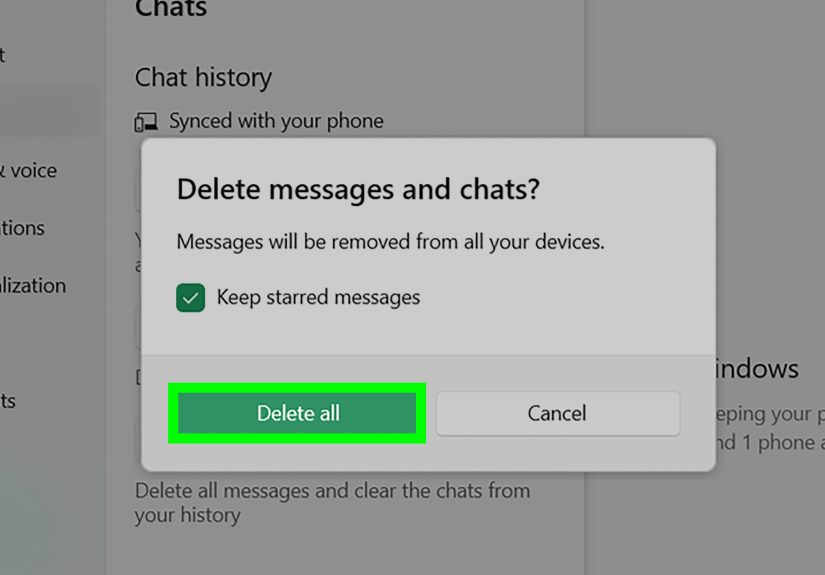
Open the chat, tap the menu or chat options, and choose Clear Chat. Depending on your device, you may be offered choices such as keeping starred messages or deleting media received in the chat.
This matters because some people want a clean message thread but still want to preserve key items. Maybe you do not need 4,000 messages about lunch plans, but you do need that one address, one PDF, and one message from your boss that proves the deadline was not your idea.
When clear chat makes the most sense
Clear chat is perfect for:
- active groups with too much noise,
- temporary project conversations,
- family threads that have turned into image archives,
- keeping your chat list tidy without removing the chat itself.
How to Delete a Chat on WhatsApp
Deleting a chat goes one step further than clearing it. This removes the chat from your chat list. It is useful when you are done with a conversation and do not want to see it anymore.
Delete chat vs. clear chat
Here is the plain-English version:
- Clear chat: empties the conversation but generally leaves the thread in place.
- Delete chat: removes the conversation from the chat list.
If you no longer need a chat at all, delete it. If you still talk to that person or group and simply want to erase old clutter, clear it instead.
Group chats are a little different
With group chats, you usually need to exit the group before you can fully delete it from your list. Otherwise, the group is still technically part of your WhatsApp life, whether you like it or not.
How to Free Up Storage in WhatsApp Without Nuking Everything
If your goal is to reclaim space, the best option is often Manage Storage. This feature helps you find large files, frequently forwarded items, and media-heavy chats so you can remove the worst offenders first.
Why storage management is the smartest cleanup method
Deleting entire chats is fast, but it is also blunt. Storage management is more like surgery. You can remove the giant video files and duplicate junk while keeping useful conversations intact.
Inside WhatsApp, open Settings, then look for Storage and Data or Manage Storage. There, you can usually review:
- large files,
- forwarded many times items,
- media by chat,
- documents and attachments taking up unusual amounts of space.
A practical example
Imagine your “Weekend Trip” group has 600 messages, but the real storage problem is not the text. It is the fourteen near-identical beach videos, the five panoramic photos nobody asked for, and the enthusiastic friend who filmed the entire fireworks show vertically and sent it twice. In that case, deleting selected media gives you most of the space back without destroying the whole chat.
How to Clear WhatsApp Data on Android
Android gives users more direct control over app-level storage than iPhone does. That is convenient, but it also means you need to know the difference between cache and storage/data.
Clear cache on Android
Clearing cache removes temporary files. This is a lighter cleanup step and can help if WhatsApp feels sluggish or is taking up extra temporary space. It usually does not erase your chat history.
Typical path:
Settings > Apps > WhatsApp > Storage or Storage & Cache > Clear Cache
Clear storage or clear data on Android
This is the heavy-duty option. Clearing storage resets the app’s local data. In plain English, it can wipe app data from the device and may sign you out, remove settings, or require you to restore chats from a backup if one exists.
That means you should not tap Clear Storage casually while eating cereal and multitasking. If you use this option, make sure you understand your backup situation first.
When Android app-level clearing makes sense
- WhatsApp is glitching badly.
- The cache appears bloated.
- You are preparing to reset or sell your phone.
- You want to remove locally stored WhatsApp data after confirming backups and exports.
How to Clear WhatsApp Data on iPhone
iPhone handles app data differently. There is no universal “clear WhatsApp cache” button inside iOS settings for third-party apps like there often is on Android.
Your main iPhone options
Option 1: Clean up inside WhatsApp. This is the safest route. Use chat deletion, clear chat, and Manage Storage to remove messages and media from within the app.
Option 2: Delete the app and reinstall it. If you want to wipe temporary app-level files or start fresh, deleting and reinstalling WhatsApp is usually the more complete method on iPhone. Just remember that whether your chat history comes back depends on your backup and restore setup.
Option 3: Offload the app. Offloading saves space by removing the app itself while preserving associated data. That can help free a little room, but it is not the same as fully clearing WhatsApp data. If your goal is to purge the stored app content, offloading is not the dramatic finale you are looking for.
Best practice for iPhone users
If storage is the issue, start inside WhatsApp with storage management. If corruption or app problems are the issue, confirm your backup, then delete and reinstall the app. That sequence is much less painful than discovering you removed the app and also removed the only copy of your chat history. That is not a cleanup. That is a plot twist.
What Happens to Backups, Exports, and Linked Devices?
This is where many people get tripped up. Deleting messages on your phone does not always mean those messages vanish from every possible place they may exist.
Backups
WhatsApp supports backups through Google Account on Android and iCloud on iPhone. If you back up your chats before deleting old messages, those messages may still exist in that backup. If you delete messages and then create a new backup, the newer backup may reflect the cleaned-up version instead.
So yes, timing matters. Backup behavior can determine whether deleted chats are recoverable later or gone for good.
Chat exports
WhatsApp also lets users export chat history, with or without media, to destinations like email or notes. That means a conversation may have traveled outside the app long before you decided to tidy things up. If privacy is a concern, cleanup should include thinking about exports, not just messages still visible in WhatsApp.
Linked devices
If you use WhatsApp Web or Desktop, review your linked devices too. Logging out of old laptops and shared machines is a good privacy habit, especially if you are cleaning up sensitive conversations. Clearing messages on the phone is helpful, but not nearly as helpful as remembering that your old office computer may still be linked.
How to Protect Your Privacy Going Forward
Cleaning up after the mess is useful. Preventing the next mess is even better.
Turn on disappearing messages for the right chats
If you have conversations that do not need to live forever, disappearing messages can automatically remove newer messages after a selected period. This is a good option for temporary planning chats, logistics threads, and conversations that do not need a permanent archive.
Review Advanced Chat Privacy features
In supported versions and chats, WhatsApp has added stronger privacy options that can limit chat export and automatic media downloads. These features are not magic force fields, but they can reduce how easily conversations spread beyond the app.
Control auto-downloads
If WhatsApp keeps swallowing storage, adjust media auto-download settings. Many people do not have a texting problem. They have an “every photo, video, sticker, and PDF automatically downloads forever” problem.
Audit your backups
Backups are useful, but they are also archives. If you are serious about minimizing old data, review how often you back up and whether you need long-term copies of everything.
Common Mistakes People Make When Clearing WhatsApp
- Confusing clear chat with delete chat. They are related, not identical.
- Clearing Android storage without checking backups. That can turn a cleanup into a recovery mission.
- Assuming iPhone offloading wipes app data. It usually preserves it.
- Deleting chats but forgetting media is still saved elsewhere. Photos may still exist in local storage or backups.
- Ignoring linked devices. Privacy cleanup should include browsers and desktop apps too.
- Thinking deleted always means unrecoverable. Backups and exports may say otherwise.
The Best Cleanup Strategy for Most Users
If you want the simplest, smartest, least-regret-filled approach, use this order:
- Review Manage Storage and delete large media first.
- Clear old or noisy chats that no longer matter.
- Delete full chat threads only when you are sure you do not need them.
- Check backups before using app-level deletion or reinstalling.
- Log out linked devices you no longer use.
- Set up disappearing messages or stricter privacy tools for future chats.
That method gives you the most space savings with the least risk. It is less “burn the house down” and more “finally organize the closet.”
Experiences Related to Clearing Data, Messages, and Chats on WhatsApp
In real-world use, most people do not clear WhatsApp because they suddenly become minimalist philosophers. They do it because something annoys them first. A phone starts warning that storage is almost full. The app feels slow. An old group resurfaces with years of junk. Or someone realizes their chat list looks like a digital garage sale where every conversation they have ever had is still hanging around.
One of the most common experiences is the family-group overload scenario. A person opens storage management expecting to find a few large files and instead discovers that one chat contains an absurd collection of holiday videos, duplicate photos, and inspirational images with enough glitter to power a small city. In that situation, deleting the whole chat can feel tempting, but most users end up wanting a middle ground. They want the clutter gone without losing the contact thread or the occasional useful message. That is exactly why selective media cleanup feels so satisfying: it solves the storage problem without turning cleanup into emotional demolition.
Another common experience happens during phone upgrades. Someone moves to a new device, restores WhatsApp, and suddenly realizes just how much history has been traveling with them for years. Work chats from old jobs, event groups from weddings that happened forever ago, and one-off conversations with delivery drivers somehow survived every device change like they were heirlooms. At that moment, users often become much more intentional. They start clearing outdated chats, removing huge attachments, and deciding which conversations actually deserve long-term space on the phone.
There is also the privacy-driven cleanup. This usually happens after borrowing a laptop, using WhatsApp Web on a shared machine, or noticing that sensitive chats have been sitting around far longer than necessary. In those cases, people often discover that cleaning WhatsApp is not only about deleting messages. It is also about checking linked devices, reviewing what was exported, and making smarter decisions about disappearing messages. The experience is less about storage and more about control.
Then there is the accidental-overkill experience, which is painfully educational. Someone means to clear cache, clears storage instead, or deletes the app without thinking through backups. Suddenly, cleanup becomes a lesson in why “just tap it” is not a great data-management philosophy. Users who go through that once usually become much more careful the next time. They check backups, read labels more closely, and stop treating storage settings like a game show buzzer.
And finally, there is the oddly refreshing feeling that comes after doing it right. Chats are cleaner. Storage numbers drop. Media clutter disappears. The app becomes easier to navigate. Your important conversations stand out again instead of being buried under years of digital confetti. For many users, clearing WhatsApp is not just maintenance. It is a small reset button for the way they use their phone every day.
Conclusion
If you want to clear data, messages, and chats on WhatsApp, the best method depends on what you actually want gone. Delete individual messages for small mistakes. Clear chats when you want a fresh thread without removing the conversation. Delete chats when you are done with them entirely. Use Manage Storage when the real villain is oversized media. And if you are dealing with app-level issues, handle Android and iPhone differently so you do not wipe more than you intended.
The biggest takeaway is simple: WhatsApp cleanup works best when it is deliberate. The app offers powerful tools, but each one solves a different problem. Once you understand those differences, you can reclaim space, reduce clutter, and protect privacy without accidentally deleting the messages you actually wanted to keep. Your phone gets lighter, your chat list gets saner, and your future self gets to stop wondering why a random group from 2021 is still taking up two gigabytes.