Table of Contents >> Show >> Hide
Whether you’re looking to convert your favorite audio, video, or other media files into the popular MP3 format, the process can vary depending on the device or platform you’re using. MP3 is one of the most widely-used audio formats due to its balance between file size and sound quality. In this guide, we’ll walk you through the steps to convert files into MP3 on Android, iOS, PC, and Mac, using a variety of free and paid tools. By the end, you’ll know exactly how to turn any media file into an MP3 quickly and easily.
Why Convert Files to MP3?
MP3s are popular for several reasons. They are small in file size, making them easy to store, share, and stream. They also maintain high-quality audio even at relatively low bit rates. Converting files to MP3 is essential for making music or other audio compatible with devices, software, and streaming platforms. So whether you’re creating a playlist, backing up your media library, or preparing an audiobook for offline use, MP3 is the go-to format.
How to Convert Files into MP3 on Android
Android devices have several apps and built-in features to help you convert files into MP3 format. Here’s how to do it:
Using an Android App
One of the easiest ways to convert files on Android is by using an app. A popular app for this task is Audio Converter, which supports a wide range of file formats and is user-friendly.
- Download and install the Audio Converter app from the Google Play Store.
- Open the app and select the file you want to convert.
- Choose MP3 as the output format and select the bit rate and sample rate (higher values provide better quality but result in larger files).
- Tap the “Convert” button, and the app will create an MP3 file that you can save or share.
Using an Online Converter
If you prefer not to download any apps, you can use an online file converter. Websites like Online Audio Converter allow you to upload and convert files directly from your Android browser:
- Visit a website like online-audio-converter.com.
- Select the file you want to convert and upload it.
- Choose MP3 as the desired output format and set any preferences.
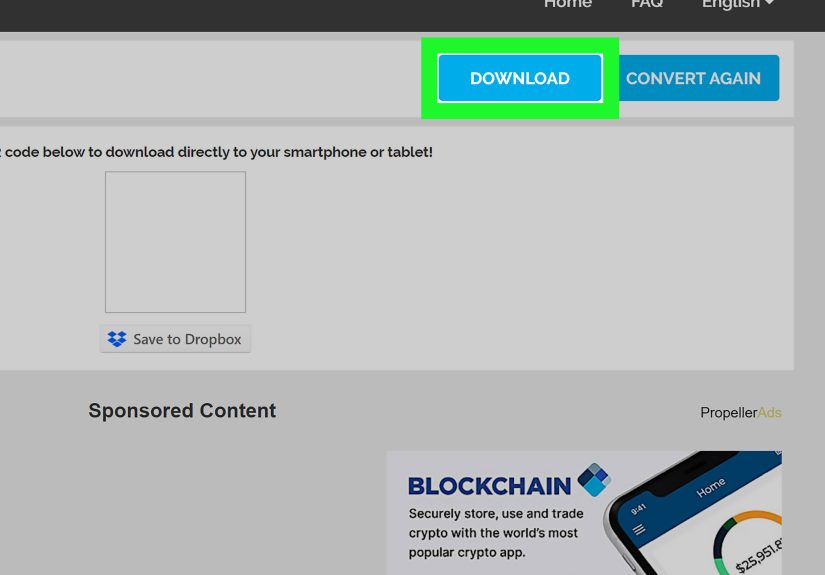
- Download the MP3 file once the conversion is complete.
How to Convert Files into MP3 on iOS
On iOS devices, you can also convert files into MP3, though your options may vary a bit. Here’s how to get started:
Using an iOS App
For iOS, a great app to use is The Audio Converter. This app can convert audio files, as well as video files, to MP3 on your device:
- Download and install The Audio Converter from the App Store.
- Open the app and select the audio or video file you want to convert.
- Choose MP3 as the output format and adjust the settings for bit rate and sample rate.
- Tap “Convert,” and the app will generate an MP3 file for you to save to your iPhone or iPad.
Using an Online Converter
If you don’t want to download an app, you can still convert files directly on your iPhone or iPad by using a website like CloudConvert:
- Navigate to the CloudConvert website in Safari.
- Select the file you want to convert and choose MP3 as the output format.
- Tap “Start Conversion” and wait for the process to complete.
- Once done, you can download the MP3 to your device or save it to a cloud storage service.
How to Convert Files into MP3 on PC
PCs offer a lot of flexibility when it comes to file conversion. Whether you’re using Windows or a third-party app, you have a variety of options available to convert your files into MP3 format.
Using VLC Media Player
VLC Media Player is one of the most popular free media players, and it also doubles as an MP3 converter:
- Download and install VLC Media Player from the official website.
- Open VLC, click on the “Media” tab, and select “Convert/Save.”
- In the “File” tab, add the file you want to convert.
- Click on “Convert/Save” and choose MP3 as the profile format.
- Click “Start,” and VLC will begin converting the file into MP3.
Using Audacity
Another excellent tool for converting files is Audacity, a free and open-source audio editor that also supports MP3 export:
- Download and install Audacity from the official website.
- Import the file you wish to convert by clicking on “File” and then “Import.”
- Once your file is loaded, click “File” and then “Export” to select MP3 as the format.
- Choose the desired settings, such as bit rate, and save the MP3 file to your computer.
How to Convert Files into MP3 on Mac
Mac users have many tools at their disposal for converting files into MP3. Here’s how you can do it:
Using iTunes (Apple Music)
iTunes is a built-in solution for converting files into MP3 format:
- Open iTunes (or Apple Music if you’re on macOS Catalina or later).
- Go to “Preferences” and select “Import Settings” under the “General” tab.
- Set the import settings to MP3 Encoder, and choose the bit rate you prefer.
- Now, select the file you want to convert in your library, click on it, and go to the “File” menu.
- Choose “Convert” and then “Create MP3 Version” to convert the file into MP3.
Using Audacity on Mac
Just like on a PC, Audacity is a great free tool for converting files on a Mac:
- Download and install Audacity on your Mac.
- Open the app and import the file you want to convert.
- Select “Export” and choose MP3 as the output format.
- Adjust settings as needed and save the MP3 file to your Mac.
Additional Tips for Converting Files to MP3
Before you start converting files, here are a few tips to keep in mind:
- Always choose a high bit rate for better sound quality (192 kbps or higher is recommended for music).
- If you’re converting a video to MP3, consider extracting just the audio to save space.
- Check the copyright and licensing of any media files you convert, especially if you plan to distribute them.
Conclusion
Now that you know how to convert a file into an MP3 on Android, iOS, PC, and Mac, you’re ready to get started! With the variety of methods availablewhether it’s using apps, online converters, or software like VLC and Audacityyou can quickly and easily convert almost any file to the MP3 format. Whether you’re an Android user on the go or a PC user looking for a free and reliable option, there’s a tool that fits your needs.
Additional Experiences and Tips
When I first tried converting files into MP3, I struggled with finding the right tool for my needs. I tried several apps on Android and iOS, and though most did the job, the experience varied in terms of speed and ease of use. Android’s free apps, like Audio Converter, were intuitive but sometimes had limitations on the bit rates. On iOS, I loved how the native tools allowed me to export audio directly from the Music app without needing a third-party app.
For my PC and Mac, the combination of VLC and Audacity provided the most flexibility. VLC is fantastic because it supports so many formats, and you can easily adjust the bit rate for higher-quality conversions. Audacity, on the other hand, gave me complete control over the audio quality and is ideal for more advanced users who need precise editing options.
One mistake I made early on was not paying attention to the file size after converting to MP3. While MP3s are usually smaller than their original formats, choosing the wrong bit rate can sometimes create larger-than-expected files. Always double-check the file size and quality before you hit that final save button!
Lastly, the convenience of online converters cannot be underestimated. I’ve often used them when I don’t want to bother downloading or installing an app. CloudConvert and Online Audio Converter are great options for quick conversions, and you don’t need to worry about any extra software clogging up your device. However, I’ve learned that online services are best for smaller files since larger files may take too long to upload and convert.