Table of Contents >> Show >> Hide
- Before You Delete: A 60-Second Checklist
- Quick Comparison: PC vs. Smartphone
- How to Delete an Address on Amazon Using a PC
- How to Delete an Address on Amazon in the Mobile App
- How to Delete an Amazon Address Using a Mobile Browser
- Troubleshooting: Why You Can’t Delete an Address (And How to Fix It)
- Problem 1: You can’t delete the default address
- Problem 2: Amazon says the address is linked to digital purchases
- Problem 3: You changed your address book, but an order is still going to the old address
- Problem 4: “Remove” button missing or the address won’t disappear
- Problem 5: Multiple profiles or shared accounts
- Security Tip: If You See an Address You Don’t Recognize
- Best Practices: Keep Your Amazon Address Book Clean (Without Turning It Into a Hobby)
- FAQ: Deleting Addresses on Amazon
- Experiences and Real-World Scenarios People Run Into (So You Don’t Have To)
- Experience 1: “I moved, but Amazon keeps trying to ship to my old place.”
- Experience 2: “I shipped a gift once, and now that address won’t leave.”
- Experience 3: “I can’t delete the address because it’s ‘in use.’”
- Experience 4: “The app won’t delete it, but the website will.”
- Experience 5: “I’m sharing an account, and addresses multiply like gremlins.”
- Experience 6: “I saw an address I don’t recognize and panicked.”
- Conclusion
Amazon remembers addresses the way your junk drawer remembers old batteries: faithfully, endlessly, and with zero shame.
If you’ve moved, shipped gifts, sent a package to your cousin once in 2019, or accidentally clicked the wrong “Deliver to…”
at checkout, your Amazon address list can turn into a tiny museum of your past decisions.
The good news: deleting an address on Amazon is usually quickon a computer and on your phone.
The even better news: cleaning up old addresses can help you avoid shipping mishaps (like sending paper towels to your old apartment)
and can make checkout faster and less error-prone.
Before You Delete: A 60-Second Checklist
Before you tap Remove, do a quick sanity check so Amazon doesn’t throw a surprise “Nope!” message at you.
Here are the most common reasons an address won’t delete cleanly:
- It’s your default address. You may need to set another address as default first.
- It’s tied to a subscription or recurring order. For example, some recurring deliveries may still point to the old location.
- It’s connected to digital purchase settings. In some cases, Amazon may ask you to change the “residential address” used for digital purchases before deleting.
- You have open orders. Updating your address book won’t automatically change the shipping address for orders already placed.
Translation: deleting is easy, but Amazon likes you to untangle anything that’s actively “in use” first.
If you hit friction, don’t panicwe’ll troubleshoot it later in this guide.
Quick Comparison: PC vs. Smartphone
| Device | Where to Go | What to Tap/Click |
|---|---|---|
| PC (browser) | Your Account → Your Addresses | Find address → Remove |
| Amazon app (iPhone/Android) | Your Account → Manage address book / Your Addresses | Find address → Remove |
| Mobile browser | Account menu → Your Account → Addresses | Find address → Remove |
How to Delete an Address on Amazon Using a PC
If you’re on a desktop or laptop (Windows, Mac, ChromebookAmazon doesn’t judge), the cleanest way is through
the dedicated Your Addresses page.
Step-by-step: Remove an Amazon address on a computer
- Open your web browser and sign in to your Amazon account.
- Hover over Account & Lists (top right) and choose Your Account.
- Select Your Addresses (sometimes shown simply as Addresses).
- Locate the address you want to delete.
- Click Remove under that address.
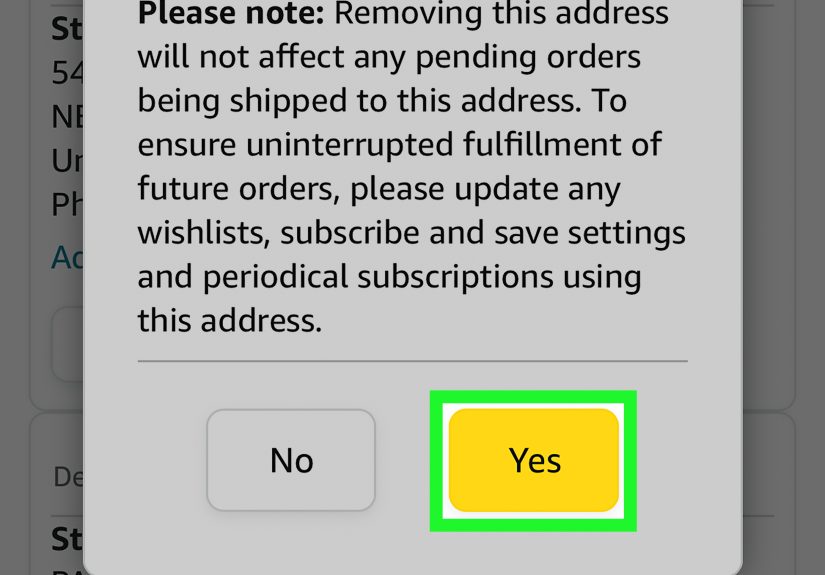
- Confirm the deletion when prompted.
That’s it. The address should disappear from your address book immediately after confirmation.
If it doesn’t (rare, but it happens), jump to the troubleshooting section.
Important note: Deleting an address won’t “rewrite” existing orders
If you placed an order yesterday and then deleted the address today, your order doesn’t magically teleport to a new location.
Address book changes generally affect future checkouts. If you need to fix an address on an order that’s already placed,
you’ll want to check Your Orders and look for any “Change address” optionavailability can depend on timing and who is shipping the item.
Pro tip: When you should edit instead of delete
If you’re only correcting a typo (wrong apartment number, missing suite, incorrect ZIP code), consider using Edit instead.
Editing keeps your delivery instructions and address nickname consistentuseful if you get deliveries at work or a shared building.
How to Delete an Address on Amazon in the Mobile App
On the Amazon Shopping app, the address tools usually live under your account area.
Amazon changes button names occasionally, but you’re generally looking for Your Account and then
Manage address book or Your Addresses.
Step-by-step: Remove an address in the Amazon app (iPhone or Android)
- Open the Amazon Shopping app and sign in if needed.
- Tap the person/profile icon (often along the bottom navigation).
- Tap Your Account.
- Find and open Manage address book or Your Addresses.
- Scroll to the address you want to delete.
- Tap Remove beneath that address and confirm.
If you don’t see “Remove,” look for a small menu (three dots) or open the address cardsome app versions tuck actions behind an extra tap.
What if you’re deleting an old address so Amazon stops “suggesting” it?
Removing unwanted addresses can cut down on checkout confusionespecially if you’ve shipped to multiple locations.
If Amazon keeps nudging you toward an old address, make sure your preferred address is set as default,
and delete any no-longer-relevant entries.
How to Delete an Amazon Address Using a Mobile Browser
Maybe you don’t use the app, or maybe your phone is full and Amazon didn’t make the cut (no judgment).
The mobile website can still do the job.
Step-by-step: Remove an address from Amazon on a phone browser
- Open a browser (Safari, Chrome, etc.) and sign in to Amazon.
- Open the menu/account area (often a menu icon or account dropdown).
- Tap Your Account.
- Tap Your Addresses (or Addresses).
- Find the address and tap Remove.
- Confirm the deletion.
If the mobile site keeps bouncing you to the app, look for an option like “Continue in browser,” or request the desktop site from your browser menu.
Troubleshooting: Why You Can’t Delete an Address (And How to Fix It)
Sometimes Amazon blocks deletionnot to be dramatic, but because the address is still being used somewhere in your account.
Here are the most common scenarios and the fastest fixes.
Problem 1: You can’t delete the default address
If the address you’re trying to remove is set as default, Amazon may require you to choose a new default first.
- Go to Your Addresses.
- Find the address you want to keep.
- Choose Set as Default.
- Now try deleting the old default address again.
Problem 2: Amazon says the address is linked to digital purchases
If you see a message implying the address is used as a “residential address” for digital purchases (think Prime, Kindle, Audible),
Amazon may require you to change that setting first.
- Follow the on-screen prompt that says something like set a different residential address for digital purchases.
- Select a different address (or add a new one) as your residential/digital default.
- Return to Your Addresses and delete the old one.
Problem 3: You changed your address book, but an order is still going to the old address
This is a classic “Wait… why is Amazon still shipping to my old place?” moment.
Editing or deleting in your address book generally affects future orders, not automatically the ones already placed.
- Go to Your Orders and select the order in question.
- Look for an option to Change the shipping address. (If it’s not available, the order may be too far along.)
- If you can’t change it, you may need to cancel (if possible) and reorder with the correct address.
Problem 4: “Remove” button missing or the address won’t disappear
If the button is missing or the address keeps reappearing, try these practical fixes:
- Switch platforms: If the app is glitching, try a desktop browser (or vice versa).
- Update the app: Old versions sometimes misbehave with account settings.
- Refresh and re-login: Log out, close the app/browser, then sign back in.
- Clear cache/cookies: Especially on a browser that’s been “remembering” Amazon since 2014.
- Try another browser: If Chrome is cranky, Safari or Edge might behave better.
Problem 5: Multiple profiles or shared accounts
If you share an Amazon account with family members, households, or a business setup, address management can get messy fast.
Two suggestions:
- Use nicknames: “Home,” “Work,” “Mom’s House,” “Definitely Not My Ex’s Apartment.”
- Review before checkout: The final checkout screen is the last line of defense against shipping a blender to the wrong zip code.
Security Tip: If You See an Address You Don’t Recognize
If an unfamiliar address appears in your account, treat it seriously. It might be a simple mix-up from shared devices,
but it can also be a sign your account security needs attention.
- Change your Amazon password to a strong, unique one.
- Enable two-step verification (2SV) in your account security settings.
- Review recent orders and saved payment methods for anything you don’t recognize.
- Contact Amazon customer service if suspicious addresses keep returning.
Best Practices: Keep Your Amazon Address Book Clean (Without Turning It Into a Hobby)
A tidy address book isn’t just satisfyingit reduces mistakes. Here are simple habits that actually help:
1) Keep one “everyday default”
Set your most-used location as default. If you ship gifts often, still keep your main address default so you don’t accidentally send essentials elsewhere.
2) Delete addresses you’ll never use again
Old apartments, temporary stays, vacation rentals, and that hotel where you shipped sunscreen oncethose can go.
If you might return, you can always re-add later.
3) Use delivery notes wisely
If you live in an apartment or gated community, add delivery instructions that help drivers (gate code notes, building name, etc.).
If you move, update or remove those notes so they don’t confuse future deliveries.
4) Double-check at checkout
Even if you “fixed everything,” always confirm the shipping address right before you hit Place your order.
This one habit prevents the majority of “Oops” deliveries.
FAQ: Deleting Addresses on Amazon
Can I recover a deleted Amazon address?
Not usually with a simple “undo” button. If you delete an address and need it later, you’ll typically re-add it manually.
(Think of it as a fresh startlike Marie Kondo, but for shipping.)
Will deleting an address remove it from my order history?
Your order history remains. Deleting an address is primarily about what appears in your saved address list for future orders.
How many addresses can I save?
Amazon doesn’t encourage turning your account into a global atlas, but most people can save multiple addresses without issue.
If your list becomes unwieldy, that’s your cue to delete the ones you don’t use.
Why does Amazon keep asking me to confirm my address?
Sometimes Amazon prompts confirmation when it detects a formatting problem or potential mismatch (like missing apartment number,
unusual postal code, or a location it thinks might cause delivery failure). Fixing the address detailsor deleting duplicatesoften helps.
Is deleting an address different from changing the delivery address on an order?
Yes. Deleting affects saved addresses for future checkouts. Changing an order’s delivery address (when allowed) affects a specific order already placed.
Experiences and Real-World Scenarios People Run Into (So You Don’t Have To)
If deleting an address on Amazon were always as simple as “tap Remove, walk into the sunset,” we wouldn’t need this section.
But real life has a way of adding plot twistslike moving, gifting, living in dorms, or ordering late-night snacks to the wrong place.
Here are common experiences people run into, plus what usually solves them.
Experience 1: “I moved, but Amazon keeps trying to ship to my old place.”
This is one of the most common reasons people search how to remove a shipping address on Amazon.
You move, you update your default address, and yetat checkoutAmazon still shows your old apartment like it’s a cherished memory.
What’s usually happening is that the old address still exists in your saved list, and it can show up as an option during checkout,
especially if you’ve shipped to it frequently in the past.
The fix is typically a two-step combo: set your new address as default, then delete the old one entirely.
Once that old address is gone, there’s nothing for Amazon to suggest, and you reduce the chance of misclicking.
(Because it only takes one distracted moment to send a $40 pack of protein bars to an address you haven’t lived at since the pre-pandemic era.)
Experience 2: “I shipped a gift once, and now that address won’t leave.”
Gift shipping is a blessing until it becomes an “address collection hobby” you never signed up for.
You send a birthday present to a friend’s house, then that address sticks around forever.
Later, you’re ordering something for yourself, and the gift address is sitting there like a trap with confetti on it.
The best approach is to delete addresses you don’t plan to use again right after the gift is delivered.
If you ship to that person often, keep itbut nickname it clearly (for example, “Aunt Linda (Gifts)”)
so you don’t confuse it with your own home.
Experience 3: “I can’t delete the address because it’s ‘in use.’”
Sometimes Amazon prevents deletion because the address is connected to something behind the scenes:
a subscription delivery, a digital purchase setting, or a default status.
People often assume they’re doing something wrong, but it’s usually Amazon protecting an active setting from being orphaned.
What works in most cases is identifying what the address is “doing”:
if it’s default, set another default; if it’s tied to digital purchases, change the residential/digital address when prompted;
if you have pending deliveries, understand that deleting the address book entry won’t retroactively change already-placed orders.
Once you detach the address from those roles, the Remove option usually behaves.
Experience 4: “The app won’t delete it, but the website will.”
App versions vary, and sometimes the Amazon app can be stubbornespecially if it hasn’t updated recently.
A common real-world workaround is switching platforms:
if the app won’t delete an address, try the desktop site on a PC (or request the desktop version on your phone browser).
People also have luck logging out and back in, updating the app, or clearing cache.
It’s not glamorous, but neither is yelling at a phone screen while your cart times out.
Experience 5: “I’m sharing an account, and addresses multiply like gremlins.”
Shared accounts can get chaotic fast: one person adds a work address, another adds a relative’s home, and someone
adds a pickup location. Suddenly you’re choosing between five nearly identical entries.
In these situations, deletion is helpfulbut clarity is even more powerful.
The winning strategy: nickname addresses (Home, Work, Dorm, Grandma, etc.), keep one default, and delete anything that’s outdated.
If you’re coordinating gifts, double-check the address every time before placing the order.
That ten-second pause is cheaper than re-buying the same item because it shipped to the wrong place.
Experience 6: “I saw an address I don’t recognize and panicked.”
That reaction is understandable. Sometimes it’s harmless (a shared device, a family member, an accidental add during checkout),
but it can also signal account access you didn’t intend.
The safest response is calm and practical: remove unfamiliar addresses, update your password, turn on two-step verification,
and review orders/payment methods. If anything looks off, contact Amazon support.
Bottom line: deleting Amazon addresses is simple most of the time, and when it isn’t, it’s usually because Amazon wants you to
switch a default or detach a setting first. Once you know where the address book livesand what “in use” really meansyou can keep your
shipping list clean, your checkouts fast, and your packages headed to the correct front porch.
Conclusion
Learning how to delete an address on Amazon on a PC or smartphone is one of those tiny life upgrades that pays off immediately.
It prevents shipping mistakes, reduces checkout clutter, and helps you stay in control of where your orders go.
Use Your Addresses (desktop) or Manage address book (app), remove what you don’t need, set a clean default,
and always verify the address before placing an order. Your future selfand your delivery driverwill thank you.