Table of Contents >> Show >> Hide
- What “Autoplay” Means on Spotify (and What It Doesn’t)
- Step 1: Confirm You’re Changing the Right Setting
- Step 2: Update Spotify (Because Menus Love to Move)
- Step 3: Disable or Enable Autoplay on iPhone or Android (Mobile App)
- Step 4: Disable or Enable Autoplay on Desktop (Windows or Mac)
- Step 5: Make It Stick Across Devices (Web Player, Smart Speakers, Spotify Connect)
- Step 6: Stop “Autoplay” Immediately (Clear the Queue and Remove Suggestions)
- Step 7: Turn Off Smart Shuffle (When “Recommended Songs” Invade Mid-Playlist)
- Step 8: Troubleshoot Like a Pro (When Autoplay Won’t Behave)
- FAQ: Quick Answers About Spotify Autoplay
- Conclusion
- Extra: of Real-World Autoplay “Experiences” (So You Don’t Lose Your Mind)
- 1) “My playlist ended and Spotify played something… wildly off-brand.”
- 2) “I turned off Autoplay, but I still see ‘Recommended’ tracks.”
- 3) “Smart Shuffle keeps adding songs I didn’t ask for.”
- 4) “Spotify starts playing when I get in my car, and I didn’t touch anything.”
- 5) “I actually like Autoplay… until it repeats the same stuff.”
Spotify Autoplay is like that friend who “knows a great place” and keeps steering the car after you said you’re done driving.
Sometimes it’s awesome (hello, endless vibes). Sometimes it’s… not (why am I suddenly hearing a banjo remix of a sad synth song?).
The good news: you can control Autoplay in a few tapson phone, desktop, and pretty much everywhere Spotify follows your account.
This guide walks you through eight clear steps to disable or enable Autoplay on Spotify, plus quick fixes for the two
most common “Autoplay-ish” headaches: recommended songs sneaking into your queue and Spotify starting playback automatically in the car.
Let’s get your music to behave like a polite guest.
What “Autoplay” Means on Spotify (and What It Doesn’t)
On Spotify, Autoplay means: when you reach the end of an album, playlist, or song selection, Spotify keeps the music going by playing
similar songs. This is different from:
- Smart Shuffle / Enhanced play modes: adds recommended tracks during your playlist playback (often a Premium feature).
- Automix / Crossfade: smooth transitions between songs (great for parties; unrelated to “keep playing after the end”).
- Device auto-resume: your phone or car system resumes the last playing audio when Bluetooth/CarPlay/Android Auto connects.
Translation: if you “turned off Autoplay” and Spotify is still acting wild, you might be fighting the wrong beast. The steps below cover all of them.
Step 1: Confirm You’re Changing the Right Setting
Before you flip switches, do a 10-second reality check:
- Play a short playlist (5–10 songs) or jump near the end of a playlist.
- When the last track finishes, watch what happens.
- If Spotify starts playing “similar songs” after your playlist ends, that’s Autoplay.
If it inserts extra songs before the playlist ends, that’s more likely Smart Shuffle or recommendations in play modes.
Knowing which behavior you’re seeing prevents the classic “I turned it off and it still happens!” spiral.
Step 2: Update Spotify (Because Menus Love to Move)
Spotify settings are a bit like furniture in a rented apartment: sometimes they get “rearranged” without asking you. If you can’t find the Autoplay toggle,
update Spotify first:
- iPhone/iPad: App Store → Spotify → Update
- Android: Google Play Store → Spotify → Update
- Desktop: Spotify usually updates itself, but restarting the app can force it to refresh.
After updating, reopen Spotify and continue to Step 3 or Step 4 depending on your device.
Step 3: Disable or Enable Autoplay on iPhone or Android (Mobile App)
Most people manage Autoplay from their phone because it’s fast and it’s always in their hand (like emotional support water bottles, but for playlists).
How to turn Autoplay OFF (or ON) on mobile
- Open Spotify.
- Tap Home (or go to Your Libraryeither is fine).
- Tap your profile picture (top corner).
- Select Settings and privacy.
- Tap Playback (or scroll to the Playback section).
- Find Autoplay / Autoplay similar content.
- Toggle it OFF to stop Spotify from playing similar songs after your music ends.
Toggle it ON if you want Spotify to keep the vibe going.
Pro tip: If you see more than one toggle related to Autoplay (Spotify experiments sometimes), turn off anything that sounds like
“Autoplay similar songs,” “Autoplay similar content,” or “Keep playing after…” to fully silence the algorithm’s encore.
Step 4: Disable or Enable Autoplay on Desktop (Windows or Mac)
Desktop Spotify is where power users livepeople with shortcuts, spreadsheets, and at least one playlist named “DO NOT TOUCH.”
Here’s how to control Autoplay on a computer:
Desktop Autoplay toggle
- Open Spotify on your computer.
- Click your profile icon in the top-right corner.
- Click Settings.
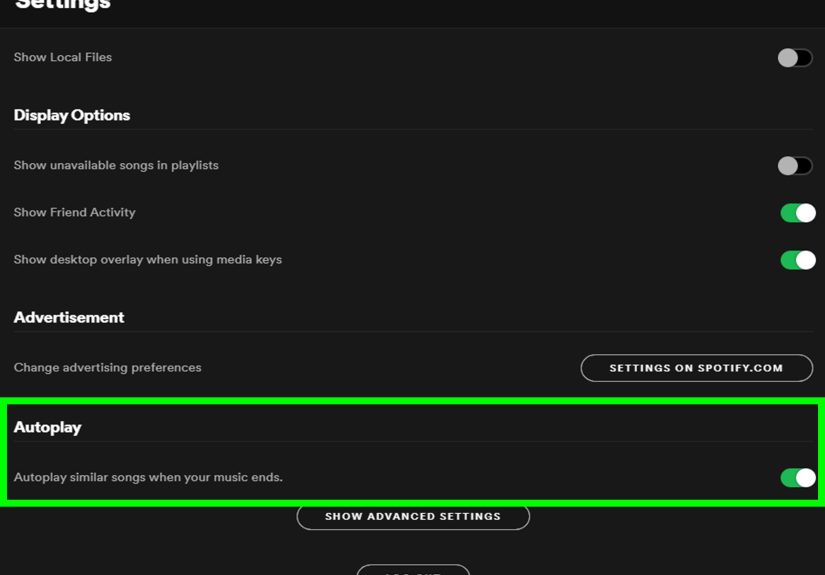
- Scroll to the Autoplay section (sometimes under Playback).
- Switch Autoplay OFF or ON.
Quick sanity test: play a small playlist, let it end, and confirm Spotify stops (or continues) the way you intended.
Step 5: Make It Stick Across Devices (Web Player, Smart Speakers, Spotify Connect)
Here’s the part that saves you from toggling Autoplay on five different gadgets like you’re defusing a bomb in a movie.
In many Spotify setups, Autoplay behavior is tied to your accountmeaning changes you make on mobile or desktop can apply to
the Web Player and Spotify Connect devices (smart speakers, TVs, consoles, etc.).
If you can’t find Autoplay on the Web Player
- Change Autoplay from the mobile app or desktop app instead.
- Then refresh the Web Player and test again.
Tip for households: If multiple people use the same Spotify account, Autoplay settings can feel “haunted” because someone else may have
flipped it back on. (Innocently. Probably. Maybe.)
Step 6: Stop “Autoplay” Immediately (Clear the Queue and Remove Suggestions)
Sometimes you don’t want to change settingsyou want the music to stop right now. This is the “make it stop, please” step.
Do this when Spotify is already running extra songs
- Tap Now Playing.
- Open the Queue (often the three-line icon).
- Look for an Up Next list and/or a Suggested / Recommended section.
Remove tracks you don’t want (or clear the queue if your version allows it). - If your playlist ended, start playback again from the playlist itselfdon’t hit play on the recommended section.
Why this works: even with Autoplay OFF, your queue can still contain leftovers from earlier sessions, shared device controls,
or past play modes. Clearing the queue is like taking out the trashannoying, but suddenly everything smells better.
Step 7: Turn Off Smart Shuffle (When “Recommended Songs” Invade Mid-Playlist)
If Spotify is inserting songs that aren’t in your playlist while you’re still listening, that’s usually not classic Autoplay.
It’s often Smart Shuffle or a related “enhance” style feature that mixes recommendations into your playlist experience.
How to shut down Smart Shuffle behavior
- While playing a playlist, tap the Shuffle icon until you’re back to regular Shuffle (not “Smart Shuffle”).
On some versions, Smart Shuffle has a sparkle/star vibe. - In Settings and privacy → Playback, look for options like:
- Include Smart Shuffle in play modes (toggle OFF if available)
- Enable all play modes / enhanced play modes (toggle OFF if it’s giving you the option)
Note: Spotify sometimes limits certain play-mode controls to Premium users or rolls them out gradually. If you don’t see the toggle yet,
you can still often avoid Smart Shuffle by switching play modes from the playlist screen itself.
Step 8: Troubleshoot Like a Pro (When Autoplay Won’t Behave)
If you’ve toggled Autoplay OFF and Spotify still plays “similar songs,” run this checklist. It fixes the majority of Autoplay complaints without
requiring a dramatic reinstall… but yes, we’ll include that too.
Fast troubleshooting checklist
- Restart Spotify (close it completely, then reopen).
- Log out and log back in (forces settings to resync to your account).
- Update Spotify (againbecause the one time you don’t, it matters).
- Clear cache (Settings and privacy → Storage → Clear cache, if shown).
- Check you’re on the right account (especially on family/shared devices).
- Disable device auto-resume if the “problem” is actually your car:
your phone/car system may be resuming media automatically when you connect Bluetooth, CarPlay, or Android Auto.
(That’s not Spotify Autoplaydifferent switch, different place.) - Reinstall Spotify as a last resort.
If Autoplay is missing entirely from Settings, it’s usually a UI change, an account experiment, or an outdated app build. Updating + restarting fixes it most
of the time.
FAQ: Quick Answers About Spotify Autoplay
Does Spotify Autoplay work on free accounts?
Autoplay (continuing with similar songs after your music ends) is a core Spotify behavior and may be available across account types. However, features like
Smart Shuffle and certain enhanced play modes can differ by plan and region, and Spotify may run experiments that change what you see.
Why does Spotify still play extra songs after I turned off Autoplay?
Usually one of these:
(1) your queue still has suggested tracks,
(2) Smart Shuffle is active,
(3) you’re listening via a connected device and settings haven’t synced yet,
or (4) your car/phone is auto-resuming audio when it reconnects.
Can I keep Autoplay ON for playlists but OFF for albums?
Spotify doesn’t always offer that level of granularity. If you’re an album listener, the simplest strategy is:
keep Autoplay OFF, and when you want the never-ending radio vibe, start a “radio” station or turn Autoplay back on temporarily.
What if I like recommendations, just not the same ones?
Spotify has been rolling out more control tools, like options to refresh recommendations and reduce repeats. If Autoplay is giving you déjà vu,
those personalization controls can helpwithout forcing you to go full “silence between albums” mode.
Conclusion
Spotify Autoplay can be a feature or a nuisancedepending on whether you’re trying to keep a party alive or just finish an album in peace like a civilized
human. With the eight steps above, you can disable Autoplay on Spotify or enable it again whenever you want, and you’ve
got extra tools for when the real culprit is Smart Shuffle, a messy queue, or your car’s “helpful” auto-resume.
The best part? Once you set it up correctly, you stop fighting Spotifyand start using it the way it’s supposed to work: as your music app, not your DJ who
refuses to take a break.
Extra: of Real-World Autoplay “Experiences” (So You Don’t Lose Your Mind)
Autoplay drama usually shows up in very specific momentsthe kinds of moments that make you stare at your phone like it just betrayed your trust.
Here are a few common scenarios people run into, along with the practical takeaway you can use immediately.
1) “My playlist ended and Spotify played something… wildly off-brand.”
This is the classic Autoplay surprise. You curated a perfect “Focus” playlist andbamSpotify decides the next logical step is a high-energy dance track
that sounds like a robot learning emotions. The takeaway: Autoplay is similarity-based, not mood-loyal. It often uses your listening history,
the last few tracks, and broader patterns to guess what comes next. If you care about a clean ending, keep Autoplay OFF. If you like discovery but want it
calmer, consider ending playlists with “bridge songs” that guide the algorithm to the right neighborhood.
2) “I turned off Autoplay, but I still see ‘Recommended’ tracks.”
This one is sneaky because it looks like Autoplay, but it’s frequently a queue problem. Spotify can hold onto suggestions in the queue from a
previous session (especially if you were casting to a speaker, switching devices, or handing your phone to a friend who swears they didn’t touch anything).
The fix is less mystical than it feels: open the queue, remove suggested tracks, and restart playback from the playlist page. Once you do it once,
you’ll recognize the pattern instantly the next time it happens.
3) “Smart Shuffle keeps adding songs I didn’t ask for.”
Smart Shuffle can be genuinely useful when you want a playlist to evolvelike a living mix that adapts to your taste. But if you’re using a playlist as a
“known quantity” (workout timing, background music for guests, or a carefully sequenced road trip), those extra tracks feel like someone rearranging your
kitchen drawers. The workaround is simple: switch back to standard Shuffle, and if your app offers it, toggle off any option that “includes Smart Shuffle in
play modes.” This one step often turns chaos back into order.
4) “Spotify starts playing when I get in my car, and I didn’t touch anything.”
Not Autoplayauto-resume. Many cars and phones try to be helpful by resuming the last media app when Bluetooth, CarPlay, or Android Auto
connects. Spotify gets blamed because it’s popular, not because it’s guilty. If you’re experiencing this, look for “automatically resume media” settings in
your car interface, Android Auto settings, or Bluetooth behavior settings on your phone. Once you disable auto-resume, Spotify stops “jump-scaring” you at red
lights.
5) “I actually like Autoplay… until it repeats the same stuff.”
If you enjoy Autoplay but hate repetition, the trick is to give Spotify better signals. Use “Hide,” “Snooze,” or “Exclude from taste profile” style controls
when they’re available, and sprinkle in new listening (even a few fresh albums a week). Autoplay is only as interesting as the data it’s pulling from.
Teach it new inputs, and it gets less predictablewithout you having to micromanage every queue like you’re running a tiny music government.
Bottom line: Autoplay isn’t evilit’s just enthusiastic. Once you know which feature is doing what, you can choose when Spotify should keep the party going
and when it should respectfully stop playing and let the silence do its beautiful thing.