Table of Contents >> Show >> Hide
- Why Your Camera Was Not Working in Omegle
- Fix 1: Make Sure the Problem Is Not the Site Itself
- Fix 2: Allow Camera Access in Your Browser
- Fix 3: Turn On Camera Permissions in Windows or macOS
- Fix 4: Check the Physical Camera, Privacy Shutter, and Selected Device
- Fix 5: Close Other Apps That Might Be Using the Webcam
- Fix 6: Clear Site Permissions, Disable Extensions, and Turn Off Interference
- Fix 7: Update the Browser, Camera Driver, and System Software
- Fix 8: Restart, Test the Webcam Elsewhere, and Try Another Browser
- Extra Tips for a Smoother Video Chat Setup
- Real-World Experiences: What Usually Happened When the Camera Would Not Turn On
- Final Thoughts
If your camera would not turn on in Omegle, you were not alone. Few tech problems are more irritating than seeing your own face replaced by a black box, a spinning loader, or that silent little camera icon that basically says, “Not today.” The good news is that webcam issues on browser-based video chat sites usually come from a short list of causes: blocked permissions, the wrong camera selected, privacy settings in Windows or macOS, another app hogging the webcam, or a browser that is being dramatic for no good reason.
There is one important catch, though: Omegle itself is no longer live. So if you are searching for how to enable a camera on Omegle today, the platform is the first thing to rule out. Still, the same troubleshooting logic applies to legacy setups, cached browser sessions, and similar video chat websites that use browser camera access. In other words, even if Omegle is gone, your webcam problems are very much still with us.
This guide walks through eight fixes that actually matter. No fluff, no “turn it off and on” without context, and no mystical ritual involving three browser tabs and a prayer to the webcam gods. Just practical steps that work.
Why Your Camera Was Not Working in Omegle
When a browser-based video chat site cannot see your webcam, the failure usually happens in one of four places. First, the website permission is blocked. Second, your operating system has camera access turned off. Third, another program is already using the webcam. Fourth, the camera itself is unavailable, disabled, hidden behind a privacy shutter, or not selected as the active device.
That is why random guessing rarely helps. You have to check the chain from the site to the browser, from the browser to the operating system, and from the operating system to the physical camera. Once that chain breaks, your video feed disappears faster than your patience on a Monday morning.
Fix 1: Make Sure the Problem Is Not the Site Itself
Before changing half the settings on your computer, check the obvious: is the site actually working? With Omegle specifically, this matters a lot because the service was shut down. If the website is unavailable, partially loading, or throwing errors, your camera is not the villain. The site is.
For similar video chat platforms, refresh the page once, then open the site in a supported browser such as Chrome, Edge, Firefox, or Safari. If the page is stuck loading, the browser never reaches the stage where it can request your webcam. That means you could spend twenty minutes adjusting permissions while the real problem is that the page itself is not fully running.
What to do
- Reload the page once.
- Close duplicate tabs of the same site.
- Try the same site in a different browser.
- Make sure your internet connection is stable.
If the site does not load correctly anywhere, stop troubleshooting the camera and troubleshoot the site or service status instead.
Fix 2: Allow Camera Access in Your Browser
This is the most common fix, and yes, it is also the one people skip while insisting they “already checked everything.” Browsers treat camera access like a guarded vault. If you clicked Block even once, the site may be locked out until you manually change the permission.
In Chrome, go to Settings > Privacy and security > Site settings > Camera. Make sure camera access is allowed, then check whether the site is listed under blocked permissions. In Firefox, open the site permissions and remove or update the camera block. In Safari on Mac, open Safari > Settings > Websites > Camera and set the site to Ask or Allow. In Edge, camera settings live under site permissions as well.
If the browser never asks for camera permission, that is a clue. It often means the site was blocked before, the page did not load properly, or browser settings are preventing the prompt from appearing.
Quick browser check
- Open the camera permissions menu.
- Remove the site from the blocked list.
- Set the browser to ask before using the camera.
- Reload the site after changing the setting.
Fix 3: Turn On Camera Permissions in Windows or macOS
Even when the browser is ready, the operating system can still say, “Absolutely not.” Windows and macOS both have privacy controls that can prevent apps and websites from using the webcam.
On Windows, go to Settings > Privacy & security > Camera. Make sure camera access is on, and also make sure desktop apps are allowed to access the camera. That second part matters because desktop browsers like Chrome and Firefox often fall under that broader desktop-app permission. If desktop access is off, the browser may be allowed in theory and still fail in practice.
On a Mac, go to System Settings > Privacy & Security > Camera and verify that the browser you are using is allowed. Safari also has separate website-level camera permissions, so you may need to fix both the operating system and the browser.
This step is where many webcam problems end. The browser says yes, the site says yes, and the operating system quietly says no. That hidden “no” is often the entire mystery.
Fix 4: Check the Physical Camera, Privacy Shutter, and Selected Device
Sometimes the problem is not software at all. It is the camera itself, or more accurately, the camera you think your computer is using. Many laptops now include a privacy shutter, a webcam switch, or a shutter key that physically blocks the lens. Some external webcams also have tiny built-in covers. If that cover is closed, the camera is technically on but visually useless, like a lighthouse with a blanket over it.
You should also check whether the browser selected the correct camera. If you have a built-in webcam, a USB webcam, a virtual camera, or phone-as-webcam software installed, your browser may choose the wrong device by default. That can leave you staring at a black feed from a disconnected camera or a virtual device that is not active.
What to inspect
- Open or slide back any physical webcam shutter.
- Unplug and reconnect an external webcam.
- Choose the correct camera in browser settings.
- Test the camera in the Windows Camera app or Photo Booth/QuickTime on Mac.
If the camera works in another app but not in the browser, your hardware is fine and the issue is probably permissions or browser configuration. That is good news. At least your webcam is not a paperweight.
Fix 5: Close Other Apps That Might Be Using the Webcam
Webcams are not always great at sharing. If Zoom, Teams, Skype, Discord, OBS, the Camera app, or another browser tab is already using the device, your video chat site may fail to access it. This can result in a black screen, frozen video, or the classic “camera unavailable” message that tells you everything except what you actually need to know.
Close every app that might use video input. On Windows, open Task Manager and shut down suspicious background apps. On Mac, fully quit video apps rather than just minimizing them. Some programs keep camera access active in the background even after you think you are done with them. They are like party guests who keep standing in the doorway after saying goodbye fifteen minutes ago.
Then restart the browser and try the site again. If the webcam suddenly works, congratulations: you did not fix Omegle so much as evict a camera hog.
Fix 6: Clear Site Permissions, Disable Extensions, and Turn Off Interference
Browser extensions can be helpful, but some of them are chaos wearing a productivity badge. Privacy add-ons, ad blockers, script blockers, VPN extensions, and security tools can interfere with webcam requests or break the site’s media features.
If your camera still does not work, clear the site’s permissions and reload it so the browser asks again. Then try disabling extensions one by one, especially anything related to privacy, scripts, security, or media filtering. You do not necessarily have to uninstall them forever. You just need to discover whether one of them is playing goalie in front of your webcam.
You can also test the site in a private browsing window with extensions disabled, or in a clean browser profile. If the camera works there, the problem is almost certainly an extension, a saved permission rule, or browser data corruption.
Best approach
- Reset the site’s camera permission.
- Disable ad blockers, script blockers, and privacy extensions temporarily.
- Try the site in Incognito or Private Browsing.
- Turn off VPN or proxy tools for one test.
Fix 7: Update the Browser, Camera Driver, and System Software
If the basics look right but the camera still refuses to cooperate, update everything that touches video input. An outdated browser can misbehave with modern media permissions. An outdated camera driver can make the webcam vanish, freeze, or fail inside video apps. And outdated system software can break compatibility in impressively inconvenient ways.
Update Chrome, Firefox, Edge, or Safari first. Then check Windows Update or macOS updates. On Windows, you may also need to update the integrated webcam driver through Device Manager or your PC manufacturer’s support tools. This is especially relevant on some laptops where camera drivers are vendor-specific and not just generic plug-and-play magic.
If you recently installed a new webcam utility, virtual camera app, or system update right before the problem started, that timing matters. Problems love a dramatic entrance right after a change.
Fix 8: Restart, Test the Webcam Elsewhere, and Try Another Browser
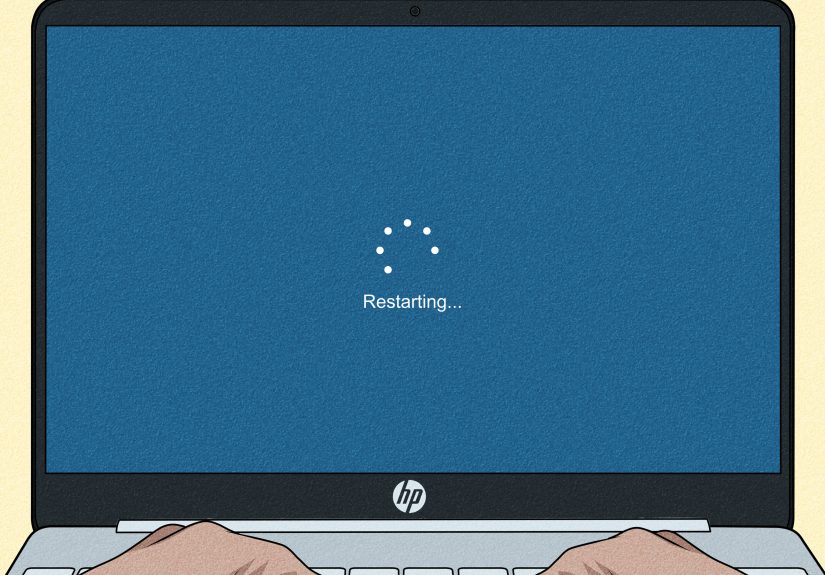
Yes, restarting still belongs on the list, but not as a lazy throwaway tip. A full restart clears stuck camera sessions, background locks, and flaky driver states. Sleep mode is not the same thing. If your computer has been sleeping, waking, and surviving on caffeine fumes for a week, restart it properly.
After restarting, test the webcam in another environment. On Windows, use the Camera app. On Mac, use Photo Booth or QuickTime. Then test in another browser. This tells you exactly where the failure lives.
- If the webcam fails everywhere, it is likely a hardware, driver, or OS permission issue.
- If it works in the Camera app but not in the site, it is a browser or site-permission issue.
- If it works in one browser but not another, the problem is specific to that browser’s settings or extensions.
This is the step that turns random frustration into a diagnosis. It is also the step most people skip because they would rather be annoyed in a general way than informed in a specific one.
Extra Tips for a Smoother Video Chat Setup
Once your camera works, take thirty extra seconds to make the experience less terrible. Clean the lens. Sit facing light instead of sitting with a bright window behind you like a mystery villain. Choose the correct microphone too, because solving your video problem only to sound like you are broadcasting from the bottom of a cereal box is not really a win.
If you are under 18, anonymous video chat platforms are not a smart place to experiment. Stick to trusted apps and people you actually know. A working camera is useful. A working sense of caution is even better.
Real-World Experiences: What Usually Happened When the Camera Would Not Turn On
In real-life troubleshooting, the camera problem was rarely exotic. It felt exotic, of course. It felt like the laptop had joined a secret society devoted to ruining your evening. But most cases came down to one very ordinary mistake hidden behind a very unhelpful symptom.
One common scenario went like this: a person opened a video chat site, clicked Block once by accident, and forgot about it. The next day, the site never asked again, so they assumed the webcam had died. Twenty minutes later they were googling driver issues, updating random things, and considering whether their laptop had entered its villain era. The fix was simply removing the block in the browser settings and reloading the page.
Another frequent experience involved laptops with privacy shutters. This one deserves an award for emotional efficiency because it can waste a huge amount of time with almost no technical complexity. Everything looks normal. The camera is detected. The browser sees it. The permissions are on. But the image is black because a tiny physical slider is closed. That is not a software bug. That is a tiny piece of plastic doing exactly what it was designed to do while you glare at your computer like it insulted your family.
External webcams created their own comedy. Someone would plug in a USB webcam, but the browser would still choose the built-in camera. Or the opposite would happen: the browser would keep trying to use an unplugged external webcam that was selected as the default months ago. The result looked mysterious until they opened camera settings and realized the active device was basically a ghost.
Then there was the classic “another app stole the camera” problem. A user would finish a Zoom call, leave Zoom running in the background, and head to a browser chat site. The site would fail, the webcam would appear frozen, and confusion would bloom instantly. Closing Zoom fixed everything. That kind of issue feels unfair because the webcam conflict is invisible. Your computer does not announce, “Hello, your camera is booked.” It just refuses to cooperate.
Some of the most frustrating cases came from privacy controls in Windows or macOS. The browser looked fine. The site looked fine. But the operating system had camera access disabled for desktop apps, so nothing could get through. Once that toggle was turned back on, the camera worked immediately. That moment usually produced equal parts relief and annoyance, which is a very pure troubleshooting emotion.
Extensions were the sneakiest troublemakers. Ad blockers, script blockers, and privacy tools sometimes interfered with media permissions without making it obvious. People would swear the site was broken, then open it in a private window and suddenly the webcam worked. That is when the detective music starts. Disable the extensions one by one, and eventually one of them confesses without speaking.
The most useful lesson from all these experiences is simple: webcam issues feel random, but they usually are not. If you check the site, the browser, the operating system, the active camera device, and app conflicts in that order, you can solve the problem much faster than by clicking around in a state of righteous confusion. The webcam may still test your patience, but at least it will not win by default.
Final Thoughts
If you were trying to figure out how to enable a camera on Omegle, the modern answer starts with an awkward truth: Omegle is gone. But the troubleshooting process behind the question is still absolutely relevant. Browser-based webcam problems almost always come back to permissions, device selection, app conflicts, or outdated software. Once you check those methodically, the mystery usually disappears.
So the next time your camera refuses to work, do not panic, do not assume your laptop is cursed, and do not start clicking random settings like you are disarming a bomb in an action movie. Work through the eight fixes above, one by one. Most of the time, your webcam will come back long before your patience runs out.