Table of Contents >> Show >> Hide
- What Is a Hardware ID?
- Why You Might Need a Hardware ID
- How to Find Hardware ID: 9 Steps
- Step 1: Open Device Manager
- Step 2: Find the Device You Care About
- Step 3: Right-Click and Open Properties
- Step 4: Click the Details Tab
- Step 5: Select “Hardware Ids” from the Property Menu
- Step 6: Read the Hardware ID Without Freaking Out
- Step 7: Copy the Value
- Step 8: Use the Hardware ID to Find the Correct Driver
- Step 9: Install the Driver and Verify the Device
- Examples of Common Hardware ID Formats
- Other Ways to Find Hardware IDs on Windows
- What About Linux and Mac?
- Mistakes to Avoid When Looking Up Hardware IDs
- Frequently Asked Questions
- Real-World Experiences: What Finding a Hardware ID Looks Like Outside the Tutorial
- Final Thoughts
If you have ever stared at an Unknown device in Device Manager like it just insulted your family, you are not alone. One of the fastest ways to identify mysterious hardware, find the correct driver, or troubleshoot a stubborn component is to locate its hardware ID. It sounds technical, and yes, it has a whiff of “I probably need three monitors and a giant coffee for this,” but it is actually very doable.
In simple terms, a hardware ID is a string Windows uses to recognize a device and match it with the right driver. That means if your Wi-Fi adapter disappears, your Bluetooth stops cooperating, or a fresh Windows install leaves behind an unhelpful yellow warning icon, the hardware ID can point you to the answer faster than random driver downloads and hopeful clicking.
This guide walks you through how to find hardware ID in 9 clear steps, plus what the code means, how to use it, and what to do if you are on Linux or Mac. There is even a practical experience section at the end, because real-life troubleshooting rarely looks as neat as a support article. Sometimes it looks more like “why is my trackpad missing and why is my printer pretending it has never met me?”
What Is a Hardware ID?
A hardware ID is a unique identification string assigned to a device. Windows uses it to determine what the device is and which driver fits it best. That is why hardware IDs are incredibly useful when a device shows up as unknown, generic, or broken.
You will usually see hardware IDs in formats like these:
PCIVEN_8086&DEV_15B8&SUBSYS_00008086&REV_31USBVID_045E&PID_0840ACPIVEN_INT&DEV_33A0
Those strings may look like alphabet soup, but they are useful soup. VEN typically refers to the vendor, DEV to the device, VID to the USB vendor ID, and PID to the product ID. In other words, the code is not random chaos. It is organized chaos, which is the computer industry’s favorite kind.
Why You Might Need a Hardware ID
Most people do not go hunting for a hardware ID for fun on a Friday night. They need it because something is not working. Common situations include:
- After reinstalling Windows, one or more devices appear as Unknown device
- A driver update failed and a component stopped working
- You want the exact driver for a chipset, graphics card, Wi-Fi adapter, or USB device
- You are comparing hardware details across systems
- You need more precise device information than a vague model name provides
Hardware IDs are especially helpful because generic names like “PCI Device” or “USB Composite Device” do not tell you much. A hardware ID gets specific, which is exactly what troubleshooting needs.
How to Find Hardware ID: 9 Steps
Step 1: Open Device Manager
The quickest way to find a hardware ID in Windows is through Device Manager. You can open it by searching for “Device Manager” in the Start menu. You can also right-click the Start button and select it from the menu. If you like keyboard shortcuts and tiny doses of power-user energy, press Windows + R, type devmgmt.msc, and press Enter.
Once Device Manager opens, you will see a list of hardware categories such as Display adapters, Network adapters, Bluetooth, Sound, and USB controllers.
Step 2: Find the Device You Care About
Now locate the device you want to identify. If something is broken, look for a device with a yellow warning icon. It might appear under its usual category, or it may be buried under Other devices with an annoyingly vague label like “Unknown device” or “PCI Device.”
If you are not troubleshooting a problem and simply want the hardware ID of a working device, expand the category it belongs to and select the correct item.
Step 3: Right-Click and Open Properties
Right-click the device and choose Properties. This opens the device properties window, where Windows keeps the good stuff: status, driver details, events, resources, and the identification strings you came for in the first place.
This is the point where many people accidentally click Update driver instead. Resist the urge for just a second. First, gather the facts. Then you can go driver hunting with confidence instead of vibes.
Step 4: Click the Details Tab
Inside the Properties window, click the Details tab. This tab contains a drop-down menu with a bunch of technical fields. At first glance it can feel like you walked into a meeting halfway through and nobody wants to explain the acronyms. That is normal.
You will see options such as Device description, Class GUID, Manufacturer, Device instance path, Compatible Ids, and more.
Step 5: Select “Hardware Ids” from the Property Menu
Open the Property drop-down menu and choose Hardware Ids. The values box below will populate with one or more strings.
The top entry is usually the most specific one, and the entries below it become more general. For driver matching and troubleshooting, the most specific value is often the most helpful place to start.
Step 6: Read the Hardware ID Without Freaking Out
Once the ID appears, take a breath. You do not need to memorize it. You just need to understand the structure well enough to use it.
Here is a common example:
PCIVEN_8086&DEV_15B8&SUBSYS_00008086&REV_31
- PCI tells you the bus or device type
- VEN_8086 identifies the vendor
- DEV_15B8 identifies the device model
- SUBSYS can identify the subsystem or OEM variation
- REV refers to the revision
For USB devices, you often see something like:
USBVID_045E&PID_0840
In that case, VID is the vendor ID and PID is the product ID. Same detective story, slightly different costume.
Step 7: Copy the Value
Click one of the hardware ID values, right-click, and choose Copy. If there are multiple entries, copy the most specific line first. That usually means the line with the greatest amount of detail.
Paste it into Notepad, a support ticket, an email, or a driver search box. Keeping the ID in plain text makes it much easier to compare, search, and reuse later.
Step 8: Use the Hardware ID to Find the Correct Driver
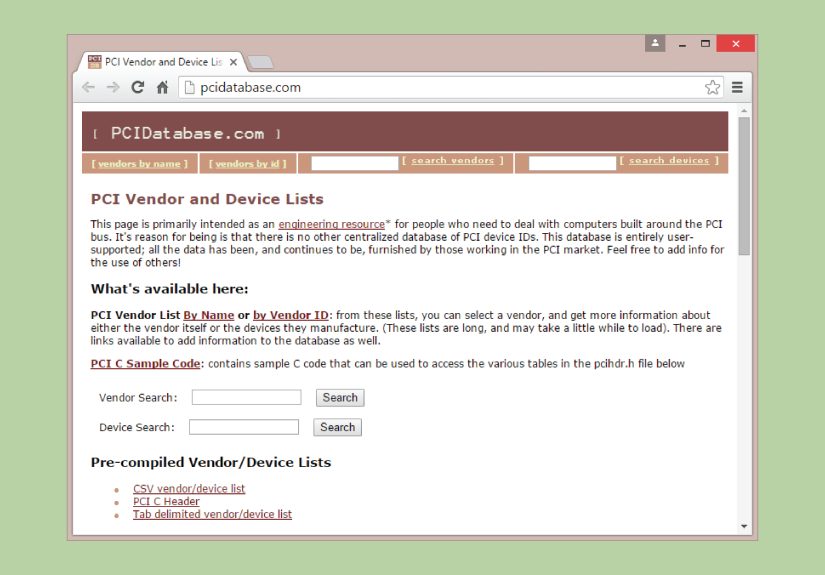
Now that you have the hardware ID, you can use it to identify the device and find the right driver. The best approach is to check the support site for your PC maker or the device manufacturer. For example, if you are working on a Dell, HP, Lenovo, ASUS, Acer, or AMD-based system, search that support site using the ID or use it to confirm the device before downloading a driver.
This is much smarter than downloading random driver packs from sketchy corners of the internet. Hardware ID searches help you narrow the match and avoid installing the wrong driver, which is a polite way of saying “avoid turning one problem into three.”
Step 9: Install the Driver and Verify the Device
Once you install the correct driver, return to Device Manager and confirm the warning icon is gone. If the device still does not appear correctly, restart your PC or use Scan for hardware changes in Device Manager.
If Windows still refuses to behave, keep the hardware ID handy. It remains the most reliable clue for deeper troubleshooting, support requests, or manual driver installation.
Examples of Common Hardware ID Formats
Here are some common patterns you may run into:
PCIVEN_xxxx&DEV_xxxxCommon for PCI and PCIe devices such as chipsets, network cards, and graphics cardsUSBVID_xxxx&PID_xxxxCommon for USB hardware such as keyboards, printers, dongles, and webcamsACPIVEN_xxxx&DEV_xxxxCommon for motherboard-level or integrated system devicesBTH...Bluetooth devicesROOT...Root-enumerated devices, often more abstract or software-associated components
If you are trying to identify a graphics card, network adapter, or chipset component, those strings can be more revealing than the friendly name shown in Windows.
Other Ways to Find Hardware IDs on Windows
Using PnPUtil
If you prefer command-line tools, Windows includes PnPUtil. This is useful when you want to enumerate devices, especially problem devices, without clicking around in Device Manager.
This command is handy for showing devices with problems and displaying their hardware or compatible IDs. It is especially useful when you are diagnosing multiple driver issues on one system.
You can also target a specific device instance or class if you want more focused results. It is not as friendly as the graphical interface, but it is efficient and surprisingly satisfying once you get used to it.
Using System Information
MSINFO32, also known as System Information, is another useful Windows tool. It provides broader hardware and system details and can export reports. It is great for documenting a system, although Device Manager remains the easiest place to view the exact Hardware Ids field.
If you are building a support case or need a record of your system environment, MSINFO32 is a smart companion tool.
What About Linux and Mac?
Linux
On Linux, the equivalent information is often exposed through terminal commands. For PCI devices, use:
For USB devices, use:
These commands display vendor and device information in a compact format. If you are troubleshooting Wi-Fi, Bluetooth, or other hardware on Linux, they are often the first stop.
Mac
On macOS, Apple does not usually present a Windows-style “Hardware Ids” drop-down in the same way. Instead, open System Information or System Report from the Apple menu’s About section. This gives you detailed hardware information for installed and connected components.
So if your question is “Where is the Mac version of Hardware IDs?” the answer is: Apple gives you detailed hardware reporting, but not always in the exact Windows naming style.
Mistakes to Avoid When Looking Up Hardware IDs
- Confusing hardware ID with serial number: They are not the same thing.
- Confusing hardware ID with Windows hardware hash or activation HWID: That is a different concept used in other contexts.
- Copying the wrong field: Make sure you selected Hardware Ids, not Device instance path or Class GUID.
- Using shady driver sites: Official vendor or OEM support pages are safer and more reliable.
- Ignoring subsystem information: Two devices can look similar until the subsystem string reveals the exact OEM version.
Frequently Asked Questions
Is a hardware ID the same as a serial number?
No. A serial number identifies a specific physical unit, while a hardware ID helps the operating system identify the device type and match the proper driver.
Is the hardware ID always unique?
It is specific enough to identify device classes and models for driver purposes, but it is not the same as a one-of-a-kind factory serial number. Think of it as a technical identity for matching, not a personal passport for one individual component.
Can I find a hardware ID even if the device is not working?
Usually, yes. In fact, that is one of the biggest reasons people look for it. Even when Windows cannot name the hardware properly, Device Manager often still exposes the ID string.
Real-World Experiences: What Finding a Hardware ID Looks Like Outside the Tutorial
In the real world, finding a hardware ID is rarely a dramatic Hollywood moment where someone types furiously for three seconds and saves the day while techno music plays. It is usually much more ordinary, which is exactly why it is so useful.
Imagine you reinstall Windows on an older laptop. Everything seems fine at first, until you notice there is no Wi-Fi, no Bluetooth, and Device Manager has one suspicious entry called Unknown device. This is the classic moment when people start guessing. Maybe it is the chipset. Maybe it is the card reader. Maybe the laptop is haunted. Instead of downloading six random drivers and hoping one sticks, you open Properties, pull the hardware ID, and suddenly the mystery device becomes identifiable. What looked like a vague problem turns into a specific one.
Another common experience happens with desktop builds. A user updates Windows, swaps a motherboard, or adds a PCIe card, and then one component refuses to cooperate. The friendly name might be missing, but the hardware ID gives away the vendor and device code. That lets you confirm whether you are dealing with an Intel network controller, an AMD graphics component, a USB hub issue, or a motherboard utility device that needs the OEM package rather than a generic driver.
Printers and USB accessories can be especially funny in a not-actually-funny way. A webcam shows up, but the microphone does not. A docking station charges the laptop, but Ethernet is dead. A USB device appears as something so generic that Windows might as well call it “Object, probably.” In those cases, the hardware ID helps separate the actual device from the vague label. It tells you what Windows sees, not what the sticker on the outside claims.
Support technicians use this information constantly because it cuts through confusion. If a customer says, “My laptop has a missing driver,” that is a broad problem. If they send a hardware ID, the problem becomes concrete. The technician can narrow down the device, check the support page, and recommend a targeted fix. That is why hardware IDs show up so often in support threads, repair workflows, and driver documentation.
Even for regular users, the experience tends to be empowering. The first time you look at a string like PCIVEN_8086&DEV_..., it feels intimidating. The second time, it looks familiar. By the third time, you stop seeing random code and start seeing clues. That little shift matters. It turns troubleshooting from guesswork into process.
And that is the real value here. Finding a hardware ID will not make your computer magically perfect, your printer lovable, or Windows updates emotionally supportive. But it does give you a reliable, practical way to identify hardware when labels fail and device names get weird. In troubleshooting, clarity is half the battle. The hardware ID is often the clearest clue you can get.
Final Thoughts
If you want the fastest, most reliable answer to “What is this device?” then learning how to find hardware ID is worth it. The process is simple once you know where to click: open Device Manager, open Properties, switch to the Details tab, and select Hardware Ids. From there, the code gives you a much better shot at finding the correct driver, identifying mystery components, and solving hardware issues without wandering into download-site chaos.
So the next time Windows gives you an Unknown device, do not panic. Pull the hardware ID first. Your future self, your support technician, and possibly your blood pressure will appreciate it.