Table of Contents >> Show >> Hide
- What “Connection Is Not Secure” Really Means
- First: Do a Quick Safety Check (30 Seconds)
- Fixes for Visitors (You’re Just Trying to Browse)
- 1) Check your date, time, and time zone (seriously)
- 2) Switch networks (Wi-Fi is often the chaos gremlin)
- 3) Pause VPNs, proxies, and “secure browsing” add-ons
- 4) Update your browser and operating system
- 5) Clear browser data (cache/cookies) for that site
- 6) Check antivirus “HTTPS scanning” / security software
- 7) Flush DNS and SSL state (Windows is most likely to benefit)
- 8) Inspect the certificate (quick detective work)
- Common Error Messages and What They Usually Point To
- Fixes for Website Owners (Because Sometimes It’s Your Site)
- 1) Renew the certificate before it expires (and automate it)
- 2) Install the full certificate chain (leaf + intermediates)
- 3) Make sure the certificate covers all your hostnames
- 4) Fix “mixed content” (HTTPS page loading HTTP resources)
- 5) Use modern TLS settings (and keep server time accurate)
- 6) Be careful with HSTS (power tool, not a toy)
- 7) If you use a CDN or proxy, align SSL modes correctly
- When You Should Not “Just Click Through”
- Real-World Scenarios and Lessons Learned (Extra )
- Wrap-Up
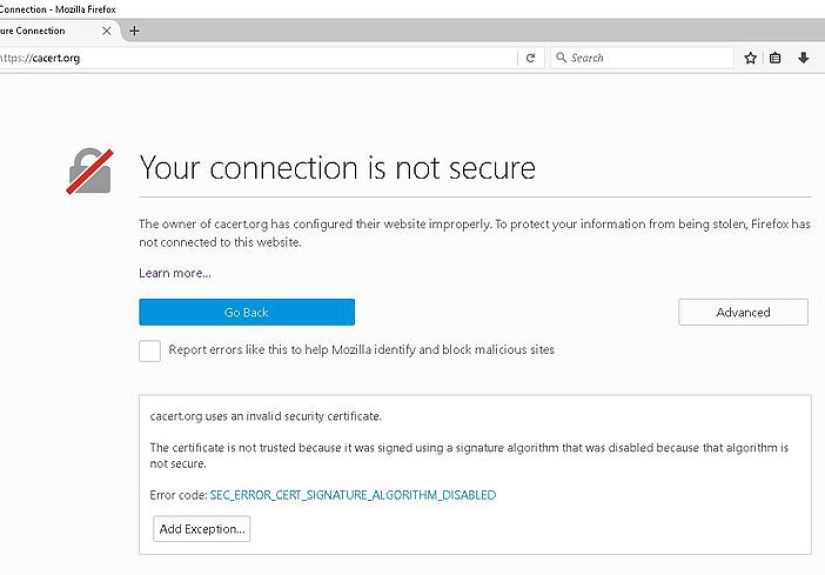
Few things kill a browsing mood faster than a browser basically shouting: “Whoa there. This connection isn’t secure.” It can show up as “Connection is not secure,” “Your connection is not private,” “This site is not secure,” or something equally dramaticoften right when you’re trying to log in, pay a bill, or do literally anything important.
The good news: this error is usually fixable. The better news: most fixes don’t require you to be a cybersecurity wizard. This guide walks you through what the message actually means, the safest troubleshooting steps for regular visitors, and the “do this on your server” fixes for website owners. (Because sometimes it’s not you. It’s them. And yes, it’s still annoying.)
What “Connection Is Not Secure” Really Means
Modern browsers expect secure sites to use HTTPS, which relies on TLS (Transport Layer Security). TLS does two big jobs:
- Encrypts the data traveling between your device and the website (so it’s not readable by snoops).
- Verifies identity using a digital certificate (so you’re really talking to that site, not an impersonator).
When you see a “not secure” connection warning, the browser is telling you it can’t confidently complete one (or both) of those jobs. That might be because the website’s certificate is expired, doesn’t match the domain, is issued by an untrusted authority, your device clock is wrong, or a network/security tool is intercepting traffic in a way the browser doesn’t trust.
First: Do a Quick Safety Check (30 Seconds)
Before troubleshooting, decide whether this is a minor hiccup or a “nope, I’m out” situation.
Don’t type sensitive info while the warning is showing
- No passwords, payment details, Social Security numbers, or “here is my entire life story” forms.
- If it’s your bank, your email, or anything with money involved, treat the warning as a stop sign until you’re sure it’s legit.
Figure out: is it one website or all websites?
- Only one site triggers the warning → likely a website certificate/config issue.
- Every site triggers the warning → likely a device time/network/security software issue.
Fixes for Visitors (You’re Just Trying to Browse)
Start with the simplest, highest-success steps first. Think of this as troubleshooting with maximum results and minimum rage.
1) Check your date, time, and time zone (seriously)
Certificates are valid only within specific dates. If your device thinks it’s 2017 (or 2037), it will treat valid certificates as invalid.
- Windows: Settings → Time & language → Date & time → turn on automatic time/time zone.
- macOS: System Settings → General → Date & Time → set automatically.
- iPhone/iPad: Settings → General → Date & Time → Set Automatically.
- Android: Settings → System → Date & time → Automatic.
After updating, close and reopen the browser, then try again.
2) Switch networks (Wi-Fi is often the chaos gremlin)
Public Wi-Fi can cause certificate warnings for a few reasons: captive portals (the “agree to terms” login page), weak routers, or network interception tools.
- Try mobile hotspot or a different Wi-Fi network.
- If you’re on public Wi-Fi, open a normal HTTP page (like a captive portal prompt) or check if the network needs sign-in first.
3) Pause VPNs, proxies, and “secure browsing” add-ons
VPNs and proxies are useful, but some configurations can break TLS handshakesespecially on school/work networks or when traffic inspection is involved. Temporarily disable them and test again.
4) Update your browser and operating system
Outdated browsers may not support modern TLS rules, or they may lack updated trusted certificate lists. Some sites also reject older TLS versions entirely.
- Update Chrome, Firefox, Edge, or Safari.
- Run OS updates (Windows Update, macOS updates, iOS/Android updates).
5) Clear browser data (cache/cookies) for that site
Corrupted cached data or stored site settings can cause repeated warnings. Clear site data and retry.
- Clear cache and cookies for the affected site.
- Try an Incognito/Private window to test quickly without stored data.
6) Check antivirus “HTTPS scanning” / security software
Some antivirus tools scan encrypted traffic by inserting their own certificates (a process called TLS/HTTPS inspection). If that inspection certificate isn’t trusted properly, your browser throws a warning.
- Look for settings like “HTTPS scanning,” “SSL scanning,” or “encrypted traffic inspection.”
- Update the security software first (older versions are more likely to break things).
- If you must test, temporarily disable HTTPS scanning (not your entire antivirus) and see if the error disappears.
7) Flush DNS and SSL state (Windows is most likely to benefit)
DNS issues can send you to the wrong server (and the wrong certificate). Clearing DNS cache can help.
- Windows DNS flush: open Command Prompt as admin →
ipconfig /flushdns - Chrome SSL state (Windows): Control Panel → Internet Options → Content → Clear SSL state
8) Inspect the certificate (quick detective work)
Click the padlock (or warning icon) near the address bar and look at certificate details. You’re checking for:
- Expiration: Is it past its “valid until” date?
- Name match: Does the certificate cover the exact domain you typed (including
wwwvs non-www)? - Issuer trust: Is it issued by a recognized Certificate Authority (CA)?
If it’s expired or mismatched, that’s typically a website problem. Your best fix as a visitor is: don’t proceed, and notify the site owner/support if possible.
Common Error Messages and What They Usually Point To
Browsers love showing intimidating codes. Here’s the translation into human language.
| Error / Message | Common Cause | Best First Fix |
|---|---|---|
| ERR_CERT_DATE_INVALID | Expired cert or incorrect device time | Check device date/time; if correct, site may be expired |
| ERR_CERT_COMMON_NAME_INVALID | Certificate doesn’t match domain | Double-check URL; site owner must fix certificate/SAN |
| ERR_CERT_AUTHORITY_INVALID / Unknown Issuer | Untrusted CA, missing chain, or interception | Try another network; check antivirus HTTPS scanning |
| HSTS-related block (no “Proceed” option) | Site uses HSTS; cert problem can’t be bypassed | Site owner must fix HTTPS; visitors should not override |
| PR_END_OF_FILE_ERROR (Firefox) | TLS handshake failed (VPN/proxy/security tool) | Disable VPN/proxy; update browser; try different network |
Fixes for Website Owners (Because Sometimes It’s Your Site)
If visitors are seeing “Connection Is Not Secure” on your site, the fastest path is: identify what type of certificate failure it is, then fix the configuration at the source.
1) Renew the certificate before it expires (and automate it)
Expired certificates are the #1 “oops” that turns into a customer support bonfire. If you use a managed platform, enable auto-renew. If you use ACME/Let’s Encrypt with Certbot, set up automated renewals and verify they’re actually running.
- Set calendar alerts and monitoring (alerts alone fail when the alert email goes to an inbox that nobody checks).
- After renewal, confirm the new cert is deployed on the live server/CDNnot just generated somewhere.
2) Install the full certificate chain (leaf + intermediates)
A certificate can be valid but still fail in browsers if the server doesn’t present the correct intermediate certificates. The result: “unknown issuer” or “untrusted” errorsespecially on certain devices.
- Use your CA’s recommended “full chain” bundle.
- Test on multiple browsers and mobile devices after changes.
3) Make sure the certificate covers all your hostnames
Common name mismatch errors often happen when a certificate covers only one version of a domain. Example: it covers example.com but not www.example.com, or it covers the main domain but not a subdomain like shop.example.com.
- Use SAN certificates (most modern certificates are SAN by default).
- Decide on one canonical domain and redirect cleanly (HTTP → HTTPS and non-www → www, or vice versa).
4) Fix “mixed content” (HTTPS page loading HTTP resources)
Even if your certificate is perfect, loading scripts/images/styles over plain HTTP can trigger warnings or break security indicators. Update resource URLs to HTTPS or use relative/secure URLs, then re-test.
5) Use modern TLS settings (and keep server time accurate)
Weak or outdated TLS configurations can trigger warningsespecially in Safari and modern Chrome/Firefox.
- Prefer TLS 1.2/1.3; disable older protocols where possible.
- Keep server time synced (NTP) so certificate validity checks behave correctly.
6) Be careful with HSTS (power tool, not a toy)
HSTS tells browsers: “Always use HTTPS for this site.” That’s greatuntil something breaks. If your certificate expires or your HTTPS setup misfires, visitors may be blocked with no bypass option.
- Enable HSTS only after HTTPS is fully stable and tested across subdomains you include.
- Start with a reasonable
max-ageand increase over time once confident.
7) If you use a CDN or proxy, align SSL modes correctly
CDNs can introduce certificate mismatches if the edge certificate, origin certificate, and SSL mode aren’t aligned. Make sure:
- Your CDN is presenting a valid certificate for your domain.
- Your origin server certificate is valid if the CDN expects strict validation.
- Redirect rules aren’t accidentally bouncing users between HTTP/HTTPS in weird loops.
When You Should Not “Just Click Through”
Sometimes browsers offer an Advanced/Proceed option. Treat it like a “break glass in case of emergency” buttonnot a routine shortcut.
- If it’s a login page, payment page, or anything personaldon’t proceed.
- If the warning happens only on a specific Wi-Fi network, assume the network might be intercepting traffic.
- If the site is using HSTS and the browser won’t let you proceed, that’s intentional protection. Respect it.
Real-World Scenarios and Lessons Learned (Extra )
The funniest part about “Connection Is Not Secure” errors is that they’re rarely caused by a single dramatic hacker in a hoodie. More often, they come from normal, very human events: a certificate expired over a long weekend, a DNS change took longer than expected, or someone flipped on HSTS before confirming every subdomain was ready for HTTPS adulthood.
Scenario 1: “It only fails on my laptop”
This is almost always a local environment issue. A common culprit is a clock problemespecially after a laptop battery dies, a CMOS battery is weak, or the device was sleeping for ages and never re-synced time correctly. The result is a browser that thinks valid certificates are “from the future” or already expired. Another frequent cause is antivirus HTTPS scanning that updated badly (or didn’t update at all), leaving an inspection certificate that browsers no longer trust. The lesson: before blaming the website, test on another device and check time and security software first.
Scenario 2: “It fails on every website at school/work”
Managed networks sometimes use corporate proxies or inspection systems to enforce security policies. When configured correctly, this can be safe. When configured poorly, it can trigger certificate warnings everywhere. Some networks also block newer TLS features or break certain handshakes, causing errors like “secure connection failed.” The lesson: if the error happens only on a specific network, switching networks is a powerful diagnostic tool. If changing networks fixes it instantly, the problem isn’t your browserit’s the environment. In those cases, the best “fix” might be contacting the network admin rather than endlessly clearing cache like it’s a ritual offering.
Scenario 3: “My site is fine… except on Safari”
Safari can be less forgiving about certain TLS configurations and will loudly complain when the certificate is expired, illegitimate, or when the site relies on older TLS versions. Site owners often discover this after a platform migration or CDN change: everything looks great in one browser, but Safari throws the warning. The lesson: test across browsers and devices after SSL/TLS changes. “Works on my machine” is not a security strategy.
Scenario 4: “We enabled HSTS and now we’re locked out”
HSTS is excellentuntil something goes wrong. Once a browser has stored HSTS for a domain, it will insist on HTTPS and may refuse to bypass certificate errors. If a certificate expires or the origin server stops serving HTTPS properly, users can be blocked even if they’re trying to do the right thing. The lesson: treat HSTS as a graduated rollout. Start with a shorter max-age, verify renewals, confirm subdomains are ready, and only then increase duration. It’s a seatbelt, not a stunt ramp.
Scenario 5: “We renewed the certificate, but the error won’t go away”
This usually happens when the new certificate was generated but not actually deployed everywhere. Maybe the load balancer is still using the old cert, the CDN edge hasn’t updated, or an intermediate chain is missing. Sometimes DNS changes mean some users still reach an old IP with a different certificate. The lesson: after renewal, validate the live certificate from multiple locations/devices, confirm the full chain is served, and ensure redirects land on the exact hostname covered by the certificate. Renewal is step one; correct deployment is step two.
Wrap-Up
“Connection Is Not Secure” is your browser doing its job: protecting you from bad encryption, broken certificates, or sketchy interception. For visitors, the most reliable fixes are checking device time, switching networks, updating software, and identifying whether it’s a single-site or all-sites problem. For website owners, the fixes are mostly about hygiene: renew certificates early, install the full chain, cover all hostnames, avoid mixed content, and be cautious with HSTS.
If there’s one takeaway, it’s this: treat the warning as real until you’ve proven it’s a harmless configuration issue. Security warnings are annoyingright up until the day they save someone from a very expensive mistake.