Table of Contents >> Show >> Hide
- What Is the Homepage in Google Chrome?
- How to Go to the Homepage on Chrome on PC or Mac: 5 Steps
- Fast Shortcut: Use the Keyboard to Open the Homepage
- Homepage vs. Startup Page vs. New Tab Page
- How to Make Chrome Open Your Homepage When It Starts
- Best Homepage Ideas for Chrome
- Common Problems When Opening the Homepage in Chrome
- Tips for Choosing a Better Chrome Homepage
- PC and Mac Differences: What Actually Changes?
- Why Chrome Hides the Home Button by Default
- Extra Experience: Real-World Lessons From Using the Chrome Homepage
- Conclusion
- SEO Tags
There are two kinds of computer users in this world: people who know exactly where Chrome’s Home button is, and people who stare at the browser toolbar like it just hid the TV remote. If you are in the second group, welcome. You are among friends.
Google Chrome is wonderfully simple, but the homepage feature can be a little confusing because Chrome does not always show the Home button by default. On top of that, “homepage,” “startup page,” and “new tab page” sound similar enough to start a tiny argument inside your brain. The good news is that going to your homepage on Chrome on a PC or Mac is easy once you know where the setting lives.
This guide explains how to go to the homepage on Chrome, how to enable the Home button, how to choose what page opens when you click it, and how to fix common issues when the homepage does not behave the way you expect. Whether you want Google, Gmail, your company dashboard, your school portal, a favorite news site, or a beautifully boring blank tab, these five steps will get you there.
What Is the Homepage in Google Chrome?
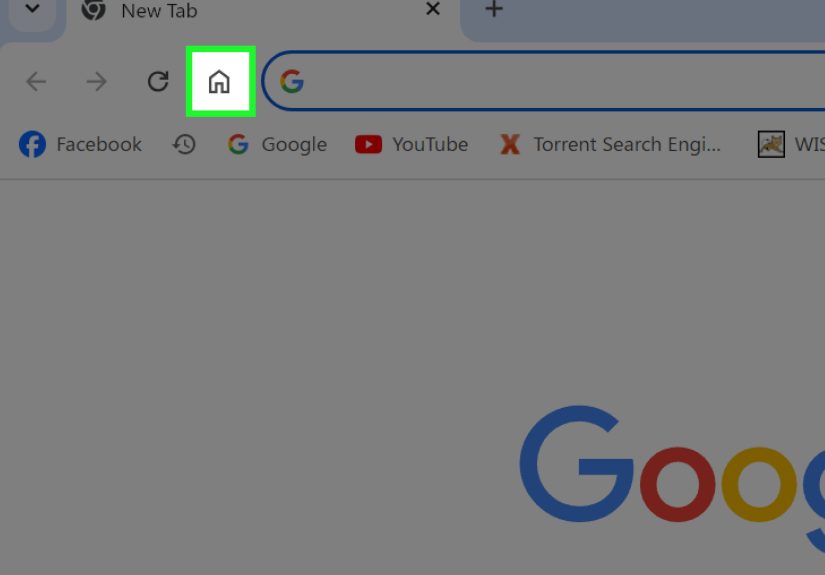
In Chrome, your homepage is the page that opens when you click the Home button. The Home button looks like a small house icon and usually appears to the left of the address bar after you turn it on. It can open Chrome’s New Tab page or a custom website address that you choose.
This is different from the startup page. The startup page is what opens automatically when you launch Chrome. The homepage is what opens when you click the Home button while Chrome is already open. Think of the startup page as your browser’s morning alarm and the homepage as the “take me back to base camp” button.
How to Go to the Homepage on Chrome on PC or Mac: 5 Steps
Follow these steps on Windows, macOS, or another desktop version of Chrome. The menus look very similar on PC and Mac, so you do not need a separate treasure map for each operating system.
Step 1: Open Google Chrome
Start by opening Google Chrome on your computer. On a PC, you can launch it from the taskbar, Start menu, or desktop shortcut. On a Mac, you can open it from the Dock, Launchpad, or Applications folder.
If Chrome is already open, you are ahead of schedule. Enjoy this rare moment of digital efficiency.
Step 2: Click the Three-Dot Menu
Look at the top-right corner of Chrome. You should see three vertical dots. This is Chrome’s main menu, sometimes called the “More” menu. Click it to open a dropdown list of options.
This menu is where Chrome keeps many of its important tools, including Settings, History, Downloads, Bookmarks, Extensions, and other browser controls.
Step 3: Open Settings
From the dropdown menu, click Settings. Chrome will open the Settings page in a new tab. This is where you can customize how Chrome looks and behaves.
If you use Chrome often, Settings is worth getting familiar with. It controls your homepage, startup behavior, privacy settings, search engine, autofill, passwords, appearance, extensions, and more. In other words, it is the control room of your browser spaceship.
Step 4: Turn On the Home Button
In Chrome Settings, find the Appearance section. On some versions of Chrome, you may see Appearance in the left sidebar. In that section, look for Show Home button.
Turn on the switch next to Show Home button. Once enabled, Chrome adds a small house icon near the left side of the address bar. That icon is your shortcut to the homepage.
If the Home button was already visible, you can skip ahead and click it whenever you want to return to your selected homepage.
Step 5: Choose Your Homepage and Click the Home Icon
After turning on the Home button, Chrome lets you choose where the button should take you. You usually have two options:
- New Tab page: Opens Chrome’s standard new tab screen with the Google search box and shortcuts.
- Custom web address: Opens a specific website, such as https://www.google.com, your email inbox, your school website, your work dashboard, or any trusted page you use often.
Choose the option you prefer. If you select a custom web address, type or paste the full URL into the field. Once that is set, click the Home icon beside the address bar. Chrome will take you to your homepage immediately.
Fast Shortcut: Use the Keyboard to Open the Homepage
If you like keyboard shortcuts, Chrome gives you a faster route. On many Windows and Linux keyboards, pressing Alt + Home opens the homepage in the current tab. On Mac, Chrome’s shortcut list may show Command + Shift + H for opening the homepage.
Keyboard shortcuts can vary slightly depending on system settings, keyboard layout, and installed extensions, so the visible Home button is still the most beginner-friendly option. But if the shortcut works on your device, it is a nice little time-saver.
Homepage vs. Startup Page vs. New Tab Page
Chrome’s page settings can feel like three identical twins wearing different hats. Here is the simple difference:
Homepage
The homepage is what opens when you click the Home button. You can set it to the New Tab page or a custom website.
Startup Page
The startup page is what opens when you first launch Chrome. You can make Chrome open the New Tab page, continue where you left off, or open a specific page or set of pages.
New Tab Page
The New Tab page appears when you open a new tab. It often includes a Google search box, shortcut tiles, and sometimes customization options such as background themes.
For example, you might set your homepage to Google, your startup page to your work dashboard, and your New Tab page to Chrome’s default search screen. Or you can keep everything the same if you prefer fewer browser personality changes before breakfast.
How to Make Chrome Open Your Homepage When It Starts
If you want Chrome to open your favorite homepage automatically every time you launch the browser, you need to adjust the startup settings too.
- Open Chrome and click the three-dot menu.
- Select Settings.
- Choose On startup.
- Select Open a specific page or set of pages.
- Click Add a new page, enter your URL, and save it.
This is useful if you always begin your day with the same site. Students might choose a learning portal. Remote workers might choose a project dashboard. Writers might choose a content calendar. People who enjoy chaos might choose twelve tabs at once, but let us not encourage browser cardio.
Best Homepage Ideas for Chrome
Your homepage should save time, not create clutter. Here are practical homepage ideas depending on how you use your computer:
For Everyday Browsing
Set your homepage to Google, your favorite search engine, or Chrome’s New Tab page. This keeps things clean and fast.
For Work
Use a company dashboard, email inbox, calendar, task manager, CRM, or internal portal. If your first five minutes online always involve the same website, that site is a good homepage candidate.
For Students
Choose your school login page, online classroom, library portal, homework tracker, or note-taking app. A smart homepage can reduce the “I opened Chrome and forgot what I was doing” problem.
For Creators and Bloggers
Set the homepage to your website admin panel, analytics dashboard, keyword research tool, content planner, or publishing calendar. When your browser opens directly to your workflow, procrastination has fewer hiding places.
Common Problems When Opening the Homepage in Chrome
The Home Button Is Missing
If you do not see the Home button, go to Settings > Appearance and turn on Show Home button. The house icon should appear near the address bar.
The Home Button Opens the Wrong Page
Go back to the Appearance section and check whether Chrome is set to open the New Tab page or a custom web address. If the wrong URL is entered, replace it with the correct one.
Chrome Opens a Strange Page at Startup
If Chrome opens an unexpected site when you launch it, check Settings > On startup. Remove pages you do not recognize and add the page you actually want.
Your Homepage Keeps Changing
If your homepage or search engine changes without your permission, check your installed extensions. Go to the three-dot menu, choose Extensions, then Manage Extensions. Remove anything suspicious or unnecessary. You can also use Chrome’s reset settings option if the browser continues acting weird.
Settings Are Managed by an Organization
If you use a school, work, or managed computer, some Chrome settings may be controlled by an administrator. In that case, you might not be allowed to change the homepage. It is annoying, but it is not your fault. Your browser is simply wearing a tiny corporate badge.
Tips for Choosing a Better Chrome Homepage
A good homepage should be fast, useful, and trustworthy. Avoid setting your homepage to a page overloaded with pop-ups, auto-playing videos, or distracting content. The whole point is to get where you need to go quickly.
Use a secure website that begins with https:// whenever possible. This is especially important if your homepage leads to email, banking, school accounts, business tools, or anything that requires a login.
You should also avoid unknown “homepage helper” extensions unless you truly trust the developer. Chrome already lets you set a homepage without installing extra tools. In most cases, adding another extension just to open a website is like hiring a personal assistant to turn on a lamp.
PC and Mac Differences: What Actually Changes?
The basic Chrome homepage steps are nearly identical on PC and Mac. The three-dot menu, Settings page, Appearance section, and Show Home button option all work in the same general way.
The main difference is keyboard behavior. Windows users often rely on Alt + Home, while Mac users may use a different shortcut depending on Chrome’s current shortcut support and macOS keyboard settings. If you are not sure, use the Home icon. It is simple, visible, and does not require your fingers to perform gymnastics.
Why Chrome Hides the Home Button by Default
Chrome is designed to keep the toolbar clean. Many users search directly from the address bar, open new tabs, or restore previous sessions instead of clicking a Home button. Because of that, Chrome may hide the Home button until you turn it on.
Still, plenty of people prefer having the Home button visible. It is familiar, quick, and comforting in the same way a “Back” button is comforting. Sometimes you just want one button that says, “Take me back to the place where things make sense.”
Extra Experience: Real-World Lessons From Using the Chrome Homepage
After using Chrome across different computers, offices, laptops, and the occasional borrowed machine with 47 mysterious extensions installed, one thing becomes clear: the homepage setting is small, but it can noticeably change your browsing routine. A well-chosen homepage saves clicks, reduces distraction, and helps you start with intention instead of wandering into the internet wilderness.
For example, setting Chrome’s homepage to the New Tab page works best for people who do not always visit the same site first. It gives you a clean search box, quick shortcuts, and flexibility. This setup is ideal if your browsing changes throughout the day. One minute you are searching for a recipe, the next you are checking a shipping update, and then somehow you are reading about why cats knock things off tables. The New Tab page does not judge.
On the other hand, a custom homepage is better for people with a repeated workflow. If you open the same dashboard every morning, make it your homepage. If you manage a website, set your homepage to the admin area or analytics page. If you are a student, use your learning platform. The fewer steps between opening Chrome and starting your real task, the less chance you have to get ambushed by notifications, random searches, or the ancient human urge to check “just one thing.”
One practical habit is to match your homepage with your goal for that device. A work laptop might use a project management board. A personal desktop might use Google or a favorite news site. A shared family computer might use a neutral homepage like the New Tab page. This keeps each browsing environment organized instead of turning every computer into the same messy digital junk drawer.
Another useful lesson is to review your homepage settings every few months. Sometimes extensions, browser updates, or accidental clicks can change how Chrome behaves. If Chrome suddenly opens a page you do not recognize, do not ignore it. Check the homepage, startup page, search engine, and extensions. Most of the time, the fix is simple. Remove what looks suspicious, reset what looks wrong, and update Chrome.
For Mac users, the homepage feature can be especially helpful because some people are used to Safari’s layout and expect a visible home-style navigation option. Chrome can feel a little different at first, but turning on the Home button makes it feel more traditional. For PC users, the Home button is often familiar from older browsers, so enabling it can make Chrome feel more comfortable and direct.
The biggest experience-based tip is this: do not confuse convenience with clutter. Setting five startup pages, installing homepage extensions, and filling the toolbar with shortcuts may feel productive for about ten minutes. Then Chrome starts opening like a marching band in a small elevator. Keep it simple. One useful homepage is usually better than a dozen “important” pages shouting for attention.
A good Chrome homepage should answer one question: “Where do I want to begin?” If the answer is search, use the New Tab page or Google. If the answer is work, use your work dashboard. If the answer is study, use your course portal. If the answer is entertainment, choose a site you actually want to visit, not one that will swallow your afternoon like a digital sofa cushion.
In daily use, the Home button becomes a reset point. You can open tabs, compare pages, read articles, check tools, and then click the little house icon to return to your chosen starting place. It is not a flashy feature, but it is dependable. And in a browser full of tabs with names like “Untitled Document,” “Cart,” “Cart,” and “Cart,” dependable is beautiful.
Conclusion
Going to the homepage on Chrome on a PC or Mac is simple once you enable the Home button. Open Chrome, go to Settings, find Appearance, turn on Show Home button, choose the New Tab page or a custom URL, and click the house icon whenever you want to return home.
The key is understanding what Chrome means by homepage. It is not always the same as your startup page or New Tab page. Once you know the difference, you can customize Chrome so it opens exactly where you want, when you want. That means fewer wasted clicks, fewer confusing tabs, and a browser that behaves more like a helpful tool and less like a mystery drawer.
Whether you use Chrome for school, work, writing, research, shopping, or everyday browsing, setting a useful homepage is one of the easiest ways to make your browser feel more personal and efficient. It takes less than a minute, requires no special software, and gives you a one-click path back to your preferred starting point. Not bad for a tiny house icon.