Table of Contents >> Show >> Hide
- Why You Can’t Hear Valorant Comms on Discord
- Fix 1: Set Up Valorant’s In-Game Voice Chat Correctly
- Fix 2: Check Windows Audio & Microphone Permissions
- Fix 3: Tune Discord’s Voice & Stream Settings
- Fix 4: Run Valorant & Discord Like a Pro (Admin, Drivers & More)
- Quick Checklist: Before You Tilt-Queue Again
- Real-World Experiences: What Actually Works in Practice
- Conclusion
You finally queue up in Valorant, grab a full squad of friends on Discord, hit “Go Live”… and your viewers say the words every streamer dreads:
“We can’t hear your team.”
Don’t worry, this isn’t a “your PC hates you” moment. It’s almost always a combo of audio routing, game settings, and Discord quirks. The good news? You don’t need a degree in audio engineering to fix it. In this guide, we’ll walk through
4 simple fixes that solve most “can’t hear Valorant comms on Discord” problems, based on common solutions from Riot’s support docs, Discord’s troubleshooting guides, and real-world player reports.
Whether your friends can’t hear your in-game voice chat on stream, or you can’t hear teammates while chilling in a Discord call, follow these steps in order. You’ll be back to crisp callouts and chaotic team yelling in no time.
Why You Can’t Hear Valorant Comms on Discord
Before we fix it, it helps to know what’s actually going wrong. In most cases, one of these is happening:
- Valorant voice chat is misconfigured – Party/Team chat off, wrong device selected, or stuck on push-to-talk.
- Windows is sending audio to the wrong place – Your “default device” and “default communications device” don’t match what Discord and Valorant expect.
- Discord isn’t capturing the right sound – The stream has no audio, the wrong output device is selected, or experimental audio capture is glitching.
- Permissions and drivers are unhappy – The game can’t access your mic, or outdated audio drivers are causing weird behavior.
The fixes below are arranged from easiest to slightly more advanced. Go through them step by step, test after each one, and don’t skip the basics (they fix way more issues than people like to admit).
Fix 1: Set Up Valorant’s In-Game Voice Chat Correctly
If your in-game voice isn’t configured properly, Discord can’t stream what doesn’t exist. Start by making sure Valorant voice chat actually works inside the game before worrying about Discord.
Step 1: Open Valorant’s Voice Chat Settings
- Launch Valorant.
- Click the gear icon in the top-right corner of the client.
- Go to Settings > Audio > Voice Chat.
Here’s what to double-check:
- Input Device: Set this to the mic you actually use (USB mic, headset mic, etc.).
- Output Device: Set this to your main headphones/headset. This is where your teammates’ voices will play.
- Incoming Volume: Turn this up (80–100%) so your teammates aren’t whisper-quiet.
- Mic Volume: Turn this up enough that your Loopback Test sounds clear.
Step 2: Use the Loopback Test
Valorant has a built-in Loopback Test in the Voice Chat tab. Turn it on, speak into your mic, and see if you hear yourself:
- If you hear yourself clearly, your mic and output settings in Valorant are probably fine.
- If you don’t hear anything, your issue is inside Valorant or your OS audio settings. Fix that first.
Step 3: Make Sure Party/Team Voice Chat Is Enabled
Still in the Voice Chat settings, make sure:
- Party Voice Chat is enabled if you’re queued with friends.
- Team Voice Chat is enabled if you want callouts with the whole team.
By default, Valorant uses Push-to-Talk:
- U – talk to your party.
- V – talk to your team.
If your comms only go through when you hold a key, but your Discord stream viewers can’t hear them, it may be because push-to-talk doesn’t play nicely with how Discord captures audio. Many players report that switching the Party Voice Activation Mode from push-to-talk to Automatic (voice activation) helps make comms consistently audible in Discord streams.
Once you can:
- Hear your teammates in Valorant, and
- They can hear you in Valorant
…test your Discord stream again. If viewers still don’t hear in-game comms, move on to the next fix.
Fix 2: Check Windows Audio & Microphone Permissions
Even if Valorant is set up correctly, Windows itself can silently block your microphone or route sound to the wrong output device. That’s a quick way to break both in-game voice and your Discord stream.
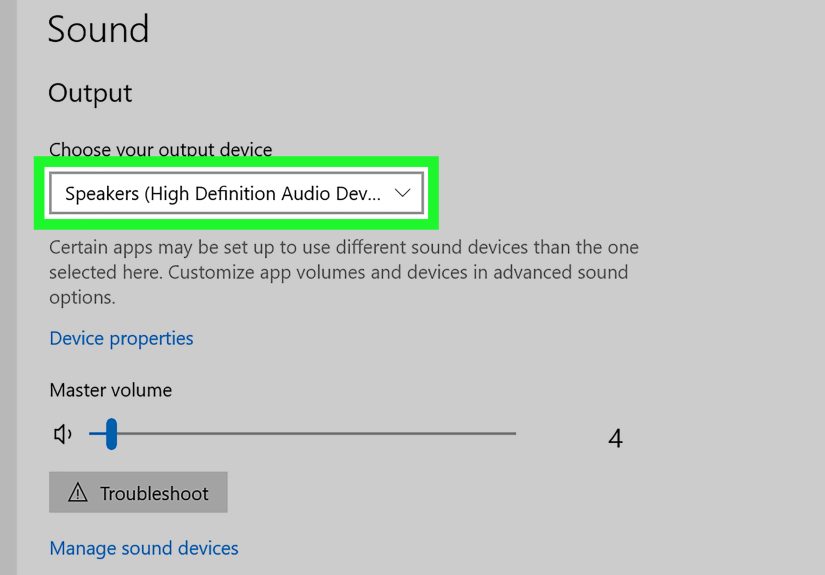
Step 1: Confirm Your Default Input & Output Devices
- Right-click the speaker icon in the Windows taskbar.
- Select Sound settings (or “Open Sound settings”).
- Under Output, choose your main headset/headphones.
- Under Input, choose the mic you actually use.
Many players accidentally have their input set to a webcam mic or their output set to a monitor speaker. Your system, Valorant, and Discord all need to agree on which devices to use or things get messy.
Step 2: Allow Apps to Access Your Microphone
Valorant and Discord both need OS-level permission to use your mic:
- Open the Windows Settings app.
- Go to Privacy & security > Microphone (or just search “Microphone privacy settings”).
- Turn on Microphone access for the device.
- Turn on Allow apps to access your microphone and Allow desktop apps to access your microphone.
Scroll down the list and make sure Valorant (and Discord, if it’s listed) are allowed. If they’re blocked here, they can’t send or receive voice chat, no matter what you do in-game.
Step 3: Check the Volume Mixer
- Right-click the speaker icon again.
- Choose Open Volume Mixer.
- Look for Valorant and Discord in the list.
- Make sure neither is muted and the sliders are reasonably high.
If Valorant’s volume is super low in the mixer, your teammates will sound quiet or invisible in the Discord stream, even if everything else is correct.
Fix 3: Tune Discord’s Voice & Stream Settings
Now that the game and Windows are behaving, it’s time to get Discord to capture and send your Valorant audio properly.
Step 1: Pick the Right Devices in Discord
- Open Discord.
- Click the gear icon next to your username (User Settings).
- Go to Voice & Video.
- Set:
- Input Device to your real mic.
- Output Device to your main headset/headphones (the same one Valorant uses, in most cases).
- Use Mic Test (“Let’s Check”) to confirm Discord hears you and plays back audio.
Also make sure you’re not:
- Muted (mic icon crossed out), or
- Deafened (headphone icon crossed out).
Step 2: Fix “Discord Stream Has No Sound” Issues
If your friends see your Valorant gameplay but hear nothing, try these:
- When you start streaming, make sure you choose the Valorant game window or the correct screen and that the stream is set to include sound.
- If Discord asks for permission to capture audio, click Allow / Grant Access.
- Under Voice & Video > Screen Share options, look for any settings related to audio capture and enable them.
- In some Discord builds, toggling “Use an experimental method to capture audio from applications” can fix (or cause) issues. If it’s enabled and your stream is silent, try turning it off. If it’s disabled, try turning it on and restarting Discord.
Finally, try Reset Voice Settings in Discord:
- Go to Voice & Video.
- Scroll down and click Reset Voice Settings.
- Confirm, restart Discord, and re-select your mic/headset afterward.
Step 3: Avoid Surround-Only Audio for Streams
Some viewers report a weird bug where they can hear game sounds (shots, footsteps) but not voices when the streamer uses virtual surround sound or 5.1/7.1 modes. For Discord streams, it’s safest to:
- Set your output to Stereo in your sound card or headset software.
- Disable any “super virtual mega surround” fancy modes while troubleshooting.
Once your viewers can consistently hear Valorant comms, you can experiment with surround again and see if it still behaves.
Fix 4: Run Valorant & Discord Like a Pro (Admin, Drivers & More)
If you’ve made it here and Valorant comms are still not coming through on Discord, it’s time for some slightly more advanced fixes that often clean up stubborn issues.
Step 1: Run Riot Client, Valorant, and Sometimes Discord as Administrator
Giving Valorant elevated permissions can help it capture and send voice data properly:
- Close Valorant and the Riot Client.
- Right-click the Riot Client shortcut > Properties > Compatibility.
- Check Run this program as an administrator > click Apply.
- Do the same for the Valorant executable if needed.
Some players also launch Discord as an administrator, especially if overlays or capture permissions are acting up. Just don’t forget to re-launch normally later if other apps complain.
Step 2: Update Your Audio Drivers
Outdated or corrupted audio drivers can cause all kinds of gremlins: missing game audio, broken mic input, or Discord streams with no sound. To minimize that:
- Open Device Manager.
- Expand Sound, video and game controllers.
- Right-click your main audio device (e.g., Realtek, your USB interface, or headset) and choose Update driver.
- Alternatively, download the latest driver package from your motherboard, laptop, or headset manufacturer’s website.
After updating, restart your PC, then test Valorant, Discord voice, and your stream again.
Step 3: Close Conflicting Apps & Overlays
Apps that try to “enhance” or hook your audio can interfere with Discord and Valorant. While testing, try closing:
- Extra voice programs (Skype, Zoom, Teams, other VOIP apps).
- Third-party sound enhancers or virtual surround tools.
- Overlays from recording/streaming apps or game boosters.
Then relaunch Discord and Valorant and see if your comms suddenly behave. If they do, re-enable extra apps one by one until you find the troublemaker.
Quick Checklist: Before You Tilt-Queue Again
If you’re in a hurry, here’s a rapid-fire checklist to run through any time “Valorant comms aren’t coming through on Discord”:
- Can you hear teammates inside Valorant normally?
- Are your Input/Output devices consistent across Windows, Valorant, and Discord?
- Is Valorant’s voice activation set to Automatic (at least for Party) while streaming?
- Is your Discord stream started with sound enabled, and did you grant audio permissions?
- Is your audio set to Stereo (not only virtual surround) while streaming?
- Have you restarted Discord and Valorant after changes?
If all of that checks out, your setup is usually solid enough that the problem will be temporary (a bug, server issue, or rare software conflict).
Real-World Experiences: What Actually Works in Practice
Guides are great, but nothing beats the “I was losing my mind at 2 a.m. and finally fixed it” stories. Let’s walk through a few realistic scenarios that mirror what a lot of Valorant + Discord users deal with.
Scenario 1: Viewers Hear the Game, But Not Team Voices
This one’s incredibly common. You’re streaming Valorant to your friends on Discord, and they can hear gunshots, footsteps, and abilities – but your teammates sound like they’ve been permanently muted by the universe.
In many cases, the game audio is being sent in a way Discord can grab, but voice chat is either:
- On a different output device (for example, routed through “communications device”), or
- Linked to a surround sound or spatial audio mode that Discord doesn’t interpret correctly.
A practical fix a lot of players report is:
- Set your Windows output to a single Stereo device.
- Make sure both game sound and voice chat in Valorant use that same device.
- Disable fancy spatial effects and retest the Discord stream.
The “aha” moment usually comes when you realize Discord only ever hears one audio stream. If voices are being rerouted somewhere else, they simply never make it to your viewers.
Scenario 2: Valorant Voice Chat Works, But Dies When You Join Discord
Another spooky one: you can talk and hear everyone perfectly in Valorant – until you join a Discord voice channel. Suddenly, your in-game voice stops working, or your teammates can’t hear you anymore.
This often happens because Windows treats Discord as a communications app and applies special behavior to other sounds (lowering volume, changing devices, etc.). The fix usually involves:
- Opening Sound settings in Windows.
- Looking for the Communications tab.
- Set it to “Do nothing” instead of lowering volume when a call is detected.
Once that’s done, joining a Discord voice channel should no longer mess with Valorant’s audio levels, and your comms can happily coexist with your Discord chat.
Scenario 3: Your Mic Works in Discord, But Not in Valorant
This one tricks a lot of people: “My mic works in Discord, so the mic is fine. Valorant must be broken.” Not necessarily. Valorant is a separate app with its own permissions and device selection.
The real-world fix pattern usually looks like this:
- Enable the Loopback Test in Valorant and notice you can’t hear yourself.
- Realize your Input Device in Valorant is set to a different mic (webcam, unused interface, etc.).
- Switch to the correct mic, re-run Loopback, and suddenly everything works – in game and on stream.
The takeaway: anytime there’s a problem, test your mic in three places independently – Windows, Valorant, and Discord. If any one of them is wrong, your comms chain breaks.
Scenario 4: The “Nuclear Option” That Weirdly Fixes Everything
Sometimes, after a full session of tweaks, toggles, and polite screaming at your monitor, the fix is the most boring one: uninstalling and reinstalling Discord, updating your audio drivers, and restarting your PC.
It sounds like cop-out advice, but when your setup has been through months (or years) of random device changes, USB swaps, and app updates, a clean slate can:
- Reset corrupted configs.
- Make sure new audio drivers are actually in use.
- Clear old virtual devices and ghost settings that confuse Valorant or Discord.
If you’re troubleshooting this regularly, consider keeping a “known good” baseline: one headset, one mic, stereo output, simple Discord settings. Get everything working perfectly, then only introduce fancy stuff (virtual surround, extra apps, multiple mics) one at a time so you always know what broke what.
Conclusion
Hearing Valorant comms on Discord really comes down to three big ideas: pick the right devices, give apps the permissions they need, and avoid fighting your own audio setup with too many “enhancements.” Once Valorant, Windows, and Discord are all speaking the same audio language, your stream viewers will hear every clutch callout, every misplayed flash, and every “we don’t talk about that round” moment.
Use the 4 simple fixes in this guide as your go-to checklist whenever comms go silent. After a few times, you’ll be the friend everyone pings when their audio breaks – which might be the highest rank of all.