Table of Contents >> Show >> Hide
- Quick answer: the 2 fastest ways to save a photo or video
- How to save multiple photos or videos from a text thread (without doing it one-by-one)
- How to save videos from text messages (and keep them watchable later)
- Where do saved images and videos go on iPhone?
- Saving attachments to the Files app (great for “originals” and non-photo files)
- Troubleshooting: when saving from Messages gets weird
- 1) You tapped Save… but can’t find the photo
- 2) The Save option isn’t showing up
- 3) The photo/video looks blurry after saving
- 4) You can’t see the Photos/Attachments section for a conversation
- 5) Messages is taking up a ton of storage (and you’re trying to save before deleting)
- 6) You saved a video, but it won’t play
- 7) Group chats: saving works, but finding the right media is a mess
- 8) “Shared with You” is on (or off) and you’re confused
- 9) You want to save more than photos/videos (like voice messages)
- 10) You’re trying to save everything from years of texting
- Best practices: save smarter, not harder
- Conclusion
- Real-world experiences and “wish I knew this sooner” lessons
You know that feeling when someone texts you the perfect photoyour kid’s first “I definitely meant to do that” bike wobble,
your friend’s dog looking like a Victorian oil painting, or a video so funny it should be taxableand then… it just lives in your message thread forever?
Like a tiny digital gremlin squatting in your conversations and quietly eating your storage?
Good news: saving images and videos from text messages on an iPhone is easy once you know where to tap (and where not to rage-tap).
This guide walks you through the fastest ways to save a single photo or video, how to grab multiple items at once without developing “scroll-thumb,”
where your saved stuff actually goes, and what to do when your iPhone decides to play hide-and-seek with the Save button.
Quick answer: the 2 fastest ways to save a photo or video
Method 1: Press and hold (fastest for a single item)
- Open the conversation in the Messages app.
- Find the image or video in the message thread.
- Press and hold the image/video thumbnail.
- Tap Save (for photos) or Save Video (for videos), depending on what you’re saving.
This is the “I have places to be” option. It saves directly to your Photos library.
If you don’t see “Save” right away, don’t panicjump to the troubleshooting section. Your iPhone is probably being picky about where you pressed.
Method 2: Open it, then use the Share button (best when “Save” doesn’t show)
- Tap the photo or video to open it full-screen.
- Tap the Share icon (the square with an upward arrow).
- Choose Save Image or Save Video.
Think of this as the “fine, I’ll do it the long way” route. It’s also handy when you want to immediately send it to someone else,
save it to Files, AirDrop it, or drop it into an album.
How to save multiple photos or videos from a text thread (without doing it one-by-one)
If you’ve ever tried to save 47 photos individually, you already know that’s how villains are made.
Instead, use the conversation’s shared media view, which gathers photos and videos into a neat grid.
Option A: Use the conversation’s Photos/Attachments section
- Open the conversation in Messages.
- Tap the contact or group name at the top of the screen.
- Scroll to Photos (or a media section) and tap See All if available.
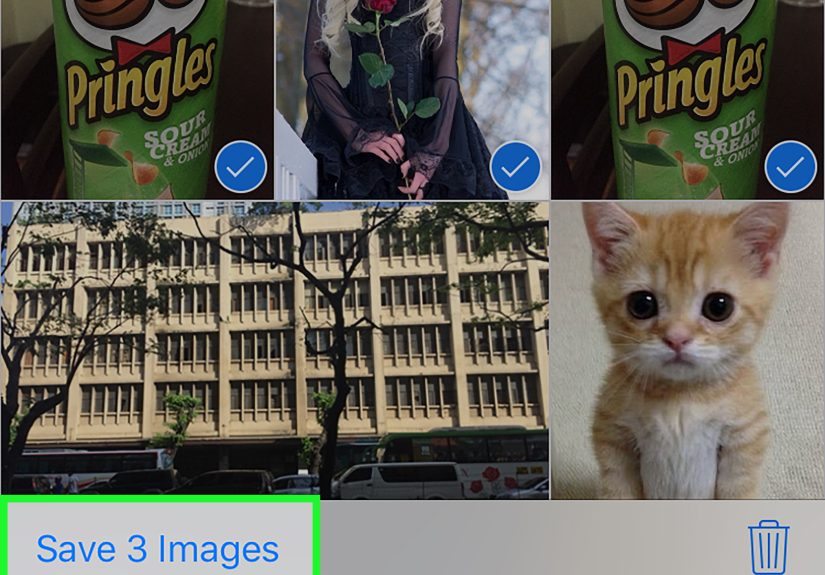
- Tap Select.
- Tap each photo/video you want to save (you’ll see checkmarks as you select).
- Tap Save or Save Images/Save Attachments.
This view is perfect for “I know it’s in here somewhere” situationslike when the media was sent months ago and scrolling would take you back to a
different era of your life (and your haircut choices).
Option B: Save a whole stack of photos at once (when Messages groups them)
Sometimes multiple photos arrive as a little “stack” in the message thread, and you may see a download-style icon nearby.
When that happens:
- Tap the icon next to the photo stack (or tap the stack).
- Choose Save Photos to save the whole batch.
This can be the quickest way to rescue a multi-photo momentlike a travel dump, wedding pics, or your friend’s “here are 18 angles of my new haircut”
documentary series.
How to save videos from text messages (and keep them watchable later)
Saving a video is nearly identical to saving a photo, but videos come with two extra “gotchas”:
file size and quality.
Save a single video
- Press and hold the video thumbnail → tap Save Video, or
- Tap to open the video → tap Share → tap Save Video.
Save multiple videos from the same thread
Use the same multi-save steps from the shared media grid:
open the conversation → tap the name at the top → go to Photos/media → Select → choose videos → Save.
Videos are usually mixed in with photos in that grid.
Quality tip: why the saved video might look different than expected
Your iPhone (or your carrier, if the message was sent as SMS/MMS/RCS depending on setup) may compress photo/video attachments when needed,
especially for large files. If you’re saving a video you want to keep in the best available quality, consider asking the sender to share via
a cloud link or a file-sharing method that preserves the original file more reliably.
Where do saved images and videos go on iPhone?
After you tap Save, your media goes to the Photos appusually under Recents.
If you’re hunting for something you saved two minutes ago, start there.
Quick ways to find it
- Photos → Recents: newest additions show up at the bottom (depending on your sort settings).
- Search in Photos: try “video,” “screenshot,” “dog,” “beach,” or even text that appears in the image if your iPhone indexes it.
- Albums: videos often also appear in the Videos album automatically.
Why the date might look “wrong”
Sometimes a saved photo shows the original date it was taken (or created) rather than the day you saved it.
That’s normal behavior for many images and videos because the file can preserve original metadata.
Translation: your Photos library is organizing by the media’s real birthday, not the day you adopted it.
Saving attachments to the Files app (great for “originals” and non-photo files)
Not everything in Messages is a simple photo or video. You might receive:
documents, PDFs, zipped files, or even a video that you’d rather store in a project folder instead of letting it mingle with 9,000 memes in Recents.
Save to Files
- Open the photo/video/attachment.
- Tap Share.
- Select Save to Files.
- Pick a folder (iCloud Drive or On My iPhone), then tap Save.
This is especially useful if you want a clean folder structure like:
Files → Projects → Kitchen Remodel → “Before Photos”, instead of
Photos → Recents → “A chaotic timeline of your entire life”.
Troubleshooting: when saving from Messages gets weird
1) You tapped Save… but can’t find the photo
- Check Photos → Recents first.
- Use Photos search (try “recent,” “video,” or the subject of the image).
- If your Photos app sorts by “Date Captured,” the item might appear earlier in your timeline than you expect.
2) The Save option isn’t showing up
- Try pressing and holding the thumbnail in the message thread, not only in full-screen view.
- Open the item and use Share → Save Image/Save Video.
- If it’s a special format (like certain GIFs or stickers), saving may work differently. You can often still share it to Photos or Files from the Share sheet.
3) The photo/video looks blurry after saving
- Large attachments can be compressed. If quality matters, ask the sender to share using a cloud link or file transfer method.
- If the attachment is still “downloading,” wait until it fully loads before saving.
4) You can’t see the Photos/Attachments section for a conversation
- Make sure you tapped the name at the top of the conversation (not just the back button or the keyboard).
- Give it a momentyour phone may still be indexing older threads, especially after a big iOS update or restore.
- Restart the Messages app (or the phone) if the media list looks incomplete.
5) Messages is taking up a ton of storage (and you’re trying to save before deleting)
This is a smart workflow:
Save the important photos/videos to Photos or Files, then delete the bulky attachments from the thread if you’re trying to reclaim space.
If you do a lot of photo/video messaging, cleaning out old attachments can make a noticeable difference in storage.
6) You saved a video, but it won’t play
- Try saving again using the Share method (open video → Share → Save Video).
- If it was sent in a way that streams or partially loads, make sure it fully downloads first.
- Check your available storagelow storage can cause weird behavior with large files.
7) Group chats: saving works, but finding the right media is a mess
In group chats, the shared media view is your best friend. Tap the group name at the top to view all photos and videos shared in that thread.
It’s like a highlight reelminus the commentary from Uncle Dave.
8) “Shared with You” is on (or off) and you’re confused
Some iOS versions can surface shared photos in Photos under a “Shared with You” area.
It’s convenient, but it’s not the same as savingthink of it as a shortcut, not a permanent “this is mine now” move.
If you want the photo firmly in your library, still use Save.
9) You want to save more than photos/videos (like voice messages)
Voice notes in Messages can expire unless you keep them. If you see a Keep option under an audio message, tap it so it doesn’t disappear.
For long-term storage, you can also share audio out to Files or another app using the Share sheet, depending on your iOS version and message type.
10) You’re trying to save everything from years of texting
There isn’t always a magical “Export all attachments from all time” button inside Messages itself.
Your best practical approach is:
- Use the shared media view per conversation to multi-select and save the important stuff.
- For preserving entire conversations, screenshots or exporting workflows can help (but that’s more about saving texts than saving media).
- If this is about moving to a new device, make sure your message backup/sync setup is solid so attachments don’t vanish mid-move.
Best practices: save smarter, not harder
- Create an album for saved message media (e.g., “Family Chat Gems” or “Receipts & Stuff I Must Not Lose”). Then move the saved items there.
- Save to Files for projects: receipts, PDFs, and “important adult documents” belong in folders, not buried between memes.
- Clean up after saving: once your favorites are safely in Photos/Files, deleting large attachments from Messages can reduce storage bloat.
- Think privacy: saving can preserve metadata (like when it was taken). If you’re sharing sensitive media, consider what you want included before sending.
Conclusion
Saving images or videos from text messages on iPhone comes down to two main moves:
press-and-hold to Save for quick grabs, or open and use Share when you need more options.
For a whole batch, use the conversation’s media grid so you can select multiple items at onceand save your thumb for more important tasks,
like scrolling past 400 identical “OK” texts in a family group chat.
Once you get the hang of it, your best photos and videos won’t be trapped inside message bubbles anymore.
They’ll be right where they belong: in Photos (organized, searchable, editable) or in Files (sorted, foldered, and blissfully boring).
Real-world experiences and “wish I knew this sooner” lessons
In everyday use, most people don’t struggle with the act of saving a single photothey struggle with everything around it:
finding old media, saving in bulk, and figuring out why something “saved” but didn’t show up where they expected.
Here are a few common scenarios that come up again and again, plus what tends to work best.
The “I swear it was here yesterday” moment
A classic: you long-press, tap Save, then open Photos and… nothing. Or at least nothing obvious.
What’s usually happening is one of two things: the item saved into Recents but is now buried in a timeline sorted by the media’s original date,
or the image hadn’t fully downloaded yet when you tried to save it.
The fix is surprisingly low-drama: check Recents, then use Search in Photos for something descriptive (“dog,” “receipt,” “beach”),
and if the thumbnail had a loading indicator earlier, wait until it’s crisp before saving again.
The “holiday photo dump” problem
Around holidays (or after vacations), messages turn into a media firehose. People receive stacks of photos from siblings, friends, group chats,
and that one cousin who believes every plate of food deserves a photoshoot.
Saving them one at a time feels like trying to bail out a boat with a teaspoon.
The shared media grid is the real hero here: tap the contact name, jump into Photos, hit Select, and save the whole set.
After that, consider making an album right away. It takes 20 seconds and saves you from the future headache of “where did those photos go?”
The “I need this video for later, but I don’t want it in my camera roll forever” dilemma
Videos are often more “project-based” than photos. Maybe it’s a clip you need for work, a proof-of-condition video for a rental,
or a recording you’ll send to someone else later.
In those cases, saving to Photos is finebut saving to Files can be even better.
It keeps the video in a folder, not mixed into your personal memories. People who switch to “Save to Files” for practical videos often say it feels
like their phone suddenly became 30% more organized. (Your phone won’t start doing your taxes, but it’s a start.)
The “storage is full and Messages is the culprit” wake-up call
Another real-world pattern: someone checks iPhone Storage and discovers Messages is massive.
The immediate fear is, “If I delete anything, I’ll lose the only copy of those photos/videos.”
The healthier flow is: save what matters first (Photos/Files), then delete big attachments you don’t need inside Messages.
This is also where people discover that saving media is not just about keeping memoriesit’s about keeping control.
Once your favorites live in Photos (and ideally in iCloud Photos or a backup you trust), deleting message attachments stops feeling scary
and starts feeling like reclaiming your phone from a clutter monster.
The “group chat archaeology” expedition
Group chats are where great media goes to get lost. The shared media section turns chaos into a gallery.
A small tip that feels obvious only after you learn it: if you’re looking for something specific (like a video from last summer),
go straight to the media grid and scan by thumbnails instead of scrolling the conversation.
It’s faster, less frustrating, and doesn’t require you to relive every message that led up to the moment.
Bottom line: once you treat Messages like a delivery service (not long-term storage), saving becomes a simple habit.
Grab what you want, put it where it belongs, and let your conversations go back to doing what they do best: delivering memes, plans,
and occasional emotional supportusually in that order.