Table of Contents >> Show >> Hide
- Why sending your location is so useful
- Before you start: check these basics
- How to send your location on iPhone
- How to send your location on Android
- iPhone vs. Android: which method is best?
- Privacy tips before you share your location
- What to do if location sharing is not working
- Best situations for sending a pin vs. live location
- A simple rule of thumb
- Final thoughts
- Experiences and real-life situations with location sharing
Need to tell someone where you are without launching into a dramatic monologue like, “I’m by the coffee shop… no, the other coffee shop… next to a tree”? Good news: both iPhone and Android make location sharing much easier than that. Whether you want to send a one-time pin, share your live location while you travel, or let a family member know you made it safely to dinner, your phone already has the tools to do it.
This guide explains exactly how to send your location to someone on iPhone or Android, when to use a pinned location versus live location sharing, and which apps make the process the simplest. We’ll also cover privacy settings, troubleshooting tips, and real-world examples so you do not accidentally share your whereabouts with half your contact list and a suspicious cousin from 2019.
Why sending your location is so useful
Location sharing is one of those smartphone features that sounds basic until you actually need it. Then it suddenly becomes heroic. It can help you meet friends in a crowded area, guide someone to your exact spot, share your route while traveling, or make sure loved ones know you arrived safely. It is also handy when your written directions would otherwise sound like a scavenger hunt designed by a sleep-deprived pirate.
In general, you have two main options:
- Send a current location or dropped pin: best when you are staying in one place.
- Share live location: best when you are moving and want someone to see updates in real time.
Before you start: check these basics
Before sending your location on iPhone or Android, make sure a few things are in place. These simple checks prevent most “Why is this not working?” moments.
1. Turn on location services
Your phone cannot share what it cannot find. On iPhone, go to your privacy settings and make sure Location Services are enabled. On Android, check that Location is turned on in Settings.
2. Give the app permission to access location
If you are using Apple Maps, Google Maps, Messages, Find My, or WhatsApp, the app needs permission to use your location. In many cases, “While Using the App” is enough. For emergency or ongoing features, some apps may work better with broader permission.
3. Use a stable internet or cellular connection
Live location sharing works best with mobile data or Wi-Fi. If your signal is weak, the location may lag, freeze, or behave like it is taking a coffee break.
4. Decide whether you want a pin or real-time sharing
If you just need someone to find your current place, send a pin. If you are walking across a festival, riding in a car, or heading home late, live location is the better choice.
How to send your location on iPhone
Apple gives iPhone users several ways to share a location. The best option depends on whether you are sending a static place, sharing your movement, or letting someone keep tabs on your arrival.
Send your live location in Messages
If you and the other person use iMessage, Messages is one of the easiest options.
- Open the Messages app.
- Open the conversation with the person you want to share with.
- Tap the plus button.
- Tap Location.
- Choose Share.
- Select how long you want to share your location.
This shares your location in real time inside the conversation, so the other person can follow your movement without needing a separate app.
Send a pinned location in Messages
If you are not moving, a pin is often better than live tracking.
- Open the same Messages conversation.
- Tap plus, then Location.
- Move the map until the pin is in the right spot.
- Send the pinned location.
This is perfect for meeting at a park entrance, a stadium gate, or that one food truck that somehow has no street address but incredible tacos.
Share your location in Find My
Find My is ideal when you want ongoing sharing with trusted people, especially family or close friends.
- Open the Find My app.
- Tap the People tab.
- Tap Start Sharing Location or the add button.
- Choose a contact.
- Select how long to share.
Find My is especially useful if everyone involved is in the Apple ecosystem. It is simple, built in, and easy to manage later.
Share from Apple Maps
Apple Maps can also help when you need to send where you are or share your ETA while traveling.
To send your current place, open Maps, tap your location or a place, then use the Share option. To share your estimated arrival time while navigating, start directions, open the route card, and tap Share ETA.
This is a great option when someone does not need your exact ongoing movement forever. They just need to know, “Yep, I’m on the way, and no, I did not vanish into the void.”
Use Family Sharing
If you use Apple Family Sharing, you can share location with family members across Find My, Messages, and Maps. This is convenient for households, but it is also a good reminder to review who can see what. Family convenience is lovely. Family oversharing is less lovely.
How to send your location on Android
Android users usually rely on Google Maps, WhatsApp, or, on supported devices and app versions, Google Messages. Depending on your phone brand, you may also have access to extra safety features through Google’s Personal Safety tools.
Send your live location with Google Maps
Google Maps is the most universal method on Android, and it also works well when you are sharing with iPhone users.
- Open Google Maps.
- Tap your profile picture or initial.
- Tap Location sharing.
- Tap New share or Share location.
- Choose how long to share your location.
- Select a contact or copy a link to send through another app.
This is one of the easiest cross-platform options because the other person does not need the same type of phone. They can often view your location through a shared link.
Send a place or dropped pin in Google Maps
Need to send one fixed place instead of your movement? Open Google Maps, touch and hold a spot on the map to drop a pin, then tap Share. This is ideal when you want to say, “Meet me here,” not “Observe my every step like a mildly concerned hawk.”
Share real-time location in Google Messages
Google has now added real-time location sharing to Google Messages on supported devices and updated versions of the app. That means some Android users can share their location directly inside a conversation, similar to iPhone Messages.
- Open Google Messages.
- Open the conversation with the person or group.
- Choose the location-sharing option.
- Select a duration such as one hour, today only, or until you turn it off.
- Send it.
Availability can vary by device, app version, and rollout status, so if you do not see the option yet, use Google Maps instead.
Use WhatsApp for location sharing
WhatsApp works on both Android and iPhone, which makes it a favorite for mixed-device groups.
- Open the chat in WhatsApp.
- Tap the attachment or plus icon.
- Tap Location.
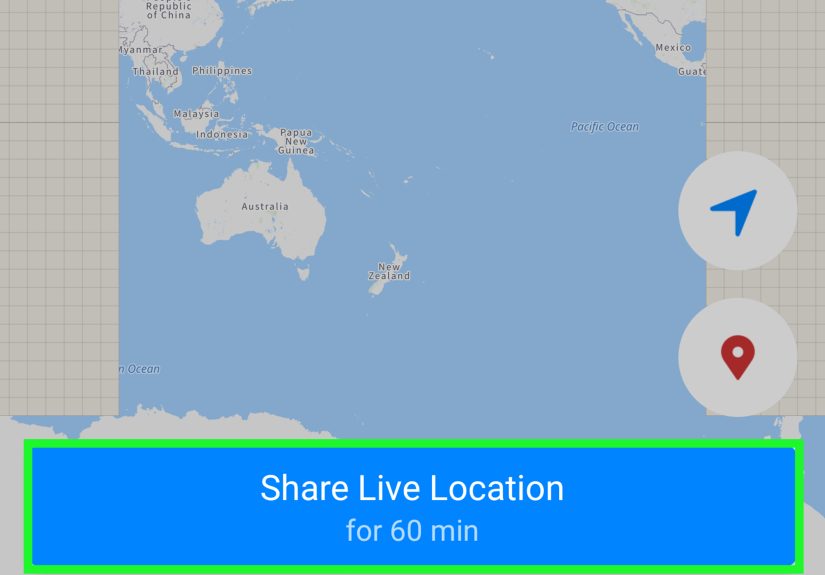
- Choose either Send your current location or Share live location.
- Set the duration if you choose live sharing, then send.
The difference matters: current location is a one-time snapshot, while live location updates as you move.
iPhone vs. Android: which method is best?
There is no single winner because the best app depends on who you are sharing with.
Best for iPhone-to-iPhone sharing
Messages and Find My are usually the smoothest options. They are built in, familiar, and designed to work neatly inside Apple’s ecosystem.
Best for Android-to-Android sharing
Google Maps remains the safest all-around bet, while Google Messages is becoming more convenient for direct chat-based sharing.
Best for iPhone-to-Android sharing
Google Maps or WhatsApp usually wins because both platforms support them. If you need cross-platform location sharing, these are the least fussy options.
Privacy tips before you share your location
Location sharing is useful, but it is still personal data. Treat it like you would your home address, your passwords, or the last slice of pizza: do not hand it out carelessly.
Only share with people you trust
Send live location only to people you know well. A one-time pin is often enough for casual meetups.
Set time limits whenever possible
If an app lets you share for one hour, today only, or until you turn it off, choose the shortest option that fits the situation.
Review who can still see your location
Make it a habit to check your sharing settings. Old permissions have a way of lingering like party guests who missed every social cue.
Check app permissions
Review which apps can access precise location and whether they can do it only while open or also in the background.
What to do if location sharing is not working
If your phone refuses to cooperate, do not panic. It is usually one of a few common issues.
- Location services are off: turn them on in settings.
- App permission is missing: allow location access for the app.
- Internet connection is weak: try Wi-Fi or better cellular service.
- Battery saver is interfering: low-power modes can limit updates.
- App is outdated: update Messages, Maps, WhatsApp, or your operating system.
- The feature has not rolled out yet: this is especially relevant for newer Android messaging features.
Best situations for sending a pin vs. live location
Send a pin when:
- You are staying in one place.
- You want someone to find a meeting point.
- You do not want continuous tracking.
Share live location when:
- You are traveling.
- You are meeting someone in a crowded area.
- You want a trusted person to monitor your progress.
- You are heading home late and want added peace of mind.
A simple rule of thumb
If the person only needs to know where you are, send a pin. If they need to know where you are going and whether you are still moving, use live location sharing. That one distinction clears up most of the confusion.
Final thoughts
Learning how to send your location to someone on iPhone or Android is one of those modern phone skills that quickly goes from “nice to know” to “how did I ever live without this?” Apple users have great built-in tools like Messages, Find My, and Maps. Android users have flexible options through Google Maps, WhatsApp, and increasingly Google Messages. The right method depends on your device, the other person’s phone, and whether you are sending a fixed place or your live movement.
The smartest approach is also the simplest: use the most convenient app for the moment, set a clear time limit when you can, and review your privacy settings once in a while. That way, location sharing stays helpful, not creepy, and your friends can find you without you having to explain for the fifth time that you are “kind of near the big fountain.”
Experiences and real-life situations with location sharing
In real life, location sharing tends to shine in small, practical moments. A classic example is meeting friends at a concert, fair, or stadium. Texting “I’m near Section 112” sounds useful until everyone realizes there are three entrances, two food lines, and one giant inflatable mascot blocking the view. Sending a pinned location or sharing your live location for an hour is often faster than ten confused text messages and one dramatic “Forget it, I live here now.”
Another common situation is travel. When someone is driving across town, taking a rideshare, or heading home late, live location sharing offers reassurance without constant check-ins. Instead of sending “On my way,” “Still on my way,” and “Traffic is terrible,” one live share can handle all of that silently. It reduces friction and gives the other person a realistic idea of when to expect you.
Parents and adult children use these tools differently but for similar reasons. Some families like always-on location sharing through Find My or Google Maps because it makes pickups, errands, and safety checks easier. Others prefer temporary sharing only when someone is traveling, walking home, or navigating an unfamiliar neighborhood. The key is consent and clarity. Helpful location sharing feels supportive. Uninvited location surveillance feels like a reality show no one agreed to join.
There are also moments when a one-time pin is the better choice. Think about meeting a friend in a huge park, finding a campsite, locating your car in a giant parking lot, or telling a delivery driver exactly where to go. In those cases, live tracking is overkill. A dropped pin gets the job done cleanly and keeps the interaction focused.
People also learn quickly that battery life, signal strength, and app permissions matter more than expected. A phone in low-power mode may update more slowly. Weak service can make live location look frozen. And if precise location is turned off, the map may place you close by but not exactly where you are. That is why it helps to test the feature before you really need it. The best time to figure out your settings is not when someone is waiting for you in the rain.
Perhaps the biggest lesson from everyday use is that location sharing works best when it is intentional. Use it with trusted people, pick the shortest sharing window that makes sense, and stop sharing once the moment has passed. Done well, it is a genuinely useful tool for safety, convenience, and coordination. Done poorly, it can become awkward fast. Fortunately, today’s iPhone and Android tools make it easier than ever to stay in control of what you share, when you share it, and who gets to see it.