Table of Contents >> Show >> Hide
- What You Need Before You Start
- Step 1: Decide What Kind of Outlook Email Setup You Need
- Step 2: Create a New Outlook Email Account
- Step 3: Set Up Outlook Email on the Web
- Step 4: How to Set Up Outlook Email in New Outlook for Windows
- Step 5: How to Set Up Outlook Email in Classic Outlook for Windows
- Step 6: How to Set Up Outlook Email on Mac
- Step 7: How to Set Up Outlook Email on iPhone and Android
- How to Add Gmail, Yahoo, iCloud, AOL, and Other Accounts to Outlook
- Manual Outlook Email Settings Table
- Common Outlook Email Setup Problems and Fixes
- Best Settings to Change Right After Outlook Setup
- Why IMAP Is Usually Better Than POP
- Final Thoughts
- Real-World Experience: What Setting Up Outlook Email Is Actually Like
- SEO Tags
If setting up Outlook email feels like one of those tasks that should take five minutes but somehow turns into an unexpected side quest, you are very much not alone. Between Outlook.com accounts, Microsoft 365 work accounts, Gmail logins, Apple permissions, and random password drama, the whole thing can get messy fast. The good news is that Outlook setup is usually simple once you know which version of Outlook you are using and what kind of email account you are trying to connect.
This guide walks you through exactly how to set up Outlook email on Windows, Mac, iPhone, and Android. It also explains how to add third-party email accounts like Gmail, Yahoo, iCloud, AOL, and Xfinity, plus what to do when Outlook refuses to cooperate and acts like it has never seen your password before in its life. We’ll keep it practical, beginner-friendly, and just funny enough to make the process less painful.
What You Need Before You Start
Before you jump into Outlook email setup, gather a few basics. Doing this first saves time and prevents the classic “why is this spinning forever?” moment.
- Your full email address
- Your password
- Access to any two-factor authentication method, such as a text message or authentication app
- A stable internet connection
- Your email provider’s IMAP and SMTP settings if automatic setup fails
In most cases, Outlook can detect settings automatically. That is the dream. But if you are adding a non-Microsoft account or an older provider, manual setup may still be necessary.
Step 1: Decide What Kind of Outlook Email Setup You Need
There are two common situations, and they are not the same:
1. You want a brand-new Outlook email address
If you do not already have an account, you can create a new Outlook.com address. This gives you an email like [email protected] and connects you to Microsoft services.
2. You already have an email account and want to use it in Outlook
This is the more common scenario. You might already use Gmail, Yahoo, iCloud, AOL, Xfinity, or a work or school Microsoft 365 account, and you want Outlook to manage everything in one place.
Once you know which category you fall into, the rest becomes much easier.
Step 2: Create a New Outlook Email Account
If you need a new Outlook email address, open the Outlook website and choose the option to create a free account. Then follow these steps:
- Choose your new email address
- Create a strong password
- Enter your name and basic account details
- Complete the security verification
- Sign in and finish the setup prompts
That’s it. Congratulations, you now have a fresh Outlook email account and one more password to remember forever. Or at least until next Tuesday.
Step 3: Set Up Outlook Email on the Web
If you just want to use Outlook in a browser, setup is wonderfully low drama.
- Go to Outlook on the web
- Sign in with your Microsoft account or Outlook.com address
- Follow the on-screen prompts for time zone, display preferences, and security
- Open your inbox and start using email immediately
This is the fastest option because there is no software installation required. It is also a great fallback if your desktop app is being stubborn.
Step 4: How to Set Up Outlook Email in New Outlook for Windows
The newest Outlook for Windows uses a cleaner setup flow than older desktop versions. If you are using the current Outlook experience, here is what to do:
- Open Outlook
- Go to View settings or use File > Account info
- Select Accounts, then Your accounts
- Click Add Account
- Enter your email address
- Select Continue
- Sign in through the provider’s login screen if prompted
- Allow Outlook to access your mail, contacts, and calendar if requested
After setup, you can choose whether the account should be your primary inbox. Outlook also lets you manage, remove, or reorder accounts from the same settings area.
Step 5: How to Set Up Outlook Email in Classic Outlook for Windows
If your Outlook screen still looks more like traditional desktop Office, you are probably using classic Outlook. The steps are still straightforward:
- Open Outlook
- Click File
- Select Add Account
- Enter your email address
- Click Connect
- Enter your password when prompted
- Finish the setup wizard
If Outlook cannot configure the account automatically, you may need to choose manual setup and enter incoming and outgoing server settings yourself. More on that in a minute.
Step 6: How to Set Up Outlook Email on Mac
Outlook for Mac is usually painless, especially with mainstream providers.
- Open Outlook on your Mac
- Go to Outlook > Settings
- Select Accounts
- Choose Add Account
- Type your email address
- Click Continue
- Follow the provider login prompts
- Grant permissions if Outlook asks to access mail, calendar, or contacts
If you are adding Yahoo or another IMAP or POP account, Outlook may open a browser window so you can authenticate directly with that provider. That is normal, not a sign that your computer has decided to improvise.
Step 7: How to Set Up Outlook Email on iPhone and Android
The Outlook mobile app is a solid option if you want one inbox across devices. Setup is very similar on iPhone and Android.
- Download the Outlook app from the App Store or Google Play
- Open the app
- Tap Add Account
- Enter your email address
- Follow the sign-in prompts
- Approve access if your provider asks for permission
- Repeat the process for additional accounts
Once you add multiple accounts, Outlook mobile makes switching between inboxes easy. This is handy if you juggle work, personal email, and that one account you created in 2014 for online shopping and coupon chaos.
How to Add Gmail, Yahoo, iCloud, AOL, and Other Accounts to Outlook
One reason Outlook remains popular is that it can manage more than Microsoft email. You can add several third-party providers, but the sign-in flow may differ slightly depending on the account.
Gmail
Gmail usually works well with Outlook. In most cases, you enter your Gmail address, then sign in through Google’s secure login page. If setup fails, check that IMAP is enabled for the account and that the folders you want, such as Inbox and Sent Mail, are visible through IMAP.
Yahoo Mail
Yahoo setup often requires its own sign-in and may use an app password in some configurations. If automatic setup fails, Yahoo’s IMAP server is typically imap.mail.yahoo.com with port 993, and SMTP is smtp.mail.yahoo.com using port 465 or 587.
iCloud Mail
iCloud can be added to Outlook, but it may route you through an Apple sign-in window. If you need manual settings, the incoming server is usually imap.mail.me.com on port 993, and the outgoing server is smtp.mail.me.com on port 587. Apple may require an app-specific password, so a plain old Apple ID password is not always enough.
AOL Mail
AOL recommends IMAP for syncing because it keeps messages and folders consistent between the app and the server. In manual setup, incoming mail generally uses export.imap.aol.com on port 993, and outgoing mail uses smtp.aol.com on port 465.
Xfinity Email
Xfinity email can also work in Outlook. If Outlook does not detect it automatically, Xfinity commonly uses imap.comcast.net for incoming mail. If your password is rejected, double-check that you are using the correct provider credentials and security settings.
Manual Outlook Email Settings Table
If automatic setup fails, this quick reference can help. Always confirm current settings with your email provider before entering them manually.
| Provider | Incoming Server | Port | Outgoing Server | Port |
|---|---|---|---|---|
| Outlook.com | outlook.office365.com | 993 (IMAP) | smtp-mail.outlook.com | 587 |
| Gmail | imap.gmail.com | 993 | smtp.gmail.com | 465 or 587 |
| Yahoo | imap.mail.yahoo.com | 993 | smtp.mail.yahoo.com | 465 or 587 |
| iCloud | imap.mail.me.com | 993 | smtp.mail.me.com | 587 |
| AOL | export.imap.aol.com | 993 | smtp.aol.com | 465 |
| Xfinity | imap.comcast.net | 993 | Check provider settings | Usually 587 |
Common Outlook Email Setup Problems and Fixes
Password keeps failing
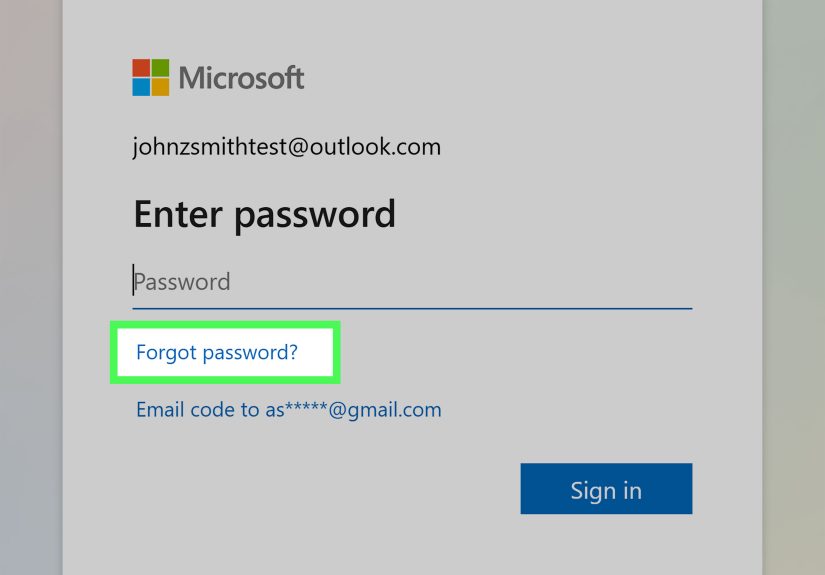
First, make sure you are entering the correct password for the right provider. It sounds obvious, but email setup has a magical way of making even confident people type like confused raccoons. If you use two-factor authentication, you may need an app password instead of your normal password.
Outlook won’t connect to Gmail
Check IMAP access and confirm the right folders are available through IMAP. Also make sure you complete the Google sign-in and permission flow in your browser.
Messages are not syncing
Refresh Outlook, close and reopen the app, and verify that the account was added as IMAP rather than POP if you want full syncing across devices.
Sent mail or folders are missing
This usually happens when folder mapping is incomplete or the provider is not exposing the folders through IMAP. Gmail in particular may need label settings adjusted so Outlook can see everything properly.
Outlook setup looks different from screenshots online
That is normal. Microsoft has both new Outlook and classic Outlook, and they do not look identical. The overall logic is the same: add account, sign in, authenticate, sync.
Best Settings to Change Right After Outlook Setup
Once your account is live, spend five more minutes making Outlook work better for you.
- Turn on two-step verification for stronger account security
- Choose your default signature
- Set your display name correctly
- Pick your preferred inbox layout
- Create folders for bills, receipts, work, and personal messages
- Enable notifications only for important accounts unless you enjoy chaos
- Confirm your recovery email and phone number are current
These tiny adjustments make a big difference. A properly set up Outlook inbox feels efficient. An unorganized one feels like a digital junk drawer full of coupons, meeting invites, and emotional damage.
Why IMAP Is Usually Better Than POP
If Outlook asks you to choose between IMAP and POP, pick IMAP unless you have a very specific reason not to. IMAP keeps email synced across your computer, phone, tablet, and webmail. Delete a message on one device, and it updates everywhere. POP is more old-school and can download messages locally in a way that causes confusion later. Unless you enjoy wondering where your sent email went, IMAP is usually the smarter choice.
Final Thoughts
Learning how to set up Outlook email is mostly about matching the right steps to the right version of Outlook and the right email provider. If you are using Outlook.com or Microsoft 365, setup is typically quick. If you are adding Gmail, Yahoo, iCloud, AOL, or Xfinity, there may be an extra sign-in or permission step, but it is still manageable. The key is to let Outlook try automatic setup first, then use manual IMAP and SMTP settings only if needed.
Once everything is connected, Outlook can become your email headquarters instead of your daily tech support mystery. And honestly, that is the dream: less troubleshooting, more actual emailing, and fewer moments spent whispering “why” at your laptop.
Real-World Experience: What Setting Up Outlook Email Is Actually Like
In real life, setting up Outlook email rarely happens in a perfectly calm, distraction-free environment. It usually happens when someone has just bought a new laptop, switched jobs, upgraded phones, or finally decided they are tired of checking three separate inboxes like it is a part-time job. That is why the practical experience matters just as much as the official steps.
For many people, the easiest Outlook setup experience happens with a Microsoft account. You enter the email address, type the password, approve the security prompt, and Outlook more or less handles the rest. It feels smooth, modern, and almost suspiciously cooperative. You may even start thinking, “Wow, technology really has improved.” That feeling may last several minutes.
Then there is the experience of adding a third-party account. Gmail is usually manageable, but it often involves a browser sign-in, permissions screen, and a short moment where you wonder whether clicking Allow will give Outlook access to your entire digital soul. Yahoo and iCloud can be even more memorable. iCloud, in particular, has a way of reminding users that Apple prefers everything to happen the Apple way. If an app-specific password enters the chat, just know you are not doing anything wrong. You have simply reached the advanced level of email setup.
One common experience is assuming the password is wrong when the real issue is authentication. People often reset perfectly good passwords because Outlook says it cannot connect. In reality, the provider may be waiting for a security confirmation, a browser login, or a specific permission approval. This is why setup feels confusing: the problem is not always the password itself, but the handshake happening behind the scenes.
Another very normal experience is setting everything up successfully on a computer, then realizing the phone still has the old account, the old signature, and approximately none of the right folders. Outlook mobile is usually quick to fix, but it reminds you that email is never just one device anymore. Modern email setup is more like syncing a small ecosystem.
There is also the emotional journey of the first sync. You add the account, Outlook starts pulling in messages, and suddenly five thousand unread emails arrive like they have been waiting backstage for their dramatic entrance. At that point, the setup is technically complete, but the real challenge becomes deciding whether to organize the inbox or simply stare at it with quiet respect.
The most useful lesson from real-world Outlook setup is this: if the automatic method works, accept the win and move on. If it does not, do not panic. Gather the provider settings, check whether IMAP is enabled, confirm any two-factor or app-password requirements, and go step by step. Outlook email setup is much less intimidating when you treat it like a checklist instead of a crisis.
And once it is finally working, it really is worth it. Having one app for email, calendar, contacts, and multiple accounts can make daily life much easier. So yes, setup may involve a few detours, a browser pop-up or two, and at least one deeply judgmental password field. But once Outlook is configured correctly, it becomes the kind of tool that quietly saves time every single day.