Table of Contents >> Show >> Hide
- What “Sync Outlook With Gmail” Actually Means
- The Short Answer: The Easiest Way to Sync Gmail With Outlook
- How to Add Gmail to Outlook
- Manual Gmail IMAP Settings for Outlook
- Important Gmail Rules That Changed Recently
- Can Outlook Sync Gmail Calendar and Contacts Too?
- How to Sync Google Calendar With Outlook
- How to Sync Contacts Between Outlook and Gmail
- If You Actually Meant Syncing Outlook Into Gmail
- Common Outlook Gmail Sync Problems and How to Fix Them
- Best Practices for a Cleaner Outlook Gmail Integration
- Final Thoughts
- Real-World Experiences: What Syncing Outlook With Gmail Actually Feels Like
- SEO Tags
If your digital life is split between Outlook and Gmail, welcome to the club. It is a busy club. One app has your work messages, the other holds your personal inbox, and somehow your calendar is off taking a walk by itself. The good news is that Outlook and Gmail can sync quite well in 2026. The less-good news is that the word “sync” means different things depending on whether you want to connect email, calendar, contacts, or all three without losing your sanity.
This guide breaks it all down in plain American English. You will learn how to sync Gmail with Outlook, when IMAP is the right choice, when Google Workspace Sync for Microsoft Outlook makes more sense, how to handle calendar sync, and what to do when Outlook acts like it has never met Gmail before. Spoiler: it usually just needs the right sign-in method and a little patience.
Note: Menu names can vary slightly between new Outlook, classic Outlook, Outlook for Mac, Outlook.com, and the Gmail mobile app. The core setup logic is the same, even if the buttons like to play dress-up.
What “Sync Outlook With Gmail” Actually Means
Before clicking anything, decide what kind of Outlook and Gmail sync you want. Most people say “sync” when they really mean one of these:
- Email sync: Read, send, delete, and organize Gmail messages inside Outlook.
- Calendar sync: See Google Calendar events in Outlook, and sometimes edit them there too.
- Contacts sync: Keep people, phone numbers, and email addresses lined up across both platforms.
- Two-way sync: Changes made in one app show up in the other.
If you only need Gmail mail inside Outlook, setup is usually quick. If you want full Outlook-Gmail integration for email, calendar, and contacts, the path depends on your Outlook version and whether you use a personal Gmail account or a managed Google Workspace account.
The Short Answer: The Easiest Way to Sync Gmail With Outlook
If you use Outlook for Windows or Outlook for Mac, the simplest method is to add your Gmail account directly in Outlook and sign in with your Google account when prompted. That creates a modern Gmail Outlook setup using OAuth, which is the secure sign-in standard both companies prefer.
In other words, skip ancient tutorials that still treat manual passwords like sacred artifacts from the IT museum. In most cases, the fastest route is built right into Outlook.
How to Add Gmail to Outlook
Method 1: Sync Gmail With New Outlook for Windows
- Open Outlook.
- Go to View or File, depending on your version.
- Open Accounts or Your Accounts.
- Choose Add Account.
- Enter your Gmail address.
- Select Continue.
- When Google appears, sign in and approve access.
That is the clean, official way to sync Gmail with Outlook. Once connected, Outlook starts pulling your Gmail mail into the app. For many users, this is enough to create a practical daily workflow without juggling tabs like a circus performer.
Method 2: Add Gmail to Classic Outlook or Outlook for Mac
The flow is similar in classic Outlook and Outlook for Mac:
- Open Outlook.
- Go to File or Preferences.
- Select Add Account or New Account.
- Enter your Gmail address.
- Complete the Google sign-in window.
- Allow Outlook to access your Gmail account.
If Outlook detects everything automatically, congratulations. You just saved yourself a rendezvous with server ports. If it does not, manual setup is the backup plan.
Manual Gmail IMAP Settings for Outlook
If automatic setup fails, you can configure Gmail manually using IMAP. This is useful when Outlook refuses to cooperate, asks for the same password nine times, or behaves like it is trying to win an award for dramatic tension.
Use These Gmail IMAP and SMTP Settings
- Incoming mail server: imap.gmail.com
- Incoming port: 993
- Incoming encryption: SSL/TLS
- Outgoing mail server: smtp.gmail.com
- Outgoing port: 465 for SSL or 587 for STARTTLS
- Authentication: Required
- Username: Your full Gmail address
IMAP is the best choice for most users because it keeps mail synced across multiple devices in near real time. POP, by contrast, is more like downloading your messages and hoping everybody stays friends afterward. If you want a true multi-device Gmail Outlook sync, choose IMAP.
Important Gmail Rules That Changed Recently
Here is where many outdated blog posts go wrong. Personal Gmail accounts no longer make you manually enable or disable IMAP the old way. Gmail now keeps IMAP access on by default for personal accounts, so you generally do not need to hunt through settings just to switch it on.
Google also wants third-party apps to use modern authentication. That means “Sign in with Google” is the preferred method. App passwords still exist in some situations, especially if you use 2-Step Verification and an older client, but they are no longer the star of the show. They are more like the understudy who only goes on stage when the lead actor calls in sick.
If you use Google Workspace through work or school, your admin may still control IMAP, POP, OAuth, and which email clients are allowed. So if your Gmail account syncs fine at home but acts stubborn at work, your settings may be managed at the organization level.
Can Outlook Sync Gmail Calendar and Contacts Too?
Yes, but this is where the answer gets delightfully annoying.
For Personal Gmail Accounts
Email sync is the most straightforward part. Calendar and contacts support depends more on the Outlook app and platform you use. Some Outlook experiences handle Google calendars and contacts better than others, and some have limitations, delays, or missing fields.
For example, Outlook for Mac supports Google account syncing with known quirks. Contacts may not update instantly, some fields do not map perfectly, and certain calendar behaviors are limited. That does not make the feature useless. It just means you should not expect every contact photo, category, invitation detail, and calendar attachment to glide across the bridge like a synchronized swimming team.
For Google Workspace on Outlook for Windows
If you want the most complete sync on Windows for a managed Google Workspace account, the official solution is Google Workspace Sync for Microsoft Outlook, usually shortened to GWSMO. This tool is designed to sync Gmail, calendar, contacts, and even some Outlook data such as notes.
Without GWSMO, Outlook for Windows generally gives you email sync, but not the same full Google Workspace experience for calendar and contacts. So if your goal is true business-grade Outlook Gmail integration, GWSMO is often the right answer.
How to Sync Google Calendar With Outlook
If you mainly want to see your Google Calendar inside Outlook, you have two common options: subscribe to it or use a full account sync method.
Option 1: Subscribe to Google Calendar in Outlook
- Open Google Calendar.
- Find the calendar you want.
- Open Settings and sharing.
- Scroll to Integrate calendar.
- Copy the secret iCal address.
- Open Outlook calendar.
- Add a calendar from the internet or by URL.
- Paste the iCal link.
This is a great option if you mostly want visibility. It is simple, lightweight, and useful for keeping your schedule in one place. The catch is that subscriptions are often better for viewing than for full two-way editing.
Option 2: Use Full Account Sync
If you add your Google account directly in Outlook, or use GWSMO for Google Workspace, Outlook can do more than just display events. This is the better method when you want a real Outlook Gmail calendar sync workflow instead of a read-only-ish calendar mirror.
How to Sync Contacts Between Outlook and Gmail
Contacts are where people discover that “sync” is not always instant. Depending on the Outlook version, changes may take time to appear. Some contact fields transfer nicely. Others act like they have never heard of one another.
If you use Outlook for Mac with a Google account, contact data can sync, but not every field is supported, and changes from Google Contacts may take a while to show up. If you use Google Workspace on Windows, GWSMO is the more complete route.
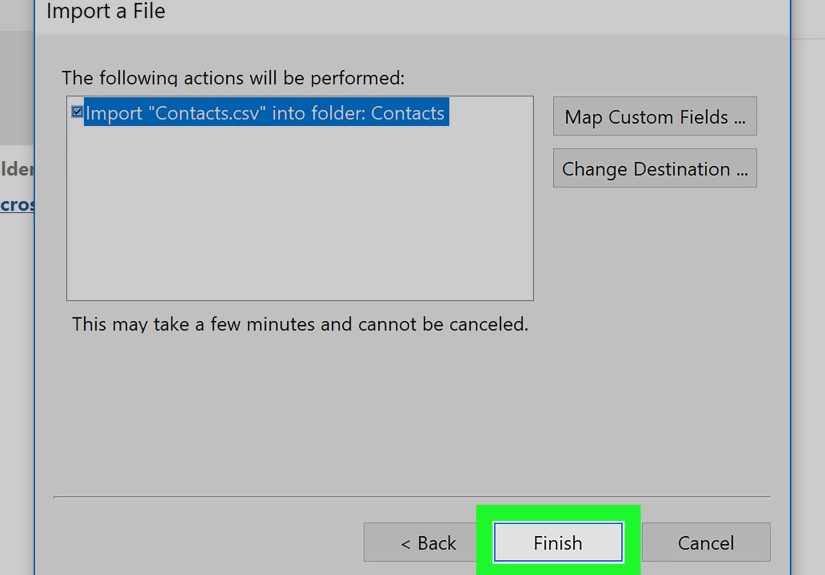
If you only need a one-time move rather than ongoing sync, exporting contacts as a CSV and importing them into the other platform is still a perfectly reasonable solution. It is not glamorous, but neither is spending two hours trying to sync a nickname field you will never use.
If You Actually Meant Syncing Outlook Into Gmail
This is an important twist because many people search for “how to sync Outlook with Gmail” when they really want to check their Outlook email inside Gmail.
Here is the current reality: Gmail on the desktop web no longer supports adding an Outlook account directly. If you want Outlook mail inside Gmail, Google points users to the Gmail app instead. On Android, you can open Gmail, add another account, choose Outlook, Hotmail, and Live, and sign in with your Microsoft account.
So if an older tutorial tells you to set this up from Gmail in a desktop browser, that article belongs in a digital antique mall.
Common Outlook Gmail Sync Problems and How to Fix Them
1. Outlook Keeps Asking for Your Password
This usually means Outlook is not using the correct modern sign-in flow, or old credentials are cached. Update Outlook first. Then remove the Gmail account and add it again using the Google sign-in window. If Google and Microsoft permissions got messy, remove Microsoft’s access from your Google account and reconnect from scratch.
2. Sent Messages Show Up Twice
Gmail and Outlook do not always agree on where “sent mail” belongs. If you see duplicates, check Outlook’s save-sent settings. Google recommends disabling Outlook’s extra copy in some IMAP setups so Gmail handles the sent folder cleanly.
3. Folders or Labels Look Weird
Gmail labels often appear as folders in Outlook. That can make the mailbox look more crowded than you expected. It is normal. If your mailbox is huge, older messages and label changes may also take time to appear.
4. Calendar Invitations Behave Oddly
Some Google Calendar invitation behavior depends on Google Calendar settings. If invitations are not showing correctly in Outlook, check your Google Calendar setting for automatically adding invitations. Shared calendar behavior can also vary, especially on Mac.
5. Contacts Are Slow to Update
That can happen. In some Outlook setups, contacts from Google are not instant. If your version has a Synchronize Now option for contacts, use it. If you need more reliable business syncing, move to GWSMO or a managed setup rather than hoping the lag will magically become charming.
Best Practices for a Cleaner Outlook Gmail Integration
- Use OAuth whenever possible. If Outlook gives you a Google sign-in screen, that is a good sign.
- Prefer IMAP over POP. IMAP is the better method for multi-device sync.
- Keep Outlook updated. Older builds are more likely to fail modern Gmail authentication.
- Decide where you will edit contacts and calendars most often. One “home base” reduces sync conflicts.
- Do not trust old Outlook.com connected-account tutorials. That feature changed.
- Use GWSMO for Google Workspace on Windows when you need full syncing.
Final Thoughts
Syncing Outlook with Gmail is not hard once you stop treating all sync methods as the same thing. For most people, adding Gmail directly to Outlook with Google sign-in is the fastest and cleanest fix. It handles email well, avoids outdated password tricks, and fits modern security standards.
If your goal goes beyond email into calendars and contacts, your best method depends on your setup. Personal Gmail users may be fine with native Outlook account sync plus a calendar subscription when needed. Google Workspace users on Windows should seriously consider Google Workspace Sync for Microsoft Outlook if they want a fuller experience.
In short, Outlook and Gmail can absolutely work together. They just need the right method, the right expectations, and maybe one fewer guide written before half the menus changed names.
Real-World Experiences: What Syncing Outlook With Gmail Actually Feels Like
In real life, syncing Outlook with Gmail usually starts with a small goal and ends with a much bigger one. Someone says, “I just want my Gmail in Outlook,” and three days later they are reorganizing folders, checking shared calendars, and wondering why one contact has four phone numbers and a nickname from 2017. That is not failure. That is the normal evolution of email ambition.
For freelancers and small business owners, the biggest benefit is convenience. Many people prefer Gmail for account management and spam filtering, but like Outlook for its layout, focused work feel, and ability to manage multiple inboxes in one place. Once Gmail is added to Outlook, the day gets easier because you are no longer bouncing between browser tabs like a caffeinated squirrel. One app handles the inbox, and mental clutter drops almost immediately.
For office users with a Google Workspace account, the experience is a little more strategic. They often need Outlook because the company lives in Microsoft habits, but their mailbox still sits in Google. In those cases, GWSMO or a managed configuration can make Outlook feel familiar without forcing everyone to abandon Google overnight. The practical win is not glamorous, but it matters: fewer missed meetings, fewer split contact lists, and less “Which calendar did I put that on?” energy.
Students and hybrid workers often have a different experience. They use one ecosystem for school, another for personal life, and a third because a club, side project, or internship apparently enjoys chaos. For them, syncing Outlook with Gmail is less about enterprise polish and more about survival. Having both accounts in one place means fewer missed deadlines, fewer unread important messages, and fewer mornings that begin with, “Wait, which inbox has the professor email?”
There are also emotional benefits nobody talks about enough. When email and calendar data are scattered, people feel behind even when they are not. Syncing reduces that low-grade digital stress. It creates one visible system, and that alone makes work feel more manageable. It is hard to overstate how comforting it is to open Outlook and see your Gmail messages, appointments, and contacts behaving like they finally agreed to be on the same team.
That said, the experience is rarely perfect from minute one. Some users notice delayed contacts. Others find Gmail labels a little odd inside Outlook. A few run into duplicate sent items and briefly consider moving to a cabin in the woods where nobody can ask them to troubleshoot SMTP. But once the setup is done correctly, most of those issues settle down. The result is a workflow that feels calmer, faster, and much easier to trust.
So yes, syncing Outlook with Gmail is partly technical. But it is also practical, emotional, and quietly life-improving. When it works, it does not just connect two apps. It removes friction from your day, which is honestly more heroic than email software usually gets credit for.