Table of Contents >> Show >> Hide
- Quick safety reality check (read this before you flip any switches)
- Before disabling Norton, try these safer options first
- Option 1: Silence Norton without disabling protection
- Option 2: Allow or trust a specific app instead of turning everything off
- Option 3: Exclude a file or folder (only if you’re sure it’s safe)
- Option 4 (Windows): Clean boot to troubleshoot conflicts instead of disabling security
- Option 5 (Mac): If macOS blocks an app, use macOS controlsdon’t disable antivirus
- If you truly must: what “temporarily turn off Norton” should mean
- How to temporarily turn off Norton on Windows (safe, controlled approach)
- Step 1: Identify what you need to pause (don’t disable more than necessary)
- Step 2: Use a timed pause (short duration) if available
- Step 3: Go offline while protection is paused (best practice)
- Step 4: Complete the task, then turn protection back on right away
- Step 5: Confirm Norton is active again
- What if Windows says you’re protected by something else?
- How to temporarily turn off Norton on Mac (safe, controlled approach)
- Common reasons people pause Norton (and smarter fixes)
- What to do right after you turn protection back on
- FAQ: Quick answers that save you from regret
- Sources consulted (no links)
- Real-world experiences and lessons people run into (the extra )
Sometimes you need your antivirus to take a very short coffee break. Not a vacation. Not a “see you next month.”
A quick, supervised pausejust long enough to troubleshoot a stubborn install, test a network app, or confirm whether
Norton is the reason your software is acting like it forgot how computers work.
This guide walks you through the safest way to temporarily turn off Norton on Windows and Mac,
plus what to do instead when turning protection off is overkill. You’ll also get practical “don’t-learn-this-the-hard-way”
tips to make sure you turn protection back on (because the internet never sleeps, and neither do scams).
Quick safety reality check (read this before you flip any switches)
Temporarily disabling antivirus protection can leave your device vulnerable. Norton itself warns that turning off protection
increases your exposure to attacks, so if you do it, keep the window short and controlled.
Do this first: the 60-second safety checklist
- Confirm why you’re doing it. If the goal is “stop pop-ups,” you probably don’t need to disable protection at all.
- Disconnect if possible. If you’re troubleshooting an installer, go offline (Wi-Fi off / Ethernet unplugged) while protection is paused.
- Use the shortest duration available. Minutes, not hours.
- Only disable what you must. If the issue is network access, you may only need to address firewall behavior, not antivirus scanning.
- Have a re-enable plan. Set a phone timer. Seriously. Future-you will thank you.
Before disabling Norton, try these safer options first
In a lot of real-world cases, “turn off Norton” is a sledgehammer when you need a screwdriver. These alternatives usually solve the problem
with far less risk.
Option 1: Silence Norton without disabling protection
If the problem is interruptionsalerts during a presentation, a full-screen game, or a Zoom calllook for Norton features that reduce notifications
or postpone background tasks without shutting down core protection. Norton’s feature names and availability can vary by version, but many products
include a way to reduce alerts and background activity during full-screen apps or scheduled times.
Option 2: Allow or trust a specific app instead of turning everything off
If Norton is blocking a program you believe is safe, a better strategy is to allow that specific app or behavior. On Windows, firewall exceptions are
generally safer than opening ports; Microsoft also notes that allowing an app is typically less risky than leaving a port open all the time.
- Use an allow-list approach for the specific app, not “disable all protection.”
- Avoid opening ports unless you truly understand the security tradeoff and can close them afterward.
- Only allow apps you recognize and trust (publisher, digital signature, and source matter).
Option 3: Exclude a file or folder (only if you’re sure it’s safe)
Norton provides options to exclude certain files or folders from real-time scanning (the exact wording varies by product and operating system).
This is useful for known-safe development folders, very large project directories, or software that repeatedly triggers false positives.
Important: exclusions are a security tradeoff. Use them sparingly, and only for items you can verify as safe.
Option 4 (Windows): Clean boot to troubleshoot conflicts instead of disabling security
If an installer fails or an app crashes, the problem might be a startup conflictnot just Norton. Microsoft’s “clean boot” approach starts Windows with
a minimal set of drivers and startup programs, helping you identify the conflict without broadly weakening security.
- Use a clean boot when installs fail repeatedly, the Windows Installer acts weird, or apps only crash on normal startup.
- After troubleshooting, restore normal startup so you’re not running in a restricted environment forever.
Option 5 (Mac): If macOS blocks an app, use macOS controlsdon’t disable antivirus
Many “my app won’t open” moments on macOS are Gatekeeper or notarization warningsnot Norton. Apple explicitly warns that overriding macOS security
settings is a common way Macs get infected. If you’re confident an app is from a trustworthy source, macOS provides a controlled way to approve it
in Privacy & Security rather than turning off security software entirely.
If you truly must: what “temporarily turn off Norton” should mean
When people say “turn off Norton,” they usually mean one of these:
- Real-time protection pause (sometimes called Auto-Protect or similar): stops on-access scanning and immediate blocking.
- Firewall adjustment (Smart Firewall or similar): changes how network traffic is filtered.
- Background task postponing (a “quiet” mode): delays non-critical activity without removing protection.
Norton typically supports a timed pause for certain protections (so they automatically turn back on), which is exactly what you want.
If your version only supports manual re-enable, take the “set a timer” advice as law.
How to temporarily turn off Norton on Windows (safe, controlled approach)
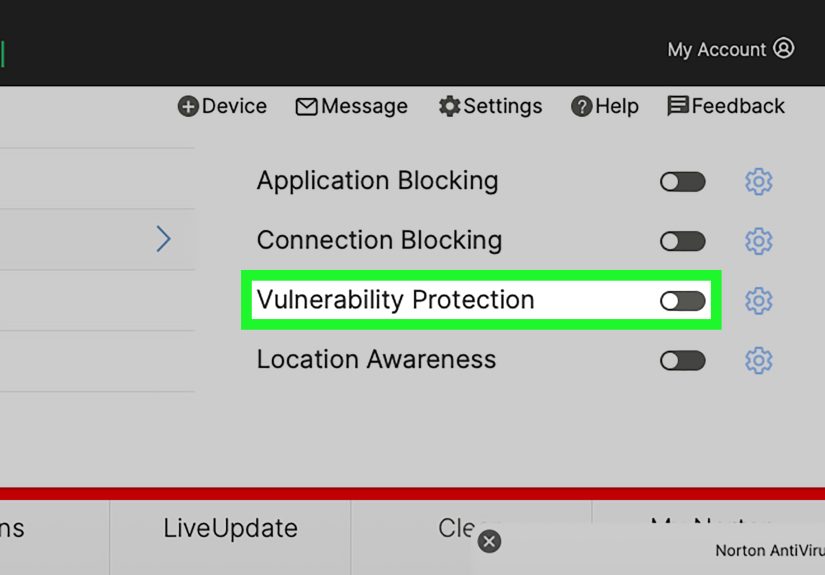
Norton’s Windows products (including Norton 360) have evolved over time, so the exact menu labels and layout can differ across versions.
In general, you’re looking for a settings or advanced area that controls protection features, and a temporary
or timed disable option.
Step 1: Identify what you need to pause (don’t disable more than necessary)
- Installer blocked or file flagged? You may be dealing with real-time scanning.
- App can’t connect to the internet or local network? This may be a firewall rule issue.
- Just tired of pop-ups during work? Use a quiet/notification-reduction mode instead of disabling protection.
Step 2: Use a timed pause (short duration) if available
If you proceed, choose the shortest duration that lets you complete your task. The goal is: pause → perform the single action
(install / test / sign in) → re-enable immediately.
Step 3: Go offline while protection is paused (best practice)
If you’re installing software from a USB drive or running a local installer you’ve already verified, disconnecting from the internet reduces exposure
during the pause window. If you must stay online (for licensing/activation), keep the pause as brief as possible and avoid browsing.
Step 4: Complete the task, then turn protection back on right away
As soon as the install or test finishes, re-enable protection. Don’t “leave it off until later.” Later has a way of becoming never.
Step 5: Confirm Norton is active again
- Check Norton’s main status (many versions show a “secure” state when protections are enabled).
- Run a quick scan if you downloaded anything during the pause.
- Make sure any temporary firewall changes are reverted.
What if Windows says you’re protected by something else?
On Windows 10/11, Microsoft Defender Antivirus typically enters “passive mode” when a third-party antivirus is installed and registered.
If Norton is paused or turned off in certain ways, Windows security status may change depending on how the product is registered and what features are disabled.
The key takeaway: don’t assume another layer automatically covers youverify what’s actually running.
How to temporarily turn off Norton on Mac (safe, controlled approach)
Norton’s Mac app generally centers around real-time protection settings (and other protective features, depending on your subscription).
Norton’s own support guidance for Mac emphasizes that if you turn off a feature temporarily, you should turn it back on as soon as possible.
Step 1: Decide whether you need Norton pausedor macOS permission fixed
- If the app won’t open because the developer can’t be verified: Use macOS Privacy & Security “Open Anyway” controls instead.
- If Norton blocks a download or flags a file you trust: Consider a targeted exclusion, not a full shutdown.
- If you’re troubleshooting a specific behavior: Pause only what you need, for the shortest time.
Step 2: Pause only the relevant protection feature, briefly
Look for Norton’s real-time protection controls and use a temporary pause if your version offers it. Keep the pause short. If you need more time than a quick
install or test, something else is probably wrong (and a different troubleshooting path is safer).
Step 3: Re-enable protection immediately and confirm
After the task is complete, turn the feature back on. Then confirm status in the Norton app, and consider running a quick scan if the task involved downloads.
Common reasons people pause Norton (and smarter fixes)
Scenario A: “Norton blocked my installer”
Smarter fix: verify the installer source, confirm the publisher, and re-download from the vendor’s official site. If it’s a known false positive, use an allow-list
or exclusion for that specific file/folder rather than disabling everything.
Scenario B: “My app can’t connect to the network”
Smarter fix: adjust firewall permissions for the specific app. Avoid opening ports unless you absolutely must, and remove any temporary permissions after testing.
Scenario C: “Norton keeps popping up during meetings/gaming”
Smarter fix: use a quiet or notification-reduction mode (or schedule scans for off-hours). You get fewer interruptions without dropping protection.
Scenario D: “Performance is terrible during a scan”
Smarter fix: reschedule scans, limit background tasks during work hours, or run scans when you’re away. If the slowdown is extreme, check for conflicts via a clean boot
on Windows rather than permanently weakening security.
What to do right after you turn protection back on
- Update Norton (definitions and product updates if available).
- Run a quick scan if you installed new software or downloaded files while protection was paused.
- Remove temporary exceptions you no longer need (especially firewall allowances).
- Restart if Norton suggests itmany security products finalize changes and drivers after a reboot.
FAQ: Quick answers that save you from regret
Will Norton automatically turn back on?
Often, yesif you used a timed pause. If your version doesn’t force a timer, assume it won’t rescue you. Use a phone alarm and re-enable manually.
Is “Silent Mode” the same as turning off Norton?
No. A quiet/silent mode is typically designed to reduce notifications or delay background tasks, not eliminate protection. It’s the safer choice when your goal is fewer interruptions.
Why are the “turn off” options gray or unavailable?
Common reasons include needing administrator permissions, product self-protection features, pending analysis, or device management policies (work/school devices).
If this is a managed computer, follow your IT policy instead of forcing changes.
Should I disable protection to install cracked software?
No. If you have to disable security to install something, that’s a strong sign it shouldn’t be installedespecially if it’s not from a reputable vendor.
Sources consulted (no links)
Norton Support; Norton Community; Apple Support; Microsoft Support; Microsoft Learn documentation; PCWorld; Tom’s Guide; Lifewire; Dell Support; and other U.S.-based
troubleshooting and security references.
Real-world experiences and lessons people run into (the extra )
The internet is full of “Just disable your antivirus” adviceusually written by someone who is either (a) trying to ship software fast, (b) trying to sell you something,
or (c) has never cleaned up the mess that happens when “temporarily” turns into “for the rest of the week.”
One common experience: a legitimate installer fails halfway through, and the user assumes Norton is the villain. Sometimes Norton is involved, but often the real culprit is a
conflict between background services. People try disabling protection, the installer succeeds, and they conclude “Yep, Norton was the problem.” Then the next update fails again.
When they finally try a clean boot, they discover it was a different startup service causing the collision the whole time. The big lesson: prove the cause
before you change your security posture.
Another frequent situation happens with creative or development tools. A video editor, local web server, or plugin manager starts generating many temporary files, and Norton responds
like a diligent security guard checking every backpack at the door. The experience feels like “my computer is crawling,” especially during exports or builds. The safest pattern people
settle into is scheduling full scans for overnight and using very targeted exclusions only for known-safe project foldersrather than toggling protection off and on all day.
In other words: optimize the workflow, not the risk.
On Macs, the story is often different: the user tries to run an app and gets a warning that the developer can’t be verified. They assume Norton caused it and go hunting for a
“disable antivirus” button. But the real fix is macOS Privacy & Security controls. People who take the time to approve a trusted app the right way avoid a whole category of
risky behaviorlike downloading random “helper” utilities that promise to “fix security restrictions.” The lesson: don’t confuse macOS security with antivirus behavior;
they overlap, but they’re not the same thing.
The most relatable (and slightly painful) experience is the “I’ll turn it back on later” moment. It usually starts responsibly: you pause Norton for a quick install, and everything works.
Then a coworker pings you, the delivery driver rings the doorbell, your browser opens to “just check one thing,” and suddenly it’s two hours later. You’re still online. Protection is still off.
The fix people swear by is boringbut effective: set a timer on your phone before you disable anything. Not after. Before. If Norton offers a timed pause, pick the shortest one.
Finally, people often discover that “disabling Norton” doesn’t always behave how they expect. Some features may remain active, some settings may be unavailable due to self-protection or admin rules,
and Windows may show confusing security status messages depending on what’s installed and registered. The practical takeaway is simple: don’t chase the perfect “off” switch. Chase the
smallest change that lets you test your theory, then reverse it immediately. That’s how you troubleshoot like a pro without turning your device into an open house for malware.