Table of Contents >> Show >> Hide
- Quick reality check: what “completely” means in 2026
- Before you remove anything, decide if you still need IE mode
- Step 1: Identify your Windows version and whether IE11 is actually installed
- Method 1 (recommended): Uninstall IE11 from Optional Features (Windows 10)
- Method 2: Turn off Internet Explorer 11 in Windows Features (Windows 10)
- Method 3: Remove/disable IE using DISM or PowerShell (power users + IT admins)
- Method 4: Disable IE11 but keep IE mode available (work-friendly approach)
- Windows 11: You can’t uninstall what isn’t there, but you can “de-IE” your system
- Clean-up checklist: shortcuts, defaults, and “Why is Edge still opening?”
- Troubleshooting stubborn cases
- Security note: why removing IE is still worth doing
- Conclusion
- Real-world experiences and lessons learned (extra ~)
Internet Explorer is like that old drawer of mystery cables: you don’t use it, you don’t trust it, but somehow it’s still there. The good news? On modern Windows, you can remove Internet Explorer 11 as a standalone browser (or at least make it disappear so thoroughly you’ll forget it ever existed). The slightly less thrilling news? Windows still keeps some underlying web components for compatibility, so “completely” takes on a very Windows-y meaning.
This guide walks you through the safest, most effective ways to uninstall or disable Internet Explorer on Windows 10 (and what to do on Windows 11), plus cleanup steps, troubleshooting, and a reality-check section so you don’t accidentally break a legacy work app five minutes before a deadline.
Quick reality check: what “completely” means in 2026
Let’s define the target. When most people say “uninstall Internet Explorer completely,” they usually mean: remove the IE11 desktop app, stop it from launching, eliminate shortcuts, and prevent anyone from using it accidentally. That’s absolutely doable.
What you generally can’t do (without turning Windows maintenance into a hobby) is rip out every last IE-related system component. Windows has historically shared certain web rendering components with the OS and other apps. Even when IE11 is removed or disabled, Windows may still retain parts for compatibility and servicing.
So here’s the practical goal: remove IE11 as a user-facing browser, eliminate entry points, and confirm it no longer opens or appears as an installed feature. That’s the “clean” uninstall most people wantand what IT teams typically mean by “removing IE.”
Before you remove anything, decide if you still need IE mode
If you use an older business website, a legacy intranet tool, or anything that says “requires ActiveX” (a sentence that should come with a warning label), you may still need Internet Explorer mode in Microsoft Edge. IE mode is designed to keep older sites working inside Edge without relying on the IE11 desktop app.
Fast way to check if IE mode matters to you
- If you work in healthcare, government, finance, manufacturing, or education systems with older portals, IE mode may be in play.
- If your company has a “compatibility site list” or instructions for opening certain sites in IE mode, don’t remove IE blindly.
- If you personally haven’t typed “iexplore” in years and your apps don’t scream for ActiveX, you’re probably safe to proceed.
If you do need IE mode, you can still block the IE11 standalone browser while keeping IE mode available (see the “Method 4” section below).
Step 1: Identify your Windows version and whether IE11 is actually installed
Check your Windows version
- Press Windows + R.
- Type winver and press Enter.
- Note whether you’re on Windows 10 or Windows 11.
Check if Internet Explorer is present
- Open the Start menu and search for Internet Explorer.
- Open Settings and search for Optional features (or navigate to it).
- Look for Internet Explorer 11 in the installed features list.
If you can’t find IE11 anywhere, you may already be doneyour system might already have IE disabled or removed from the user experience. In that case, skip to the cleanup and verification sections.
Method 1 (recommended): Uninstall IE11 from Optional Features (Windows 10)
On many Windows 10 systems, IE11 appears as an optional feature you can remove using Settings. This method is the most “normal-person friendly” because it uses built-in Windows UI instead of command-line spells.
Steps
- Open Settings.
- Go to Optional features (depending on your build, this may be under Apps or System).
- Under Installed features, search for Internet Explorer 11.
- Select it, then click Uninstall (or Remove).
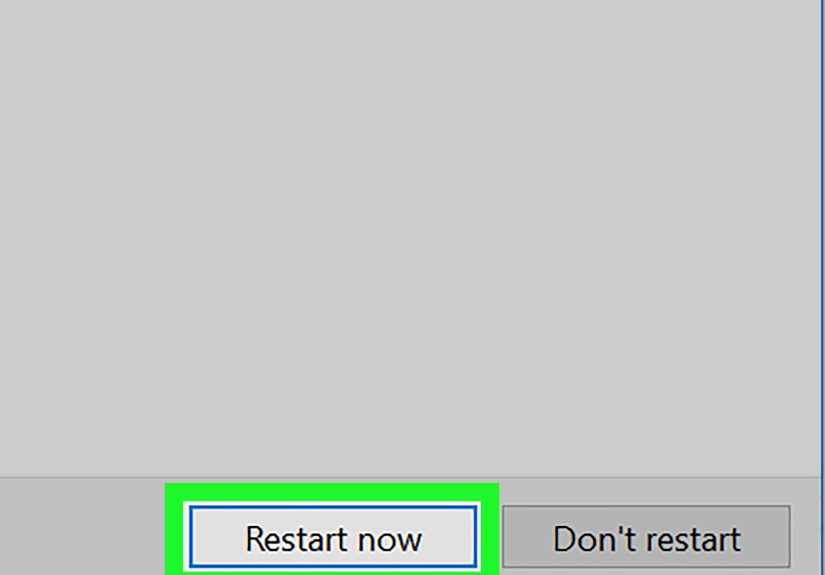
- Restart your PC when prompted (or restart manually after removal).
What success looks like
- Internet Explorer no longer appears in the Optional Features list as installed.
- Searching Start for “Internet Explorer” no longer shows the desktop app.
- Any lingering IE entry points redirect to Edge (or don’t work at all).
If you uninstall IE11 and something at work breaks, don’t panic. You may only need to re-enable IE mode in Edge (or, in specific environments, re-add the feature). The troubleshooting section covers this.
Method 2: Turn off Internet Explorer 11 in Windows Features (Windows 10)
This is the classic approach: “Turn Windows features on or off.” It doesn’t always remove every file, but it typically removes access to the IE11 app and hides it from normal useoften enough to qualify as “gone” for everyday life.
Steps
- Open Start and search for Turn Windows features on or off.
- In the Windows Features window, find Internet Explorer 11.
- Uncheck the box next to it.
- Click OK.
- Confirm, then restart when prompted.
If your goal is “make sure nobody in my house clicks IE again,” this method is usually enough. If your goal is “I want it removed from every corner of the system,” combine this method with cleanup and verification steps later in the guide.
Method 3: Remove/disable IE using DISM or PowerShell (power users + IT admins)
If you manage multiple PCs, love scripting, or simply trust the command line more than Windows menus, DISM and PowerShell are the way to go. These methods are also helpful when the UI options are missing or grayed out.
Option A: Disable the IE optional feature via DISM
- Open Command Prompt as Administrator.
- Run:
Restart when prompted. This usually disables the feature and removes normal access to IE11.
Option B: Remove the IE capability via DISM (when applicable)
Some environments use DISM “capabilities” to remove IE. Run Command Prompt as Administrator and use:
Then restart. If it errors, it may be blocked by policy, missing source files, or not applicable to your Windows build.
Option C: Disable IE via PowerShell
Open PowerShell as Administrator and run:
For IT automation, you’ll often add flags to avoid prompts or defer restarts, but the exact approach depends on your management tools and policies.
Method 4: Disable IE11 but keep IE mode available (work-friendly approach)
If you’re in a business environment, the best outcome is often: IE11 cannot be used as a standalone browser, but legacy sites still work in Edge IE mode. This reduces risk while keeping that one mission-critical, ancient app alive until it finally retires (or the sun burns outwhichever comes first).
Use Group Policy to disable IE11 as a standalone browser
- Open the Group Policy Editor (gpedit.msc) if available.
- Navigate to: Computer Configuration > Administrative Templates > Windows Components > Internet Explorer.
- Open Disable Internet Explorer 11 as a standalone browser.
- Set it to Enabled and choose the option that fits your environment.
This method is popular because it blocks the IE11 app while still allowing organizations to control legacy access via Edge policies and IE mode lists. If you’re managing endpoints, also look into configuring IE mode policies in Edge so only approved sites use legacy rendering.
Windows 11: You can’t uninstall what isn’t there, but you can “de-IE” your system
On Windows 11, the IE11 desktop application is not the normal, supported browser experience. If you’re trying to remove Internet Explorer on Windows 11, what you’re usually chasing is one of these: a shortcut, a dependency, a legacy prompt, or IE mode settings inside Edge.
What to do instead
- Disable IE mode in Edge if you don’t need it (see below).
- Remove old shortcuts pinned to the taskbar/Start menu from migrations.
- Fix default browser settings so nothing tries to call legacy handlers.
Disable IE mode in Microsoft Edge (if you don’t need legacy sites)
- Open Microsoft Edge.
- In the address bar, type: edge://settings/defaultbrowser
- Find Allow sites to be reloaded in Internet Explorer mode and set it to Don’t allow (or the strictest option available).
- Restart Edge when prompted.
If you later discover a legacy site that won’t behave, you can re-enable IE mode and restrict it to specific sites instead of opening the floodgates.
Clean-up checklist: shortcuts, defaults, and “Why is Edge still opening?”
After removing or disabling IE, Windows may still have leftover entry pointslike shortcuts or file associations. Here’s how to finish the job so IE stops haunting your Start menu like a browser ghost.
1) Remove shortcuts and pinned tiles
- Unpin Internet Explorer from Start (if present).
- Unpin Internet Explorer from the taskbar (if present).
- Check “All apps” for any lingering IE entry; if it remains but redirects to Edge, that’s normal behavior on some builds.
2) Reset default browser settings
Sometimes removing IE causes Windows to re-evaluate default handlers for web links. Set your preferred default browser:
- Open Settings > Apps > Default apps.
- Choose your browser (Edge, Chrome, Firefox, etc.).
- Confirm it handles HTTP, HTTPS, and common web file types if needed.
3) Verify IE doesn’t launch
Try each of these:
- Search Start for “Internet Explorer.”
- Press Windows + R, type iexplore, press Enter.
- Open a legacy .url shortcut you had saved.
The expected outcome is: IE doesn’t open as a usable browser. In many cases, Windows will redirect attempts to Edge.
Troubleshooting stubborn cases
Problem: IE11 is “disabled,” but icons or shortcuts remain
This is common. Disabling a feature doesn’t always instantly remove every visual reference. After your restart, unpin or delete leftover shortcuts. If your organization manages Windows updates, some visual references may disappear after a subsequent update cycle.
Problem: “Internet Explorer 11” isn’t listed anywhere
That can mean IE is already removed from the UI, your Windows version doesn’t expose it as a toggle, or policy controls it. In managed environments, Group Policy or endpoint management can hide feature controls entirely. In that case, use a command-line method (PowerShell/DISM) or ask your IT admin what’s enforced.
Problem: IE mode in Edge stops working after removal
If you rely on IE mode for legacy sites, removing IE11 the “wrong way” can create confusion. The best fix is usually: re-check IE mode settings in Edge, confirm your organization’s IE mode policies and site list (if any), and ensure your Edge configuration allows IE mode. If you’re in a corporate environment, the correct approach is often “disable IE standalone via policy” rather than uninstalling components.
Problem: DISM errors out
DISM removal can fail due to missing source files, network restrictions, or policies that block feature changes. If you’re using “Remove-Capability,” Windows may need access to Windows Update or feature sources. Review your org’s servicing policiesor try the Settings/Windows Features method if you’re on a personal PC.
Security note: why removing IE is still worth doing
Even if you never open Internet Explorer, leaving an old browser available is an unnecessary risk. IE11 support ended for many Windows 10 versions in 2022, and Windows has been steering users toward Microsoft Edge (including automatic redirection in certain scenarios). Removing or disabling IE reduces the chances someone opens it out of habitor a legacy link triggers it unexpectedly.
If you need legacy compatibility, keep it contained: use Edge IE mode for specific sites only, and migrate everything else to modern browsers. Think of it like storing hot sauce: sealed, labeled, and only used when absolutely necessary.
Conclusion
If you’re on Windows 10, the cleanest way to uninstall Internet Explorer is usually through Optional Features or Windows Features, followed by a restart and a quick cleanup of shortcuts and defaults. If you’re on Windows 11, focus on removing legacy entry points and adjusting IE mode settings in Edge.
The big takeaway: you can remove IE as a standalone browser “completely” from day-to-day use, even if Windows keeps a few compatibility crumbs under the hood. Your future selfand your security posturewill thank you.
Real-world experiences and lessons learned (extra ~)
Here’s what tends to happen in the wild when people try to uninstall Internet Explorer completelybecause real life loves throwing plot twists.
1) The “It’s gone… but the icon is still here” moment.
A surprisingly common outcome is that you disable or uninstall IE11, restart, and then still spot an Internet Explorer icon somewhere. It might be pinned to the taskbar from an old profile, sitting in a public desktop folder, or living in a Start layout that migrated across upgrades. This doesn’t mean IE resurrected itselfit usually means Windows didn’t clean up your shortcuts. The fix is boring (unpin, delete, move on), but the emotional journey is dramatic: “I removed you!” “No you didn’t.”
2) The default browser shuffle.
After removing IE11, some users notice links opening in a browser they didn’t choose, or certain file types behave differently. This is especially likely if the machine has gone through multiple Windows upgrades or had enterprise policies applied in the past. The best habit is to treat “uninstall IE” and “confirm default apps” as a single combined task. Five minutes of default-app cleanup can save you weeks of “why did Outlook open that link like that?” confusion.
3) The legacy app that nobody remembered.
In offices, IE often survives because one internal app is held together with duct tape, nostalgia, and ActiveX. You’ll hear: “We don’t use IE,” followed by an email 20 minutes later: “Who broke the timecard portal?” The smart move is to check for IE mode requirements before uninstalling anything. If you discover a legacy dependency, use Edge IE mode and restrict it to only the required sites, instead of keeping IE11 available system-wide.
4) DISM works… until it doesn’t.
Command-line removals feel powerfullike you’re the captain of the Windows ship. But DISM is also extremely honest: if your environment blocks feature servicing, or Windows can’t access the needed sources, DISM will tell you “no” in a way that feels personal. When that happens, fall back to UI-based removal on personal PCs, or coordinate with IT on managed machines. The goal is a stable system, not a heroic but fragile uninstall.
5) The “glitter rule” of legacy components.
Even when IE is gone as a browser, you may still find tracessettings references, compatibility components, or a redirect behavior. That’s normal on modern Windows. “Completely removed” in practical terms means nobody can launch IE as a browser and use it. If you hit that point, you’ve won. Don’t chase every last sparkle unless you’re responsible for OS servicing in an enterprise environment.