Table of Contents >> Show >> Hide
- 1. Start with Smart Router Placement
- 2. Reduce Obstacles and Interference
- 3. Pick the Right Band and Channel
- 4. Update Your Router’s Firmware and Settings
- 5. Lock Down Your Network So Neighbors Aren’t Using It
- 6. Use Ethernet Cables for High-Priority Devices
- 7. Extend Coverage with Mesh Wi-Fi or Carefully Placed Extenders
- 8. Manage Network Traffic with QoS and Separate Networks
- 9. Upgrade Your Router or Internet Plan When It’s Time
- Real-World Experiences: What Actually Works Day to Day
- Final Thoughts
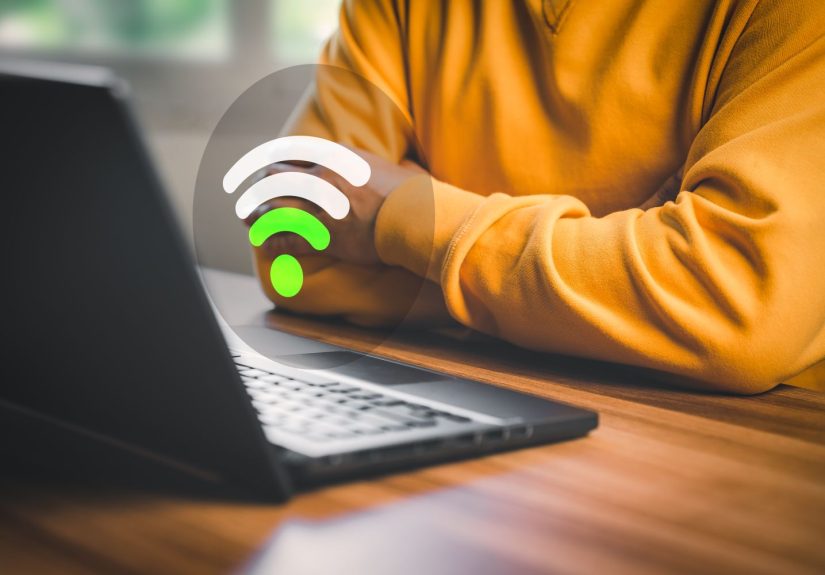
If your video call freezes right when your boss asks a question, or Netflix turns into a pixelated slideshow, your home Wi-Fi is trying to tell you something. The good news? You often don’t need a new house, a new ISP, or a degree in network engineering. A few smart tweaks can dramatically boost your Wi-Fi signal at home, improve speed, and tame those annoying dead zones.
In this guide, we’ll walk through the nine best ways to strengthen your Wi-Fi signal, from simple router placement fixes to smarter hardware upgrades. We’ll keep the tech talk friendly, sprinkle in some humor, and give you practical steps you can try today.
1. Start with Smart Router Placement
The fastest “upgrade” for most people doesn’t cost a cent: move the router. Wi-Fi waves behave a bit like sound. If you hide the router in a closet behind a metal filing cabinet and a fridge, your signal will be muffled long before it reaches the bedroom.
Where to place your router for better Wi-Fi
- Go central: Place the router as close to the center of your home as possible so the Wi-Fi signal can spread more evenly.
- Raise it up: Set it on a shelf or mount it on a wall. Routers generally broadcast outward and slightly downward, so the floor is the worst place for it.
- Avoid corners and closets: Tucking it away might look tidy, but walls, doors, and closets absorb signal.
- Keep it in the open: Try not to hide it behind a TV, in a cabinet, or next to big metal appliances.
Simply relocating your router can instantly boost your Wi-Fi signal at home, especially if you’ve had it parked in a corner by the modem since installation day.
2. Reduce Obstacles and Interference
Even in a decent location, your Wi-Fi signal can be sabotaged by everyday stuff. Thick walls, mirrors, aquariums, and lots of electronics can weaken or scatter the signal. On top of that, your router may be fighting with other networks and devices for the same airspace.
Common Wi-Fi enemies in your house
- Thick or brick walls: Older homes, fireplaces, or concrete walls can significantly reduce signal strength.
- Microwaves and cordless phones: Many still operate on the 2.4 GHz band and can interfere with Wi-Fi.
- Baby monitors and Bluetooth: These can add extra noise to the wireless environment.
- Mirrors and aquariums: Large reflective surfaces and water can bounce or absorb signals.
Try sliding the router away from large metal surfaces, heavy appliances, and “noisy” electronics. A few inches can help; a different shelf or room can be a game changer.
3. Pick the Right Band and Channel
Modern routers usually offer at least two Wi-Fi “bands”: 2.4 GHz and 5 GHz. Newer Wi-Fi 6E and Wi-Fi 7 gear can also use a 6 GHz band. Picking the right band and channel is one of the best ways to improve Wi-Fi performance without buying anything.
Choosing the best Wi-Fi band
- 2.4 GHz: Slower but travels farther and penetrates walls better. Good for smart home devices and far-away rooms.
- 5 GHz: Faster but with shorter range. Ideal for streaming, gaming, and laptops in the same or nearby room.
- 6 GHz (on Wi-Fi 6E/7 routers): Very fast and less congested, but best when you’re relatively close.
Most routers let you create separate network names for each band or automatically steer devices. For a quick boost, connect gaming consoles, smart TVs, and laptops to the 5 GHz or 6 GHz network when they’re close to the router.
Switching to a cleaner channel
If you live in an apartment or dense neighborhood, your router may be battling several neighboring networks on the same channel. Many routers are set to “auto,” but they don’t always pick the best one.
- Log in to your router’s admin page (the address is usually printed on a sticker).
- Look for Wireless or Wi-Fi settings and find the channel setting.
- On 2.4 GHz, channels 1, 6, and 11 are usually the best choices.
- Use a Wi-Fi analyzer app to see which channels are less crowded.
Just changing the channel can turn a choppy, slow connection into a smooth one, especially in busy buildings.
4. Update Your Router’s Firmware and Settings
Your router is basically a tiny computer that runs software called firmware. Over time, manufacturers release updates that fix bugs, patch security holes, and sometimes even improve performance.
How to update your router firmware
- Log in to your router’s admin interface in a browser.
- Check for a menu labeled Firmware, System, or Administration.
- Look for a “Check for Updates” or “Update Firmware” button and follow the instructions.
Some newer routers let you turn on automatic updates so you don’t have to remember to check.
Other helpful settings to tweak
- Use WPA2 or WPA3 security: This protects your network and can keep freeloaders from slowing you down.
- Disable old standards: Turning off very old modes like 802.11b can improve performance in some homes.
- Enable band steering or “Smart Connect”: This lets the router move devices between bands for better performance.
A quick tune-up in the settings menu can give you a more stable, faster Wi-Fi network without touching a single cable.
5. Lock Down Your Network So Neighbors Aren’t Using It
If your Wi-Fi network doesn’t have a strong password, you’re not just inviting privacy issuesyou’re also inviting random devices to sit on your bandwidth like it’s a free all-you-can-stream buffet.
Steps to secure your Wi-Fi
- Change default login credentials: The router’s admin username and password should never stay on factory defaults.
- Use a strong Wi-Fi password: Mix letters, numbers, and symbols. Avoid using your address or “password123.”
- Turn on WPA2 or WPA3 encryption: Skip older, insecure options like WEP.
- Review connected devices: Most routers show a list of everything using your Wi-Fi. If you don’t recognize something, investigate.
Removing unknown devices and locking your network can instantly help boost Wi-Fi speed at home, especially if neighbors or guests have quietly turned your signal into community internet.
6. Use Ethernet Cables for High-Priority Devices
Wi-Fi is convenient, but wired connections are still the gold standard for stability and speed. Every device you connect via Ethernet is one less device fighting for wireless airtime.
When to go wired instead of wireless
- Gaming consoles and PCs: Online games and competitive play benefit from lower latency and fewer drops.
- Smart TVs and streaming boxes: Wired connections reduce buffering and improve 4K streaming reliability.
- Work-from-home setups: If your income depends on video calls, a cable is worth the hassle.
If running cables through walls isn’t an option, consider flat Ethernet cables under baseboards or doorways, or use powerline adapters that send data over your home’s electrical wiring.
7. Extend Coverage with Mesh Wi-Fi or Carefully Placed Extenders
Sometimes your home is just too big, too oddly shaped, or too full of walls for a single router to cover. That’s where mesh Wi-Fi systems or range extenders come in.
Mesh Wi-Fi systems
Mesh systems use multiple units (nodes) spread around your home, all working together as one network. They’re great for:
- Larger or multi-level homes.
- Houses with thick walls or long hallways.
- People who want a single network name and seamless roaming.
Modern mesh routers are designed to be easy to set up with mobile apps, and they often include strong parental controls and security features.
Wi-Fi extenders: pros and cons
Wi-Fi extenders (repeaters) pick up your existing Wi-Fi signal and rebroadcast it. They can be helpful for stubborn dead spots, but they can also reduce overall speed and sometimes create a second network name.
- Place the extender where the Wi-Fi signal is still strongnot in the dead zone itself.
- Use the same network name and password when possible to keep things simple.
- Consider extenders with Ethernet ports if you want to wire in a TV or console.
As a rule of thumb, if you have the budget and want the best performance across a large home, a mesh system usually beats a basic extender.
8. Manage Network Traffic with QoS and Separate Networks
Your Wi-Fi might be technically “fast,” but if it’s trying to juggle gaming, 4K streaming, smart devices, and a dozen phones at once, it can still feel slow. That’s where traffic management comes in.
Use Quality of Service (QoS)
Many routers include a QoS or traffic priority feature. It lets you give certain apps or devices VIP access to your bandwidth.
- Prioritize work laptops and video conferencing apps during office hours.
- Give streaming boxes or gaming consoles a boost in the evenings.
- De-prioritize devices that are just casually browsing or syncing in the background.
Create separate networks
Splitting devices across different networks can help keep things smooth:
- Guest network: Put visitors and occasional devices here so they don’t compete as heavily with your main gear.
- IoT network: Smart plugs, bulbs, and other low-bandwidth devices can live on 2.4 GHz, leaving 5 GHz free for heavy lifting.
By organizing your devices and prioritizing traffic, you reduce congestion and give your most important activities the best possible Wi-Fi experience.
9. Upgrade Your Router or Internet Plan When It’s Time
No amount of clever tweaking will turn a decade-old router into a modern performance machine. If your hardware is older than your favorite streaming service, it might be time to upgrade.
Signs you need a new router
- You still use an old Wi-Fi standard (like 802.11n or earlier).
- Speeds drop dramatically whenever multiple people are online.
- Your router frequently crashes or needs to be rebooted.
- You can’t find security features like WPA3 or automatic updates.
Newer Wi-Fi 6 and Wi-Fi 7 routers handle more devices, offer better speeds, and often provide better coverage and security. If your internet plan is very fast (like a gigabit connection), older routers may never let you see those top speeds.
Also double-check your internet plan itself. If you constantly max out your available bandwidth, a speed upgrade from your provider might be the final piece of the puzzle.
Real-World Experiences: What Actually Works Day to Day
Tips are nice, but it helps to know what these changes feel like in real life. Here are some common “before and after” stories you can probably relate toand possibly copy.
Story 1: The hidden router rescue
Imagine a small family home where the router was sitting quietly behind a television in the living room because “that’s where the cable came in.” The back bedrooms had awful Wi-Fi. Everyone assumed they needed a new plan. Instead, they moved the router onto a nearby bookshelf, a little higher and more central, and angled its antennas. Overnight, streaming in the bedrooms stopped buffering and everyone thought the internet provider had secretly upgraded them.
Story 2: Apartment life and noisy neighbors
In a crowded apartment building, a remote worker kept losing connection during important calls. Speed tests showed good numbers near the router but poor results elsewhere. After using a Wi-Fi analyzer app, they discovered half the building was using the same channel. Switching to a cleaner channel and forcing their laptop onto the 5 GHz band made conference calls smoother, even during busy hours. No new hardware, just smarter configuration.
Story 3: The gamer who finally grabbed a cable
One dedicated gamer relied entirely on Wi-Fi from a midrange router in another room. Pings spiked, games lagged, and voice chat cut out at the worst moments. After running a single Ethernet cable from the router to the gaming PC, the “Wi-Fi problems” vanished. The whole wireless network also improved because one heavy user was no longer crowding the airwaves.
Story 4: Big house, small signal
A two-story home with a basement office tried using one cheap router to cover everything. The upstairs bedrooms were dead zones. A basic extender helped a little, but speeds were still disappointing. Upgrading to a mesh Wi-Fi systemwith one node in the office, one in the hallway, and one upstairsfinally provided solid, consistent coverage from the basement to the top floor. Kids could stream upstairs while a parent worked downstairs without conflicts.
Story 5: The “mystery slowdown”
Another household noticed that Wi-Fi slowed to a crawl every evening. After some detective work in the router’s device list, they found several old phones, a forgotten tablet, and a guest’s laptop still logged in. They changed the Wi-Fi password, set up a guest network for visitors, and limited access for older devices that only needed occasional connectivity. Suddenly, prime-time streaming and browsing became smooth again.
These examples all share a pattern: a mix of simple physical changes (moving the router, running a cable) and smart configuration (better channels, stronger passwords, mesh systems where necessary). You don’t have to do everything at once. Start with the easiest fix for your situation and build from there.
Final Thoughts
Boosting your Wi-Fi signal at home isn’t magicit’s a series of small, smart decisions. Move the router to a better spot, reduce interference, choose the right band and channel, keep firmware updated, secure your network, use Ethernet where it matters, extend coverage wisely, manage traffic, and upgrade outdated gear when needed.
Pick one or two of these nine strategies to try today. Run a few speed tests before and after you make changes. You’ll quickly see which tweaks deliver the biggest improvement in your home, and you can finally enjoy streaming, gaming, and working without the spinning buffering wheel of doom.