Table of Contents >> Show >> Hide
- What “Audio Only” Means on YouTube Music
- Method 1: Use the Song Option When It Appears
- Method 2: Choose “Songs” Instead of “Videos” in Search Results
- Method 3: Play Albums and Official Releases
- Method 4: Install YouTube Music as a Desktop Web App
- Method 5: Keep the Player in the Background While You Work
- Method 6: Create Audio-First Playlists
- Method 7: Use Premium Features If You Listen Often
- What About Browser Extensions?
- Troubleshooting: Why Is YouTube Music Still Playing Videos?
- Best Setup for PC Users
- Best Setup for Mac Users
- Privacy, Data, and Battery Tips
- My Experience: The Audio-Only Setup That Actually Feels Good
- Conclusion
Editorial note: This guide focuses on practical, above-board ways to enjoy a more audio-first YouTube Music experience on a PC or Mac. It does not rely on shady downloaders, risky hacks, or mysterious browser extensions that ask for more permissions than a nosy neighbor.
YouTube Music is great until you sit down to work, start a playlist, and suddenly your computer is trying to become a mini movie theater. Maybe you only want the song, not the music video. Maybe you are on a laptop and would rather not turn your battery into toast. Or maybe you simply enjoy hearing music without a full-screen reminder that the artist had a wind machine, a desert location, and a very serious leather jacket budget.
The good news: there are several easy ways to play audio only on YouTube Music on PC or Mac, or at least get very close to an audio-only listening experience. The exact options depend on your account type, whether the track has an official song version, and whether you are using YouTube Music in a browser or as an installed web app. On desktop, YouTube Music works primarily through the web player, so the smartest approach is to choose audio-first content, use the Song option when available, install the web app for cleaner playback, and adjust your workflow so the video is no longer the star of the show.
This guide walks through the simplest methods, explains what works with and without YouTube Music Premium, and gives you realistic tips for Windows PCs and Macs. No tech wizard hat required.
What “Audio Only” Means on YouTube Music
Before clicking every button like you are defusing a tiny digital bomb, it helps to understand what “audio only” means in YouTube Music. In the YouTube Music ecosystem, a song can appear in more than one form. There may be an album track, a single, an “official audio” upload, a lyric video, a live performance, or a full music video. YouTube Music often connects some of these versions so listeners can switch between the song and the video when the feature is available.
In the cleanest version of audio-only playback, YouTube Music plays the album or official audio version instead of loading the music video. This gives you a more traditional music-streaming experience: album art, playback controls, queue, lyrics when available, and fewer visual distractions.
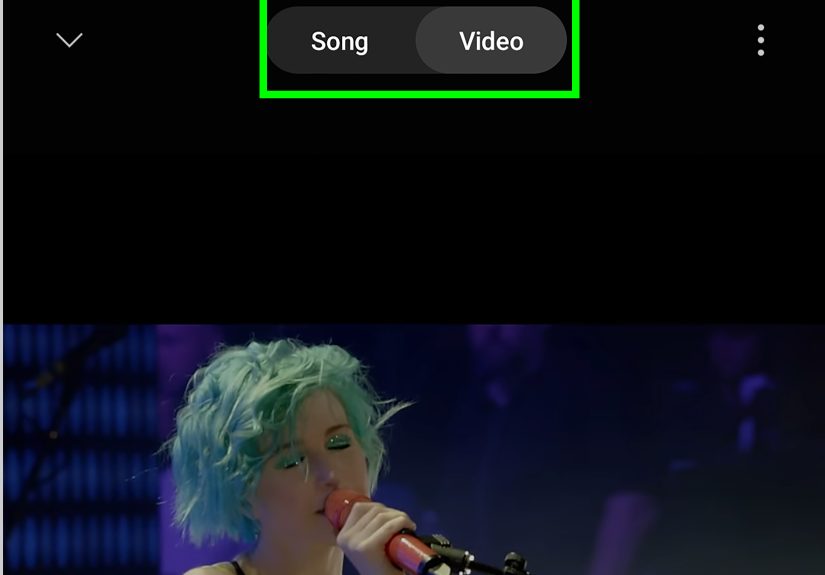
On mobile, YouTube documents a dedicated audio-only option for Premium users. On PC and Mac, the web player experience can vary more. You may see a Song/Video switch on eligible tracks, or you may need to choose the song version from search results, albums, or playlists. The goal is the same: make YouTube Music behave more like a music app and less like a video app wearing headphones.
Method 1: Use the Song Option When It Appears
The easiest way to play audio only on YouTube Music on PC or Mac is to use the Song option whenever YouTube Music gives it to you. When a track has both an audio version and a video version connected, YouTube Music may show a switch that lets you move between Song and Video.
How to do it
Open YouTube Music in your browser, start playing a track, and look around the player area for a Song or Video toggle. If you see it, select Song. That tells YouTube Music you want the album-style audio version rather than the video version.
This works best for popular songs that have official releases in YouTube Music’s catalog. For example, a major pop single may have an album track, a music video, a lyric video, and live clips. Choosing Song usually gives you the cleaner audio version without the dramatic intro, dialogue scene, engine revving, crowd screaming, or other video-only extras.
If the toggle is not visible, do not panic. Not every track has a matched song and video pair, and some desktop accounts may see different interface behavior. In that case, use the next method: deliberately select the audio version from search.
Method 2: Choose “Songs” Instead of “Videos” in Search Results
One of the most reliable desktop habits is to stop clicking the first result like it owes you money. YouTube Music search results often include separate categories such as songs, albums, artists, playlists, videos, and community uploads. If your goal is audio-only listening, choose results from Songs, Albums, or official artist pages rather than results labeled as videos.
Why this matters
A video result may play the music video audio, complete with any cinematic intro or non-music sound. A song result is more likely to play the standard music track. That difference matters when you are building a study playlist, working from home, or trying to keep your background music from randomly turning into a three-minute short film.
Example
Search for a track title and artist name. Instead of selecting the thumbnail that clearly looks like a music video, scroll to the Songs section and choose the track there. Better yet, open the artist’s album or single page and play the song from the official release. This tiny habit can save you from a lot of accidental video playback.
Method 3: Play Albums and Official Releases
If you want YouTube Music audio only on desktop, albums are your friend. Albums and singles usually prioritize the audio tracks rather than music videos. When you play from an album page, you are more likely to get the intended song versions in sequence, with fewer surprises.
This is especially helpful for people who listen to full albums while working. Playing from a random playlist can sometimes pull in videos, live versions, covers, remixes, or user-uploaded tracks. Playing from the official album keeps the experience tidier. It is the difference between ordering from the menu and letting the kitchen surprise you.
Best use cases
Use album playback when you want consistent volume, standard track order, and fewer visual interruptions. It is ideal for deep work, writing, coding, studying, cleaning, gaming, or pretending you are “just checking email” while actually reorganizing your entire playlist library.
Method 4: Install YouTube Music as a Desktop Web App
YouTube Music does not need to live in a crowded browser tab next to your email, shopping cart, school portal, and the article you opened three days ago but still swear you are going to read. On many PC and Mac setups, you can install YouTube Music as a web app through Chrome, Microsoft Edge, or another Chromium-based browser.
This does not magically create a separate native desktop app from Google, but it does give YouTube Music its own app-like window. That makes it easier to keep your music separate, control playback, and avoid accidentally closing the tab during a moment of tragic multitasking.
How to install it in Chrome
Open music.youtube.com in Chrome. Look for an install icon in the address bar, or open the three-dot menu and select an option like Install YouTube Music. Confirm the installation. YouTube Music should now open in its own window like a regular desktop app.
How to install it in Microsoft Edge
Open YouTube Music in Edge. Click the three-dot menu, go to Apps, and choose the option to install the site as an app. Once installed, you can pin it to the taskbar on Windows or keep it handy like any other app.
On Mac, Chrome and Edge can also install supported web apps. You can then launch YouTube Music from your applications or browser app shortcuts, depending on your setup.
Method 5: Keep the Player in the Background While You Work
On a PC or Mac, YouTube Music can usually continue playing while you use other desktop apps, as long as the browser tab or web app window stays open. This is not the same as mobile background playback with the screen locked, but it works well for desktop multitasking.
Start your music, switch to your writing app, spreadsheet, browser tab, or design software, and let YouTube Music play in the background. If your browser supports media controls, you may even see play, pause, and skip buttons in your keyboard’s media keys or operating system control panel.
Small desktop tips that make a big difference
Pin the YouTube Music tab so you do not close it by accident. Keep the web app in a separate window. Use keyboard media keys when available. Create playlists before a work session so you are not constantly returning to the player. Your productivity will thank you, possibly by not opening twelve unrelated tabs.
Method 6: Create Audio-First Playlists
If YouTube Music keeps pulling in video versions, build your own playlists from song results and album pages. This gives you more control over what plays next. Instead of relying entirely on autoplay, search for the official song version, add it to a playlist, and repeat until your playlist behaves like a calm, civilized music library.
Name the playlist something practical, such as “Focus Audio,” “Work Mix,” “Gym Songs,” or “No Music Videos Please, I Am Begging.” The name is up to you. The strategy is what matters.
How to build a better playlist
Search for each track, choose the song version, open the three-dot menu, and add it to your playlist. When possible, add songs from official albums or singles. Avoid adding obvious video results unless you specifically want that version.
Over time, this improves your listening experience because your playlist becomes a hand-picked collection of audio-first tracks. It also reduces the chance that autoplay will wander into video-heavy territory.
Method 7: Use Premium Features If You Listen Often
YouTube Music Premium and YouTube Premium are worth considering if YouTube Music is part of your daily routine. Premium features can include ad-free music listening, offline downloads in supported apps, background play on mobile, and easier switching between audio and video versions. For people who use YouTube Music all day, those conveniences can matter more than expected.
On PC or Mac, Premium will not turn every track into a perfect audio-only file, because availability still depends on how the content exists in YouTube Music. However, it generally creates a smoother, less interrupted experience. If you are constantly fighting ads, switching away from videos, or using YouTube Music as your main streaming service, Premium may be the least annoying solution.
Premium Lite versus full Premium
Be careful when comparing plans. YouTube has offered different Premium tiers in different markets, and not every plan includes full YouTube Music Premium benefits. If your main goal is YouTube Music audio-first listening, check the plan details before subscribing. The cheaper plan is not always the better plan if it leaves out the feature you actually wanted.
What About Browser Extensions?
You may see browser extensions that claim to block video and play only audio on YouTube or YouTube Music. Some users like them. Others run into broken playback, privacy concerns, account issues, or extensions that stop working when YouTube changes something behind the scenes.
For a web-published guide, the safest advice is simple: be cautious. Only use extensions from reputable stores, read the permissions carefully, check recent reviews, and avoid anything that promises miracle features while asking for access to every site you visit. If an extension says it can control YouTube Music, block video streams, skip ads, modify pages, and make breakfast, at least raise one eyebrow.
Official methods are more stable. They may not be perfect, but they are less likely to break your browser, compromise your privacy, or turn troubleshooting into your new unpaid hobby.
Troubleshooting: Why Is YouTube Music Still Playing Videos?
If YouTube Music keeps playing videos on your PC or Mac, the problem is usually one of four things: you selected a video result, the song does not have a separate audio version, your playlist includes video items, or your account/interface does not currently show a Song/Video switch for that track.
Try these fixes
First, search for the song again and choose a result under Songs instead of Videos. Second, open the artist’s official album page and play from there. Third, remove video versions from your playlist and replace them with song versions. Fourth, sign in to the correct account if you have Premium, because features can differ when you are signed out or using another profile.
You should also test another browser. Chrome and Edge tend to work well with YouTube Music’s web app features. Safari can play YouTube Music, but some users prefer Chromium browsers for app installation and smoother media controls. On Mac, the best browser is often the one that gives you stable playback and does not make you want to negotiate with your laptop.
Best Setup for PC Users
For Windows users, a simple setup works beautifully: install YouTube Music as a web app in Chrome or Edge, pin it to the taskbar, create audio-first playlists, and use the Song option whenever it appears. This gives you quick access without keeping YouTube Music buried among regular browser tabs.
Windows media keys can often control browser audio, so your keyboard may let you pause, skip, or resume without opening the player. This is especially useful when a song comes on that was perfect in theory but, in practice, sounds like a blender joined a jazz band.
Best Setup for Mac Users
Mac users can also use YouTube Music in a browser or install it as a web app through supported browsers. Keep it in the Dock if your browser setup allows, or create a shortcut that opens YouTube Music quickly. Use the Control Center or keyboard media keys when available to manage playback.
If you use Safari and do not see the behavior you want, try Chrome or Edge for comparison. The goal is not browser loyalty. The goal is music that plays smoothly while you do other things. Your Mac will not be offended. Probably.
Privacy, Data, and Battery Tips
Audio-first playback can help reduce distractions, but it may not always eliminate all data or battery use. If YouTube Music loads artwork, animations, or video elements, your computer may still use more resources than a pure audio file would. To keep things lighter, avoid full-screen video playback, choose song versions, close unnecessary tabs, and keep your browser updated.
If you are on a limited internet connection, prepare playlists in advance and avoid video-heavy queues. Premium users may also have more options for offline listening in supported apps, which can be useful when traveling or working somewhere with unreliable Wi-Fi.
My Experience: The Audio-Only Setup That Actually Feels Good
After using YouTube Music on both PC and Mac, the biggest lesson is that “audio only” is not one magic switch on desktop. It is more like a set of small habits that add up to a much better listening experience. The first habit is choosing the right source. If I search for a song and click the most dramatic-looking thumbnail, I should not be shocked when I get the music video. That is like ordering soup and being surprised there is a spoon. Now I deliberately choose the result from Songs or Albums whenever I want clean playback.
The second habit is using playlists with intention. Autoplay can be fun, but it has the personality of a friend who says, “Trust me, you’ll love this,” and then plays a seven-minute live version with crowd noise, a guitar solo, and someone yelling “How are we feeling tonight?” while I am trying to write an email. Building my own audio-first playlists solves most of that. I add the official song versions, remove video versions, and keep separate playlists for work, focus, exercise, and casual listening.
The third habit is installing YouTube Music as a desktop web app. This sounds small, but it changes how the service feels. In a normal browser tab, YouTube Music is just one more thing in a chaotic row of tabs. As a web app, it feels like a real music player. I can keep it open, move it to another desktop, pin it, and control it without hunting through a browser window that looks like a digital junk drawer.
On Windows, I like pinning the app to the taskbar and using keyboard media controls. On Mac, I prefer keeping the player separate from my main browser session, especially when working. The fewer times I open the full player, the fewer times I get distracted by recommendations, comments, thumbnails, or the sudden urge to search for “one quick song” that somehow becomes a 40-minute nostalgia expedition.
The final lesson is to be realistic. YouTube Music is built from both music and video DNA. That is its strength and its occasional annoyance. It has rare live performances, covers, remixes, and music videos that other services may not have. But if you want it to behave like a clean audio player on PC or Mac, you need to guide it a little. Choose Song when available. Pick album tracks. Use playlists. Install the web app. Consider Premium if you use it constantly. Once those pieces are in place, YouTube Music becomes much easier to enjoy in the background, which is exactly where music belongs when you are trying to get things done.
Conclusion
Playing audio only on YouTube Music on PC or Mac is not complicated, but it does require knowing where to click. The best method is to choose song versions instead of video versions, use the Song toggle when it appears, play from official albums, and create playlists built around audio-first tracks. For a cleaner desktop experience, install YouTube Music as a web app through Chrome or Edge and keep it separate from your regular browsing.
If you listen often, YouTube Music Premium or YouTube Premium may make the experience smoother, especially if you also use YouTube Music on your phone. Just remember to check the plan details, because not every YouTube subscription tier includes the same music features.
In the end, YouTube Music can be a very capable desktop music player. You just have to steer it away from video mode when you want your earsnot your screento do the listening.