Table of Contents >> Show >> Hide
- What Does It Mean To Reformat a Laptop?
- Before You Reformat: The Five-Minute Safety Checklist
- Method 1: Reformat a Windows Laptop With “Reset This PC”
- Method 2: Reformat a Windows Laptop With a Bootable USB Clean Install
- Method 3: Reformat a Modern MacBook With Erase All Content and Settings
- Method 4: Reformat a MacBook With macOS Recovery
- Which Reformatting Method Should You Choose?
- Common Mistakes To Avoid When Reformatting a Laptop
- Real-World Experience: What Reformatting a Laptop Actually Feels Like
- Conclusion
Reformatting a laptop sounds dramatic, like your computer is about to be wheeled into a digital operating room while you whisper, “Be brave, little buddy.” In reality, it is usually a structured way to erase, reset, or reinstall the operating system so your laptop can start fresh. Whether you use a Windows laptop or a MacBook, reformatting can help when the machine is painfully slow, full of mystery errors, infected with stubborn junk, or ready to be sold, donated, or handed down to someone who does not need your old screenshots folder from 2018.
The important thing is choosing the right method. Not every “reformat” is the same. Some options keep your personal files. Others remove everything. Some rely on built-in recovery tools, while others use a bootable USB drive or macOS Recovery. Pick the wrong one and you might spend your Saturday reinstalling drivers, hunting for passwords, and questioning every life decision that led you to this moment.
This guide explains four practical ways to reformat a laptop: two for Windows laptops and two for MacBooks. You will learn when to use each method, what to prepare before you begin, and how to avoid the classic mistake of wiping a laptop before checking whether your files are actually backed up.
Note: Before you reformat any laptop, back up important files, save software license keys, plug in the charger, and make sure you know your Microsoft account, Apple Account, Wi-Fi password, and device encryption recovery information if applicable. A reformat is not a good time to discover that your “backup plan” was mostly hope wearing a tiny hat.
What Does It Mean To Reformat a Laptop?
To “reformat a laptop” usually means erasing the storage drive and preparing it for a clean operating system installation. In everyday language, people also use the phrase to mean factory resetting, reinstalling Windows, reinstalling macOS, or wiping personal data before selling a device. Technically, formatting a drive is only one part of the process. The bigger goal is to return the laptop to a clean, usable state.
There are three common reasons to reformat a laptop. First, performance problems: the laptop is slow, cluttered, buggy, or overloaded with apps that launch themselves like they pay rent. Second, security and privacy: you want to remove personal data before selling, donating, or recycling the computer. Third, troubleshooting: Windows or macOS may be damaged enough that normal repairs do not solve the problem.
However, reformatting is not magic. It will not fix a failing SSD, a swollen battery, broken RAM, overheating caused by dust, or a laptop that has been physically damaged. If your computer shuts off randomly, makes grinding noises, refuses to charge, or cannot detect its internal drive, check hardware first. Reformatting a laptop with a failing drive is like repainting a boat that already has a hole in it. Pretty, but still wet.
Before You Reformat: The Five-Minute Safety Checklist
Back up your files
Copy your Documents, Desktop, Downloads, Pictures, Videos, browser exports, school files, work files, and project folders to a safe place. Windows users can use OneDrive, Windows Backup, File History, or an external drive. MacBook users can use Time Machine, iCloud Drive, or a manual copy to an external drive. For extra safety, keep one cloud backup and one local backup. The cloud is useful, but an external drive sitting next to you can feel like a warm blanket during a reinstall.
Save account details and recovery keys
Make sure you can sign in to your Microsoft account or Apple Account. If BitLocker is enabled on Windows, save the recovery key. If FileVault is enabled on Mac, confirm you know the unlock password or recovery details. Also write down Wi-Fi passwords, app license keys, and any two-factor authentication methods you need after the reset.
List the apps you want to reinstall
After a clean reinstall, your laptop may feel wonderfully empty. Then you remember you need Chrome, Office, Zoom, Steam, Photoshop, printer software, coding tools, or that one app you use twice a year but suddenly need immediately. Make a quick list before you wipe the machine.
Connect to power
A laptop should stay plugged in during a reset, reinstall, or erase process. Losing power halfway through is not guaranteed to destroy anything, but it can create a mess. Reformatting is already enough drama. Do not add a low-battery jump scare.
Know your goal
If you are keeping the laptop, you may choose a reset that keeps personal files. If you are selling or giving it away, choose an option that removes everything and signs out of your accounts. If the operating system is badly corrupted, a clean install from USB or macOS Recovery is usually stronger than a light reset.
Method 1: Reformat a Windows Laptop With “Reset This PC”
The easiest way to reformat a Windows laptop is the built-in Reset this PC feature. This is the best starting point if Windows still boots and you want a guided process that does not require a USB drive. It can reinstall Windows while giving you choices about whether to keep your personal files or remove everything.
When this method is best
Use Reset this PC when your Windows laptop is slow, cluttered, unstable, or full of software problems, but the system still works well enough to open Settings. It is also useful when preparing a laptop for a family member, as long as you choose the correct removal option.
How to do it on Windows 11
- Open Settings.
- Go to System, then choose Recovery.
- Next to Reset this PC, select Reset PC.
- Choose Keep my files or Remove everything.
- Choose Cloud download or Local reinstall.
- Review the settings and start the reset.
Keep my files vs. Remove everything
Keep my files removes apps and resets Windows settings, but it attempts to preserve personal files. It is useful for troubleshooting when you do not want to wipe your documents. Still, you should back up first because “should keep” is not the same as “guaranteed forever by the laptop gods.”
Remove everything deletes personal files, apps, and settings. Choose this when you want a fuller reset or when giving away the laptop. Some Windows reset flows also offer an option to clean the drive. Cleaning the drive takes longer, but it is a better choice when the laptop is leaving your possession.
Cloud download vs. Local reinstall
Cloud download downloads Windows installation files from Microsoft. This can be helpful if local system files are damaged. It requires a reliable internet connection and may use several gigabytes of data. Local reinstall uses files already on the computer. It can be faster and does not need a large download, but it may fail if the existing Windows files are corrupted.
After the reset, run Windows Update, check Device Manager for missing drivers, reinstall your apps, and restore your files. On branded laptops from Dell, HP, Lenovo, ASUS, Acer, or Microsoft Surface, you may also need manufacturer utilities for firmware, touchpad settings, audio enhancements, or special function keys.
Method 2: Reformat a Windows Laptop With a Bootable USB Clean Install
A clean install from a bootable USB drive is the stronger Windows reformat method. It is especially useful when Windows will not boot, Reset this PC fails, malware has made the system untrustworthy, or you want the cleanest possible start. This method removes the old Windows installation and installs a fresh copy from installation media.
What you need
You need a USB flash drive, usually at least 8GB, a working computer to create the installer, and a stable internet connection. You also need to know which Windows edition your laptop is licensed for. Most modern laptops activate automatically after reinstalling Windows because the license is tied to the device hardware or Microsoft account.
How the process works
- On a working PC, download the official Windows installation media tool from Microsoft.
- Create a bootable USB installer.
- Insert the USB drive into the laptop you want to reformat.
- Restart the laptop and open the boot menu. Common keys include F12, F11, F9, Esc, or Del, depending on the brand.
- Boot from the USB drive.
- Choose the Windows installation option.
- Select the internal drive or partition where Windows should be installed.
- Continue with installation and complete the setup screens.
Should you delete partitions?
If your goal is a truly clean install, you may delete old Windows partitions during setup and install Windows into unallocated space. This can remove old recovery partitions, manufacturer tools, and existing data. Do this only after backing up everything important. If your laptop has a special OEM recovery partition and you want to keep manufacturer recovery features, be more cautious.
After the clean install
Once Windows is installed, connect to the internet and run Windows Update several times. Then install missing drivers from the laptop manufacturer’s support page. This is especially important for graphics, Wi-Fi, Bluetooth, chipset, fingerprint readers, and touchpad features. A clean Windows install can make an old laptop feel surprisingly fresh, but without proper drivers, it can also behave like it woke up from a nap and forgot who it was.
This method is also a smart choice if you are upgrading from an older unsupported system to a supported Windows version, assuming the laptop meets hardware requirements. Always check compatibility before wiping anything. A clean install cannot turn a very old laptop into a new one, although it can make it stop acting like it is carrying a backpack full of bricks.
Method 3: Reformat a Modern MacBook With Erase All Content and Settings
For many modern MacBooks, the simplest way to reformat is Erase All Content and Settings. This feature is available on compatible Macs running newer versions of macOS, especially Apple silicon Macs and Intel Macs with the Apple T2 Security Chip. It is designed to erase your content, sign you out of Apple services, remove Touch ID information, reset settings, and prepare the Mac for a new setup without making you manually erase the drive in Disk Utility.
When this method is best
Use Erase All Content and Settings when your MacBook supports it and you want a clean reset before selling, gifting, trading in, or starting fresh. It is faster and less intimidating than older Mac erase methods. In plain English, it is the “please make this Mac forget me politely” button.
How to use it
- Back up your Mac with Time Machine, iCloud, or an external drive.
- Open System Settings.
- Go to General.
- Select Transfer or Reset.
- Choose Erase All Content and Settings.
- Follow the onscreen instructions, including entering your administrator password and Apple Account password if requested.
- Allow the Mac to erase and restart to the setup screen.
Why it is different from older Mac formatting
Older Mac reformatting often involved booting into Recovery, opening Disk Utility, erasing the internal drive, and reinstalling macOS manually. Erase All Content and Settings is more streamlined. It is similar in spirit to factory resetting a phone: your personal content and settings are removed while the operating system remains ready for setup.
Still, do not rush. Turn off Find My if prompted, sign out properly, and confirm that Activation Lock is removed before handing the Mac to someone else. If Activation Lock remains tied to your Apple Account, the next owner may be stuck at setup, and you may receive a very awkward message that begins with, “Hey, remember that laptop you sold me?”
Method 4: Reformat a MacBook With macOS Recovery
If your MacBook does not support Erase All Content and Settings, or if macOS is damaged, macOS Recovery is the classic way to reformat and reinstall. This method works on many Intel and Apple silicon Macs, although startup steps differ by model.
When this method is best
Use macOS Recovery when your Mac will not start normally, you want to erase the internal drive manually, you need to reinstall macOS, or your Mac is too old for the newer reset feature. It is also useful when preparing a Mac for a clean owner-ready setup.
How to start macOS Recovery
On a Mac with Apple silicon, shut down the Mac, then press and hold the power button until startup options appear. Select Options, then continue into Recovery. On many Intel Macs, restart and immediately hold Command + R to enter Recovery. Other key combinations may install the latest compatible macOS or the version closest to what came with the Mac, depending on the model and recovery mode.
How to erase and reinstall macOS
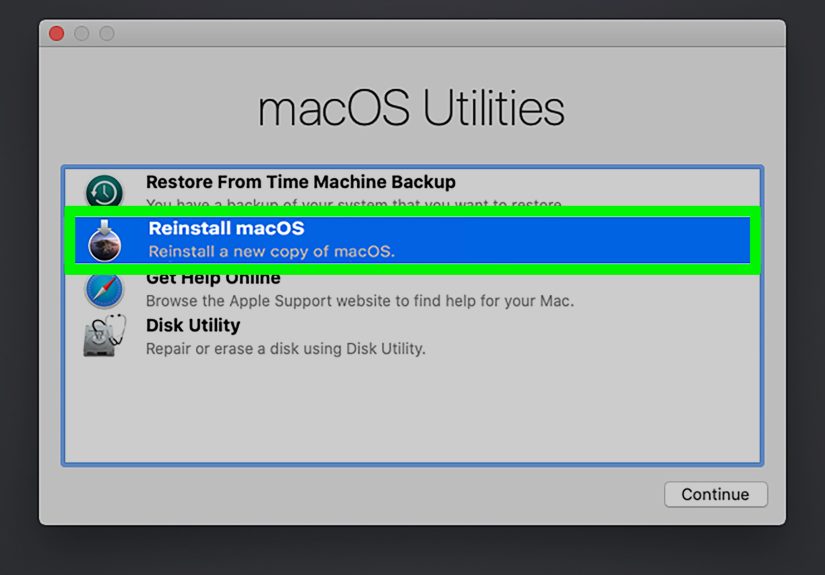
- Start the Mac in macOS Recovery.
- Open Disk Utility.
- Select the internal startup disk.
- Choose Erase.
- Use the recommended format, usually APFS for modern macOS versions.
- Quit Disk Utility after the erase is complete.
- Select Reinstall macOS from the Recovery window.
- Follow the onscreen instructions.
After installation, the Mac will restart to Setup Assistant. If you are keeping the Mac, sign in and restore files from Time Machine or iCloud. If you are giving it away, stop at the setup screen and let the next owner complete setup.
Which Reformatting Method Should You Choose?
Choose Windows Reset this PC if Windows still works and you want the easiest built-in option. It is best for everyday cleanup, software problems, and a fresh start without creating USB media.
Choose a Windows USB clean install if the laptop is badly corrupted, Reset this PC fails, you suspect deeper system problems, or you want the cleanest possible Windows installation. It takes more effort, but it gives you more control.
Choose Erase All Content and Settings on a compatible MacBook if you want the simplest, fastest factory-style reset. This is usually the best option for newer MacBooks before resale or trade-in.
Choose macOS Recovery if your Mac is older, the newer reset option is unavailable, macOS will not boot, or you need to manually erase and reinstall the system.
Common Mistakes To Avoid When Reformatting a Laptop
Mistake 1: Assuming cloud sync is a full backup
Cloud sync is helpful, but it is not always the same as a complete backup. If a folder was never synced, it may not exist in the cloud. If a file was deleted and synced, the deletion may also appear everywhere. Before reformatting, open your cloud storage in a browser and confirm that the files are actually there.
Mistake 2: Forgetting browser data
Bookmarks, saved passwords, extensions, and browser profiles are easy to forget. Sign in to your browser account and confirm sync is working, or export bookmarks manually. Nothing humbles a person faster than wiping a laptop and realizing the only copy of an important login was saved in a browser profile that no longer exists.
Mistake 3: Ignoring drivers
Windows clean installs may need manufacturer drivers. Before wiping, visit the laptop brand’s support page and identify your exact model. Save network drivers if possible, because a laptop without Wi-Fi after reinstall is a special kind of comedy.
Mistake 4: Selling a laptop without removing account locks
Windows and Mac laptops can be tied to Microsoft or Apple accounts. Sign out properly, remove the device from your account if needed, and make sure the new owner can set it up. A wiped laptop that still asks for your account is not “ready to sell”; it is a locked door with a keyboard.
Mistake 5: Reformatting to fix hardware failure
If the SSD is failing, the laptop overheats, the screen flickers, or the battery is swollen, reformatting will not solve the root problem. Run diagnostics first. Many laptop brands offer built-in hardware tests or support tools.
Real-World Experience: What Reformatting a Laptop Actually Feels Like
The first thing you learn from reformatting laptops is that the process is usually less scary than the waiting. The screen says “Resetting this PC 23%,” and suddenly time slows down. You start wondering if 23% is a normal place to pause. You make coffee. It still says 23%. You question whether the laptop is working, frozen, or simply being dramatic. Then it jumps to 61% like nothing happened. Computers enjoy suspense.
In real use, the smoothest reformats happen when the prep work is boring and thorough. The people who have the easiest time are not necessarily tech experts. They are the ones who backed up files, saved passwords, checked their charger, and wrote down the laptop model. That small preparation turns a stressful reset into a predictable afternoon task. The worst reformats usually start with someone saying, “I’m pretty sure everything is in the cloud.” That sentence has caused more panic than most error messages.
On Windows laptops, Reset this PC is convenient for normal cleanup. For example, a student laptop that has collected years of unused apps, random startup tools, and browser clutter can often feel much better after a reset. Keeping files may be enough when the goal is performance and the user trusts the system. But for a laptop being sold or passed to someone else, removing everything is the safer choice. A clean USB install is more work, but it often feels more satisfying because you know the system is fresh from the ground up.
MacBooks tend to feel more polished during the reset process, especially newer models with Erase All Content and Settings. It is quick, direct, and less likely to confuse beginners. Older Macs, however, can require patience. macOS Recovery may depend on internet quality, Apple server access, and the Mac’s age. A slow Wi-Fi connection can turn reinstalling macOS into a quiet endurance sport. If possible, use a stable network and keep the charger connected.
One useful habit is to create a “reinstall folder” before wiping anything. Put screenshots of your app list, exported bookmarks, important license keys, driver notes, and backup confirmation in that folder, then copy it to your backup drive or cloud storage. It sounds overly organized until the reset is done and you do not have to remember what was installed. Your future self will want to send your past self a thank-you card.
Another lesson: do not judge the laptop immediately after reinstalling. Windows may still be downloading updates, indexing files, installing drivers, and syncing OneDrive. macOS may be analyzing photos, syncing iCloud, and rebuilding Spotlight search. During the first hour or two, the laptop may run warmer or slower than expected. Give it time to finish its housekeeping before deciding whether the reformat worked.
Finally, reformatting can be refreshing. A clean desktop, fewer background apps, and a system that boots without groaning can make an old laptop feel useful again. It is not a miracle cure, but it is one of the best software fixes available. Think of it as spring cleaning for your computer, except instead of finding old receipts under the couch, you find twelve startup apps you never invited.
Conclusion
Reformatting a laptop is not just one action; it is a choice between several reset and reinstall paths. Windows users can start with Reset this PC for convenience or use a bootable USB clean install for a deeper rebuild. MacBook users can use Erase All Content and Settings on supported models or rely on macOS Recovery for a manual erase and reinstall. The best method depends on your laptop, your goal, and how clean you want the final result to be.
The golden rule is simple: back up first, reset second, celebrate later. Once your files, passwords, recovery keys, and app list are safe, the reformatting process becomes much less stressful. Your laptop may not thank you out loud, but if it boots faster and stops behaving like a tired toaster, you will know it appreciated the spa day.