Table of Contents >> Show >> Hide
- What “Appear Offline” on Facebook Actually Means
- Why People Want to Appear Offline on Facebook
- How to Appear Offline on Facebook on Mobile
- How to Appear Offline on Facebook on Web
- Facebook App vs. Messenger App: Why You May Still Look Online
- How to Appear Offline to Specific People
- Troubleshooting: Why You Still Appear Active on Facebook
- Appear Offline vs. Other Facebook Privacy Tools
- Best Practices for Staying Low-Profile on Facebook
- Final Thoughts
- Experiences: What It’s Really Like to Appear Offline on Facebook
Sometimes you want to scroll Facebook in peace without looking like you are standing in the middle of a digital living room shouting, “Yes, I am awake, available, and tragically easy to message.” That is where Facebook’s Active Status setting comes in. By turning it off, you can appear offline while still checking posts, reading messages, and handling your account more quietly.
This guide explains exactly how to appear offline on Facebook on mobile and web, what the setting actually does, what it does not do, and how to fix the annoying situations where you still seem active even after switching the toggle off. If you use both Facebook and Messenger, this part matters: you usually need to update your status in more than one place to stay consistently “invisible.”
What “Appear Offline” on Facebook Actually Means
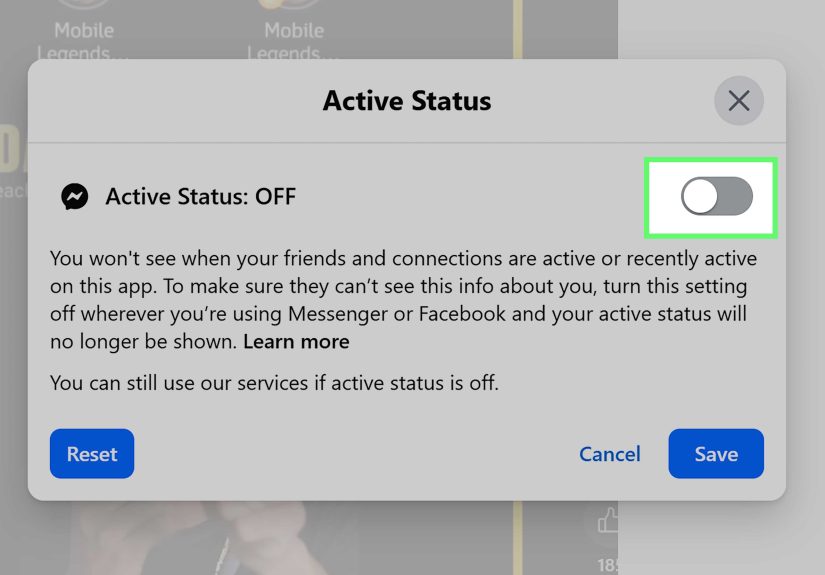
On Facebook, appearing offline usually means turning off Active Status. When Active Status is off, people should not see that green dot or recent activity signal that suggests you are online. You can still browse, read, and often message people. In other words, you are not vanishing into the internet fog. You are simply lowering your visibility.
That said, this setting is not the same as logging out, deactivating your account, blocking someone, or putting your phone in airplane mode like you are escaping civilization. It is a visibility control, not a total privacy shield.
What turning off Active Status does
- Helps you appear offline on Facebook and Messenger
- Reduces visible online indicators such as the green dot
- Lets you keep using Facebook without broadcasting that you are around
What turning off Active Status does not do
- It does not stop people from sending you messages
- It does not hide your posts, comments, likes, or story activity
- It does not replace blocking, restricting, or changing audience settings
- It may not apply everywhere unless you switch it off in every Facebook or Messenger app you use
Why People Want to Appear Offline on Facebook
There are plenty of normal reasons to use this setting. Maybe you want to check Marketplace without turning that into a family Q&A session. Maybe you want to reply to one person without three others popping up like, “Oh, so now you are online?” Maybe you use Facebook for work, groups, or selling items, but you do not want every login to feel like opening a customer support desk.
Appearing offline can also help with boundaries. Social apps blur the line between “available” and “existing.” Turning off Active Status gives you a small but useful way to control that line.
How to Appear Offline on Facebook on Mobile
If you use the Facebook app on iPhone or Android, follow these steps:
- Open the Facebook app.
- Tap the Menu icon. On many Android phones, it is in the upper-right corner. On iPhone, it is often in the lower-right corner.
- Tap Settings & Privacy, then tap Settings.
- Scroll until you find Active Status.
- Turn off Show when you’re active.
- Confirm the change if Facebook asks.
That should hide your active indicator in the Facebook app itself. But here is the important catch: if you also use the Messenger app, you should turn off Active Status there too. Otherwise, Facebook may still act like you are at the party even though you quietly slipped out the side door.
How to appear offline in the Messenger app
- Open the Messenger app.
- Tap your profile picture or menu icon.
- Tap Active Status.
- Turn off Show when you’re active.
- On some versions, confirm by tapping Pause or Turn Off.
Depending on your app version, Messenger may give you a duration option such as keeping the setting off until you change it again. If you see that option, choose the one that best matches how long you want to stay under the radar.
How to Appear Offline on Facebook on Web
If you use Facebook on a laptop or desktop browser, the process is also straightforward:
- Go to Facebook and sign in.
- Click the Messenger icon near the top-right area.
- Click the three-dot menu in the chat or Messenger panel.
- Select Turn off Active Status.
- Choose one of the available options:
- Turn off for all contacts
- Turn off for all contacts except…
- Turn off for only some contacts…
- Click OK to save your choice.
This is one of the best parts of the desktop version. Unlike some mobile setups, the web version often lets you choose whether to appear offline for everyone or only for specific people. That is helpful if you still want to be reachable by close friends, coworkers, or buyers while staying invisible to everyone else.
Can you do this in a mobile browser?
Sometimes users expect the mobile browser version of Facebook or Messenger to offer the same status controls as the apps. In practice, that can be inconsistent. If you do not see the setting in a mobile browser, use the Facebook or Messenger app instead. It is usually the more reliable option.
Facebook App vs. Messenger App: Why You May Still Look Online
This is where many people get tripped up. Facebook and Messenger are connected, but Active Status is not always managed as one magical master switch across every place you are logged in. If you turn it off in one app and forget the other, you might still look active somewhere.
For example, imagine you turn off Active Status in the Facebook app but leave it on in Messenger. You then open Messenger to answer one message. Congratulations, Facebook has politely ignored your wish for invisibility.
To appear offline more consistently, turn off Active Status in:
- The Facebook mobile app
- The Messenger mobile app
- Facebook on your desktop browser, if you use it
- Any other logged-in device where chat or messaging is active
How to Appear Offline to Specific People
Not everyone wants a full stealth mode. Sometimes you only want to avoid one coworker, one ex, or that one group-chat champion who sends “hey” as if it were a full paragraph.
On desktop, Facebook often provides a more flexible option. When you select Turn off Active Status, you may be able to choose:
- All contacts except certain people
- Only some contacts
This selective offline mode is useful when you still want important contacts to know you are available. It is a much gentler tool than blocking or restricting, and it avoids the social drama that can happen when someone realizes they have been unfriended for the crime of sending too many reels.
Troubleshooting: Why You Still Appear Active on Facebook
If you turned the setting off and still seem online, do not panic. The app is probably not haunted. Try these fixes:
1. Turn it off in both Facebook and Messenger
This is the most common reason. If one app still has Active Status on, your visibility may continue there.
2. Check other logged-in devices
You may still be signed in on an old tablet, a work laptop, or a second phone. Review your active sessions and sign out of devices you no longer use.
3. Restart the apps
Close Facebook and Messenger completely, then reopen them. Sometimes settings do not seem to apply immediately until the app refreshes.
4. Update the apps
An outdated version of Facebook or Messenger can lead to buggy behavior or missing menus.
5. Log out and log back in
If the setting looks right but your status still seems wrong, signing out and back in can help force the account to sync.
6. Be patient with status delays
Online indicators are not always perfectly instant. A short delay does not necessarily mean the setting failed.
Appear Offline vs. Other Facebook Privacy Tools
Turning off Active Status is useful, but it is only one small part of Facebook privacy. If your bigger goal is to reduce unwanted attention, combine it with a few other settings.
Restrict
Use this when you want someone to remain a Facebook friend but see less of your personal content. Good for coworkers, distant relatives, and people who treat your posts like a detective novel.
Block
Use this when you do not want someone to message you, find you easily, or interact with your account. This is the nuclear option, but sometimes the nuclear option exists for a reason.
Audience controls
Adjust who sees your future posts, stories, and personal details. Appearing offline will not hide a public post you published five minutes later.
Notification settings
If your real problem is constant interruptions, turn down message and push notifications too. Looking offline helps with visibility. Notification settings help with sanity.
Best Practices for Staying Low-Profile on Facebook
- Turn off Active Status everywhere you use Facebook and Messenger
- Review who can see your posts and stories
- Limit profile details that do not need to be public
- Log out of devices you no longer control
- Use custom privacy options when you need finer control
- Update the app regularly so settings behave as expected
Final Thoughts
If you have been wondering how to appear offline on Facebook, the answer is simple in theory and slightly more annoying in practice. You need to turn off Active Status, and if you use both Facebook and Messenger, you should do it in both places. On desktop, you may also get extra control over whether you appear offline to everyone or only selected contacts.
The bigger lesson is that Facebook privacy works best when you stack settings. Appearing offline is excellent for lowering the “talk to me” signal, but it works even better when paired with audience controls, session management, and smart notification settings. That way, you are not just hiding the green dot. You are actually making the platform behave more like your space and less like a 24-hour front porch.
Experiences: What It’s Really Like to Appear Offline on Facebook
In real life, turning off Active Status tends to feel less dramatic than people expect and more useful than they imagined. A lot of users first try it because they are tired of opening Facebook for one quick task and instantly feeling socially “seen.” They might just want to check a local buy-and-sell group, confirm an event time, or answer one message on their own schedule. Once the green dot disappears, the app often feels calmer. It is the same Facebook, just with less pressure to perform availability.
One common experience is relief. People realize how often that online indicator creates small obligations. The moment others see you active, they may expect instant replies. Without that signal, conversations become more intentional. You can answer when you are ready instead of when the app accidentally announces your presence like a town crier with Wi-Fi.
Another common experience is confusion at first. Some users turn off Active Status in Facebook but forget Messenger, then wonder why they still seem online. Others disable it on their phone but stay logged in on a laptop all day. After they shut it off everywhere, the setting usually makes much more sense. The learning curve is less about technical skill and more about remembering that Facebook and Messenger behave like close siblings who still refuse to share a single closet.
There is also a social side to it. People who work in sales, run side hustles, moderate groups, or manage family chats often say appearing offline helps them keep boundaries without being rude. They can still respond, but on their timeline. Instead of ignoring messages, they are simply removing the expectation that “online” means “available for immediate emotional labor.” That is a small shift, but it can make a huge difference during busy workdays or late-night doomscrolling sessions.
For many users, the best experience comes when Active Status is paired with other privacy habits. They review their audience settings, reduce public details, and trim notifications. Then appearing offline becomes part of a broader strategy: use the platform, but do not let the platform overuse you. That is probably the healthiest way to think about it. Facebook can still be useful for groups, events, Marketplace, and messages. You just do not need a glowing green badge to prove you are alive while doing it.