Table of Contents >> Show >> Hide
- Why Footnotes Can Be Tricky in Word
- Easy Ways to Remove Footnotes in Word in 9 Steps
- Step 1: Save a backup copy before you start editing
- Step 2: Confirm whether you have a real footnote or fake superscript text
- Step 3: Turn on formatting marks if the reference marks are hard to find
- Step 4: To remove one footnote, delete the reference mark in the main text
- Step 5: Remove several footnotes one at a time and let Word renumber the rest
- Step 6: To remove all footnotes at once, use Find and Replace
- Step 7: Remove fake footnotes by deleting the text or clearing superscript formatting
- Step 8: Delete the footnote separator line if it stays behind
- Step 9: Review the document for spacing, wording, and citation gaps
- Common Mistakes to Avoid
- When It Makes Sense to Remove Footnotes
- Conclusion
- Real-World Experiences With Removing Footnotes in Word
Footnotes are useful right up until they are not. One day they make your research paper look polished and scholarly; the next day they make your document look like it is hosting a tiny number convention at the bottom of every page. If you are trying to clean up a draft, simplify a report, or get rid of clutter before publishing online, learning how to remove footnotes in Word can save you a surprising amount of time.
The good news is that Microsoft Word already knows how footnotes are connected to your text. That means you do not have to wrestle every little note one by one at the bottom of the page like you are playing citation whack-a-mole. The trick is using the right method. Delete the wrong thing, and Word may renumber notes instead of removing them. Delete the right thing, and the footnote disappears neatly, as if it finally got the hint.
In this guide, you will learn the easiest ways to remove footnotes in Word, including how to delete a single footnote, how to remove all footnotes at once, how to clean up a lingering separator line, and how to tell whether you are dealing with a real Word footnote or just a manually typed superscript number pretending to be one.
Why Footnotes Can Be Tricky in Word
Before jumping into the steps, it helps to understand one simple rule: a Word footnote has two linked parts. First, there is the superscript reference mark in the main body text. Second, there is the matching note at the bottom of the page. These two parts are connected behind the scenes. So when you remove the reference mark in the main text, Word removes the note automatically.
That is why so many people get stuck. They click into the footnote area, highlight the text at the bottom, and hit Delete. Word does not treat that as removing the footnote itself. Instead, it often keeps the reference in the document and renumbers what is left. In other words, Word is very logical, but only if you play by Word’s rules. Which, admittedly, is not always a thrilling hobby.
Easy Ways to Remove Footnotes in Word in 9 Steps
Step 1: Save a backup copy before you start editing
If your document is important, make a copy first. This sounds boring, but it is the kind of boring advice that feels brilliant five minutes later. If you are removing citations from a thesis draft, a client proposal, a legal memo, or a manuscript, you want a version you can return to in case you delete something you meant to keep.
A simple naming system works well here: save the original file, then create a copy called something like Report-no-footnotes-draft. That gives you freedom to edit without the panic of wondering whether you just erased a note your professor, editor, or boss wanted to keep.
Step 2: Confirm whether you have a real footnote or fake superscript text
Not every tiny raised number is an actual Word footnote. Sometimes people manually type a number and format it as superscript to make it look like a footnote. That is a visual imitation, not a true note.
Here is a quick test: click the small number in the main text. If Word jumps you to a matching note at the bottom of the page, it is a real footnote. If nothing special happens and the number behaves like ordinary text, it is just superscript formatting. Knowing the difference matters because true footnotes and manual superscripts must be removed in different ways.
Step 3: Turn on formatting marks if the reference marks are hard to find
Some documents are so packed with edits, comments, hyperlinks, and mysterious spacing that footnote marks seem to disappear into the scenery. In that case, turn on nonprinting characters in Word so you can see the layout more clearly.
On Windows, the shortcut is often Ctrl + Shift + 8. You can also use the Show/Hide option in Word’s interface. This does not remove footnotes by itself, but it makes cleanup easier when you are hunting for reference marks in a long document. Think of it as switching on the lights before looking for your keys.
Step 4: To remove one footnote, delete the reference mark in the main text
This is the most important step in the whole process. If you want to delete a single footnote, go to the main body of the document and locate the superscript number or symbol that points to the note. Select that reference mark and press Delete.
That is it. Really.
You do not need to delete the text at the bottom of the page. Word automatically removes the connected footnote when the reference mark in the body text disappears. This is the cleanest and safest way to remove one footnote in Word.
Example: Suppose your sentence reads, “The policy was updated in 20243.” If footnote 3 is no longer needed, click the superscript 3 in the sentence and delete it. The note at the bottom of the page vanishes with it.
Step 5: Remove several footnotes one at a time and let Word renumber the rest
If you only need to remove a few footnotes instead of all of them, repeat Step 4 for each reference mark in the main text. Word will automatically renumber the remaining notes as you go.
This is especially helpful when you are editing a school paper, article draft, or internal report where only a few notes have become outdated. Maybe you cut one paragraph, merged another, and no longer need notes 2, 5, and 8. Delete the reference marks for those notes, and Word updates the rest without forcing you to renumber anything manually.
That automatic renumbering is one of Word’s better personality traits. It saves you from the old nightmare of fixing every note by hand like it is 1997 and you are formatting a newsletter in a basement office with fluorescent lighting.
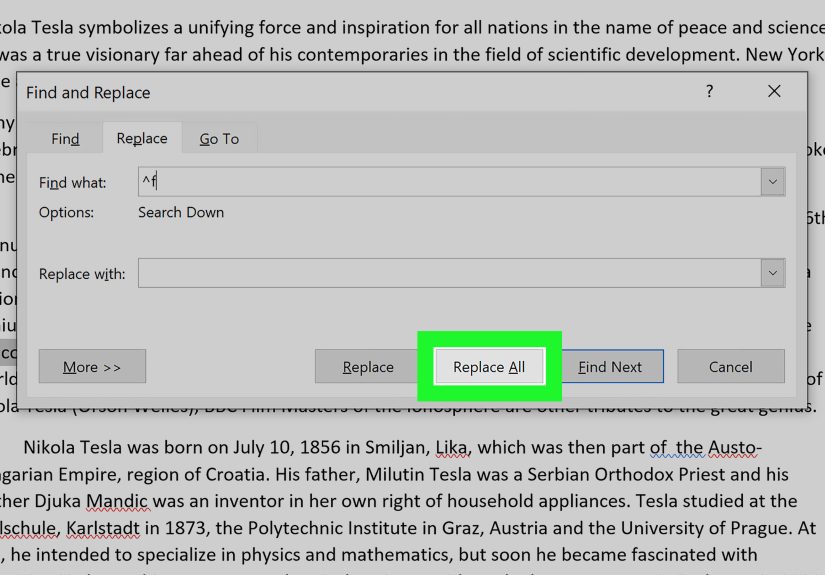
Step 6: To remove all footnotes at once, use Find and Replace
If your goal is total footnote extinction, Word has a faster method. Open Find and Replace, place your cursor at the top of the document, and use the footnote code in the Find what field.
For footnotes, enter ^f. Leave the Replace with field blank. Then choose Replace All.
This tells Word to find every footnote reference mark in the document and replace it with nothing. Since the reference marks are what connect the notes to the text, the corresponding footnotes disappear too.
This method is a huge time-saver for web publishing and content repurposing. For example, if you are converting a research-heavy Word file into a cleaner online article that will not use page-based notes, this shortcut can clear the entire document in seconds.
Step 7: Remove fake footnotes by deleting the text or clearing superscript formatting
If your document contains manual superscript numbers rather than real Word footnotes, the fix is different. Since these are ordinary characters, you can simply delete them like normal text. If you want to keep the number but remove the raised formatting, clear the manual character formatting instead.
This matters in copied documents, old templates, or files that passed through multiple editors. A pasted article may contain tiny superscript numbers that look like footnotes but are really just styled text. In those cases, deleting the number removes it, while clearing superscript formatting brings it back down to the normal text line.
If the problem is formatting rather than the character itself, this step can save you from deleting content you still need.
Step 8: Delete the footnote separator line if it stays behind
Sometimes the notes are gone, but a line still lingers above the footnote area like a ghost of citations past. That line is the footnote separator, and it may need to be removed separately.
To do that, switch to Draft view, then open the notes pane. In that pane, choose Footnote Separator, select the line, and delete it. Afterward, return to Print Layout view and check the page again.
This step is easy to miss, especially when you remove all notes from a document and expect the page to snap back to normal. If the separator remains, the page can still look unfinished or oddly spaced, which is not ideal when the document is headed for a website, client delivery, or final PDF.
Step 9: Review the document for spacing, wording, and citation gaps
Once your footnotes are gone, do one final pass through the file. Look for extra spaces, awkward punctuation, or sentences that suddenly feel incomplete because the note used to carry important context.
For example, a sentence like “The method remains controversial.7” may need revision after the footnote disappears. Without the note, readers may wonder, controversial according to whom? You may need to rewrite the sentence so the main text carries the meaning on its own.
This final review is also the perfect time to decide whether you should truly remove the notes or convert them into inline citations, hyperlinks, or plain-text explanations. Sometimes deleting footnotes is the right move. Other times, it is better to bring key information up into the paragraph where readers can actually see it without spelunking to the bottom of the page.
Common Mistakes to Avoid
Deleting the footnote text instead of the reference mark
This is the classic mistake. If you delete only the text in the footnote area, Word may keep the reference number in the main text and reorganize the remaining notes. That is why the safest rule is simple: remove the superscript reference in the body text, not the note text below.
Assuming all superscript numbers are real footnotes
Copied content from websites, PDFs, or old reports often includes superscript numbers that are just formatted text. If you treat them like true footnotes, the removal process will feel broken. Always test whether Word recognizes the number as an actual note reference.
Forgetting to clean up the separator line
If you remove all footnotes and still see a dividing line or strange empty space at the bottom of the page, the separator is probably still there. Step 8 fixes that.
When It Makes Sense to Remove Footnotes
Removing footnotes is not just about aesthetics. It often makes documents more readable, especially online. Web readers tend to skim. They want key information in the body text, not tucked beneath a line at the bottom of the page like a secret message from your document’s alter ego.
Footnote removal is especially useful when:
- you are converting a Word document into website content
- you are simplifying a draft for a general audience
- you no longer need academic or editorial notes
- you are cleaning up a template before reuse
- you want a more streamlined print layout
That said, if the notes contain legal references, source support, or critical explanations, do not delete them blindly. Replace them with something better for the format you are using, such as inline attribution, a sources section, or linked references.
Conclusion
If you want the easiest way to remove footnotes in Word, remember this one golden rule: delete the superscript reference mark in the main text, not the note at the bottom of the page. From there, everything gets easier. You can remove one note, several notes, or every footnote in the document with Find and Replace. And if a separator line hangs around after the cleanup, Draft view lets you remove that too.
Once you know these steps, Word stops feeling stubborn and starts feeling helpful. Mostly. At least until the next formatting mystery shows up wearing a tiny superscript number and pretending it belongs there.
Real-World Experiences With Removing Footnotes in Word
One of the most common experiences people have with footnotes in Word is realizing that the document they are editing was created for a completely different audience. A college paper becomes a blog post. A legal-style memo becomes an internal handout. A research-heavy white paper gets rewritten for customers who do not want to read a wall of citations at the bottom of every page. In each of these situations, footnotes suddenly go from “helpful” to “why are there seventeen little numbers following me around?”
Students often run into this issue when reusing coursework for presentations, scholarship essays, or shorter summaries. In the original paper, footnotes may have made perfect sense because the reader expected formal references. But when that same material is repurposed into a shorter format, the notes can feel bulky and distracting. Many students first try to delete the text in the footnote area, then wonder why the numbering shifts in weird ways. Once they learn to delete the reference mark in the sentence instead, the whole process becomes far less confusing.
Editors and content marketers have a similar experience, especially when they receive documents from subject matter experts. An expert may submit a beautifully researched Word file loaded with notes, source comments, background explanations, and side observations. That is great for fact-checking, but not always ideal for publication. During editing, the team usually has to decide which notes should become inline explanations, which should be turned into source links, and which should disappear entirely. Removing footnotes in Word becomes part of the normal cleanup process before the content goes live.
Corporate users deal with a different version of the same problem. A report might pass through finance, legal, marketing, and leadership before it is finalized. By the end, half the footnotes are outdated, two of them refer to sections that no longer exist, and one is holding onto a piece of context that really should be moved into the paragraph itself. Removing those notes is less about formatting and more about clarity. The final document needs to read smoothly for busy people who are not interested in bouncing their eyes from sentence to footer every six seconds.
Another very real experience is dealing with copied content. People paste text from websites, PDFs, shared documents, and older Word files all the time. Sometimes what looks like a footnote is not a true footnote at all. It is just a superscript number styled to look scholarly. That can make users feel like Word is malfunctioning when the normal footnote removal method does not work. In reality, the document is just messy. Once users recognize the difference between actual footnotes and manual superscript text, cleanup gets much faster.
There is also the emotional experience, which nobody puts in the software manual but everyone knows. You open a document for a “quick cleanup,” delete one little note, and suddenly spend twenty minutes chasing separators, spacing, and numbering issues. Then you finally figure it out, and from that day forward you become the office wizard who knows how to fix footnotes. It is not the flashiest superpower, but it is surprisingly useful.