Table of Contents >> Show >> Hide
- What Does “System UI Not Responding” Mean?
- Common Causes of System UI Not Responding on Android
- How To Fix System UI Not Responding on Android: 10 Solutions
- 1. Restart Your Android Phone
- 2. Update Android System Software
- 3. Update All Apps from the Google Play Store
- 4. Clear the System UI Cache
- 5. Clear Cache for Launcher and Problem Apps
- 6. Free Up Storage Space
- 7. Boot into Safe Mode
- 8. Uninstall Suspicious or Recently Installed Apps
- 9. Check Google Play Protect and Scan for Harmful Apps
- 10. Reset App Preferences or Factory Reset as a Last Resort
- Extra Fixes Worth Trying
- How to Prevent System UI Not Responding in the Future
- Real-World Experience: What Usually Works Best
- Conclusion
Few Android errors feel as dramatic as “System UI isn’t responding”. One minute you are checking a message, opening the notification shade, or tapping the Home button like a normal human. The next minute, your phone freezes, buttons ignore you, and Android politely asks whether you want to wait or close the system interface. Very comforting. Very “tiny robot has unionized.”
The good news is that this problem is usually fixable. “System UI” is the part of Android that controls many of the things you touch every day: the status bar, navigation buttons, quick settings, lock screen, notifications, and other visual system elements. When it stops responding, Android may be overloaded, a system process may be stuck, a launcher may be misbehaving, storage may be nearly full, or a recent app/update may be causing a conflict.
This guide walks you through 10 practical solutions to fix System UI not responding on Android, starting with the easiest fixes and moving toward the more serious ones. The steps apply broadly to Google Pixel, Samsung Galaxy, Motorola, OnePlus, Xiaomi, and other Android phones, though menu names may vary slightly.
What Does “System UI Not Responding” Mean?
The error means Android’s system interface has frozen or taken too long to respond. It is similar to an app crash, except the “app” involved is part of Android itself. Instead of Spotify, Gmail, or TikTok freezing, it is the layer that manages core phone controls.
Common symptoms include:
- The screen freezes while using the notification panel or quick settings.
- The Home, Back, or Recent Apps buttons stop working.
- The lock screen becomes slow or unresponsive.
- The phone shows “System UI isn’t responding” or “System UI has stopped.”
- The phone randomly restarts, lags, or hangs after an update.
Before you panic, remember this: the error does not automatically mean your phone is broken. Most of the time, it is a software issue. Think of it as Android getting a traffic jam in the middle of rush hour.
Common Causes of System UI Not Responding on Android
The cause can vary, but the usual suspects include a temporary software glitch, an outdated Android version, a buggy launcher, corrupted cache files, low storage, too many background apps, a problematic third-party app, or an incomplete system update. Sometimes, Google Play services or Android system components need updating. In other cases, the phone is simply overloaded because it has 317 tabs, 64 apps, and one weather widget trying to predict the apocalypse.
Now let’s fix it.
How To Fix System UI Not Responding on Android: 10 Solutions
1. Restart Your Android Phone
Start with the classic fix: restart the phone. It may sound too simple, but a restart clears temporary memory, stops stuck background processes, and gives Android a fresh start. Many System UI errors are caused by a short-term software hiccup, and rebooting is often enough to make the message disappear.
How to do it:
- Press and hold the Power button.
- Tap Restart if the option appears.
- If the screen is frozen, press and hold the Power button for about 30 seconds until the phone restarts.
On some Samsung, Pixel, and other Android models, you may need to press Power + Volume Down for several seconds to force a restart. After the phone reboots, use it normally for a few minutes. If the System UI error does not return, congratulations: your phone just needed a nap.
2. Update Android System Software
If restarting does not solve the issue, check for a system update. Android updates often include stability improvements, bug fixes, security patches, and compatibility updates. If the System UI problem started after a known bug or after installing several app updates, a system patch may fix the underlying conflict.
How to check for Android updates:
- Open Settings.
- Go to System or About phone.
- Tap Software update or System update.
- Install any available update.
- Restart your phone after the update finishes.
On Samsung Galaxy phones, the path is usually Settings > Software update > Download and install. On Google Pixel phones, look under Settings > System > Software updates.
Do not ignore pending updates for weeks. A phone running outdated software can run into app compatibility problems, battery drain, random freezes, and yes, the lovely System UI not responding error.
3. Update All Apps from the Google Play Store
Third-party apps can cause System UI problems when they conflict with Android features such as notifications, overlays, widgets, accessibility services, or launchers. Updating apps helps because developers often release fixes after Android updates change how apps interact with the system.
How to update Android apps:
- Open the Google Play Store.
- Tap your profile icon in the top-right corner.
- Select Manage apps & device.
- Tap Update all if updates are available.
Pay special attention to apps that affect the home screen or system behavior: launchers, lock screen apps, wallpaper apps, battery savers, notification managers, antivirus tools, cleaning apps, and keyboard apps. These apps often have deeper system permissions, which means they can create bigger problems when they misbehave.
4. Clear the System UI Cache
Cache files are temporary files that help apps and system components load faster. Usually, cache is helpful. But when cached files become outdated or corrupted, they can cause weird behavior, including freezes and crashes.
Clearing the System UI cache does not delete your photos, messages, contacts, or apps. It simply removes temporary files related to the system interface.
How to clear System UI cache:
- Open Settings.
- Go to Apps.
- Tap See all apps if needed.
- Tap the three-dot menu and choose Show system apps.
- Find and tap System UI.
- Tap Storage & cache.
- Tap Clear cache.
- Restart your phone.
On some Android versions, System UI may not appear in the app list, or the option to clear cache may be hidden. If you cannot access it, move on to the next steps instead of trying random settings like you are defusing a movie bomb.
5. Clear Cache for Launcher and Problem Apps
Your launcher controls the home screen, app drawer, widgets, and sometimes gestures. If the launcher freezes, Android may show a System UI error even though the actual issue is the home screen app.
How to clear launcher cache:
- Open Settings.
- Tap Apps.
- Find your launcher. It may be called Pixel Launcher, One UI Home, System Launcher, or the name of a third-party launcher.
- Tap Storage & cache.
- Tap Clear cache.
If you use a third-party launcher such as Nova Launcher, Microsoft Launcher, Niagara Launcher, or another customization app, update it first. If the error continues, temporarily switch back to the default launcher.
How to change the default launcher:
- Open Settings.
- Go to Apps.
- Tap Default apps.
- Select Home app.
- Choose the original system launcher.
If the System UI error disappears after switching launchers, you have found the troublemaker. The launcher may need an update, a settings reset, or a dramatic exit from your phone.
6. Free Up Storage Space
Low storage is one of the sneakiest causes of Android performance problems. When your phone is almost full, Android has less room to create temporary files, update apps, manage cache, and keep background processes running smoothly. The result can be lag, app crashes, update failures, and System UI freezes.
Try to keep at least 10% to 15% of your internal storage free. If your phone has 128GB of storage, that means keeping roughly 13GB to 19GB available when possible.
How to check storage:
- Open Settings.
- Tap Storage.
- Review what is using space.
- Delete unnecessary downloads, duplicate videos, old screenshots, and unused apps.
Also consider using Files by Google to remove junk files, unused apps, large videos, and duplicate files. Be careful with “cleaner” apps from unknown developers. Some promise miracle speed boosts but add ads, background services, or notification spam. Your phone does not need a digital snake-oil salesman.
7. Boot into Safe Mode
Safe Mode is one of the best tools for diagnosing Android problems. It starts your phone with only essential system apps and disables most third-party apps. If the System UI error disappears in Safe Mode, a downloaded app is probably causing the problem.
How to enter Safe Mode on many Android phones:
- Press and hold the Power button.
- Touch and hold Power off.
- Tap OK when Reboot to safe mode appears.
- Wait for the phone to restart.
- Look for Safe mode at the bottom of the screen.
On some Pixel models, you may need to press Power + Volume Up to open the power menu. If your phone is powered off, you can often turn it on and hold Volume Down during startup to enter Safe Mode.
Use the phone in Safe Mode for a while. Open settings, swipe the notification shade, unlock the screen, and test the areas that usually freeze. If the phone works normally, uninstall recently downloaded or recently updated apps one by one. Restart normally after each removal and check whether the problem is gone.
8. Uninstall Suspicious or Recently Installed Apps
If Safe Mode points to a third-party app, the next step is detective work. Start with apps installed or updated shortly before the System UI problem began. Apps with overlay permissions, accessibility access, notification control, VPN access, or battery optimization features deserve extra attention.
Common app categories that may trigger Android UI problems include:
- Custom launchers and icon packs
- Battery saver or RAM booster apps
- Screen dimmer and blue-light filter apps
- Floating button or gesture navigation apps
- Lock screen replacement apps
- Notification managers
- Apps installed from outside the Play Store
How to uninstall an app:
- Open Settings.
- Tap Apps.
- Select the app you suspect.
- Tap Uninstall.
- Restart your phone.
After removing a suspicious app, use the phone normally. If the error stops, you have your answer. If not, continue removing likely culprits until the phone behaves.
9. Check Google Play Protect and Scan for Harmful Apps
Malicious or poorly built apps can interfere with Android performance. Google Play Protect helps scan installed apps, warn about harmful behavior, and block or remove unsafe apps. It is not a magic shield against every bad decision on the internet, but it is a useful built-in safety tool.
How to run a Play Protect scan:
- Open the Google Play Store.
- Tap your profile icon.
- Tap Play Protect.
- Tap Scan.
If Play Protect flags an app, follow the recommendation to uninstall or disable it. You should also avoid installing APK files from random websites unless you truly trust the source. A “free premium mod” app can cost you performance, privacy, and possibly your weekend.
While you are checking security, review apps with special permissions:
- Open Settings.
- Go to Apps.
- Tap Special app access if available.
- Review permissions like Display over other apps, Accessibility, Notification access, and Install unknown apps.
Disable unnecessary permissions for apps you do not fully trust.
10. Reset App Preferences or Factory Reset as a Last Resort
If the problem continues, try resetting app preferences before doing anything extreme. This restores disabled apps, default apps, background data restrictions, and permission settings. It does not delete your personal files, but you may need to reselect default apps and re-grant permissions.
How to reset app preferences:
- Open Settings.
- Go to Apps.
- Tap the three-dot menu.
- Select Reset app preferences.
- Confirm the reset.
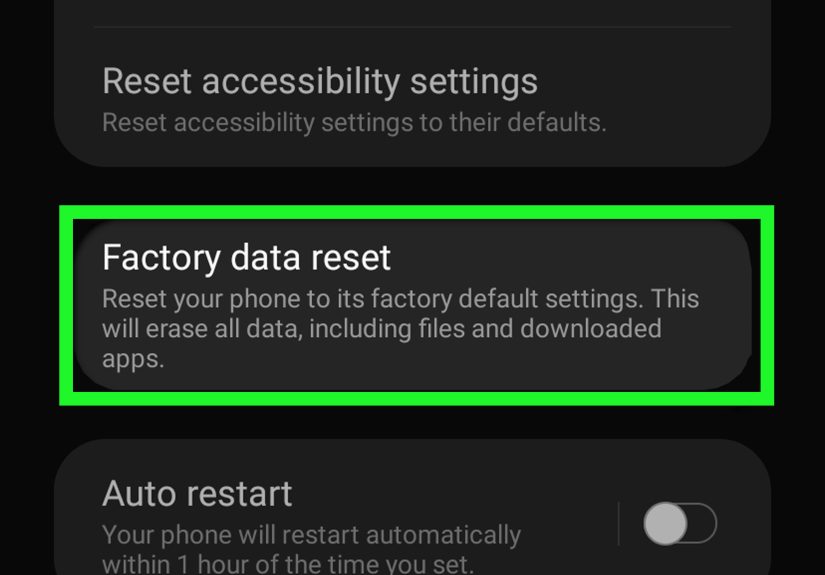
If nothing works, consider a factory reset. This should be the final option because it erases your apps, settings, accounts, and personal data from the phone. Before resetting, back up your photos, videos, contacts, messages, documents, and authenticator codes.
How to factory reset Android:
- Back up your important data.
- Charge your phone or keep it plugged in.
- Open Settings.
- Go to System or General management.
- Tap Reset or Reset options.
- Select Erase all data or Factory data reset.
- Follow the on-screen instructions.
After the reset, avoid restoring every app immediately. Install essential apps first, then test your phone. If you restore all apps at once and the problem returns, you may bring the bad app right back like a raccoon through a dog door.
Extra Fixes Worth Trying
Wipe the Cache Partition If Your Phone Supports It
Some Android phones, especially certain Samsung models, allow you to wipe the system cache partition from Recovery Mode. This can help after a major update if old temporary system files are causing conflicts. The exact button combination varies by model, so check your manufacturer’s instructions before using Recovery Mode. Do not choose “wipe data” unless you intend to factory reset the phone.
Remove Problem Widgets
Widgets can trigger home screen lag when they constantly refresh weather, calendars, email, stocks, fitness data, or news feeds. If the System UI error appears when unlocking the phone or returning to the home screen, remove widgets temporarily and test again.
Turn Off Heavy Animations
Older or budget Android phones may struggle with heavy launchers, live wallpapers, and animation effects. Switch to a static wallpaper, reduce widgets, and use the default launcher. Your phone may not look like a sci-fi command center, but it will probably stop fainting every time you swipe home.
How to Prevent System UI Not Responding in the Future
Prevention is much easier than emergency troubleshooting. Keep Android updated, update apps regularly, maintain free storage, avoid installing apps from unknown sources, and remove apps you no longer use. Be selective with apps that request powerful permissions, especially accessibility access, display-over-other-apps access, and notification control.
Also, restart your phone occasionally. Modern Android phones are good at memory management, but a restart every week or two can clear stuck processes and keep things smooth. Think of it as letting your phone stretch its legs.
Real-World Experience: What Usually Works Best
In real everyday troubleshooting, the fix often depends on when the System UI error started. If it appears suddenly after weeks of normal use, a simple restart or app update is usually enough. Temporary glitches happen, especially after the phone has been running for a long time without rebooting. Many people leave their phones on for weeks, juggling maps, messaging, banking apps, social media, Bluetooth devices, and background backups. Eventually, something gets stuck.
If the problem starts right after installing a new app, the solution is usually Safe Mode followed by uninstalling that app. This is especially true for customization apps. Launchers, icon packs, gesture tools, lock screen replacements, and wallpaper apps can be fun, but they interact closely with the Android interface. When one of them breaks, it can make System UI look guilty even when the real culprit is a flashy home screen add-on with too many permissions and too much confidence.
If the problem starts after a system update, clearing cache and checking for app updates becomes more important. A new Android version can change how apps handle notifications, background activity, widgets, and permissions. Developers may need to release compatibility updates. That is why updating apps from the Play Store after a system update is not just housekeeping; it can prevent crashes and freezes.
Low storage is another common real-world cause. Phones with nearly full storage often become unpredictable. You might see delayed typing, apps closing in the background, camera errors, failed downloads, and System UI warnings. The fix is not glamorous, but it works: delete large videos, remove unused apps, clear cache, and move photos to cloud storage or a computer. If your phone has less free space than a hotel mini-fridge, Android will not be happy.
Another practical lesson: avoid installing multiple “performance booster” apps. Android already manages memory and background processes. Many booster apps simply close processes aggressively, show ads, request unnecessary permissions, or run constantly in the background. Instead of making the phone faster, they may cause instability. A clean phone with fewer questionable apps usually performs better than a cluttered phone with three boosters fighting each other like tiny digital raccoons.
Factory reset should be treated as the final move, not the first move. It can fix deep software problems, but it takes time and requires a careful backup. Before resetting, try the basics: restart, update Android, update apps, clear cache, free storage, test Safe Mode, uninstall suspicious apps, and scan with Play Protect. In many cases, one of those steps solves the issue without wiping your phone.
The best approach is patient and methodical. Change one thing at a time, then test. If you uninstall five apps, clear ten settings, and reset three features all at once, you may fix the problem but never know what caused it. Troubleshooting works best when you act like a calm detective, not like someone angrily tapping every menu while whispering threats at a phone.
Finally, if the System UI error continues after a factory reset, or if the phone overheats, restarts constantly, fails to boot, or shows display problems, contact the manufacturer, carrier, or a certified repair center. Persistent freezing can sometimes point to failing storage, battery issues, or hardware damage. Software fixes are powerful, but they cannot repair a physically failing component.
Conclusion
The System UI not responding on Android error is annoying, but it is usually manageable. Start with a restart, then update Android and your apps. Clear System UI and launcher cache, free up storage, test Safe Mode, remove suspicious apps, scan with Play Protect, and reset app preferences if needed. Save factory reset for last, and always back up your data before using it.
Android phones are powerful little computers, and like all computers, they occasionally need cleaning, updating, and a stern but loving reboot. With the 10 solutions above, you can bring your phone back from frozen-screen drama and return to normal scrolling, messaging, streaming, and pretending you are only checking one notification.