Table of Contents >> Show >> Hide
- Internal Storage vs. SD Card: What’s the Difference (and Why It Matters)?
- Before You Move Anything: Quick Prep (2–5 Minutes)
- How to Move Files Using Files by Google (Works on Many Android Phones)
- How to Move Files on Samsung Phones (My Files App)
- How to Move Photos and Videos (Without Breaking Your Gallery)
- How to Move Downloads, Documents, and Big Files
- Moving Apps to SD Card: When It Works (and When It’s a No-Go)
- Adoptable Storage: Formatting an SD Card as Internal Storage (Read This First)
- Move Files with a Computer (USB Cable or Card Reader)
- Troubleshooting: Common Problems and Quick Fixes
- A Simple Storage Strategy: What to Keep Where
- Common Experiences People Have When Moving Files on Android (Real-World Lessons)
- Conclusion
Your Android phone’s storage is basically a tiny apartment closet. At first, everything fits. Then one day you try to download a PDF and your phone says,
“Storage almost full,” like it’s judging your life choices. The good news: if your phone supports a microSD card (or you’re moving things around inside
internal storage), you can reclaim space fastwithout deleting the photos you swear you’ll “print someday.”
This guide walks you through moving files on Android step-by-step: from internal storage to an SD card, from SD card back to internal storage,
and the smartest ways to handle photos, downloads, and even some apps. Expect clear instructions, a few “watch out for this” moments,
and practical tips that keep your files organized instead of scattered like socks in a dryer.
Internal Storage vs. SD Card: What’s the Difference (and Why It Matters)?
Internal storage: fast, secure, and always there
Internal storage is built into your phone. It’s typically faster and more reliable for apps, system files, and anything your phone needs to access quickly.
If you want peak performance (and fewer “why is this app lagging?” moments), internal storage is your phone’s VIP section.
SD card (portable storage): great for media, easy to swap
A microSD card adds extra space and is perfect for photos, videos, music, downloads, and documents. Portable SD storage can be removed and read by other
devices (like a computer with a card reader). It’s the “takeout container” of storage: handy, portable, and occasionally full of surprises.
SD card (internal/adopted storage): acts like built-in storage (with strings attached)
Some Android devices let you format an SD card as internal storage (often called “adoptable” storage). That can allow more apps and data to live on the card,
but it also ties the card to that phone. Translation: you can’t just pop it into another device and expect everything to work.
What you can (and can’t) move
- Usually easy: photos, videos, music, downloads, documents, offline files.
- Sometimes possible: some apps (depends on the app and your device settings).
- Usually not movable: system apps, critical Android files, and certain protected app data.
Before You Move Anything: Quick Prep (2–5 Minutes)
1) Check if your phone actually supports an SD card
Many Android phones do, but not all. If you see “SD card” under Settings > Storage, you’re in business. If you don’t, you may still be able
to expand storage with a USB-C flash drive (OTG), but that’s a different adventure.
2) Insert the SD card and set it up the right way
When you insert a new card, Android may ask how you want to use it:
- Portable storage: best for files you want to move around between devices.
- Internal storage: best if your phone supports it and you want to store apps/data on the card (with trade-offs).
If you’re not sure, choose Portable. It’s simpler and safer for most people.
3) Use a decent SD card (your future self will thank you)
If you’ll store lots of photos/videos, almost any reputable card is fine. If you want to store apps or move heavy data, look for cards labeled
A1 or A2 (app performance class) and consider higher video speed classes if you record a lot of 4K video.
A bargain-bin card can turn your phone into a loading screen simulator.
4) Decide what “home” looks like on your SD card
Create simple folders like Pictures, Videos, Music, Downloads, and Documents.
You’ll avoid the classic “Where did I put that file?” scavenger hunt later.
How to Move Files Using Files by Google (Works on Many Android Phones)
On many Android devices, Files by Google is the easiest way to move files between internal storage and an SD card. The interface varies a bit
by Android version and phone brand, but the logic is the same: select files, choose Move or Copy, pick a destination.
Method A: Move files from “Categories”
- Open your file manager (often Files or Files by Google).
- Tap a category like Images, Videos, Audio, or Documents.
- Find what you want to move, then long-press to select one file (and tap more to select multiple).
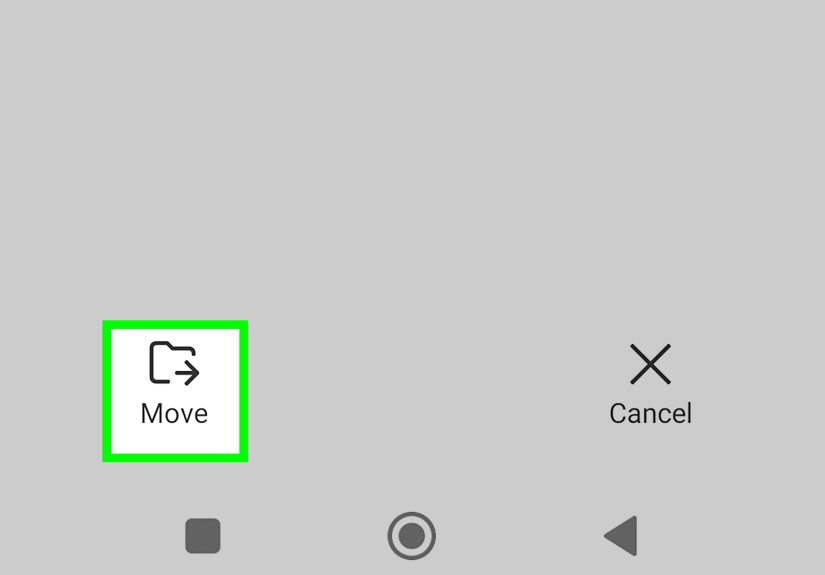
- Tap the More menu (often three dots) and choose Move to (or Move).
- Select SD card, choose a folder, then tap Move here.
Method B: Move files from “Storage devices”
- Open the file manager.
- Look for Storage devices (or Internal storage and SD card).
- Tap Internal storage and navigate to the folder where your files live (often Download).
- Select files > tap Move > pick SD card > choose destination folder > Move here.
Optional: Set Files by Google to save to the SD card (if available)
Some setups allow a “Save to SD card” toggle inside the file manager’s settings. If you see it, enabling it can help new downloads land on the card
automatically (instead of filling internal storage first).
How to Move Files on Samsung Phones (My Files App)
Samsung devices often use the My Files app. It’s straightforward once you know the two golden rules:
(1) long-press to select, (2) “Move” means it disappears from the original location.
Move files from internal storage to SD card
- Open My Files.
- Tap Internal storage.
- Navigate to the folder (like DCIM for camera photos or Download for downloads).
- Long-press a file to select it, then select additional files if needed.
- Tap Move (or More > Move).
- Choose SD card, pick the destination folder, and tap Move here.
Pro tip: “Copy” is safer for your first big transfer
If you’re moving hundreds of photos and you’re nervous (reasonable!), start with Copy instead of Move.
Once you confirm the files are safely on the SD card, you can delete the originals from internal storage.
How to Move Photos and Videos (Without Breaking Your Gallery)
Option 1: Change your camera save location (best for the future)
Many camera apps let you choose where new photos/videos are stored. Look inside the camera app’s settings for something like
Storage location or Data storage, then select SD card if it’s available.
Not every phone or camera app supports this setting, especially on newer devices or certain “lite” camera apps. If you don’t see it, no worries
you can still move existing photos manually.
Option 2: Move existing camera media carefully
Most camera photos live in Internal storage/DCIM/Camera. You can move photos and videos from there to
SD card/DCIM/Camera or a folder like SD card/Pictures/Camera Backup.
- Safer approach: Copy first, confirm, then delete originals.
- Keep it tidy: If you want the Gallery to recognize files easily, keep standard folders like DCIM and Pictures.
How to Move Downloads, Documents, and Big Files
If your internal storage is getting crushed, your Downloads folder is usually the culprit. It’s the junk drawer of the digital world:
screenshots, PDFs, installers, memes, “final_final_v3_really_final.docx”… you know the type.
Move Downloads to SD card
- Open your file manager.
- Go to Internal storage > Download.
- Select the files you want to move.
- Tap Move > choose SD card > pick Downloads (or create Downloads) > Move here.
Move large videos (and keep them playable)
For movies, screen recordings, and huge clips, store them in SD card/Movies or SD card/Videos.
Most video players will scan these automatically. If not, you can browse to the folder inside your player app.
Moving Apps to SD Card: When It Works (and When It’s a No-Go)
Moving apps to an SD card depends on your phone model, Android version, and the app itself. Some apps allow it. Some don’t.
Some pretend to allow it, then store the important stuff internally anyway (which is like packing one suitcase and leaving three bags in the hallway).
Try moving an app (if your phone supports it)
- Open Settings > Apps.
- Select the app you want to move.
- Tap Storage (or Storage & cache).
- If you see Change or Storage used, tap it and select SD card.
- Tap Move and wait for it to finish.
If you don’t see an option to move the app, that’s normal. Many apps (especially system apps or security-sensitive apps) stay on internal storage by design.
Adoptable Storage: Formatting an SD Card as Internal Storage (Read This First)
If your phone supports it, adoptable storage can be a game-changer for small internal storage devices. But it’s not for everyone, and it comes with
“terms and conditions” energy.
Pros
- Can expand your usable internal storage dramatically.
- May allow more apps and app data to live on the SD card.
- Android can migrate certain data to free internal space.
Cons (the important part)
- The SD card gets encrypted and tied to your phone (not easily readable elsewhere).
- If the card is slow, apps can lag and updates can feel sluggish.
- If the card fails or is removed unexpectedly, apps/data stored there can become unavailable.
- Switching back usually requires reformatting (aka: goodbye data unless you backed up).
General steps to set it up (varies by device)
- Go to Settings > Storage.
- Select your SD card.
- Look for Format as internal or Use as internal.
- Follow prompts to format (this erases the card) and optionally migrate data.
If you don’t see internal/adoptable options, your phone may not support itor the manufacturer may have disabled it.
In that case, portable storage is still extremely useful for moving files and freeing space.
Move Files with a Computer (USB Cable or Card Reader)
If you’re moving a massive folder (like years of photos), a computer can be faster and easier.
Method A: USB transfer (phone connected to computer)
- Connect your phone to your computer with a USB cable.
- On your phone, choose File transfer (MTP) if prompted.
- On your computer, open the phone’s storage and locate the files (e.g., DCIM, Download).
- Drag files to the SD card folder (if the SD card is visible) or copy to your computer first, then onto the card.
Method B: Card reader (SD card plugged into computer)
- Remove the microSD card and insert it into a card reader.
- Copy files from your computer to appropriate folders on the card (e.g., Pictures, Videos).
- Eject the card safely, then reinsert it into your phone.
Troubleshooting: Common Problems and Quick Fixes
“My phone doesn’t see the SD card.”
- Restart your phone after inserting the card.
- Remove and reinsert the card (gentlyno need to fight your phone).
- Try the card in another device or reader to confirm it works.
- If prompted, consider formatting the card (after backing up anything important).
“Move” is missing or files won’t transfer.
- Try Copy instead of Move (some apps behave better with copy-first).
- Check whether the destination folder is writable.
- Some protected folders and app-managed files can’t be moved freely.
“My photos disappeared from the Gallery!”
- Confirm the files are actually on the SD card using the file manager.
- Give the Gallery app a moment to rescan (or restart the phone).
- Keep media in common folders like DCIM or Pictures so apps can find them.
A Simple Storage Strategy: What to Keep Where
If you want fewer headaches, use this practical split:
- Internal storage: apps, system updates, banking apps, anything performance-sensitive.
- SD card (portable): photos/videos, music, podcasts, downloads, documents, offline media.
- Cloud/backups: irreplaceable photos, important documents, and anything you’d cry over if lost.
Common Experiences People Have When Moving Files on Android (Real-World Lessons)
This is the part where people usually say, “I wish someone told me that earlier.” Below are common, totally normal experiences Android users run into when
moving files between internal storage and an SD cardplus what tends to work best.
The “I moved my photos, but my storage didn’t change” surprise
A lot of people move photos and expect internal storage to instantly free upthen nothing changes. The usual reason? They copied photos to the SD card
(which is smart for safety), but forgot to delete the originals. Another sneaky culprit is messaging apps: your camera roll might be fine, but your phone is
quietly hoarding thousands of memes, voice notes, and “good morning” GIFs in app media folders. The fix is boring but effective: confirm your SD card copy is
complete, then delete originals (or use your file manager’s storage cleaning tools). After that, a restart often helps the system recalculate storage.
The “my SD card is slower than my patience” moment
People commonly notice that moving files is fast, but running things from a cheap SD card can feel slowespecially if they try to store apps or huge
video projects there. That’s why many users end up keeping apps on internal storage while using the card mainly for photos, videos, and downloads. When someone
truly needs apps on the SD card, the happiest outcomes usually involve a quality card with app performance markings (A1/A2) and the expectation that it still
won’t be as zippy as internal storage.
The “adoptable storage regret” (and how to avoid it)
Adoptable/internal SD storage sounds amazing: “Turn this card into internal storage!” In practice, users often love it on low-storage phonesuntil they forget
the card becomes tied to that device. A common story goes like this: someone adopts the card, everything works, then months later they remove the card to copy
photos on a laptop and… the laptop can’t read it. Or they swap phones and discover the card can’t just be moved over. The best experiences happen when people
treat adoptable storage as permanent (the card stays in the phone), keep backups elsewhere, and choose a fast, reliable card from the start.
The “why are there duplicates?” mystery
Another frequent experience: after moving photos to the SD card, users see duplicates in Gallery apps or photo editors. This often comes from having the same
media in multiple folders (for example, one in DCIM and one in Pictures), or from apps that cache thumbnails and previews.
People usually resolve it by consolidating folders (choose one main photo folder), deleting duplicates after confirming backups, and letting the Gallery rescan.
The “I’m finally organized” win
The best outcomes aren’t just about freeing spacethey’re about keeping it free. People who stay happiest long-term tend to do three small habits:
(1) store new downloads directly to SD card when possible, (2) set camera storage to SD card if their phone supports it, and (3) do a monthly “downloads purge”
where they move keepers to a labeled folder and delete junk. It’s not glamorous, but neither is the “Storage full” notification popping up mid-text.
Conclusion
Moving files on Android is one of the fastest ways to reclaim storage without deleting what matters. Start with the easy wins: move downloads, videos,
and older photos to your SD card using your phone’s file manager. If your device supports it, changing the camera save location can prevent future clutter.
And if you’re considering adoptable storage, go in with eyes open: it can help a lot, but it’s best when you use a good SD card and treat it as permanent.
Bottom line: keep apps and performance-critical stuff on internal storage, let your SD card handle the big, bulky files, and you’ll spend less time managing
storageand more time using your phone like it’s not a tiny closet with opinions.