Table of Contents >> Show >> Hide
- What Are Email Contacts on an iPhone?
- Before You Remove Email Contacts: Know What Will Happen
- How to Remove Email Contacts from an iPhone: 6 Steps
- Step 1: Open Contacts and Check Which Accounts Are Showing
- Step 2: Go to Contact Account Settings
- Step 3: Turn Off Contacts for the Email Account
- Step 4: Delete the Email Account Only If You No Longer Need It
- Step 5: Delete Individual Contacts You No Longer Need
- Step 6: Clean Up Duplicates and Set the Right Default Account
- How to Remove Gmail Contacts from an iPhone
- How to Remove Outlook or Exchange Contacts from an iPhone
- How to Remove Yahoo Contacts from an iPhone
- How to Remove iCloud Contacts from an iPhone
- Why Email Contacts Keep Coming Back
- Should You Delete or Just Hide Email Contacts?
- Common Mistakes to Avoid
- Practical Examples
- Extra Experience: What Removing Email Contacts from an iPhone Is Really Like
- Final Thoughts
One day your iPhone Contacts app looks perfectly normal. The next day, it has become a digital high school reunion, a business card drawer, and a suspiciously enthusiastic Gmail archive all living together rent-free. If your address book is suddenly packed with old email contacts, duplicate names, former coworkers, random auto-saved Gmail people, or every person you emailed once in 2014, you are not alone.
The good news: you do not need to delete your entire email account, throw your iPhone into a lake, or start a new life under an alias. Most email contacts appear on an iPhone because the device is syncing contacts from an account such as iCloud, Gmail, Outlook, Exchange, Yahoo, or another mail provider. Removing them is usually a matter of turning off contact syncing, deleting only the unwanted account from Contacts, or cleaning up the original contact source.
This guide explains how to remove email contacts from an iPhone in six practical steps. You will learn how to identify where the contacts are coming from, remove synced email contacts without deleting your actual email, delete individual contacts, prevent them from coming back, and avoid the classic mistake of tapping buttons with the confidence of a raccoon operating a microwave.
What Are Email Contacts on an iPhone?
Email contacts are contacts that appear in your iPhone’s Contacts app because they are connected to an email or cloud account. For example, if you add a Gmail account and enable Contacts, your Google Contacts may appear on your iPhone. If you add Outlook or Exchange and allow contact syncing, work contacts may show up too. Yahoo, iCloud, school accounts, business accounts, and CardDAV accounts can behave in a similar way.
This is useful when you want all your people in one place. It is less useful when your Contacts app becomes a museum of “Who is Dave from the printer repair quote?” The key is understanding that contacts can live in different places. Some are stored in iCloud. Some are stored in Google. Some are saved through Outlook. Some may be local to the iPhone. Your iPhone is often just displaying them, not necessarily owning them.
Before You Remove Email Contacts: Know What Will Happen
Before removing anything, remember this important distinction: turning off contact syncing usually removes those contacts from the iPhone display, but it does not delete them from the original online account. In other words, if you turn off Gmail contacts on your iPhone, those contacts should still exist in your Google account. If you delete a contact from iCloud while iCloud Contacts is enabled, however, that deletion can sync across your Apple devices.
That tiny difference matters. It is the difference between “I cleaned my iPhone” and “I accidentally erased Aunt Linda from every Apple device and now Thanksgiving is weird.” When in doubt, start by turning off syncing instead of permanently deleting contacts.
How to Remove Email Contacts from an iPhone: 6 Steps
Step 1: Open Contacts and Check Which Accounts Are Showing
Start in the Contacts app or the Phone app, then tap the Contacts tab. If your iPhone shows a Lists option in the upper-left corner, tap it. This area helps you see which contact sources are active, such as iCloud, Gmail, Outlook, Exchange, Yahoo, or another account.
If you see several lists, your messy contact situation is probably not one giant list. It is more like several lists wearing one trench coat. You may have iCloud contacts, Gmail contacts, and work contacts all displayed together under “All Contacts.”
Tap different lists to see where the unwanted email contacts are coming from. For example, if your old work contacts disappear when you stop viewing Exchange, then Exchange is the source. If random email addresses vanish when you hide Gmail, Gmail is likely the culprit. This step saves time because you do not want to delete the wrong account or remove the wrong group of contacts.
Step 2: Go to Contact Account Settings
Next, open the Settings app on your iPhone. On newer iOS versions, go to Apps, tap Contacts, then tap Contacts Accounts. On some older iOS versions, you may see Contacts directly in Settings, or your account options may appear under Mail and Accounts.
Once you are in the account list, you will see the accounts connected to your iPhone. These may include iCloud, Gmail, Outlook, Exchange, Yahoo, AOL, school email, company email, or custom accounts. Tap the account that is feeding unwanted contacts into your iPhone.
This is the “check the pipes before mopping the floor” step. If you only delete individual contacts but leave the source account syncing, the contacts may return later. Your iPhone is not haunted; it is syncing.
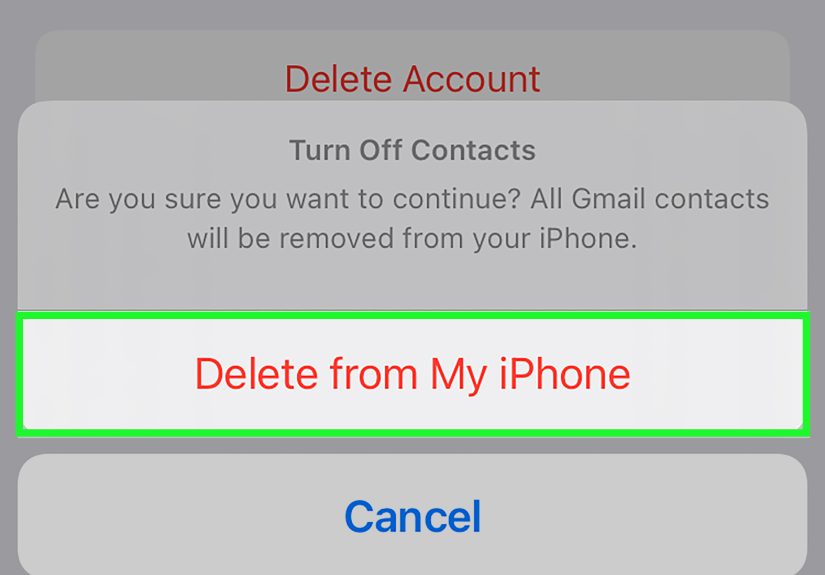
Step 3: Turn Off Contacts for the Email Account
After selecting the account, look for the Contacts switch. Turn it off. Your iPhone may ask what you want to do with previously synced contacts. Choose the option that removes them from the iPhone if your goal is to clear them from the device.
This is usually the safest way to remove email contacts from an iPhone because it stops showing the synced contacts without closing the email account itself. Your Mail app can continue receiving messages if Mail remains enabled. Your Calendar can keep syncing if Calendar remains enabled. You are simply telling the iPhone, “Thank you, but I do not need your entire contact buffet.”
For example, if you use Gmail for email but do not want Google Contacts in your iPhone Contacts app, you can keep Mail on and turn Contacts off. If you use Outlook for work email but do not want every coworker in your personal contact list, turn off contact syncing for that account or adjust the contact-saving setting inside the Outlook app.
Step 4: Delete the Email Account Only If You No Longer Need It
If you no longer use the email account on your iPhone, you can remove the account entirely. Go to the relevant account settings, tap the account, then choose Delete Account or Sign Out, depending on the account type and iOS version.
Deleting an account from your iPhone usually removes that account’s email, contacts, calendars, notes, and other synced data from the device. It does not normally cancel the email address itself. Your Gmail, Yahoo, Outlook, or iCloud account still exists with the provider unless you separately close it through that provider.
Use this option when you truly do not need the account on the iPhone anymore. For instance, if you left a job and your old Exchange account keeps filling your Contacts app with colleagues you no longer email, removing the account may be cleaner than just turning off Contacts. But if you still need the inbox, do not delete the whole account just to solve a contact problem. That is like selling your car because the cupholder is sticky.
Step 5: Delete Individual Contacts You No Longer Need
If only a few unwanted contacts remain, delete them individually. Open the Contacts app, tap the contact, tap Edit, scroll down, then tap Delete Contact. Confirm the deletion.
This method is best for contacts you created manually, old entries saved to iCloud, or duplicate cards that are no longer useful. It is not ideal for hundreds of email contacts synced from Gmail, Outlook, Yahoo, or Exchange. If you delete synced contacts one by one without turning off the sync source, you may either waste time or accidentally remove them from the original account.
For iCloud contacts, remember that deleting a contact while iCloud Contacts is enabled can remove it from other Apple devices using the same Apple Account. If you want a contact gone everywhere, that is perfect. If you only want it hidden from this iPhone, turn off the account or list instead.
Step 6: Clean Up Duplicates and Set the Right Default Account
After removing email contacts, open the Contacts app again and check for duplicates. If your iPhone detects duplicates, it may show a View Duplicates or similar option below your card. You can review duplicate contacts and merge them when appropriate.
Next, set the correct default account for new contacts. Go to Settings, tap Apps, choose Contacts, then tap Default Account. Choose the account where you want new contacts to be saved, such as iCloud. This helps prevent future confusion, especially if you previously saved new contacts to Gmail or a work account by accident.
This final cleanup step is where your contact list begins to look like a contact list again, not a phone-shaped archaeological dig.
How to Remove Gmail Contacts from an iPhone
To remove Gmail contacts from your iPhone, open Settings, go to Apps, tap Contacts, then choose Contacts Accounts. Tap your Gmail account and turn off Contacts. If your iPhone asks whether to delete the contacts from the device, choose the option to remove them from your iPhone.
This should stop Google Contacts from appearing in the iPhone Contacts app while leaving them available in your Google account. You can still use Gmail for email if the Mail option remains enabled. If Gmail keeps creating new contacts automatically, you may also need to adjust Google’s contact-saving or auto-complete settings from your Google account or Gmail settings.
How to Remove Outlook or Exchange Contacts from an iPhone
Outlook and Exchange contacts often appear on iPhones used for school or work. To remove them, check both iPhone settings and the Outlook app. In iPhone settings, go to the account area and turn off Contacts for the Outlook or Exchange account. If you use the Outlook app, open Outlook settings, select the account, and look for options such as Save Contacts or Sync Contacts. Turn that setting off if you do not want Outlook contacts saved to the native iPhone Contacts app.
For work or school accounts, your organization may control some settings. If a contact option is locked, missing, or managed by policy, contact your IT administrator. Yes, that means sending a message to the people who write emails beginning with “Per my last ticket,” but sometimes they really are the only ones with the magic switch.
How to Remove Yahoo Contacts from an iPhone
Yahoo contacts can appear when a Yahoo Mail account is synced with iOS. To remove them, go to your iPhone account settings and turn off Contacts for the Yahoo account. If you no longer need Yahoo Mail on your iPhone, you can delete the account from the device. When prompted, confirm that you want the account data removed from the iPhone.
This does not necessarily delete the Yahoo account itself. It simply removes the synced account data from your iPhone. If you want to permanently delete Yahoo contacts from Yahoo Mail, you need to manage them through Yahoo’s own contact tools.
How to Remove iCloud Contacts from an iPhone
iCloud works a little differently because it is deeply connected to Apple devices. To turn off iCloud Contacts, open Settings, tap your name, tap iCloud, then find Contacts under the apps saved to iCloud. Turn off Contacts. Your iPhone may ask whether you want to keep or delete previously synced iCloud contacts from the device.
If you delete a contact from iCloud itself, the deletion can sync to every device where iCloud Contacts is turned on. That is powerful and convenient, but it deserves a moment of attention before you start deleting at full speed. For bulk cleanup, using iCloud Contacts on a computer can be easier than tapping through individual contacts on the iPhone.
Why Email Contacts Keep Coming Back
If removed contacts keep returning, one of these things is usually happening. First, the account is still syncing contacts. Second, an app such as Outlook is saving contacts back to the iPhone. Third, Gmail or another provider is automatically saving people you interact with. Fourth, the contacts are stored in more than one account, so deleting them from one place does not remove the copy from another.
The fix is to identify the source, turn off contact syncing there, and then delete or merge remaining duplicates. Do not keep deleting the same contact repeatedly while ignoring the account settings. That is not contact management; that is digital whack-a-mole.
Should You Delete or Just Hide Email Contacts?
Sometimes you do not need to delete contacts. You only need to stop viewing them. In the Contacts app, use Lists to display only the contact groups you actually want to see. For example, you may choose to view iCloud contacts but not Gmail contacts. This is helpful when you want to keep work contacts available but do not want them cluttering your everyday personal list.
Deleting is better when the contacts are outdated, duplicated, or wrong. Hiding or turning off syncing is better when the contacts are still useful somewhere else. Think of it like cleaning a closet: some things go in the trash, some go in storage, and some simply need to stop falling on your head every time you open the door.
Common Mistakes to Avoid
Deleting the Whole Email Account by Accident
If you only want to remove contacts, turn off Contacts for the account instead of deleting the account. Deleting the account removes more than contacts from the iPhone, including mail and other synced items.
Deleting iCloud Contacts Without Realizing They Sync
When iCloud Contacts is enabled, changes can sync across Apple devices. Make sure you really want a contact deleted everywhere before removing it from iCloud.
Ignoring Outlook App Settings
Outlook can save or sync contacts to the iPhone Contacts app. If contacts keep returning, check the Outlook app settings in addition to iOS account settings.
Not Setting a Default Contact Account
If your default account is set to Gmail or a work account, new contacts may continue going to the wrong place. Set iCloud or your preferred account as the default for future contacts.
Practical Examples
Example 1: Your iPhone Shows Hundreds of Old Gmail Contacts
You open Contacts and see names you only emailed once years ago. Go to Settings > Apps > Contacts > Contacts Accounts, tap Gmail, and turn off Contacts. Then check your Contacts app again. If the old entries disappear, Gmail was the source.
Example 2: Your Work Contacts Are Mixed With Personal Contacts
You added an Exchange account for work, and now every client, manager, and conference room appears in your personal Contacts app. Turn off Contacts for the Exchange account or remove the account if you no longer use it. If your company manages the device, ask IT before changing managed account settings.
Example 3: You Have Duplicate Contacts After Adding iCloud and Gmail
If the same person appears twice, one card may come from iCloud and another from Gmail. Use the duplicate contact tool in the Contacts app when available, or choose which account should keep your main contact list. Then turn off contact syncing for the extra source.
Extra Experience: What Removing Email Contacts from an iPhone Is Really Like
In real life, removing email contacts from an iPhone is rarely dramatic. There is no thunder, no warning siren, and sadly no tiny Apple employee who appears to explain why “Mike Pizza Coupon” has been in your address book for nine years. The experience is usually more like detective work. You notice the clutter, open Contacts, tap around, and slowly realize the problem is not one contact list but several accounts politely dumping their address books into the same room.
The most useful habit is to pause before deleting. Many people see unwanted contacts and immediately start removing them one by one. That feels productive for about six minutes. Then the same contacts return because Gmail, Outlook, or another account is still syncing. It is like sweeping leaves during a windstorm. You are technically doing something, but the tree is laughing.
A better approach is to ask, “Where does this contact live?” If it belongs to Gmail, manage the Gmail sync. If it belongs to Outlook, check Outlook’s save contacts setting. If it belongs to iCloud, be more careful because deleting may affect other Apple devices. Once you think in terms of sources, the whole process becomes much less mysterious.
Another lesson: do not underestimate the default account setting. Many users clean up their contacts perfectly, then months later discover new contacts are still being saved to the wrong account. Maybe every new phone number goes into Gmail even though they prefer iCloud. Maybe work contacts become the default because an Exchange account was added during setup. Setting the default contact account is not glamorous, but neither is flossing, and both prevent future pain.
It also helps to clean in stages. First, turn off contact syncing for accounts you do not want displayed. Second, check whether your important contacts are still visible. Third, merge duplicates. Fourth, delete only the contacts you are sure you no longer need. This slower process protects you from accidental deletions and gives you a chance to confirm that your phone still knows your family, friends, doctor, favorite restaurant, and that one neighbor whose name you absolutely should know by now.
If you share devices, changed Apple IDs, used a work phone, migrated from Android, or imported contacts from multiple email services, expect a little extra mess. Contact lists are like junk drawers: the longer they exist, the more likely they contain batteries, keys, expired coupons, and at least one mysterious object. Digital junk drawers are no different. Your iPhone may simply be showing the history of every account you have connected over the years.
The best experience comes from choosing one main home for personal contacts. For many iPhone users, that is iCloud. For others, it is Google Contacts or Outlook. The specific choice matters less than consistency. Pick one main account, set it as the default, and avoid syncing every contact source unless you truly need it. Your Contacts app will become easier to search, easier to back up, and much less likely to suggest emailing someone you barely remember from a group project in 2018.
Final Thoughts
Removing email contacts from an iPhone is mostly about controlling sync. Open your Contacts lists, identify the account responsible, turn off Contacts for that account, delete the full account only if necessary, clean up individual entries, and set the right default account. Once you understand that your iPhone may be displaying contacts from iCloud, Gmail, Outlook, Yahoo, Exchange, and other services at the same time, the mess becomes much easier to manage.
A clean contact list makes everyday phone use faster and less annoying. Search results improve. Messages feel less cluttered. Phone calls become easier to place. And best of all, you can finally stop wondering why your iPhone thinks a random email address from six years ago deserves VIP treatment.