Table of Contents >> Show >> Hide
- Can You Transfer SoundCloud Songs to Spotify Directly?
- What You Need Before Starting
- How to Transfer SoundCloud Songs to Spotify: 9 Steps
- Step 1: Clean Up Your SoundCloud Library First
- Step 2: Choose a Transfer Method
- Step 3: Connect Your SoundCloud Account
- Step 4: Connect Your Spotify Account
- Step 5: Select the SoundCloud Songs or Playlists to Transfer
- Step 6: Review the Matches Before Confirming
- Step 7: Start the Transfer
- Step 8: Open Spotify and Check the New Playlist
- Step 9: Fix Missing Songs With Spotify Search or Local Files
- Why Some SoundCloud Songs Do Not Transfer to Spotify
- Best Tools for Moving SoundCloud Playlists to Spotify
- Tips for Better SoundCloud to Spotify Transfer Results
- Is It Free to Transfer SoundCloud Songs to Spotify?
- Privacy and Safety Considerations
- Common Problems and Quick Fixes
- Experience: What It Feels Like to Move SoundCloud Songs to Spotify
- Conclusion
Note: This guide explains legitimate ways to move playlists, liked tracks, and music references from SoundCloud to Spotify. It does not recommend ripping, bypassing copyright controls, or uploading music you do not own or have permission to use.
SoundCloud is the wild, neon-lit basement show of the internet: remixes, demos, DJ sets, bedroom-pop experiments, underground rap, lo-fi beats, and that one track you found at 2:13 a.m. and immediately treated like a personality trait. Spotify, meanwhile, is the organized living room: playlists, recommendations, CarPlay, smart speakers, collaborative mixes, and a search function your less techy friends actually understand.
So, naturally, many listeners want the best of both worlds. The big question is simple: how do you transfer SoundCloud songs to Spotify without manually searching for every track? The answer is: use a playlist transfer tool for matching songs that exist in Spotify’s catalog, then handle SoundCloud-only tracks separately with smart workarounds like Spotify Local Files, manual playlist notes, or keeping a companion SoundCloud playlist.
Before we begin, here is the reality check that saves headaches later: transferring from SoundCloud to Spotify does not magically move the original audio file unless you legally own that file and add it yourself as a local file. Most transfer tools work by reading your SoundCloud playlist or liked tracks, searching Spotify for matching artist/title metadata, and creating a new Spotify playlist with the closest available matches. It is clever, but it is not a wizard. Sometimes it finds the exact song. Sometimes it finds a live version, a re-upload, a karaoke cover from someone named “DJ Refrigerator,” or nothing at all.
The good news? With a clean process, you can move most mainstream tracks, organize your Spotify library, and preserve the spirit of your SoundCloud collection without losing your mind.
Can You Transfer SoundCloud Songs to Spotify Directly?
Yes, but with an important distinction. You can transfer playlists, liked songs, favorite tracks, albums, or artist follows through supported transfer services such as TuneMyMusic, Soundiiz, and FreeYourMusic. Spotify also offers an import-music option powered by TuneMyMusic, which helps users bring music from other platforms into Spotify. However, whether SoundCloud appears as an available source can depend on region, account type, tool support, and the current transfer interface.
What you usually cannot do is press a “move this exact SoundCloud audio file into Spotify” button. Spotify is a licensed streaming platform with its own catalog. SoundCloud hosts a large amount of creator-uploaded content, including unofficial remixes, private tracks, previews, DJ mixes, and songs that may not be distributed to Spotify. That means a transfer tool can only add a Spotify version if Spotify has a matching track.
What You Need Before Starting
Before you transfer SoundCloud songs to Spotify, prepare three things:
- A SoundCloud account with the playlists, liked tracks, or favorites you want to move.
- A Spotify account where the new playlists will be created.
- A playlist transfer tool such as TuneMyMusic, Soundiiz, or FreeYourMusic.
You should also decide what “transfer” means for your situation. Are you moving a public playlist? Your liked tracks? A handful of songs? A giant 1,200-track SoundCloud archive that looks like it was curated by a raccoon with excellent taste and no sleep schedule? The answer affects which tool and plan make the most sense.
How to Transfer SoundCloud Songs to Spotify: 9 Steps
Step 1: Clean Up Your SoundCloud Library First
Start in SoundCloud. Open your playlists, liked tracks, or library and remove anything you no longer want. This sounds boring, but it is the digital equivalent of cleaning your room before moving apartments. If your SoundCloud playlist contains duplicate uploads, deleted tracks, old previews, or “Untitled Demo Final FINAL v3,” your Spotify transfer will be messier.
Check playlist names, remove obvious duplicates, and make sure the playlists you want to transfer are accessible. If a track is private, deleted, region-restricted, or not available to your account anymore, a transfer tool may not be able to read or match it correctly.
Step 2: Choose a Transfer Method
Next, choose your transfer method. The most common options include:
- Spotify’s import-music page: Useful if SoundCloud is available through the current TuneMyMusic-powered flow.
- TuneMyMusic: A popular browser-based tool that supports transferring playlists and favorites between many services.
- Soundiiz: A strong option for playlist conversion, library migration, and keeping playlists synced on supported plans.
- FreeYourMusic: A mobile-friendly and desktop-friendly transfer app for moving playlists between major music platforms.
For most users, TuneMyMusic or Soundiiz is the easiest place to start because both are designed around connecting two music services, selecting what to transfer, and letting the tool match songs automatically. If you prefer a dedicated app experience, FreeYourMusic may feel more comfortable.
Step 3: Connect Your SoundCloud Account
Open your chosen transfer tool and select SoundCloud as the source platform. You will be asked to sign in and authorize access. Read the permission screen carefully. The service needs access so it can view playlists, likes, or library items that you choose to transfer.
This does not mean you should hand your login to every random “free playlist magic” website that appears in search results. Stick to established services, use official login windows, and avoid tools that ask you to paste passwords directly into suspicious forms. Your music library is not a bank vault, but it still deserves better security than “whatever link looked shiny.”
Step 4: Connect Your Spotify Account
After SoundCloud is connected, choose Spotify as the destination. Sign in to Spotify and approve the requested permissions. The transfer tool usually needs permission to create playlists, add songs to your library, and read your Spotify account information.
If you use multiple Spotify accounts, double-check that you are signing in to the correct one. Nothing creates instant confusion like transferring your carefully curated SoundCloud playlist into your old account from collegethe one still recommending acoustic covers and gym EDM from 2014.
Step 5: Select the SoundCloud Songs or Playlists to Transfer
Now choose what to move. Depending on the tool, you may be able to transfer:
- SoundCloud playlists
- Liked tracks or favorite songs
- Albums
- Artists you follow
- Multiple playlists at once on paid plans
If this is your first time, start with one playlist instead of your entire library. A small test transfer lets you see how well the matching works. If the results look clean, move on to bigger playlists. If the results look like a music robot sneezed into your account, adjust before transferring everything.
Step 6: Review the Matches Before Confirming
This is the most important step. Transfer tools usually scan SoundCloud track names, artist names, album data, and other metadata, then search Spotify for matching tracks. When the song exists on both platforms with clean metadata, the match can be excellent. When the SoundCloud title includes remix tags, emojis, “prod. by,” unofficial edits, or extra punctuation, the tool may struggle.
Look for these common match problems:
- The correct artist but wrong version
- A remix matched to the original song
- A live recording matched to a studio version
- A cover matched instead of the official release
- A completely unrelated song with a similar title
If your tool allows manual review, use it. A few minutes of checking can prevent a playlist disaster. Think of it as proofreading, but for your ears.
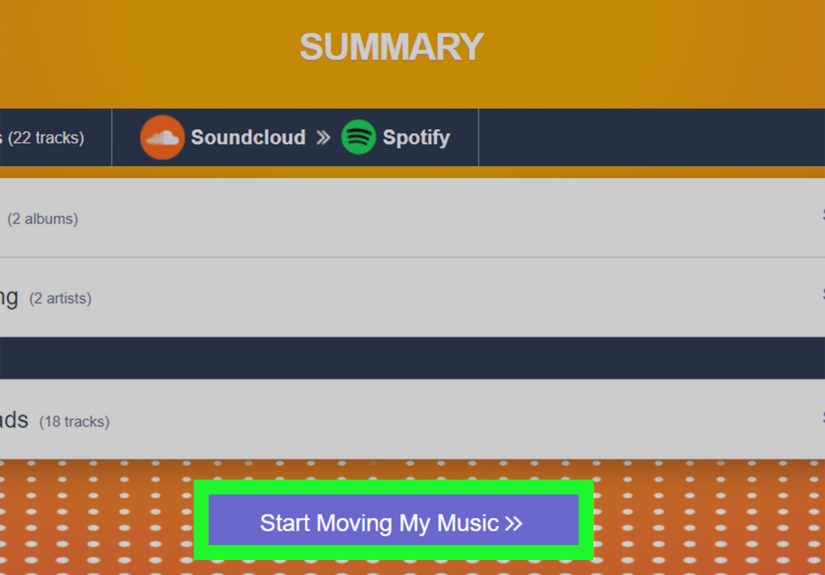
Step 7: Start the Transfer
Once the matches look reasonable, start the transfer. The tool will create a new playlist in Spotify and add the matched tracks. Small playlists may transfer quickly. Larger libraries can take longer, especially if the tool is processing hundreds or thousands of tracks.
Do not panic if some songs are skipped. Skipped tracks usually mean Spotify could not find a confident match, the song is not available in Spotify’s catalog, the original SoundCloud track was removed, or the metadata was too messy to identify.
Step 8: Open Spotify and Check the New Playlist
After the transfer finishes, open Spotify and look for the new playlist. It may appear with the same name as your SoundCloud playlist, or the tool may add a small label to identify the transfer source.
Play the first few tracks, scan the middle, and check the end. Rename the playlist if needed. Add a custom description. Change the cover image if you want it to feel less like a spreadsheet and more like an actual playlist. You can also move the songs into existing Spotify playlists, create folders on desktop, or merge similar playlists together.
Step 9: Fix Missing Songs With Spotify Search or Local Files
For missing tracks, try searching Spotify manually. Sometimes a transfer tool fails to match a song even though Spotify has it under slightly different metadata. Search by artist name, song title, lyrics, featured artist, or album.
If the song truly is not on Spotify but you legally own the audio file, Spotify Local Files can help. Local Files lets you play audio stored on your device through Spotify. This is useful for personal recordings, purchased downloads, demos you own, or tracks the creator has made available for download. It is not a loophole for pirated music, unofficial ripping, or bypassing SoundCloud’s download permissions.
If you do not own the file and the creator has not made it available, the cleanest solution is to keep that track in SoundCloud and add a note to your Spotify playlist description, such as “Some SoundCloud-only remixes remain in the original playlist.” Not glamorous, but honestand honesty ages better than a broken local file from a mystery folder named “New Folder 7.”
Why Some SoundCloud Songs Do Not Transfer to Spotify
SoundCloud and Spotify are different ecosystems. Spotify depends on licensed catalog availability from labels, distributors, and artists. SoundCloud includes a much wider range of creator uploads, including rough demos, DJ edits, unofficial remixes, podcasts, mashups, private links, and experimental tracks. Many of those uploads were never distributed to Spotify.
Here are the most common reasons your SoundCloud to Spotify transfer may miss songs:
- The track is SoundCloud-only: It may never have been released on Spotify.
- The upload is unofficial: Remixes, edits, and bootlegs may not exist legally on Spotify.
- The title is messy: Extra tags like “FREE DL,” “nightcore,” or “slowed + reverb” can confuse matching tools.
- The artist name is different: Independent artists sometimes use different names across platforms.
- The track was removed: Deleted or unavailable SoundCloud tracks cannot be matched reliably.
- Regional availability differs: A song may exist on Spotify but not in your country.
Best Tools for Moving SoundCloud Playlists to Spotify
TuneMyMusic
TuneMyMusic is one of the simplest browser-based options. It lets you connect SoundCloud and Spotify, choose playlists or favorites, and transfer matched songs into Spotify. It is also connected to Spotify’s own import-music experience, which makes it especially relevant for users who want a straightforward transfer path.
Soundiiz
Soundiiz is a strong choice for people who transfer playlists often or manage large libraries across multiple platforms. It supports playlist transfer from SoundCloud to Spotify and may offer extra features such as batch transfers or sync options depending on the plan. If you curate seriously, Soundiiz feels more like a library management dashboard than a one-time moving truck.
FreeYourMusic
FreeYourMusic focuses on making music migration easy across major streaming services. It can be useful if you prefer an app-style workflow and want to move music from a phone or desktop. As with any transfer tool, review matches carefully before assuming every song landed perfectly.
Tips for Better SoundCloud to Spotify Transfer Results
Use Smaller Playlist Batches
Instead of transferring your entire SoundCloud history at once, move playlists in smaller batches. This makes it easier to review mistakes and fix missing tracks.
Rename Messy SoundCloud Playlists
A clean playlist title helps you recognize it later in Spotify. “Late Night Chill” is easier to manage than “sc playlist copy old maybe good???” Future you will appreciate the effort.
Expect Remixes to Be Tricky
Unofficial remixes are the most unpredictable category. If the remix is not distributed to Spotify, the transfer tool may match the original song instead. Always review remixes manually.
Save the Original SoundCloud Playlist
Do not delete your SoundCloud playlist immediately after transferring. Keep it as a backup until you are sure the Spotify version is accurate.
Use Local Files Only for Music You Can Legally Use
Spotify Local Files are excellent for music you own, recordings you created, or downloads the artist has made available. They are not a legal shortcut for copying restricted SoundCloud streams.
Is It Free to Transfer SoundCloud Songs to Spotify?
Sometimes. Many transfer tools offer limited free transfers, especially for small playlists or one-at-a-time moves. Larger libraries, batch transfers, automatic syncing, or advanced match review may require a paid plan. If you only need to move one or two playlists, a free tier may be enough. If you are migrating years of music discovery, a one-month subscription can save hours of manual searching.
Before paying, check the tool’s current limits. Free plans can change, and features vary by platform. Also check whether the tool supports the exact direction you need: SoundCloud as the source and Spotify as the destination.
Privacy and Safety Considerations
When you connect SoundCloud and Spotify to a transfer service, you grant account permissions. That is normal for playlist transfer, but you should still be selective. Use established services, read permission prompts, and revoke access later if you no longer need the tool.
After finishing the transfer, you can visit your connected apps or account settings in Spotify and SoundCloud to remove third-party access. This is a smart habit, especially if you tested multiple services. Think of it like giving a friend your spare key while they water your plantsfine temporarily, weird forever.
Common Problems and Quick Fixes
Problem: My Spotify Playlist Has the Wrong Songs
Fix it by reviewing the transfer report if your tool provides one. Remove mismatched songs and search manually for the correct versions. For remix-heavy playlists, you may need to rebuild some sections by hand.
Problem: Many SoundCloud Songs Are Missing
This usually means those tracks are not available on Spotify. Check whether they are unofficial uploads, private tracks, deleted tracks, or creator-only releases. If you legally own downloaded files, consider Spotify Local Files.
Problem: My Liked Tracks Did Not Transfer
Some tools separate playlists from liked tracks or favorites. Go back and choose the correct source category. If the tool only supports playlists on your plan, create a SoundCloud playlist from the songs you want to move, then transfer that playlist.
Problem: The Tool Wants Payment
Try transferring one playlist at a time with a free option, compare another tool, or pay for one month if the time savings justify it. For large libraries, manual transfer can be painfully slow.
Experience: What It Feels Like to Move SoundCloud Songs to Spotify
Moving SoundCloud songs to Spotify sounds like a neat technical task, but in practice it feels more like sorting through a musical attic. You start with confidence: “This will take ten minutes.” Then you discover that half your favorite songs have titles like “sunset drive remix final maybe,” three artists have changed their names, and one track you loved in 2018 has vanished like it owed someone money.
The best experience comes from treating the transfer as a cleanup project, not just a copy-and-paste job. For example, if you have a SoundCloud playlist called “Workout,” it may contain official tracks, underground remixes, DJ edits, and random high-energy clips. When you move it to Spotify, the official tracks usually transfer well. A popular song by a major artist is easy to match because Spotify probably has it with clean metadata. But a remix uploaded by a small creator may not transfer at all, or it may turn into the original version. Suddenly your intense gym playlist goes from “underground bass explosion” to “radio edit with polite handclaps.” Not exactly the same emotional journey.
One practical habit is to create three categories after transfer: songs that matched perfectly, songs that need manual checking, and songs that are SoundCloud-only. This keeps the process calm. Instead of feeling like the transfer failed, you can see what actually happened. Maybe 70 percent moved cleanly, 20 percent needs review, and 10 percent should stay on SoundCloud. That is still a win.
Another helpful trick is to compare playlist length before and after. If your SoundCloud playlist has 95 tracks and Spotify receives 88, you know seven need attention. Do not just shrug and move on unless you enjoy randomly remembering a missing song six months later while standing in a grocery store. Open the transfer report, search the missing tracks manually, and decide whether to replace them with official versions, add local files, or leave them in SoundCloud.
Local Files can be great, but they work best when you are organized. Put legal downloads in a clear folder, use accurate file names, and avoid moving that folder later. If you scatter files across your desktop, downloads folder, and an external drive named “music backup maybe,” Spotify will not magically become your personal librarian.
The biggest lesson is this: SoundCloud and Spotify serve different moods. Spotify is excellent for polished, portable listening. SoundCloud is often where music is still messy, raw, experimental, and alive around the edges. Transferring songs helps centralize your library, but keeping a few SoundCloud playlists is not a failure. It is a reminder that not every great track fits neatly into the mainstream catalog. Sometimes the weird stuff deserves its own messy little corner.
Conclusion
Learning how to transfer SoundCloud songs to Spotify is mostly about choosing the right tool, reviewing matches, and understanding what can and cannot move. TuneMyMusic, Soundiiz, and FreeYourMusic can save a huge amount of time by matching SoundCloud playlists or liked tracks with Spotify’s catalog. Spotify’s import-music option may also help through its TuneMyMusic-powered workflow.
Still, no transfer method is perfect. SoundCloud-only tracks, unofficial remixes, private uploads, deleted songs, and messy metadata can all create gaps. The smartest approach is to transfer in batches, review the results, search manually for missing songs, and use Spotify Local Files only for music you legally own or have permission to download.
In short: let automation do the heavy lifting, let your ears do the quality control, and do not delete your original SoundCloud playlists until you know your Spotify version sounds right. Your future listening self will thank youprobably while wearing headphones and pretending not to dance in public.