Table of Contents >> Show >> Hide
- Quick answer: How do you turn off Copilot in Word?
- Before you start: know what “turn off” actually means
- How to turn off Copilot in Word on a Windows PC
- How to turn off Copilot in Word on a Mac
- If the direct Copilot switch is missing, use privacy settings instead
- Can you just hide the Copilot button instead?
- What happens after you turn off Copilot in Word?
- What if you use a work or school account?
- Troubleshooting: why Copilot still seems to be there
- Best approach for most users
- Conclusion
- Common user experiences with turning off Copilot in Word
- SEO tags
If Microsoft Word suddenly feels like it hired an overenthusiastic robot intern, you are not imagining things. Copilot has been marching into more Word windows, more ribbons, and more writing sessions, often with the confidence of someone who was definitely not asked to join the meeting. The good news? You can turn it off on desktop Word for both Windows PCs and Macs. The slightly less exciting news? The exact path depends on your version of Word, your account type, and whether your IT department enjoys controlling every button in sight.
This guide walks you through the easiest ways to turn off Copilot in Word, explains what to do if the setting is missing, and helps you avoid the classic “I hid the icon but it still exists” trap. We will also cover what changes after you disable it, how to handle work or school devices, and the most common troubleshooting headaches users run into.
Quick answer: How do you turn off Copilot in Word?
On a Windows PC, open Word > File > Options > Copilot, then clear the Enable Copilot checkbox, click OK, and restart Word.
On a Mac, open Word > Preferences > Authoring and Proofing Tools > Copilot, clear Enable Copilot, and restart Word.
If you do not see that setting, your version of Word may not support the checkbox yet, or your account privacy settings may be controlling Copilot instead.
Before you start: know what “turn off” actually means
Here is the part Microsoft did not print on a giant parade float: turning off Copilot in Word is not always the same thing as removing every AI-related button from everywhere forever. In most cases, you are doing one of three things:
1. Fully disabling Copilot in Word
This is the best option if you want the feature out of your writing workflow. It disables Copilot in that desktop app on that device.
2. Hiding the ribbon button
This only cleans up the interface. It is the digital equivalent of tossing clutter into a closet before guests arrive. The feature may still exist in the background.
3. Turning off connected experiences
This can block Copilot when the direct checkbox is unavailable, but it may also disable other Microsoft 365 features such as text predictions or other cloud-powered tools. Useful, yes. Surgical, no.
So if your goal is “make Copilot stop appearing while I write,” use the direct Enable Copilot setting whenever possible. It is the cleanest fix.
How to turn off Copilot in Word on a Windows PC
If you are using Word on Windows, the simplest route is built right into recent desktop versions of Word.
Step-by-step for Windows
- Open Microsoft Word.
- Click File in the upper-left corner.
- Select Options.
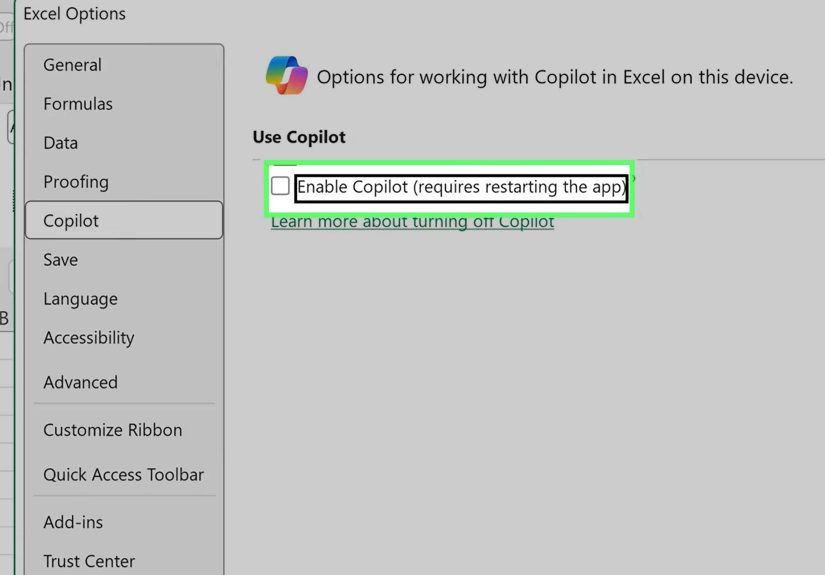
- In the left menu, click Copilot.
- Clear the checkbox labeled Enable Copilot.
- Click OK.
- Close Word and open it again.
That is it. No registry editing. No dramatic speeches. No wrestling with hidden menus from 2007. Once Word restarts, Copilot should be disabled in that app on that device.
What if you do not see “Copilot” in Word Options?
This usually means one of two things: your Word build is older than the version that includes the setting, or your organization manages Word in a way that changes what you can see. If you are on a personal device, update Word first. If you are on a work laptop, there is a decent chance your admin is the final boss here.
How to check your Word version on Windows
Open Word, go to File > Account, and look under Product Information. If you need the off switch, you want a version of desktop Word new enough to include the Copilot setting. Updating Word often solves the problem in one move.
How to turn off Copilot in Word on a Mac
Mac users get a similar option, but the path is different because, naturally, macOS likes to keep things elegant, hidden, and mildly mysterious.
Step-by-step for Mac
- Open Microsoft Word.
- In the menu bar, click Word.
- Select Preferences.
- Under Authoring and Proofing Tools, click Copilot.
- Clear the Enable Copilot checkbox.
- Close Word.
- Restart the app.
After Word reopens, Copilot should no longer be active in the app. This is the easiest Mac method and the one most users should try first.
If the Copilot preference is missing on Mac
Do not panic. Your Mac is not haunted. It usually means Word is on an older build, the feature has not fully rolled out in your install, or your privacy settings are currently controlling access. Start by checking for updates. On Mac, you can usually review the version number from Word > About Word.
If the direct Copilot switch is missing, use privacy settings instead
Microsoft provides a fallback option when the Enable Copilot checkbox is not available. You can change privacy settings related to connected experiences. This often turns off Copilot access, but it is a broader setting, so it may affect other smart features too.
On Windows
- Open Word.
- Go to File > Account.
- Select Account Privacy > Manage Settings.
- Under Connected experiences, turn off experiences that analyze your content.
- Close Word and restart it.
On Mac
- Open Word.
- Click Word > Preferences.
- Go to Personal Settings > Privacy.
- Open Connected Experiences > Manage Connected Experiences.
- Turn off experiences that analyze your content.
- Restart Word.
This method is especially helpful if Word is being stubborn and refuses to show the dedicated Copilot control. The trade-off is that other cloud-based or AI-powered features may also step aside. In other words, this is more of a “turn off the whole smart kitchen” move than a “mute one toaster” move.
Can you just hide the Copilot button instead?
Yes, in some Windows setups, you can hide Copilot from the ribbon without fully disabling it. This is useful if your real problem is visual clutter rather than the feature itself.
How to hide the Copilot button in Word on Windows
- Open Word.
- Go to File > Options.
- Select Customize Ribbon.
- Find Copilot in the main tabs or ribbon list.
- Uncheck it.
- Click OK.
This can make Word look calmer, cleaner, and less like it is waiting to summarize your grocery list. But it does not always disable Copilot itself. If you want the feature gone, use the dedicated Copilot setting instead of relying only on ribbon customization.
What happens after you turn off Copilot in Word?
Once Copilot is disabled through the dedicated setting, Word should stop offering Copilot features in that desktop app on that device. The ribbon icon is typically disabled, and you should not be able to use Copilot tools in Word there.
There are a few important details to remember:
- The setting is per app. Turning off Copilot in Word does not automatically turn it off in Excel or PowerPoint.
- The setting is per device. If you use Word on two computers, you may need to repeat the process on both.
- On shared devices, the change may affect anyone using that installation of Word.
So yes, Word may finally leave you alone, but Excel might still be plotting its comeback.
What if you use a work or school account?
This is where things get very corporate, very quickly. If you are signed in with a work or school account, your organization may control privacy settings and connected experiences. That means you might not have permission to change the setting yourself.
If the Copilot option is missing, grayed out, or keeps turning back on, your IT admin may be managing the feature through Microsoft 365 policies. In that case, your best move is to ask your admin whether:
- Copilot in Word has been enabled by policy
- Connected experiences are admin-controlled
- Copilot Chat is pinned or managed across Microsoft 365 apps
Not glamorous, but sometimes “contact IT” is the most accurate tutorial step on the internet.
Troubleshooting: why Copilot still seems to be there
You closed the pane, but Copilot comes back
Closing the side pane only hides it temporarily. It does not disable the feature.
You removed the ribbon icon, but Copilot is still active
Hiding the button is cosmetic. Go back and use the Enable Copilot setting if you want it fully off.
You cannot find the setting at all
Check your Word version and update the app. If the setting still does not appear, use the connected experiences privacy method instead.
You turned off privacy settings and lost other features
That can happen. Re-enable connected experiences if you want those smart features back, then see whether your newer build now offers the dedicated Copilot checkbox.
The setting is locked on a company Mac or PC
That usually points to admin control. At that stage, Word is no longer negotiating with you personally.
Best approach for most users
If you want the simplest and least disruptive fix, use the dedicated Enable Copilot checkbox inside Word. It is the cleanest solution for both Windows and Mac.
If that checkbox is missing, update Word first. If it still does not appear, use privacy settings as a fallback. And if you only hate the way the button looks, hide the ribbon item instead of changing broader settings.
Here is the cheat sheet:
- Want Copilot truly off in Word? Use the Enable Copilot checkbox.
- Setting missing? Update Word, then try privacy settings.
- Just hate seeing the button? Customize the ribbon.
- Using work or school Word? Be ready for admin rules.
Conclusion
Turning off Copilot in Word is much easier than it was when Microsoft first started weaving AI into every corner of Microsoft 365. On modern desktop versions of Word, both PC and Mac users can usually disable it with a built-in checkbox in the app’s settings. That is the good news. The better news is that you no longer need to pretend you are “still considering the feature” while quietly trying to make it disappear.
The main thing to remember is that Copilot settings depend on your version of Word, your device, and sometimes your account type. If you do not see the direct off switch, update Word first. If that fails, use privacy settings as a fallback. And if you are on a managed work device, your IT team may be the keeper of the keys.
In short: yes, you can turn off Copilot in Word on desktop. No, you are not being unreasonable for wanting your word processor to focus on words.
Common user experiences with turning off Copilot in Word
One of the most common experiences people have with this issue is simple frustration: they open Word to write something ordinary, like a resume, a school paper, meeting notes, or a short letter, and suddenly Copilot is hovering nearby like a very eager assistant who skipped the part where you asked for help. For many users, the first reaction is not curiosity. It is, “Why is this here, and how do I make it leave?” That reaction is especially common among people who use Word as a focused writing environment and do not want extra prompts, side panes, or suggestions competing for attention.
Another frequent experience is confusion caused by inconsistent menus. One person on a Windows PC may find the Copilot option in Word immediately, while another user on a Mac or on an older build sees nothing similar at all. This leads to the classic internet spiral: one guide says the answer is in Options, another says it is in Preferences, and a third suggests privacy settings that disable half the “smart” features in Office. Users often assume they are missing something obvious, when in reality the interface can vary based on version, subscription, rollout timing, and whether the account is personal or managed by an employer.
Work and school users often have a different kind of experience: they find the instructions, follow them correctly, and then run into a locked setting or a missing menu. That can feel maddening, especially when the steps are technically right. In those cases, the problem is not the user. It is policy control. Many people discover that Microsoft 365 on a company device is less of a personal app and more of a shared territory governed by IT. The result is a strange little moment where someone is trying to disable a writing assistant and ends up learning about organizational privacy controls instead.
There is also the experience of thinking Copilot is off when it is only hidden. This happens a lot when users remove the ribbon icon and assume the job is done. Word looks cleaner, so victory music starts playing in their head, but the feature may still be accessible elsewhere. That is why people often report, “I hid it, but it still comes back.” Cosmetic cleanup and full disablement are not the same thing.
Finally, many users describe a practical balancing act. They do not necessarily hate every intelligent feature in Word. Some like grammar help, text prediction, or cloud-based tools, but still want Copilot itself gone. That is why the dedicated Enable Copilot checkbox matters so much. It gives users a more targeted choice. And honestly, that is the experience most people want: not a dramatic anti-AI crusade, just a calm, ordinary Word window where they can type in peace and let the cursor blink without being recruited into the future every five minutes.