Table of Contents >> Show >> Hide
- Introduction: When the Block Button Deserves a Second Chance
- What Happens When You Unblock Someone on Twitter?
- How to Unblock Someone on Twitter: 12 Steps
- Step 1: Open Twitter or X
- Step 2: Log In to the Correct Account
- Step 3: Decide Which Method You Want to Use
- Step 4: Use Search to Find the Blocked Account
- Step 5: Look for the “Blocked” Button
- Step 6: Tap or Click “Blocked”
- Step 7: Confirm the Unblock Action
- Step 8: Check That the Button Changed
- Step 9: Unblock from the Blocked Accounts List Instead
- Step 10: Open Privacy and Safety
- Step 11: Go to Mute and Block, Then Blocked Accounts
- Step 12: Select the Account and Unblock It
- How to Unblock Someone on Twitter on iPhone
- How to Unblock Someone on Twitter on Android
- How to Unblock Someone on Twitter on Desktop
- Can Someone Tell If You Unblock Them?
- Why You Might Not Find the Account You Want to Unblock
- Should You Unblock, Mute, Remove, or Report?
- Safety Tips Before You Unblock Someone
- Common Mistakes When Unblocking Someone on Twitter
- Experience-Based Advice: What Unblocking Someone on Twitter Feels Like in Real Life
- Conclusion: Unblocking Is Easy, Boundaries Still Matter
- SEO Tags
Note: Twitter is now officially called X, but many people still search for “Twitter.” This guide uses both names so you can find the right buttons without feeling like you need a translator, a map, and a small emotional support snack.
Introduction: When the Block Button Deserves a Second Chance
Blocking someone on Twitter, now X, can feel wonderfully peaceful. One tap, and suddenly your timeline stops sounding like a raccoon got trapped in a group chat. But sometimes things change. Maybe the argument cooled down. Maybe you blocked the wrong account. Maybe your cousin finally stopped posting dramatic weather updates in all caps. Whatever the reason, learning how to unblock someone on Twitter is simple once you know where X has hidden the controls this week.
This in-depth guide walks you through how to unblock someone on Twitter in 12 clear steps, whether you are using the X mobile app on iPhone or Android, or the desktop version at X.com. You will also learn what happens after you unblock someone, whether they can follow you again, how to use mute instead of block, and what to do if the account does not appear in your blocked list.
The process is not complicated, but the labels can be confusing because the platform has changed names, menus, and privacy behavior over time. So let’s keep it simple, practical, and free from tech gobbledygook.
What Happens When You Unblock Someone on Twitter?
Before you start tapping buttons like you are defusing a digital bomb, it helps to understand what unblocking actually does. When you unblock an account on X, that account is no longer restricted by your block. Depending on your account privacy settings, they may be able to view your posts, follow you, mention you, reply to you, or message you again.
However, unblocking does not magically restore everything to the way it was. If blocking removed that person as a follower, they usually need to follow you again. You may also need to follow them again if you want their posts back in your timeline. Think of unblocking as opening the front gate, not sending a handwritten invitation with cupcakes.
Important Privacy Detail
If your posts are public, people may be able to see them more easily than you expect. If your posts are protected, only approved followers can view them. So if you are unblocking someone but still want tighter privacy, check your protected posts setting before you assume your content is private.
How to Unblock Someone on Twitter: 12 Steps
Step 1: Open Twitter or X
Start by opening the X app on your phone or visiting X.com on your desktop browser. If your app icon still looks like Twitter in your mind, no judgment. Many of us are still emotionally attached to the little blue bird.
Step 2: Log In to the Correct Account
Make sure you are signed in to the account that originally blocked the person. This matters if you manage more than one account, such as a personal profile, business account, fan page, or that one experimental account you created during a very ambitious Saturday.
Step 3: Decide Which Method You Want to Use
There are two main ways to unblock someone on Twitter. You can go directly to the person’s profile, or you can open your blocked accounts list in settings. The profile method is fastest if you remember the username. The blocked list method is better if you forgot the handle or want to clean up multiple blocks at once.
Step 4: Use Search to Find the Blocked Account
If you know the person’s username, tap or click the search icon and type their name or handle. Open the correct profile carefully. Similar display names can be tricky, and unblocking the wrong “Mike from accounting” could turn your timeline into a sitcom.
Step 5: Look for the “Blocked” Button
When you visit a profile you have blocked, the normal Follow button is replaced by a Blocked button. This is your clue that the account is currently blocked. On some devices, the button may appear near the top of the profile beside the account name and bio area.
Step 6: Tap or Click “Blocked”
Select the Blocked button. X will ask you to confirm that you want to unblock the account. This extra confirmation is helpful because nobody wants to accidentally reopen the door to someone who treats reply threads like a boxing ring.
Step 7: Confirm the Unblock Action
Choose Unblock or the equivalent confirmation option shown on your device. On Android, the confirmation wording may differ slightly from iOS or desktop, but the idea is the same: you are removing the block from that account.
Step 8: Check That the Button Changed
After unblocking, the profile should no longer show the Blocked status. You may see a Follow button instead, depending on whether you currently follow the account. If the button changed, congratulations: the digital fence has been removed.
Step 9: Unblock from the Blocked Accounts List Instead
If you cannot find the profile through search, open your settings. On desktop, click More, then choose Settings and privacy. On mobile, tap your profile icon or navigation menu, then go to Settings and privacy.
Step 10: Open Privacy and Safety
Inside settings, select Privacy and safety. This section contains many of the tools that control who can interact with you, who can see certain content, and how much chaos your timeline is allowed to import before breakfast.
Step 11: Go to Mute and Block, Then Blocked Accounts
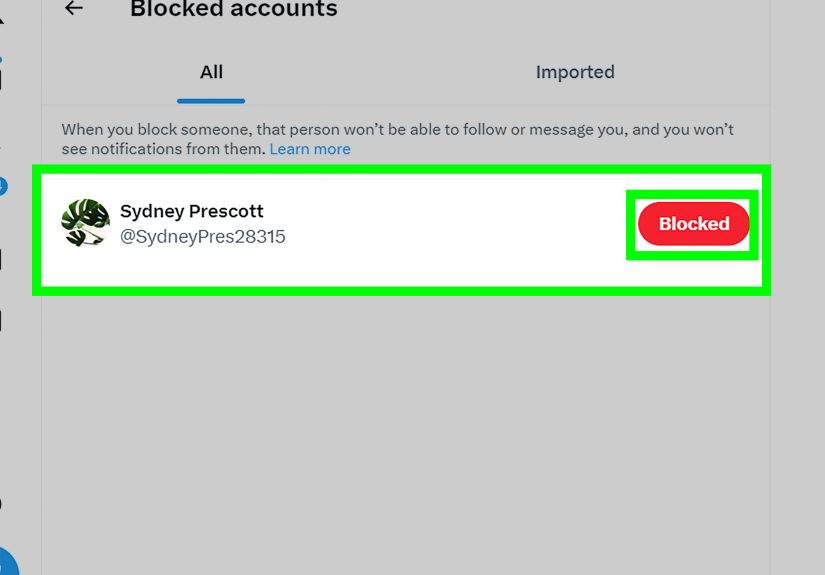
Look for Mute and block, then choose Blocked accounts. This page displays accounts you have blocked. If you have a long list, take your time. It can feel like scrolling through the guest list for a very awkward family reunion.
Step 12: Select the Account and Unblock It
Find the account you want to unblock and select the Blocked button beside it. Confirm your choice. The account should now be unblocked. If you want to reconnect, you may need to follow the account again or wait for them to follow you again.
How to Unblock Someone on Twitter on iPhone
On iPhone, the easiest path is usually through the person’s profile. Open the X app, search for the username, tap the profile, tap Blocked, and confirm Unblock. If you prefer the settings route, open your profile menu, tap Settings and privacy, choose Privacy and safety, then go to Mute and block and Blocked accounts.
If the app looks different from a tutorial you saw online, update the app first. Social media apps love moving buttons around like they are rearranging furniture in the dark.
How to Unblock Someone on Twitter on Android
On Android, open the X app and search for the blocked person’s profile. Tap the Blocked button and confirm the unblock action. You can also use settings: open the navigation menu, choose Settings and privacy, tap Privacy and safety, then open Blocked accounts under the mute and block area.
Android wording may vary slightly depending on app version, region, and layout updates. If you do not see the exact label, look for related phrases such as Safety, Mute and block, or Blocked accounts.
How to Unblock Someone on Twitter on Desktop
On desktop, go to X.com and sign in. Use the search bar to find the blocked account, open the profile, click Blocked, and confirm. For the full list method, click More in the left sidebar, choose Settings and privacy, click Privacy and safety, then open Mute and block and Blocked accounts.
The desktop version is especially useful if you want to review several blocked accounts at once. A larger screen makes it easier to avoid accidental taps, which is useful when your block list looks like a museum of past internet decisions.
Can Someone Tell If You Unblock Them?
X does not send a dramatic notification saying, “Good news, you have been unblocked!” That would be wildly unnecessary and mildly terrifying. However, the person may figure it out if they visit your profile, follow you again, reply to your public posts, or notice that your profile is no longer restricted in the same way.
If you want a low-drama approach, unblock quietly and avoid immediately liking seven of their posts from 2021. That is not reconciliation; that is archaeology with notifications.
Why You Might Not Find the Account You Want to Unblock
Sometimes a blocked account does not appear where you expect. The person may have changed their username, deactivated their account, been suspended, or deleted the profile. You may also be logged into the wrong account. If search fails, use the blocked accounts list because it gives you the broadest view of accounts you have blocked.
Try These Fixes
- Check that you are signed in to the correct X account.
- Search by display name and username.
- Update the X app.
- Try X.com in a desktop browser.
- Clear app cache if the list does not load correctly.
Should You Unblock, Mute, Remove, or Report?
Unblocking is not always the best move. X gives you several tools, and each one solves a different problem.
Use Unblock When
Use unblock when you no longer need to restrict the person, when you blocked someone by accident, or when you want to allow normal interaction again.
Use Mute When
Mute is better when you do not want to see someone’s posts, but you do not need to block them completely. It is the social media version of turning down the volume without throwing the speaker out the window.
Use Remove Follower When
If someone follows you and you simply do not want them in your follower list, removing them may be enough. They are not blocked, but they stop following you unless they choose to follow again.
Use Report When
If someone is harassing you, impersonating someone, spamming, threatening, or violating platform rules, reporting is more appropriate than simply unblocking or muting. Keep screenshots or details if the behavior is serious, especially before changing your settings.
Safety Tips Before You Unblock Someone
Before unblocking, ask yourself why the account was blocked in the first place. Was it a minor disagreement, spam, harassment, or something more serious? If the reason involved personal safety, threats, doxxing, or stalking behavior, do not treat unblocking like a casual cleanup task.
Consider protecting your posts, limiting who can message you, reviewing your followers, and enabling two-factor authentication. A strong password and extra login protection are not glamorous, but neither is explaining to friends why your account suddenly posted a suspicious crypto giveaway at 3:12 a.m.
Common Mistakes When Unblocking Someone on Twitter
Mistake 1: Expecting Them to Automatically Follow You Again
Blocking may remove follower connections. After unblocking, the person may need to follow you again, and you may need to follow them again if you want their posts in your feed.
Mistake 2: Forgetting About Public Posts
If your posts are public, your content may be visible more broadly than you think. If privacy matters, review whether your posts should be protected.
Mistake 3: Confusing Mute with Block
Mute hides content from your view. Block restricts interaction more strongly. Unblocking someone does not automatically unmute them if you muted them separately, so check both lists if something still feels off.
Mistake 4: Using Third-Party Tools Carelessly
Avoid giving your login credentials to random tools that promise to manage your followers, blocks, or engagement. If a service asks for your password directly, treat it like a raccoon offering investment advice: interesting, but absolutely not trustworthy.
Experience-Based Advice: What Unblocking Someone on Twitter Feels Like in Real Life
Unblocking someone on Twitter is technically easy, but socially, it can feel weird. The button takes one second. The human part can take a little longer. In my experience, the best reason to unblock someone is not guilt, boredom, or curiosity. It is clarity. When you know the situation has cooled down, the account is no longer a problem, or the original block was accidental, unblocking can be a simple act of digital housekeeping.
One useful approach is to review your blocked list every few months. Not obsessively, of course. Nobody needs a monthly candlelit ceremony called “The Audit of Old Internet Drama.” But a quick review can reveal accounts you blocked during heated conversations, temporary spam waves, or confusing moments when usernames looked similar. Sometimes you will see a name and immediately remember why the block happened. Other times, you will stare at the handle like it is an ancient artifact from a forgotten civilization.
If you are unblocking someone after an argument, do not rush into interaction. You can unblock without replying, following, liking, or reopening the conversation. This gives you space to see whether the account behaves normally. If the person starts the same old drama again, you can mute, block, or report as needed. The internet is not a courtroom; you do not owe everyone unlimited appeals.
For business or creator accounts, unblocking can be practical. Maybe you blocked a customer during a spam cleanup, or maybe a critic was annoying but not abusive. In that case, unblocking can reopen communication while still letting you use filters, muted words, and DM controls. Brands should be especially careful because every interaction can become a screenshot. A calm, boring response is often better than a spicy one. Spicy belongs in tacos, not customer service replies.
For personal accounts, the biggest lesson is to use the right tool for the right situation. If someone is simply irritating, mute may be enough. If someone is crossing boundaries, block is reasonable. If someone is dangerous, abusive, or violating rules, report and protect your account. Unblocking should never come at the cost of your peace or safety.
Another practical habit is checking your privacy settings after unblocking. Look at who can message you, whether your posts are public or protected, and whether your account has two-factor authentication enabled. Social platforms change features over time, and a setting you chose years ago may not match how you use the platform today.
Finally, remember that unblocking is reversible. If you unblock someone and regret it, you can block them again. There is no trophy for tolerating nonsense online. Your timeline is your space, and you are allowed to manage it like a responsible adult, or at least like a person trying very hard not to argue with strangers before coffee.
Conclusion: Unblocking Is Easy, Boundaries Still Matter
Learning how to unblock someone on Twitter takes only a few steps: open X, find the blocked profile or blocked accounts list, select Blocked, and confirm. The bigger question is whether unblocking supports the kind of online experience you actually want.
If the block was accidental or outdated, go ahead and clean it up. If the person was harmful, think carefully before reopening access. Use mute, remove follower, protect posts, DM blocking, and reporting tools when they fit the situation better. A healthy timeline is not created by accident. It is built one setting, one boundary, and occasionally one very satisfying block button at a time.