Table of Contents >> Show >> Hide
- What Are Lock Screen Widgets, Exactly?
- How to Add Widgets to Lock Screen on iPhone
- How to Add Widgets to Lock Screen on Android
- iPhone vs. Android Lock Screen Widgets: Which Is Easier?
- Best Widget Ideas for Your Lock Screen
- Common Problems and Fixes
- Pro Tips for a Better Lock Screen Setup
- Real-World Experiences With Lock Screen Widgets
- Conclusion
Your lock screen used to be a glorified doormat: nice wallpaper, big clock, maybe a few notifications elbowing each other for space. Not anymore. Today, your lock screen can show the weather before you step outside, your calendar before you double-book lunch, your battery status before your phone dramatically dies at 3%, and your reminders before your brain says, “I’ll remember that.”
If you want to add widgets to your lock screen, the process is easy on iPhone and a little more “it depends” on Android. That is the first big thing to know. Apple made Lock Screen widgets a mainstream feature, while Android support varies by phone brand, software version, and whether your device maker embraced the feature or decided to keep things mysterious for sport.
This guide breaks down exactly how to add Lock Screen widgets on iPhone and Android, what works on Samsung Galaxy phones, what Pixel users should expect, which widgets are actually useful, and how to fix common problems if the option seems to have vanished into the digital void.
What Are Lock Screen Widgets, Exactly?
Lock Screen widgets are small panels or compact information blocks that appear on your phone’s lock screen. They let you glance at useful information without fully unlocking your device. Think of them as the phone equivalent of sticky notes, tiny dashboards, or polite digital assistants that know when not to talk too much.
Common Lock Screen widget examples include:
- Weather and temperature
- Calendar events and reminders
- Battery level for your phone or accessories
- Fitness activity rings or step counts
- Clocks, alarms, and timers
- Music controls or app shortcuts
- Smart home controls on supported devices
The appeal is simple: fewer taps, faster access, and less wandering through apps like a tourist with no map.
How to Add Widgets to Lock Screen on iPhone
If you have an iPhone running a modern version of iOS, adding Lock Screen widgets is refreshingly straightforward. Apple built the feature into the Lock Screen customization experience, so you do not need a special launcher, a secret menu, or a degree in advanced thumb gymnastics.
Step-by-Step: Add Widgets to Your iPhone Lock Screen
- Wake your iPhone and stay on the Lock Screen.
- Press and hold the Lock Screen until the customization gallery appears.
- Tap Customize.
- Select the Lock Screen preview.
- Tap the widget area below the clock or tap Add Widgets.
- Choose the widgets you want.
- Tap or drag them into place.
- Tap Done when you finish.
On iPhone, you can usually place one compact widget above the time and multiple widgets below the clock, depending on their size. In practical terms, that means you may fit several small widgets or a combination of larger ones. So yes, this is where strategy matters. If you try to squeeze in half your digital life, the layout will push back.
Best iPhone Lock Screen Widgets to Start With
If you are not sure what to add first, start with widgets that save you time every single day:
- Weather: Great for deciding whether you need sunglasses, an umbrella, or emotional resilience.
- Calendar: Ideal if your day is powered by meetings, appointments, or school schedules.
- Batteries: Especially useful if you use AirPods, an Apple Watch, or enjoy living above 20% battery.
- Reminders: Handy for to-do lists, grocery runs, and all the things you swore you would not forget.
- Fitness: A nice little nudge if you track movement, workouts, or standing goals.
Can You Add Third-Party Widgets on iPhone?
Yes. Many apps offer iPhone Lock Screen widgets, including productivity, navigation, finance, and habit-tracking apps. If the app supports Lock Screen widgets, it should appear in the widget picker when you customize your Lock Screen.
That means your lock screen does not have to stop at Apple’s built-in apps. You can add tools from apps you already use, such as travel, notes, email, or task managers. Just keep in mind that not every app offers Lock Screen widget support, and some widgets are more decorative than useful. A pretty widget is nice, but a pretty widget that tells you nothing is just wallpaper with ambition.
How to Remove or Change iPhone Lock Screen Widgets
To edit or remove a widget, press and hold your Lock Screen again, tap Customize, then tap the widget area. From there, you can remove widgets, swap them, or rearrange the layout.
This is especially helpful if your needs change throughout the week. For example, you might want calendar and weather widgets on workdays, but battery, workout, and timer widgets on weekends. Your lock screen can be practical and a little moody. That is allowed.
How to Add Widgets to Lock Screen on Android
Here is where things get interesting. On Android, the phrase “add widgets to lock screen” can mean different things depending on your phone.
Some Android phones, especially Samsung Galaxy devices, already support dedicated lock screen widgets. Other Android phones may let you customize shortcuts, clocks, notifications, and lock screen text, but not offer true user-added widgets in the same way as iPhone. Newer Android 16 support opens the door wider, but rollout depends on the device maker.
So before you get frustrated, remember this: Android is flexible, but it is also fragmented. It gives you freedom, then occasionally sends you on a scavenger hunt.
How to Add Lock Screen Widgets on Samsung Galaxy Phones
If you use a Samsung Galaxy phone, you have one of the best Android experiences for Lock Screen widgets.
- Wake your Galaxy phone and go to the Lock Screen.
- Press and hold on the Lock Screen.
- Unlock your phone if prompted.
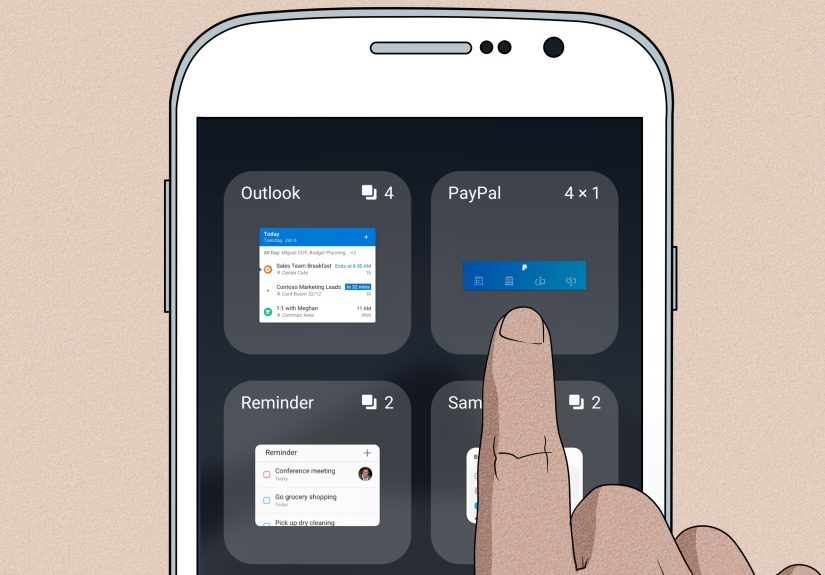
- Tap Widgets.
- Browse the available widget options.
- Turn on the widgets you want to use.
- Arrange or customize them if your device allows it.
- Save your changes.
Samsung Lock Screen widgets often include options like battery, weather, calendar, reminders, music, and device care. Some newer Galaxy phones also offer expanded Lock Screen customization and brief widget-style experiences, depending on the One UI version.
If you own a Samsung phone and cannot find the widget option, check whether your software is current. Features can move around between One UI versions, and sometimes Samsung changes the menu location just to keep us humble.
What About Google Pixel Phones?
Pixel phones let you customize the lock screen in several ways, including wallpaper, clock appearance, notifications, shortcuts, and lock screen text. However, true user-added Lock Screen widgets have not always been available on Pixel phones in the same broad, built-in way iPhone offers them.
In other words, Pixel users may see lock screen customization options but not a full widget picker. Google has expanded widget support in Android, and newer Android 16-based implementations make broader Lock Screen widget support possible, but availability still depends on the device and rollout. So if you have a Pixel and you cannot find a normal “Add Widgets” option on the Lock Screen, that is not you failing a simple task. That is the platform being selective.
How to Check if Your Android Phone Supports Lock Screen Widgets
If you are unsure whether your Android phone supports Lock Screen widgets, try these places:
- Lock Screen editor: Press and hold the Lock Screen and look for Widgets, Customize, or a plus sign.
- Settings app: Search for terms like Lock Screen, Widgets, Wallpaper & Style, or Always On Display.
- Manufacturer features: Samsung, for example, often adds extra Lock Screen tools beyond stock Android.
If your phone does not support true Lock Screen widgets, you may still be able to customize:
- Lock Screen shortcuts
- Notification display
- Clock style and size
- Always On Display information
- At a Glance-style info panels
iPhone vs. Android Lock Screen Widgets: Which Is Easier?
For most people, iPhone is currently the easier and more consistent option for adding Lock Screen widgets. The setup is built right into iOS, the interface is clean, and widget support is easy to understand.
Android can be more powerful in some cases, especially on phones from brands that invest heavily in customization. But the experience is less universal. On one Android device, you may get a polished widget editor. On another, you may get lock screen shortcuts and a clock menu while the word “widgets” is nowhere to be found.
That does not make Android worse. It just means the answer to “How do I add widgets to my lock screen?” is sometimes “Which Android phone do you have?” and sometimes “Excellent question, let us first identify the species.”
Best Widget Ideas for Your Lock Screen
If you want your Lock Screen to be useful instead of overcrowded, choose widgets based on what you check repeatedly during the day.
For Work and School
- Calendar
- Reminders
- Time zone clock
- Email or task summary widgets from supported apps
For Travel and Daily Commuting
- Weather
- Battery
- Maps or transit widgets on supported platforms
- Flight or booking widgets from travel apps
For Health and Routines
- Fitness activity
- Water intake or habit trackers
- Medication reminders
- Sleep or mindfulness widgets
For Smart Home Control
- Lights
- Thermostat controls
- Security camera status
- Connected device shortcuts
The best Lock Screen widget setup is not the one with the most features. It is the one that makes your next action faster.
Common Problems and Fixes
You Do Not See the Widget Option
On iPhone, make sure your device is updated and that you are editing the actual Lock Screen, not just the Home Screen wallpaper settings.
On Android, your phone may not support true Lock Screen widgets, or the feature may be limited to certain manufacturers and software versions. Check system updates and search your settings menu.
The App Does Not Offer a Widget
Not every app supports Lock Screen widgets. If an app is missing from the widget picker, it may not have a Lock Screen widget version yet. Updating the app can help, but sometimes the feature simply does not exist.
Your Lock Screen Feels Cluttered
That is easy to fix: use fewer widgets. Start with two or three. Pick glanceable information only. If you need to read a paragraph, it is probably not widget material.
Battery or Privacy Concerns
Some widgets can reveal information on the Lock Screen, so think about privacy before adding sensitive content. Calendar details, message previews, and finance widgets may not be ideal if other people regularly see your phone.
As for battery life, most widgets are lightweight, but too many constantly updating widgets can add background activity. Useful is good. Overachieving is optional.
Pro Tips for a Better Lock Screen Setup
- Keep it glanceable: Use widgets you can understand in one second.
- Match widgets to routines: Morning weather and calendar widgets are more useful than random novelty widgets you never check.
- Think about privacy: Avoid placing sensitive personal information on the Lock Screen.
- Use multiple lock screens on iPhone: Create different looks for work, weekends, travel, or focus modes.
- Do not duplicate your Home Screen: Your Lock Screen should deliver instant info, not become a second crowded dashboard.
Real-World Experiences With Lock Screen Widgets
One of the biggest reasons people start using Lock Screen widgets is not because they love customization. It is because they are tired of unlocking their phone for tiny tasks dozens of times a day. That sounds minor until you realize how often it happens. You pick up your phone to check the weather, then get distracted by a notification, then end up in an app, then somehow five minutes disappear. A good Lock Screen widget setup cuts down that friction.
For iPhone users, the experience often feels immediately practical. Add a weather widget, a calendar widget, and a battery widget, and suddenly your Lock Screen becomes a small command center. You know whether to bring a jacket, whether your next meeting starts in ten minutes, and whether your earbuds are about to betray you on the walk to work. The biggest advantage is consistency. Once you learn how to customize one Lock Screen, the process feels easy to repeat.
Android users tend to have more varied experiences. Samsung owners usually have a smoother path because Galaxy phones already offer Lock Screen widget tools in a fairly visible way. Many users like the flexibility of having music, reminders, and battery information on the Lock Screen without needing a full unlock. It feels efficient, especially for people who want useful information without crowding the Home Screen.
Pixel users, on the other hand, sometimes expect an iPhone-style widget picker and then discover that their phone focuses more on lock screen appearance, shortcuts, and glanceable system info rather than broad widget placement. That can be disappointing if you came in expecting a one-size-fits-all Android feature. But it also highlights an important point: on Android, the brand matters almost as much as the operating system version.
Another common experience is that people start with too many widgets, then scale back. It is tempting to add weather, fitness, tasks, calendar, world clock, music, battery, and a random productivity widget that looks impressive but says almost nothing. After a few days, most users realize the best Lock Screen setup is simpler. Two or three highly relevant widgets tend to outperform a crowded layout every time.
There is also the privacy learning curve. A Lock Screen widget can be wonderfully convenient, but it can also put personal information front and center. Plenty of users only notice this after handing their phone to a friend, setting it on a desk, or seeing sensitive appointment details appear at exactly the wrong moment. The smartest setups balance convenience with discretion.
In everyday life, the best Lock Screen widgets are the ones that quietly remove friction. They help you check one thing quickly and move on. That is why weather, calendar, reminders, batteries, and simple smart home controls remain so popular. They do not try to be everything. They just save you time, which is exactly what a good phone feature should do.
Conclusion
If you want to add widgets to your lock screen, iPhone gives you the most straightforward experience, while Android depends on your device maker and software version. Apple makes it easy to customize your Lock Screen with built-in and third-party widgets. Samsung Galaxy phones also offer solid Lock Screen widget options. On other Android devices, especially Pixels, you may get lock screen customization without the same broad widget support, at least not in the same familiar format.
The good news is that once you understand what your device supports, setting up a better Lock Screen is simple. Start small, choose widgets you actually use, and aim for information you want at a glance rather than a mini app store glued to your wallpaper. Your future self, checking the weather with one sleepy eye before coffee, will appreciate the effort.