Table of Contents >> Show >> Hide
- What Is Your Overwatch 2 Username?
- Can You Change Your Username Directly in Overwatch 2?
- How to Change Your Username in Overwatch 2
- BattleTag Rules You Should Know Before Choosing a New Name
- Is the First Overwatch 2 Username Change Free?
- Does Changing Your BattleTag Affect Your Overwatch 2 Progress?
- How to Change Your Overwatch 2 Username on Console
- How to Change Your Overwatch 2 Username on Steam
- How Long Does It Take for the New Name to Show in Overwatch 2?
- Why You Might Not Be Able to Change Your Overwatch 2 Username
- Tips for Choosing a Better Overwatch 2 Username
- BattleTag vs. Player Title vs. Name Card
- Should You Change Your Username Before Competitive Play?
- My Experience: What Players Usually Learn After Changing Their Overwatch 2 Username
- Conclusion
Changing your username in Overwatch 2 sounds like it should be as simple as swapping heroes before the round starts. Click a button, type something cooler, and boomyour old cringe name disappears into the payload’s dust trail. The good news? It is pretty easy. The slightly annoying news? Overwatch 2 does not use a separate in-game username system. Your visible name is your Battle.net BattleTag, which means you change it through your Battle.net account, not inside the Overwatch 2 settings menu.
That little detail matters. Whether you play on PC, PlayStation, Xbox, Nintendo Switch, or Steam, your Overwatch 2 identity is tied to your Battle.net account. So if your current name looks like it was created during a sugar-fueled gaming session in 2017, this guide will walk you through how to fix it without accidentally changing the wrong account, confusing your friends list, or paying when you still have a free change available.
Below, you’ll learn exactly how to change your Overwatch 2 username, what rules your new name must follow, what happens on console and Steam, how much it may cost, and what to do if your new BattleTag does not appear right away.
What Is Your Overwatch 2 Username?
Your Overwatch 2 username is your Battle.net BattleTag. A BattleTag is the public gaming name connected to your Battle.net account. It appears in Blizzard games, on your friends list, and in many social areas of Overwatch 2.
A BattleTag usually looks like this:
ExampleName#1234
The part before the number is the display name most players notice. The number after the hashtag is the identifier that helps Battle.net tell players apart. This is why two people can have similar or even identical display names without the system exploding like a D.Va self-destruct in overtime.
Can You Change Your Username Directly in Overwatch 2?
No, you generally cannot change your Overwatch 2 username from the in-game settings menu. The change must be made through your Battle.net Account Details page. Once the BattleTag is updated, Overwatch 2 should display the new name after the account refreshes, often after logging out and back in.
This setup can confuse players because Overwatch 2 has many customization menus: name cards, player icons, titles, banners, hero skins, sprays, souvenirs, and enough cosmetics to make your inventory feel like a digital closet. But none of those menus changes your actual account name. For that, Battle.net is the boss fight.
How to Change Your Username in Overwatch 2
Follow these steps to change your Overwatch 2 username by updating your Battle.net BattleTag.
Step 1: Go to the Battle.net Website
Open your browser and go to the official Battle.net website. You can do this from a computer, phone, or tablet, but using a desktop browser is usually easiest because account settings are easier to see.
Log in with the Battle.net account connected to your Overwatch 2 profile. This is important. If you have more than one Battle.net account, double-check that you are signing into the one linked to your Overwatch 2 progress, skins, heroes, and competitive history.
Step 2: Open Account Settings
After signing in, click your account name or profile icon. Look for an option such as Account Settings. Battle.net menus may shift slightly over time, but the destination you want is your account management area.
Think of this step as finding the right spawn room. You are not looking for Overwatch 2 game settings. You are looking for Battle.net account settings.
Step 3: Go to Account Details
Inside Account Settings, choose Account Details. This page contains important information such as your email address, phone number, country or region, and BattleTag.
Scroll until you find the BattleTag section. This is the part that controls the name people see in Overwatch 2.
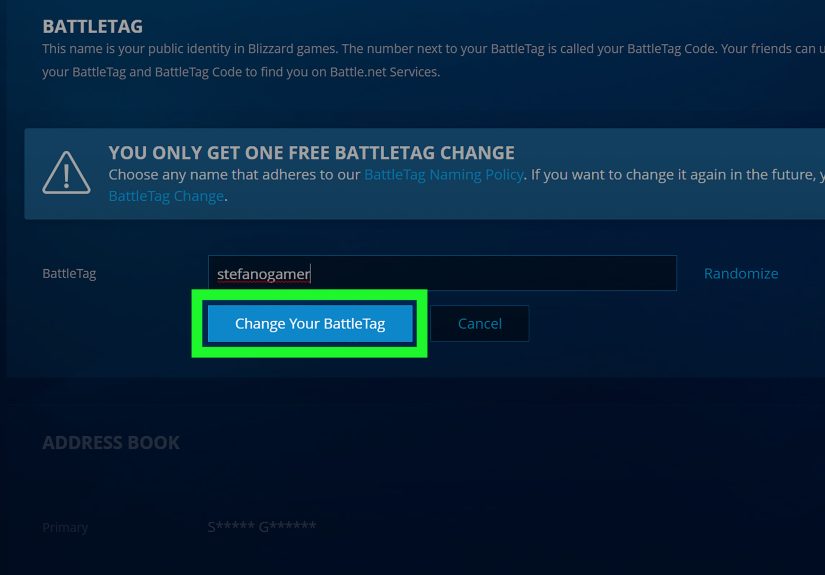
Step 4: Click Update Next to BattleTag
If you still have your free BattleTag change available, you should see an option to update your BattleTag. Click Update, type your new name, and follow the prompts to confirm.
If you have already used your free change, Battle.net may direct you to purchase a BattleTag Change. Blizzard typically gives each Battle.net user one free BattleTag change. After that, additional changes are paid.
Step 5: Enter Your New Overwatch 2 Username
Choose your new BattleTag carefully. Your name should be easy to read, appropriate, and something you will not regret after three matches of Mystery Heroes. Avoid offensive language, personal information, and anything that looks like you mashed your keyboard during a power outage.
Before confirming, check spelling. Then check it again. Then imagine your friends reading it out loud in voice chat. If it still sounds good, proceed.
Step 6: Confirm the Change
Confirm the BattleTag change. If it is your free change, the update may complete without payment. If it is a paid change, complete the checkout process.
Once confirmed, your BattleTag should update across Battle.net services. In Overwatch 2, the new name may appear after you restart the game, log out and back in, or give the servers a short time to refresh.
BattleTag Rules You Should Know Before Choosing a New Name
Battle.net has naming rules, and ignoring them is a great way to spend ten minutes inventing a perfect name only to watch the system reject it. While exact validation can vary by region and policy updates, BattleTags commonly need to follow these general rules:
- The name must usually be between 3 and 12 characters.
- It should not start with a number.
- Numbers may be allowed after the first character.
- Spaces and many special symbols are not allowed.
- The name must follow Blizzard’s code of conduct and naming policies.
- Offensive, hateful, impersonating, or inappropriate names can be rejected or changed.
A good Overwatch 2 username should be short enough to read quickly, memorable enough for friends to recognize, and clean enough that you will not have to explain it to support later.
Is the First Overwatch 2 Username Change Free?
Yes, Battle.net users typically receive one free BattleTag change. If you have never changed your BattleTag before, you may be able to update your Overwatch 2 username at no cost.
After your free change is used, additional BattleTag changes usually require buying a BattleTag Change from the Battle.net shop. Before paying, make sure you are logged into the correct Battle.net account and that the name you want is final. A rushed name change is how someone ends up as “GenjiMainButBad” for another year.
Does Changing Your BattleTag Affect Your Overwatch 2 Progress?
No, changing your BattleTag should not delete your Overwatch 2 progress. Your skins, heroes, battle pass items, competitive history, cosmetics, achievements, and account progress are tied to your Battle.net account, not the text of your username.
Changing the name is more like changing the label on the box. The stuff inside the box stays the same. Your friends may see your new name, but your account remains your account.
How to Change Your Overwatch 2 Username on Console
If you play Overwatch 2 on PlayStation, Xbox, or Nintendo Switch, your displayed Overwatch name is still connected to your Battle.net BattleTag. Changing your PSN ID, Xbox gamertag, or Nintendo nickname is not the same thing as changing your Overwatch 2 username.
Here is the simple version:
- To change your Overwatch 2 display name, change your Battle.net BattleTag.
- To change your console profile name outside Overwatch 2, change your platform username separately.
- Make sure your console account is linked to the correct Battle.net account.
Console players should be especially careful if they have multiple accounts. Because Overwatch 2 uses Battle.net for account linking and cross-progression, changing the BattleTag on the wrong Battle.net account will not update the Overwatch profile you actually play on.
How to Change Your Overwatch 2 Username on Steam
Overwatch 2 is available on Steam, but Steam does not control your Overwatch 2 username. Even if you launch the game through Steam, you still need a Battle.net account connected to play. Your visible Overwatch 2 name comes from that Battle.net account.
Changing your Steam profile name may change how you appear on Steam, but it will not necessarily change your Overwatch 2 BattleTag. For the in-game name, use the Battle.net Account Details method described above.
How Long Does It Take for the New Name to Show in Overwatch 2?
In many cases, the new BattleTag appears quickly. However, if you still see your old username in Overwatch 2, do not panic and start blaming the nearest support player. Try these fixes first:
- Close Overwatch 2 completely and reopen it.
- Log out of Battle.net and log back in.
- Restart the Battle.net desktop app if you play on PC.
- Restart your console if you play on PlayStation, Xbox, or Switch.
- Check that the BattleTag changed on the correct Battle.net account.
- Wait a short while for account systems to sync.
If the name still does not appear after a reasonable amount of time, check your Battle.net account page again. If the new BattleTag is visible there, the issue is probably a display refresh delay. If it is not visible there, the change may not have completed.
Why You Might Not Be Able to Change Your Overwatch 2 Username
Sometimes the process does not go smoothly. Here are the most common reasons players run into trouble.
You Already Used Your Free BattleTag Change
If your free change is gone, Battle.net may require you to purchase another BattleTag Change. This is normal. The first change is typically free; later changes are usually paid.
Your New Name Breaks the Rules
If your chosen name includes spaces, symbols, inappropriate language, restricted terms, or unsupported characters, Battle.net may reject it. Try a cleaner, shorter version.
You Are Logged Into the Wrong Battle.net Account
This is especially common for players who created old accounts years ago, linked a console account, then forgot which email they used. Before changing anything, confirm that the account contains your Overwatch 2 profile.
Your Payment Did Not Complete
If you need a paid BattleTag Change and the transaction fails, the name will not update. Check your order status, payment method, and Battle.net shop region.
There Is a Temporary Account or Server Issue
Live-service games occasionally have account delays. If everything looks correct but the name does not update immediately, log out, restart, and try again later.
Tips for Choosing a Better Overwatch 2 Username
Your username does not make your aim better, but it does shape your first impression. A good BattleTag is easy to recognize, easy to say, and not embarrassing when your team sees it in Play of the Game.
Keep It Short and Readable
Names like NovaFox, PixelTank, or LucioLoop are easier to remember than a 12-character puzzle with five numbers. Overwatch 2 is fast. If your friends need a magnifying glass to read your name, simplify it.
Avoid Using Personal Information
Do not use your full real name, birth year, phone number, address clue, school name, or anything that makes you easy to identify outside the game. A username should be fun, not a breadcrumb trail.
Choose Something That Fits Your Style
If you main tank, a strong name can be fun. If you play support, something clever or calm might fit. If you main Genji, please resist the urge to include “NeedHealing” unless you enjoy being roasted in match chat.
Think Long-Term
Trendy names age quickly. A meme that is hilarious today may feel ancient next season. Choose something you can live with, especially if you have already used your free change.
BattleTag vs. Player Title vs. Name Card
Overwatch 2 has several identity features, and it is easy to mix them up. Your BattleTag is your account username. Your player title is a cosmetic label that appears near your name. Your name card is a visual background or profile-style cosmetic. Your player icon is the little image attached to your profile.
Changing your player title, name card, or icon does not change your username. Those features decorate your profile. Your BattleTag is the actual name.
Should You Change Your Username Before Competitive Play?
If you care about recognition, streaming, team play, or building a consistent gaming identity, changing your username before grinding Competitive Play can be a smart move. Friends, teammates, and opponents may remember your name, especially if you play often in the same rank range.
That said, do not overthink it. A clean, simple name is better than delaying your ranked climb for three days because you cannot decide between “PayloadWizard” and “CartGoblin.” Both are beautiful in their own way.
My Experience: What Players Usually Learn After Changing Their Overwatch 2 Username
Changing your Overwatch 2 username seems like a tiny account tweak, but in practice, it can feel surprisingly personal. Your BattleTag is the name people call out in voice chat, the name your friends invite, and the name that appears when you accidentally get Play of the Game for pressing Q at exactly the right time. So yes, it matters more than most players expect.
One common experience is realizing that the “perfect” name is not always the fanciest one. Many players try to create something dramatic, mysterious, or aggressively cool, only to discover that it looks awkward in the Overwatch 2 interface. Short names often work better. They are cleaner on scoreboards, easier for teammates to recognize, and less likely to be misread during a chaotic match. A name like “RiftFox” or “BlueOrbit” usually lands better than something like “xXShadowDragonEliminatorXx,” unless your goal is to time-travel back to 2009.
Another thing players learn is that account linking deserves attention. Console and Steam players sometimes change the wrong profile name first. They update their PSN ID, Xbox gamertag, Nintendo nickname, or Steam display name, then wonder why Overwatch 2 still shows the old name. The answer is simple: Overwatch 2 follows the Battle.net BattleTag. Once players understand that, the process becomes much less mysterious.
It is also worth taking a minute to warn your regular squad before or after changing your name. If your friends are used to inviting “OldName#1234,” a sudden new BattleTag can make them think a stranger joined the group. A quick message like, “Hey, I changed my BattleTag to NewName,” saves confusion. This is especially useful for players in Discord groups, casual teams, or competitive stacks.
Players who stream, post clips, or play in community tournaments should think even more carefully. Your Overwatch 2 username becomes part of your personal brand. Choose something searchable, readable, and not too close to another popular creator’s name. You do not need to treat it like naming a Fortune 500 company, but you should avoid names that are hard to spell or easy to confuse with someone else.
Finally, the biggest lesson is simple: do not rush. If you still have your free BattleTag change, that freebie is valuable. Test a few ideas in a note app. Say them out loud. Imagine seeing the name after a losing streak. If you still like it when you are calm, tired, and mildly annoyed at a flanking Sombra, it is probably a keeper.
Conclusion
Changing your username in Overwatch 2 is easy once you know where the setting lives. The key is remembering that your Overwatch 2 name is your Battle.net BattleTag, not a separate in-game nickname. Log in to Battle.net, open Account Settings, go to Account Details, update your BattleTag, and restart the game if needed.
Your first BattleTag change is usually free, while later changes may require a paid BattleTag Change. Console and Steam players should also remember that changing a platform username is not the same as changing the Battle.net name used by Overwatch 2.
Choose a name that is clean, memorable, and safe to use long-term. Your username will not guarantee better aim, smarter positioning, or fewer teammates asking for healing from across the mapbut at least you will look good on the scoreboard while trying.
Note: Battle.net menu labels and account options may change slightly over time. If wording looks different, look for the BattleTag section inside your Battle.net Account Details page.