Table of Contents >> Show >> Hide
- Can You Really Delete iPhone Purchase History?
- Why People Want to Delete iPhone Purchase History
- How to Delete Your iPhone Purchase History in 6 Easy Steps
- How to View Your Full Apple Purchase History
- What Hiding an App Does and Does Not Do
- How to Delete an App From Your iPhone
- How Family Sharing Affects iPhone Purchase History
- Troubleshooting: Why Can’t I Hide an App Purchase?
- Privacy Tips After Hiding iPhone Purchases
- Common Mistakes to Avoid
- Real-Life Experience: What It’s Like Cleaning Up iPhone Purchase History
- Conclusion
Let’s clear up the biggest mystery first: you cannot truly “delete” your iPhone purchase history from Apple’s records. Apple keeps purchase history for billing, tax, account security, refunds, subscriptions, and customer support. So if you were hoping for a big red “erase everything forever” button, sadly, Apple has not placed that magical button next to the flashlight and calculator.
But here is the good news: you can hide App Store purchases from your visible purchased list, reduce what family members can see, delete apps from your iPhone, cancel subscriptions, request refunds when eligible, and clean up the purchase-related clutter that most people actually want gone. In everyday language, that is what many people mean when they search for how to delete iPhone purchase history.
This guide walks you through six easy steps to make your iPhone purchase history less visible, better organized, and less awkward when someone borrows your phone and starts tapping around like they work in digital forensics.
Can You Really Delete iPhone Purchase History?
The honest answer is no, not permanently. Your Apple purchase history includes records of paid apps, free app downloads, subscriptions, in-app purchases, books, movies, music, and other Apple-related transactions. Apple uses this information so you can redownload apps, prove purchases, manage refunds, track subscriptions, and review charges.
However, Apple does let you hide apps from your App Store purchase list. This does not remove the purchase from your Apple Account, and it does not erase the transaction from billing records. Instead, it removes the app from the standard purchased list that appears when you check your App Store downloads.
Think of it like putting a receipt in a filing cabinet instead of shredding it. It is still there, but it is no longer sitting on the kitchen counter next to your coffee mug, silently judging your 2 a.m. app choices.
Why People Want to Delete iPhone Purchase History
There are plenty of normal reasons someone may want to clean up their iPhone purchase history. Maybe you downloaded a silly game during a long airport delay. Maybe you tried five different meditation apps and only one did not make you more stressed. Maybe you share Family Sharing with relatives and do not want everyone seeing every app you have ever tested since the ancient iPhone 6 era.
Common reasons include:
- Keeping App Store downloads private from Family Sharing members
- Cleaning up old apps from the purchased list
- Removing embarrassing or irrelevant app downloads from view
- Reducing clutter when searching for previously downloaded apps
- Managing subscriptions and unwanted recurring charges
- Checking suspicious or unfamiliar Apple charges
Whatever the reason, the steps below will help you manage your visible Apple purchase activity without making promises Apple itself does not allow.
How to Delete Your iPhone Purchase History in 6 Easy Steps
Step 1: Open the App Store on Your iPhone
Start by opening the App Store app on your iPhone. This is where you can view, hide, and redownload apps connected to your Apple Account. Make sure you are signed in with the Apple Account that was used to download the apps you want to manage.
Tap your profile picture, initials, or account icon in the upper-right corner of the screen. Depending on your iOS version, you may see options such as Apps, Apps & Purchase History, or Purchased.
If your iPhone asks you to authenticate, use Face ID, Touch ID, or your passcode. Apple likes to make sure the person snooping through purchases is at least the official owner of the snooping mission.
Step 2: Go to Your App Purchase List
After tapping your account icon, look for your app purchase area. On newer iPhones, this may appear as Apps or Apps & Purchase History. Tap it, then choose Your Apps or My Apps.
If you use Family Sharing, you may need to tap My Apps to view only your own downloads. Family Sharing can also show apps purchased by other members, so make sure you are editing your own list and not wondering why your child has downloaded twelve dinosaur games and one suspiciously expensive sticker pack.
This list usually includes both free and paid apps you have downloaded with your Apple Account. Even if you deleted an app from your iPhone years ago, it may still appear here because it remains connected to your download history.
Step 3: Find the App You Want to Hide
Scroll through your app purchase list and find the app you want to remove from view. If you have had an iPhone for years, this list may feel like a digital museum of your personality phases: fitness apps, budgeting apps, games, photo editors, language apps, and that one app you downloaded because an ad promised it would change your life by Tuesday.
Use search if available. Searching is especially helpful when your purchase list is long. Type the app name or part of the name to locate it faster. If you do not remember the exact name, try related words. For example, search “scanner,” “photo,” “budget,” or “weather.”
Before hiding an app, remember that hiding it does not cancel a subscription connected to that app. If the app has an active subscription, you must cancel the subscription separately through your Apple Account settings.
Step 4: Swipe Left and Tap Hide
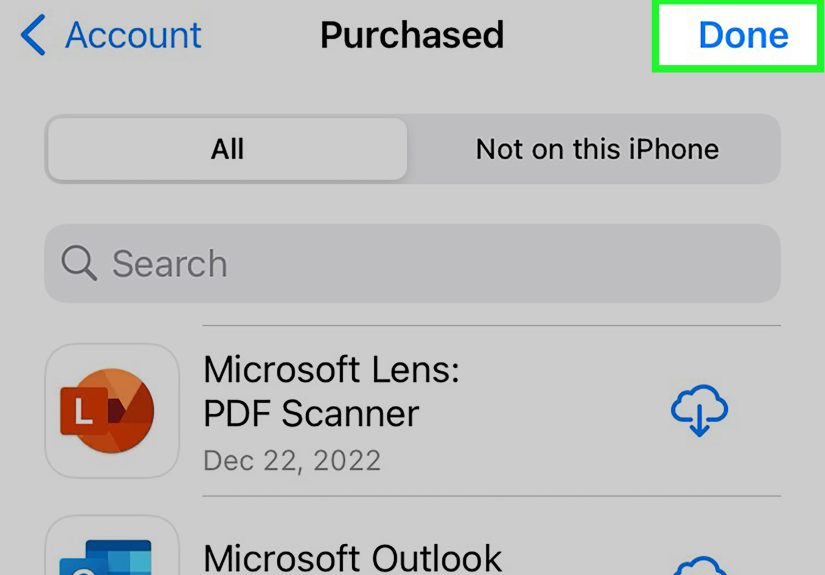
Once you find the app, swipe left on it. A Hide button should appear. Tap Hide, then tap Done if prompted.
This removes the app from your visible App Store purchase list. It also helps keep the app from appearing as a shared purchase in Family Sharing. However, it does not delete the app from Apple’s billing records, and it does not erase any charge that appeared on your payment method.
If you do not see the Hide option, check that you are signed in correctly. You may also need to update iOS, re-authenticate your Apple Account, or confirm that the app belongs to your own purchases rather than another Family Sharing member’s list.
This step is the closest practical answer to how to delete purchase history on iPhone. Technically, you are hiding the purchase, not deleting it. Practically, for most users, it does what they need: the app no longer sits in the obvious purchased list.
Step 5: Check Hidden Purchases If You Need to Unhide Later
Hidden does not mean gone forever. If you later decide you want the app back in your purchase list, you can find hidden purchases in your account settings.
Open the App Store, tap your account icon, tap your name or account settings, and look for Hidden Purchases. From there, you can unhide apps or redownload them if they are still available in the App Store.
This is helpful if you hide an app in a dramatic burst of digital decluttering and later realize you actually need it. We have all been there. Yesterday’s “I’m simplifying my life” can become today’s “Where is that receipt scanner?”
Step 6: Manage Subscriptions, Refunds, and Family Sharing
Hiding an app only changes its visibility in your App Store purchase list. For a true cleanup, you should also review subscriptions, refund options, and Family Sharing settings.
Cancel unwanted subscriptions
Go to Settings, tap your name, then tap Subscriptions. Review active subscriptions and cancel anything you no longer use. If there is no Cancel button or you see an expiration notice, the subscription may already be canceled.
Request a refund if eligible
If you see a purchase you did not mean to make, or an app did not work as expected, you may be able to request a refund through Apple’s Report a Problem process. Refunds are not guaranteed, but checking is worthwhile when a charge looks wrong.
Turn off purchase sharing
If you use Family Sharing and want more privacy, go to Settings, tap Family, then open Purchase Sharing. Depending on your role in the family group, you may be able to stop sharing your purchases. This can reduce what others in your Family Sharing group can see.
How to View Your Full Apple Purchase History
If your goal is not hiding apps but reviewing charges, you can view your purchase history from your iPhone. Open the App Store, tap your account icon, choose the purchase history option, and authenticate if asked. You can usually filter by date range, cost, type of purchase, and family member if you are the Family Sharing organizer.
Your Apple purchase history may include more than apps. It can show subscriptions, in-app purchases, movies, music, books, AppleCare-related charges, and other Apple services. This makes it useful for tracking down mystery charges that appear on your card statement.
For example, if you see a charge from Apple but do not recognize it, your purchase history is the first place to check. The culprit may be a subscription renewal, an in-app purchase, iCloud storage, a family member’s shared purchase, or a free trial that quietly transformed into a paid subscription like a pumpkin turning into a monthly bill.
What Hiding an App Does and Does Not Do
What hiding an app does
- Removes the app from your visible App Store purchase list
- Makes the app harder for Family Sharing members to see
- Helps clean up old or unwanted downloads
- Allows you to unhide the app later if needed
What hiding an app does not do
- It does not permanently delete Apple’s billing record
- It does not cancel active subscriptions
- It does not remove charges from your bank or card statement
- It does not delete the app from devices where it is already installed
- It does not erase app data stored by the app developer
This distinction matters. If you want privacy on your iPhone, hiding purchases is useful. If you want to stop paying for something, cancel the subscription. If you want to remove the app from your phone, delete the app. If you want account data erased from the app developer, you may need to contact the developer or delete your account inside that specific app.
How to Delete an App From Your iPhone
Deleting an app from your iPhone is different from hiding it from your purchase list. To delete an app, press and hold the app icon on your Home Screen or in the App Library. Tap Remove App, then choose Delete App.
This removes the app from your device, but the app may still appear in your purchase history unless you hide it separately. Also, deleting an app does not always delete your account with that app’s company. For example, deleting a streaming app from your iPhone does not cancel the streaming subscription unless you cancel it through Apple or the service provider.
For a complete cleanup, use this simple formula:
- Delete the app to remove it from your iPhone.
- Hide the app to remove it from your visible App Store purchase list.
- Cancel the subscription to stop future billing.
- Request a refund if the purchase qualifies.
How Family Sharing Affects iPhone Purchase History
Family Sharing is convenient, but it can make purchase privacy feel a little complicated. When purchase sharing is turned on, eligible apps and content may be visible to family members. That is great when everyone wants access to the same paid app. It is less great when your app history looks like a chaotic autobiography.
Hiding a purchased app can keep it from appearing to other Family Sharing members. You can also turn off purchase sharing if you do not want your purchases shared. However, if you are part of a family group, payment methods, permissions, and visibility may depend on how the organizer has set things up.
Parents can also use Screen Time and purchase restrictions to prevent unwanted app installs or in-app purchases. This is especially helpful if a child has ever tapped a shiny button inside a game and accidentally bought a mountain of digital gems. Those gems may be imaginary, but the bill is extremely real.
Troubleshooting: Why Can’t I Hide an App Purchase?
If the Hide option does not appear, try these fixes:
Update your iPhone
Older iOS versions may show slightly different menus. Update your iPhone by going to Settings, then General, then Software Update.
Check your Apple Account
Make sure you are signed in with the Apple Account that originally downloaded the app. If you have used multiple Apple IDs over the years, the app may belong to a different account.
Confirm it is your purchase
If the app came from another Family Sharing member’s purchase list, you may not be able to hide it from your own account in the same way.
Restart the App Store
Close the App Store, reopen it, and try again. Sometimes the most advanced troubleshooting step is still “turn it off and on again,” which remains undefeated in the technology world.
Sign out and sign back in
If your account settings seem stuck, signing out of Media & Purchases and signing back in may refresh your App Store account access.
Privacy Tips After Hiding iPhone Purchases
Hiding purchase history is only one part of iPhone privacy. If you are cleaning things up, consider these extra steps:
- Review active subscriptions monthly.
- Delete apps you no longer use.
- Check Screen Time if you want to monitor app activity.
- Use Face ID, Touch ID, or a strong passcode.
- Turn off purchase sharing if you need more privacy in Family Sharing.
- Review payment methods connected to your Apple Account.
- Check your email for Apple receipts to track older purchases.
These habits help keep your iPhone cleaner, safer, and less cluttered. They also make it easier to spot suspicious charges quickly.
Common Mistakes to Avoid
Mistake 1: Thinking hidden means deleted
Hidden purchases are still attached to your Apple Account. They are simply removed from the standard visible list.
Mistake 2: Deleting an app but forgetting the subscription
Deleting an app does not always stop billing. Always check your subscriptions separately.
Mistake 3: Ignoring Family Sharing settings
If purchase sharing is on, family members may see eligible shared purchases unless you hide them or change sharing settings.
Mistake 4: Looking only at the App Store
Some Apple charges relate to subscriptions, iCloud storage, media, books, or family purchases. Review your full purchase history if you are tracking a charge.
Real-Life Experience: What It’s Like Cleaning Up iPhone Purchase History
Cleaning up iPhone purchase history feels a little like opening a closet you have ignored for seven years. At first, you think, “This will take two minutes.” Then you discover old apps you forgot existed, subscriptions you barely remember starting, and a download list that tells the story of every hobby you briefly believed would become your new personality.
One common experience is finding apps connected to specific life phases. There might be a calorie counter from a January fitness mission, a language app from the month you were definitely going to become fluent in Italian, three photo editors from your “professional Instagram era,” and a sleep tracker downloaded after one bad night. None of these are shameful, but they can make your App Store purchase list feel messy.
The first practical lesson is that hiding apps works best when you do it slowly. Instead of swiping away everything in a cleaning frenzy, start with apps you know you never want to redownload. Old games, outdated utilities, duplicate scanners, abandoned shopping apps, and one-time travel apps are good candidates. Keep apps you may need again, especially paid apps that are still useful.
The second lesson is to check subscriptions before celebrating. Many people hide or delete an app and assume the billing stops. It does not always work that way. A subscription can continue even after the app disappears from your Home Screen. That is why the Subscriptions page is the real treasure map. If you want to save money, go there before you spend twenty minutes hiding apps like a digital magician.
The third lesson is that Family Sharing changes the privacy conversation. If you share purchases with family members, hiding individual apps can prevent awkward questions. But if privacy is a bigger concern, turning off purchase sharing may be cleaner. This is especially useful for adults who share a family group but do not want every download treated like a family newsletter.
Another experience worth mentioning is how useful purchase history can be when you are tracking mystery charges. Many people panic when they see an Apple charge on their bank statement. Before assuming your account has been hacked, check your Apple purchase history. Often, the charge is a subscription renewal, iCloud storage, an in-app purchase, or something bought by a family member. It may not be exciting, but it is usually solvable.
Finally, cleaning your iPhone purchase history is less about hiding secrets and more about taking control. A tidy purchase list makes it easier to find apps you actually use. A clean subscription page helps prevent money leaks. Updated Family Sharing settings help avoid privacy surprises. And deleting unused apps can make your iPhone feel lighter, even if the phone itself stubbornly weighs the same.
The best approach is simple: hide what you do not want visible, delete what you do not use, cancel what you do not need, and review charges you do not recognize. That combination gives you the closest thing to deleting iPhone purchase history while staying within Apple’s actual rules.
Conclusion
You cannot permanently delete your iPhone purchase history from Apple’s records, but you can hide App Store purchases, remove apps from your device, cancel unwanted subscriptions, request refunds when eligible, and adjust Family Sharing settings for better privacy. The key is understanding the difference between deleting, hiding, and canceling. Once you know that, managing your Apple purchase history becomes much easier.
If your goal is privacy, hide apps from your App Store purchase list. If your goal is saving money, check subscriptions. If your goal is cleaning your phone, delete unused apps. And if your goal is figuring out why Apple charged you, review your full purchase history before blaming ghosts, hackers, or your cat.