Table of Contents >> Show >> Hide
- Why Download a Google Drive Folder on Android?
- Can You Download a Google Drive Folder Directly in the Android App?
- Method 1: Download the Folder Using Chrome on Android
- Method 2: Download Important Files Individually in the Google Drive App
- Method 3: Make Files Available Offline Instead of Downloading Them
- Method 4: Use Google Takeout for Big Exports
- Where Does the Downloaded Folder Go on Android?
- How to Extract a Downloaded ZIP Folder on Android
- Common Problems and Fixes
- Best Tips Before You Download a Google Drive Folder on Android
- Final Thoughts
- Real-World Experiences: What It Is Actually Like to Download a Google Drive Folder on Android
Trying to download a Google Drive folder on Android sounds like it should take about three taps and one smug smile. In real life, it is a little messier. Google Drive on Android is great for opening files, sharing folders, and keeping your cloud life from turning into digital spaghetti. But when you want to pull an entire folder down to your phone, the process is not as direct as many people expect.
That does not mean it is impossible. It just means you need the right method for the right situation. In this guide, you will learn how to download a Google Drive folder on Android, what actually works, what does not, and which workaround makes the most sense when you are rushing to catch a flight, heading into a bad-signal zone, or simply trying to save your sanity.
Quick truth: the Google Drive Android app is built around downloading individual files and making files available offline. If you want an entire folder on your Android device, your best option is usually to use the Google Drive website in your mobile browser, request the desktop version, and download the folder as a ZIP file. If that feels more complicated than it should, welcome to the club.
Why Download a Google Drive Folder on Android?
There are plenty of practical reasons to download a Google Drive folder to your Android phone or tablet. Maybe you are boarding a plane and need project files without Wi-Fi. Maybe you want a local backup of school notes, contracts, videos, or scanned documents. Maybe you are tired of opening the same file over and over from the cloud and would rather keep it on your device.
Downloading a folder can also help when you want to move files into another app, share them locally, store them on an SD card, or unzip a package of assets for editing. In short, cloud storage is convenient, but local storage still matters. Sometimes the internet disappears. Sometimes apps misbehave. Sometimes you simply want your files to live on your phone like civilized little documents.
Can You Download a Google Drive Folder Directly in the Android App?
Here is the part that causes the most confusion: in the Google Drive app for Android, you can easily download individual files. You can also mark files as available offline. But a full folder download is not typically presented as a simple built-in option the way many users expect.
That is why so many people search for phrases like download Google Drive folder on Android, save Drive folder to phone, or how to download an entire folder from Google Drive mobile. The folder itself sits there looking innocent, but the app experience is geared much more toward file access than one-tap folder export.
The good news is that there are still reliable ways to get the job done. You just need to choose the one that fits your goal.
Method 1: Download the Folder Using Chrome on Android
If you want the closest thing to a real folder download on Android, this is the method to try first. Instead of using the Google Drive app, you use a mobile browser such as Chrome and open the web version of Google Drive.
Step-by-Step Instructions
- Open Chrome on your Android device.
- Go to drive.google.com and sign in to the Google account that has access to the folder.
- Tap the browser menu and choose Desktop site. This is important because the regular mobile layout is more limited.
- Navigate to the folder you want to download.
- Select the folder. On some devices, it is easier in landscape mode or after zooming in a little.
- Tap the menu for actions and choose Download.
- Wait while Google Drive prepares the folder. In many cases, it will package the folder as a ZIP file.
- Once the download finishes, open Files by Google or your phone’s file manager and look in Downloads.
- Tap the ZIP file and extract it if needed.
Why This Method Works
The desktop version of Google Drive is more flexible than the Android app when it comes to file and folder actions. On the web, Drive is designed to handle folder downloads much more naturally. On Android, the browser acts like a bridge between what the full site can do and what the mobile app does not make easy.
What to Watch Out For
- Large folders may take time to prepare and download.
- You need enough local storage for both the ZIP file and the extracted contents.
- Some browsers behave better than others, but Chrome is usually the safest place to start.
- Touch controls can feel awkward in desktop mode. That is not you. That is the interface having a moment.
Method 2: Download Important Files Individually in the Google Drive App
If the browser method feels clunky or your folder is small, another option is to download the files one by one inside the Google Drive app. This is not elegant, but it is dependable.
How to Do It
- Open the Google Drive app on Android.
- Open the folder that contains your files.
- Tap the three-dot menu next to a file.
- Tap Download.
- Repeat for the other files you need.
This works best when the folder contains only a handful of documents, PDFs, images, or media files. If you have a folder with 80 lecture recordings, 17 spreadsheets, and three mystery files named “final_final_REALfinal,” you may want to choose a different route.
When This Method Makes Sense
Use this approach when you only need a few files from the folder, when you are in a hurry, or when the folder contains mixed file types and you do not want one giant ZIP file cluttering your device. It is also useful if you want certain files in your Downloads folder but do not need the entire folder structure.
Method 3: Make Files Available Offline Instead of Downloading Them
Sometimes you do not actually need to download a folder. You just need reliable offline access. In that case, the smarter move may be to make selected files available offline.
How Offline Access Works
In Google Drive on Android, you can mark files for offline use. That keeps them accessible even when you lose your connection. For Google Docs, Sheets, and Slides, you can also use the dedicated apps to make files available offline.
How to Enable Offline Access
- Open Google Drive.
- Find the file you want.
- Tap the three-dot menu.
- Select Make available offline.
For Docs, Sheets, and Slides, you can do something similar in their individual apps. This is especially handy for travel, commuting, remote work, or any situation where your signal bars play hide-and-seek.
Download vs. Offline: What Is the Difference?
This is where many users get tripped up. A downloaded file is saved directly to your device storage, usually in the Downloads folder or another local location. An offline file is kept accessible through Google’s apps for use without internet, but it is not always the same as having a neatly stored local copy sitting in a visible folder on your device.
If your goal is editing or reading without internet, offline access is great. If your goal is file transfer, backup, sharing outside Drive, or moving files around Android storage, a real download is usually better.
Method 4: Use Google Takeout for Big Exports
If you need a much larger backup from Google Drive, or you want a more official export route for your stored data, Google Takeout can help. This method is better for bulk exports than quick everyday downloads, but it is worth knowing about.
When Google Takeout Is Useful
- You want a backup of a large amount of Drive content.
- You are moving files to a new device or account.
- You want a downloadable archive rather than grabbing folders manually.
Google Takeout is not the fastest option for a single folder you need in the next five minutes, but it is excellent for larger-scale data exports. Think of it as the “pack up the whole digital garage” option.
Where Does the Downloaded Folder Go on Android?
After downloading a file or ZIP from Google Drive in a browser, it usually lands in your phone’s Downloads folder. You can find it using Files by Google, My Files, or your device’s built-in file manager.
How to Find It
- Open Files by Google.
- Tap Browse.
- Open Internal storage if needed.
- Tap Download or Downloads.
If the folder downloaded as a ZIP, you will likely see a compressed file instead of a regular folder. Tap it, choose Extract, and Android will unpack it into the same location. That is usually the moment when people say, “Ah, there you are,” followed immediately by, “Why did this need to be so dramatic?”
How to Extract a Downloaded ZIP Folder on Android
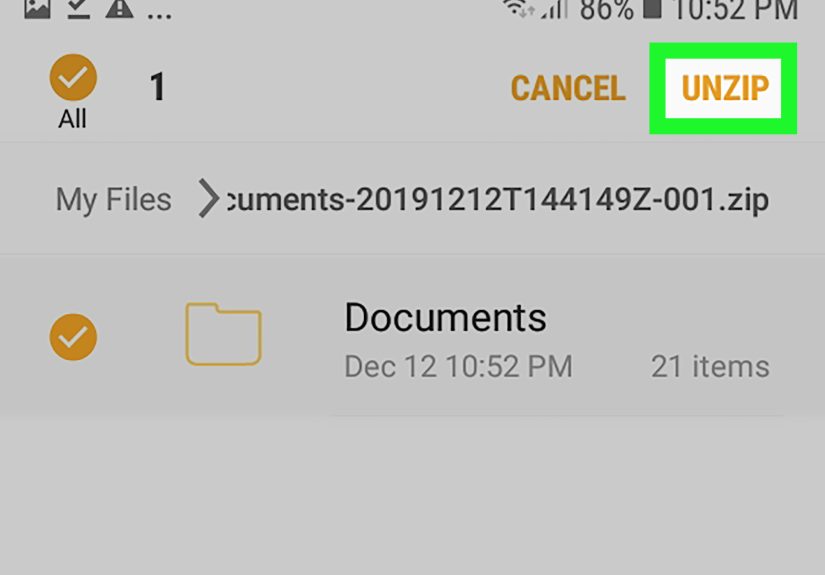
If your Google Drive folder arrives as a ZIP file, do not panic. That is normal. Android can handle ZIP extraction through Files by Google.
Steps to Extract the ZIP
- Open Files by Google.
- Navigate to the ZIP file in Downloads.
- Tap the ZIP file.
- Tap Extract.
- Tap Done after the files are unpacked.
You can then move the extracted folder to another location, including an SD card if your device supports one. This is also a good time to delete the original ZIP file if you are short on storage.
Common Problems and Fixes
No Download Option Appears
If you are in the Google Drive Android app and cannot find a folder download option, that is the issue right there. Switch to the browser method or download the files individually.
The ZIP File Will Not Open
Try opening it in Files by Google. Make sure you have enough free space to extract it. A full phone can stop the process cold.
Download Is Too Slow
Large folders take time because Drive often has to prepare the package first. A stable Wi-Fi connection helps. If the folder is huge, try breaking it into smaller folders before downloading.
Not Enough Storage on Android
Clean out old downloads, move files to an SD card if available, or delete the ZIP after extraction. Storage problems are one of the biggest reasons Drive downloads fail on mobile.
Shared Folder Issues
If someone shared the folder with you, make sure you have the right access level. Some work or school accounts may also apply restrictions that affect what you can export or download.
Best Tips Before You Download a Google Drive Folder on Android
- Use Wi-Fi for large folders. Mobile data and giant ZIP files are not always best friends.
- Check storage first. You need room for both the download and the extracted files.
- Rename confusing folders before downloading. Future You will be grateful.
- Download only what you need. If the folder is massive, selective downloading can save time.
- Use offline mode for working files. It is often better than full downloading when you just need access, not transfer.
Final Thoughts
If you came here hoping for a magic “Download Folder” button in the Google Drive Android app, I regret to inform you that the magic is limited. But the task is still very doable once you know the real options.
The easiest practical solution for most people is to open Google Drive in Chrome, switch to desktop mode, and download the folder there. If you only need a few files, downloading them individually in the app is faster. If you just need to work without internet, offline access is often the better move. And if you are exporting a lot of data, Google Takeout deserves a spot on your radar.
In other words, the answer to how to download a Google Drive folder on Android is not “tap once and celebrate.” It is “choose the method that matches your goal, then let Android do its thing.” Slightly less glamorous, but far more useful.
Real-World Experiences: What It Is Actually Like to Download a Google Drive Folder on Android
In real life, downloading a Google Drive folder on Android usually starts with confidence and ends with a tiny bit of detective work. Most people assume the folder will behave exactly like a file: tap the menu, hit download, done. Then they discover the app is happy to download a PDF, image, or video one at a time, but not always so eager to hand over an entire folder in one neat package. That is the moment when frustration enters the chat.
A common experience is the travel scenario. Someone realizes the night before a trip that all their boarding documents, hotel screenshots, and itinerary PDFs are sitting inside one Drive folder. They open the Android app expecting a fast save-to-phone option, do not see it, and start tapping menus like they are trying to unlock a secret level in a game. The browser workaround ends up saving the day, but only after the user switches to desktop mode and waits for the folder to download as a ZIP.
Students run into a similar problem with lecture folders. A class folder may contain slides, readings, scanned notes, and assignment templates. Downloading each file one by one is technically possible, but it feels like assembling furniture with a spoon. In those cases, opening Drive in Chrome and downloading the folder as one compressed file is usually the most efficient path. Once the ZIP is extracted in Files by Google, everything feels much more manageable.
Work users often care less about the folder itself and more about having reliable access. For them, offline availability can be a better experience than full downloading. A sales rep preparing for a meeting in a building with weak signal may only need a deck, a spreadsheet, and a contract. Marking those files available offline is quicker than wrestling with a full folder export. The key lesson is that “download” and “offline” solve different problems, even if they sound similar at first.
Another very real experience is the storage surprise. A folder that looks harmless in Drive can become much less cute when it downloads as a large ZIP and then needs even more room after extraction. People often discover they do not have enough space only when the process fails halfway through. That is why checking free storage before downloading is not boring advice. It is the kind of advice that prevents unnecessary muttering.
There is also the “where did it go?” phase. Even after a successful download, some users think the process failed because they cannot immediately see the file. Usually, it is sitting quietly in the Downloads folder, waiting to be opened or extracted. Once people learn to use Files by Google, the process becomes much easier the next time around.
The overall experience is not terrible, but it is not perfectly intuitive either. The people who have the smoothest time are usually the ones who know this simple rule: use the app for single files and offline access, use the browser for whole-folder downloads, and use Takeout when you need the big backup treatment. Once that clicks, Google Drive on Android becomes a lot less mysterious and a lot more useful.