Table of Contents >> Show >> Hide
- Before You Log In: What You Need
- Quick Way 1: Log in Using the Instagram App
- Quick Way 2: Log in Through Safari or Another Browser
- Quick Way 3: Log in With Facebook or Meta Accounts Center
- How to Log in to Multiple Instagram Accounts on iPhone or iPad
- What to Do If You Forgot Your Instagram Password
- How Two-Factor Authentication Affects Instagram Login
- Common Instagram Login Problems on iPhone or iPad
- Safety Tips Before Logging In
- Which Instagram Login Method Should You Use?
- Real-World Experience: Logging in to Instagram on iPhone or iPad Without the Headache
- Conclusion
Logging in to Instagram on an iPhone or iPad should be as easy as opening the app, typing your details, and landing in a feed full of vacation photos, coffee art, memes, and that one friend who somehow makes every salad look professionally styled. Most of the time, it is that simple. But every now and then, Instagram decides to act like a very glamorous bouncer: “Name? Password? Security code? Are you sure this is you?”
This complete guide explains how to log in to Instagram on iPhone or iPad using three quick methods: the Instagram app, a web browser, and Facebook/Meta Accounts Center. You will also learn what to do if you forgot your password, how two-factor authentication works, how to switch between multiple Instagram accounts, and how to avoid common login problems that make people want to throw their phone into a decorative pillow.
Whether you are setting up Instagram on a new iPhone, signing in on your iPad, helping a family member get back into their account, or simply returning after a digital detox that lasted approximately seven minutes, this guide keeps things clear, practical, and beginner-friendly.
Before You Log In: What You Need
Before choosing a login method, make sure you have the basics ready. Instagram usually lets you sign in with your username, email address, or phone number connected to your account, along with your password. If your Instagram and Facebook accounts are connected in Meta Accounts Center, you may also be able to log in using Facebook.
Check These First
- Your iPhone or iPad is connected to Wi-Fi or mobile data.
- The Instagram app is installed or updated from the App Store.
- You know your Instagram username, email, phone number, or linked Facebook login.
- You can access your email inbox or SMS messages in case Instagram sends a verification code.
- If two-factor authentication is turned on, you have your authentication app, text message access, or backup codes.
If you are using a shared iPad, a school device, or a work-managed iPhone, some restrictions may block app installation or login features. In that case, the browser method may be the quickest workaround.
Quick Way 1: Log in Using the Instagram App
The Instagram app is the most common and convenient way to access your account on an iPhone or iPad. It gives you the full mobile experience, including Stories, Reels, direct messages, notifications, camera features, and account switching.
Step 1: Download or Open Instagram
On your iPhone or iPad, open the App Store and search for “Instagram.” If the button says Get, download the app. If it says Open, Instagram is already installed. Apple may ask you to confirm with Face ID, Touch ID, your passcode, or your Apple Account password.
Step 2: Open the Instagram App
Tap the Instagram icon. If you are not already signed in, you will see the login screen. Instagram may also show previously used accounts on the device, especially if someone has signed in before.
Step 3: Enter Your Login Details
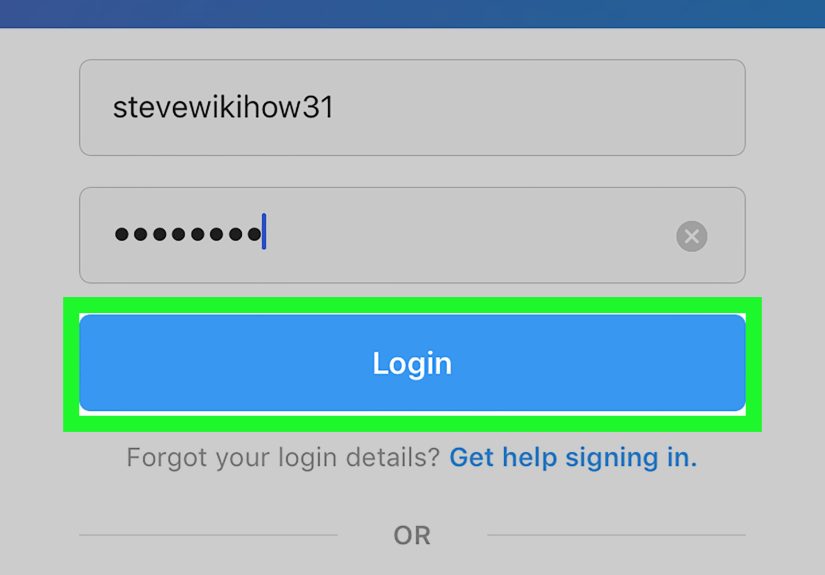
Type your username, email address, or phone number, then enter your password. Tap Log in. If the details are correct, you should land on your Instagram home feed.
Step 4: Complete Security Verification If Asked
If Instagram notices a login from a new device, new location, or recently updated app, it may ask for extra verification. This can include a code sent by text message, a code from an authentication app, or a confirmation through email. This is normal. Instagram is not trying to ruin your afternoon; it is trying to make sure the person logging in is actually you.
When This Method Works Best
Use the Instagram app when you want the full experience on your iPhone or iPad. It is ideal for posting photos, uploading Stories, editing Reels, replying to DMs, managing multiple accounts, and getting push notifications. For most users, this is the fastest way to log in and stay logged in.
Quick Way 2: Log in Through Safari or Another Browser
If the Instagram app is not working, not installed, or temporarily misbehaving like a cat near a glass of water, you can log in through a web browser. This method works on both iPhone and iPad using Safari, Chrome, Firefox, or another mobile browser.
Step 1: Open a Browser
Open Safari or your preferred browser. In the address bar, type instagram.com. Make sure you are visiting the real Instagram website, not a suspicious look-alike page. A safe habit is to type the address yourself instead of tapping random login links from emails or messages.
Step 2: Tap Log In
Once the Instagram website loads, tap Log in. Enter your username, email address, phone number, or connected login information, then enter your password.
Step 3: Save Login Info Only on Trusted Devices
Your browser may ask if you want to save your password. On your personal iPhone or iPad, saving login information through iCloud Keychain or a trusted password manager can be convenient. On a borrowed device, do not save it. Logging into Instagram on someone else’s iPad and saving your password is basically handing them the remote control to your digital living room.
When This Method Works Best
The browser method is useful when the Instagram app crashes, refuses to update, shows a blank screen, or keeps saying your password is wrong even though you are certain it is correct. Browser login is also handy if you are using an iPad with limited storage or you only need to quickly check messages, view a profile, or update account settings.
Quick Way 3: Log in With Facebook or Meta Accounts Center
If your Instagram and Facebook accounts are connected through Meta Accounts Center, Instagram may let you log in using your Facebook login information. This can be helpful if you forgot your Instagram password but still have access to Facebook.
Step 1: Open Instagram
Open the Instagram app or go to Instagram in your browser. On the login screen, look for an option such as Log in with Facebook or a prompt connected to your Facebook profile.
Step 2: Continue With Facebook
Tap the Facebook login option. If Facebook is already signed in on your device, Instagram may ask you to continue as that Facebook user. If not, you may need to enter your Facebook email, phone number, and password.
Step 3: Confirm the Correct Account
Before continuing, check that the Facebook account shown is actually yours. This is especially important on shared iPads, family devices, or older phones where another person may still be logged in. Nothing says “awkward family tech support” quite like accidentally logging into your cousin’s account.
When This Method Works Best
Facebook login is useful when your Instagram account is connected to the same Meta Accounts Center as your Facebook account. It can also be convenient for people who manage business pages, creator profiles, or social media accounts across Meta platforms. However, it only works when the accounts are properly connected and login across accounts is allowed.
How to Log in to Multiple Instagram Accounts on iPhone or iPad
Many users have more than one Instagram account: a personal profile, a business account, a creator account, a pet account, or a secret meme archive that “definitely does not exist.” Instagram supports switching between multiple accounts on the same device.
Add Another Instagram Account
- Open the Instagram app.
- Go to your profile by tapping your profile picture.
- Tap your username at the top of the screen.
- Choose Add account or Log into existing account.
- Enter the login details for the second account.
Once added, you can switch between accounts by tapping your username or profile icon, depending on your app version. This is especially helpful for small business owners, influencers, community managers, students, and anyone who wants to keep personal posts separate from professional content.
What to Do If You Forgot Your Instagram Password
If you cannot remember your password, do not panic. Passwords are easy to forget, especially if yours looks like a raccoon ran across your keyboard. Instagram provides a recovery option from the login screen.
Reset Your Password From the App
- Open Instagram on your iPhone or iPad.
- On the login screen, tap Forgot password?
- Enter your username, email address, or phone number.
- Tap Continue.
- Follow the instructions sent by email or SMS.
After resetting the password, return to the Instagram app and log in with the new password. Choose something strong and unique. Avoid using the same password you use for email, banking, school, or shopping accounts. A password manager can help you create and store secure passwords without turning your brain into a filing cabinet.
How Two-Factor Authentication Affects Instagram Login
Two-factor authentication, often called 2FA, adds an extra step when logging in. Instead of relying only on your password, Instagram may ask for a security code from a text message, authentication app, or backup code. This protects your account if someone gets your password.
Common 2FA Login Methods
- Authentication app: Apps like Google Authenticator, Duo Mobile, or similar tools generate login codes.
- Text message: Instagram sends a code to your phone number.
- Backup codes: One-time codes you can save in case you lose access to your phone.
If you use 2FA, keep your recovery options updated. If your phone number changes and you forget to update Instagram, logging in later can become unnecessarily dramatic. Think of backup codes as the spare house key of your Instagram account. You hope you never need them, but when you do, they are beautiful little heroes.
Common Instagram Login Problems on iPhone or iPad
Sometimes login problems are not caused by a wrong password. The issue may come from the app, the device, the network, or a temporary Instagram service problem. Here are the most common situations and how to handle them.
The App Says Your Password Is Wrong
First, type your password slowly and check for accidental spaces. Password fields hide characters, so one tiny typo can ruin the whole party. If you use a password manager, make sure it is filling the correct Instagram account, especially if you manage multiple profiles.
If the password works in Safari but not in the app, update Instagram, restart your device, or reinstall the app. You can also reset your password and try again.
You Are Not Receiving a Login Code
Check your text messages, email inbox, spam folder, and authentication app. Make sure your iPhone has signal and that the phone number linked to Instagram is still active. If you recently changed carriers, traveled internationally, or replaced your SIM card, SMS codes may be delayed.
Instagram Keeps Logging You Out
This can happen after an app update, password change, security check, or account activity that Instagram finds unusual. Update the app, review your account security settings, remove unknown devices, and change your password if you suspect someone else has access.
The App Will Not Open or Load
Restart the app first. If that does not work, restart your iPhone or iPad. Then check the App Store for updates. If Instagram still refuses to cooperate, delete and reinstall the app. Your account will not be deleted just because you remove the app from your device.
Safety Tips Before Logging In
Instagram accounts can contain private messages, personal photos, business contacts, payment-related settings, and years of memories. Logging in safely matters.
Use These Smart Habits
- Only log in through the official Instagram app or instagram.com.
- Do not enter your password after tapping suspicious links in emails or DMs.
- Turn on two-factor authentication for stronger protection.
- Keep your email address and phone number updated.
- Use a unique password that you do not reuse elsewhere.
- Log out after using Instagram on someone else’s device.
- Review login activity if you notice anything strange.
A good rule: if a page looks odd, asks for too much information, or promises “free followers,” leave immediately. Free followers are usually not free, and sometimes they come with the delightful bonus of account theft. Hard pass.
Which Instagram Login Method Should You Use?
The best method depends on your situation. If you use Instagram every day, the app is the obvious choice. If the app is glitching, Safari or another browser can save time. If your Instagram and Facebook accounts are connected, Facebook login may be the fastest backup option.
Best Option by Situation
- Daily use: Log in with the Instagram app.
- App problems: Log in through Safari or another browser.
- Forgot Instagram password: Use password reset or Facebook login if connected.
- Multiple accounts: Add accounts inside the Instagram app and switch between them.
- New device: Use the app, then complete any security verification.
Real-World Experience: Logging in to Instagram on iPhone or iPad Without the Headache
In real life, Instagram login problems rarely happen at a convenient time. They usually appear when you are about to post a birthday Story, answer a customer message, upload vacation photos, or check whether your friend really did soft-launch a relationship with a blurry dinner-table hand photo. Based on common user experiences, the smoothest login usually starts with preparation rather than panic.
One practical experience is that the Instagram app works best when it is updated. Many users ignore app updates until something breaks. Then suddenly the login button spins forever, the feed will not load, or a security screen appears repeatedly. Updating Instagram from the App Store often fixes small bugs because app updates include compatibility improvements for newer iOS and iPadOS versions. If the app still acts strangely, reinstalling it can clear corrupted local data without deleting the Instagram account itself.
Another common experience involves forgotten passwords. People often assume they know the password because it “feels right.” Unfortunately, feelings are not login credentials. If you have tried twice and failed, stop guessing. Repeated failed attempts can trigger extra security checks. Use the Forgot password? option and reset it through email or SMS. Afterward, save the new password in a trusted password manager. This prevents the classic cycle of resetting the same account every three months like it is a seasonal tradition.
Two-factor authentication is another area where preparation helps. Users who set up 2FA with an authentication app usually have fewer problems than users who depend only on SMS, especially when traveling or changing phone numbers. However, authentication apps require care too. If you get a new iPhone, make sure your authentication app transfers properly before wiping the old device. Also, save Instagram backup codes somewhere secure. A printed copy in a safe place or an encrypted password manager entry can save you from a very stressful afternoon.
For iPad users, the browser method can be surprisingly useful. Some people prefer not to install Instagram on an iPad because they use it mainly for reading, schoolwork, or streaming. In that case, logging in through Safari is enough for checking notifications, viewing posts, or managing basic settings. The experience is not always as smooth as the app, especially for posting content, but it is fast and clean for quick access.
People who manage multiple accounts should also slow down before logging in. It is easy to post from the wrong profile when you are switching between a personal account and a business account. After logging in, look at the profile picture and username before posting, commenting, or replying to messages. This tiny habit can prevent big embarrassment. Nobody wants to publish a “limited-time sale” announcement from their personal vacation account or send a client reply from a dog’s Instagram profile named SirBarksALot.
The best overall login experience comes from combining simple habits: keep the app updated, use a strong password, turn on two-factor authentication, keep recovery information current, and know at least two ways to access your account. If the app fails, try the browser. If the password fails, reset it. If security verification appears, follow it carefully. With those habits, logging in to Instagram on an iPhone or iPad becomes less of a mystery and more of a routine tap-tap-done moment.
Conclusion
Logging in to Instagram on an iPhone or iPad is usually quick once you know your options. The fastest method is the Instagram app, the best backup is browser login through instagram.com, and the most convenient alternative may be Facebook login if your accounts are connected in Meta Accounts Center. If something goes wrong, password reset, app updates, two-factor authentication checks, and browser access usually solve the problem.
The main takeaway is simple: keep your login information updated, protect your account with two-factor authentication, and avoid suspicious login links. Instagram should be a place for sharing photos, videos, messages, and memoriesnot a puzzle box guarded by forgotten passwords and mystery codes.
Note: Instagram menus and button labels may vary slightly depending on app version, region, account type, and iOS or iPadOS settings, but the login methods above reflect the standard current options for iPhone and iPad users.