Table of Contents >> Show >> Hide
- What Does “Default Messaging App” Mean on iPhone?
- Can You Make WhatsApp Your iPhone’s Default Messaging App?
- Can You Make Signal Your iPhone’s Default Messaging App?
- Before You Start: Check These Requirements
- How to Make WhatsApp Your iPhone’s Default Messaging App
- How to Make WhatsApp Your Default Calling App Too
- What to Do If WhatsApp Does Not Appear
- What to Do If Signal Does Not Appear
- Signal vs. WhatsApp as an iPhone Default: Which Should You Choose?
- Will This Replace iMessage?
- Privacy and Security Considerations
- Common Problems and Easy Fixes
- Best Practices After Changing Your Default Messaging App
- Real-World Experience: Living With WhatsApp or Signal as Your Main iPhone Messenger
- Conclusion
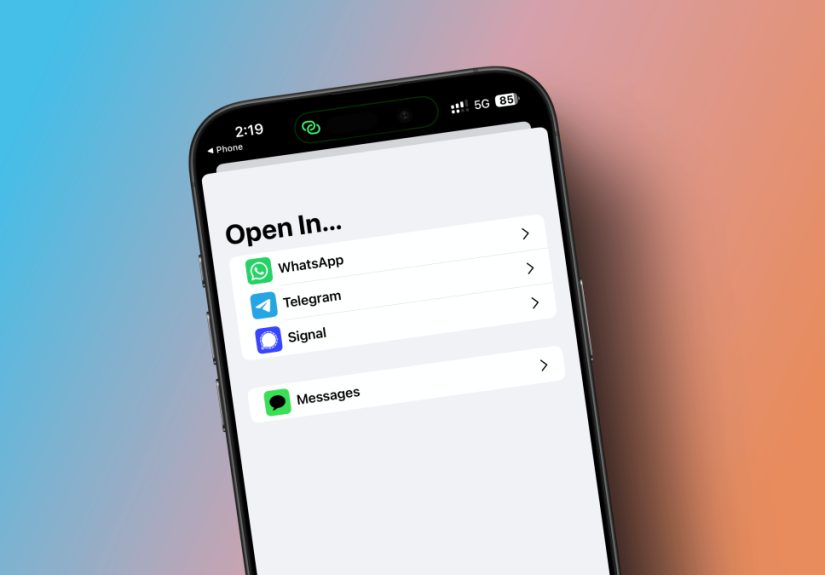
For years, changing the default messaging app on an iPhone felt about as likely as teaching your toaster to write poetry. Apple’s Messages app handled SMS, MMS, iMessage, and, more recently, RCS, while third-party apps like WhatsApp and Signal lived in their own separate bubbles. That changed with Apple’s newer Default Apps settings, which allow users to choose supported apps for categories such as email, browser, calling, and messaging.
But here is the important part: making WhatsApp your iPhone’s default messaging app is possible on supported iOS versions when WhatsApp appears in the Default Apps menu. Making Signal your default iPhone messaging app is more complicated, because Signal does not generally function as an SMS/MMS replacement on iPhone and may not appear as a selectable default messaging option. In plain English: WhatsApp may be invited to the iPhone default-app party; Signal may still be waiting outside with a very secure clipboard.
This guide explains how the feature works, how to set WhatsApp as your default messaging or calling app, what to do if Signal does not appear, and how to make your iPhone feel more Signal- or WhatsApp-friendly even when a true default setting is not available.
What Does “Default Messaging App” Mean on iPhone?
A default messaging app is the app your iPhone opens automatically when you tap a message button, choose a contact’s messaging shortcut, or interact with certain phone-number links. Instead of manually opening WhatsApp, finding the contact, and starting a chat, iOS can route supported message actions to your chosen app.
That does not always mean every message on your iPhone suddenly moves to WhatsApp or Signal. Apple’s Messages app still handles Apple-specific features such as iMessage, and carrier-based SMS, MMS, and RCS behavior may depend on your iOS version, region, carrier, and the third-party app’s support. Think of the default setting as a traffic director, not a magical moving truck for every conversation you have ever had.
Can You Make WhatsApp Your iPhone’s Default Messaging App?
Yes, in many cases. If your iPhone is running a supported version of iOS and your WhatsApp app is updated, WhatsApp may appear under Settings > Apps > Default Apps > Messaging. Once selected, WhatsApp can become the app iOS uses for supported messaging actions.
This is especially useful if most of your friends, family members, coworkers, or customers already use WhatsApp. Instead of tapping a contact and then remembering to choose WhatsApp manually, your iPhone can make WhatsApp the first option for supported message actions. It is a small change, but if you send dozens of messages a day, those saved taps add up faster than unread group-chat notifications.
Can You Make Signal Your iPhone’s Default Messaging App?
Usually, not in the same straightforward way. Signal is a private messaging app built around encrypted Signal-to-Signal communication. On iPhone, Signal does not work as a traditional SMS/MMS replacement. Signal’s own support information states that you cannot send or receive insecure SMS/MMS with Signal, and both people need to use Signal for private Signal messages and calls.
That means Signal may not show up in Apple’s Default Apps > Messaging menu. If it does not appear, it is not because you missed a secret switch hidden behind seven menus and a tiny gear icon. The app must support Apple’s default messaging framework and be eligible for selection. If Signal is not listed, you cannot force iOS to make it the true system default messaging app.
Before You Start: Check These Requirements
1. Update Your iPhone
Open Settings > General > Software Update and install the latest iOS version available for your device. Apple’s Default Apps menu is part of newer iOS releases, so older versions may not show the same settings.
2. Update WhatsApp or Signal
Open the App Store, tap your profile icon, and update WhatsApp or Signal if an update is available. Default-app support depends not only on iOS but also on whether the messaging app has added support for Apple’s system-level default app options.
3. Confirm the App Is Installed and Set Up
Do not just install WhatsApp and expect your iPhone to read your mind. Open the app, verify your phone number, allow the permissions you actually want to use, and make sure your contacts appear correctly. The same applies to Signal: install it, register your number, and confirm that your Signal contacts are visible.
How to Make WhatsApp Your iPhone’s Default Messaging App
Follow these steps if WhatsApp is installed and updated on your iPhone:
- Open the Settings app on your iPhone.
- Scroll down and tap Apps.
- Tap Default Apps.
- Tap Messaging.
- Select WhatsApp from the list.
- Exit Settings and test the change from Contacts, Phone, or another supported app.
After this, when you tap certain messaging buttons or phone-number actions, your iPhone may open WhatsApp instead of Apple Messages. The exact behavior can vary depending on the app you start from. For example, tapping a message shortcut in Contacts may behave differently from tapping a phone number on a website or inside a third-party app.
How to Make WhatsApp Your Default Calling App Too
WhatsApp is not just for messaging. It also supports voice and video calls over the internet. If you want WhatsApp to handle supported calling actions, you can set it as your default calling app as well.
- Open Settings.
- Tap Apps.
- Tap Default Apps.
- Tap Calling.
- Choose WhatsApp.
This can be handy if you regularly call international contacts through WhatsApp instead of your carrier. Just remember that WhatsApp calls use your internet connection. If you are on mobile data, heavy calling can use data from your plan. If you are on weak Wi-Fi, your call may sound like a robot trapped in a washing machine.
What to Do If WhatsApp Does Not Appear
If WhatsApp does not appear under Default Apps, try these fixes:
Update iOS
Go to Settings > General > Software Update. Install the newest version your iPhone supports.
Update WhatsApp
Open the App Store, search for WhatsApp, and tap Update if available. Default-app support may require a newer version.
Restart Your iPhone
Yes, the classic “turn it off and on again” advice still earns its place in the troubleshooting hall of fame. Restarting can refresh iOS settings and app registrations.
Open WhatsApp Once After Updating
After updating WhatsApp, open it before checking Default Apps again. Some app features do not fully register until the app has launched after an update.
Check Regional or App Rollout Differences
Some iOS and app features roll out gradually. If your phone, region, or app version does not show the option yet, you may need to wait for broader availability.
What to Do If Signal Does Not Appear
If Signal does not appear in Settings > Apps > Default Apps > Messaging, there is usually no hidden workaround that makes it a true iPhone default messaging app. However, you can still make Signal easier to access and use.
Add Signal to Your Dock
Move Signal to the dock at the bottom of your Home Screen. This keeps it one tap away from anywhere on your main screen pages.
Create a Signal Shortcut
Use Apple’s Shortcuts app to create quick actions for opening Signal, starting a message, or launching a favorite contact workflow if supported. Shortcuts are not the same as a system default, but they can reduce friction.
Use the Share Sheet
When sharing photos, files, links, or notes, use the iOS Share Sheet and select Signal. If Signal does not appear, scroll through the app row, tap More, and add Signal to your favorites when available.
Enable Notifications Carefully
Go to Settings > Notifications > Signal and choose notification settings that fit your privacy needs. For example, you may want alerts enabled but message previews hidden.
Signal vs. WhatsApp as an iPhone Default: Which Should You Choose?
If your goal is system integration, WhatsApp is usually the better choice because it may appear directly in iPhone’s Default Apps settings. If your goal is privacy-first communication with people who also use Signal, Signal remains a strong option even if it cannot become the default messaging app on iPhone.
Choose WhatsApp If:
- Most of your contacts already use WhatsApp.
- You want default messaging and calling integration where supported.
- You message international contacts frequently.
- You want a familiar app for group chats, media sharing, and voice messages.
Choose Signal If:
- You prioritize private communication.
- Your important contacts already use Signal.
- You want encrypted calls, messages, files, and disappearing messages.
- You do not need Signal to handle SMS or MMS on iPhone.
Will This Replace iMessage?
Not completely. Apple Messages still handles iMessage conversations with other Apple users. If you love blue bubbles, read receipts, typing indicators, message effects, and Apple ecosystem syncing, those features remain tied to Messages. Setting WhatsApp as a default affects supported system actions, but it does not convert your entire iMessage history into WhatsApp chats.
Also, your existing conversations stay where they are. WhatsApp chats remain in WhatsApp, Signal chats remain in Signal, and Messages conversations remain in Apple Messages. Your iPhone is flexible, not a magician with a filing cabinet.
Privacy and Security Considerations
Before changing your default messaging app, think about privacy, account recovery, backups, and contact discovery.
WhatsApp Privacy Notes
WhatsApp offers end-to-end encrypted personal messages and calls. However, its backup behavior, metadata, business chats, and Meta ecosystem connections are worth understanding. Review WhatsApp’s privacy settings, two-step verification, linked devices, and backup options before relying on it as your main communication app.
Signal Privacy Notes
Signal is widely known for its privacy-focused design. It uses end-to-end encryption and does not support insecure SMS/MMS on iPhone. To improve account security, review your Signal PIN, registration lock, notification previews, disappearing messages, and linked devices.
Common Problems and Easy Fixes
Problem: The Default Apps Menu Is Missing
Update iOS. If your device cannot update to a supported version, the feature may not be available.
Problem: WhatsApp Is Installed but Not Listed
Update WhatsApp, open it once, restart your iPhone, and check Settings again.
Problem: Signal Is Installed but Not Listed
This is expected for many users. Signal may not support Apple’s default messaging option on iPhone. You can still use Signal manually, through the Share Sheet, or with Shortcuts.
Problem: Messages Still Open Sometimes
That can happen. Default-app behavior depends on where the action begins. Some Apple features and message types may still use Messages.
Problem: Contacts Do Not Show Correctly
Check app permissions under Settings > Apps > WhatsApp or Settings > Apps > Signal. Make sure contacts access is enabled if you want the app to match phone numbers with your address book.
Best Practices After Changing Your Default Messaging App
Once you set WhatsApp as your default messaging app, test it with a few everyday actions. Open Contacts, tap a person, and try the message button. Tap a phone number in Safari. Try asking Siri to message someone. These small tests help you learn where the default setting works and where iOS still prefers Apple’s built-in apps.
Next, clean up your notification settings. If WhatsApp becomes your main messaging app, you do not want important alerts buried under muted chats, spammy groups, or notification previews that reveal too much on your Lock Screen. Adjust group notifications, archive noisy chats, and pin important conversations.
Finally, keep Messages available unless you are absolutely sure you do not need it. Some contacts may still rely on SMS, iMessage, or RCS. Removing or ignoring Messages completely can create confusion, especially for bank alerts, school updates, delivery codes, and relatives who think “WhatsApp” is a brand of snack cracker.
Real-World Experience: Living With WhatsApp or Signal as Your Main iPhone Messenger
Using WhatsApp as your default iPhone messaging app feels most useful when your social world already lives there. For example, if your family group chat, work team, apartment building, travel buddies, and favorite cousin all use WhatsApp, setting it as the default removes a tiny but constant annoyance. You tap a contact, hit message, and land where the conversation actually happens. No app-hopping. No “Oops, I sent that as SMS.” No awkward moment where your message disappears into the wrong inbox like a sock in a dryer.
The biggest benefit is habit alignment. Many iPhone users do not want to think about messaging channels every time they contact someone. They simply want the phone to use the app their people use. WhatsApp works well for this because it combines text, voice notes, photos, videos, documents, location sharing, voice calls, and video calls in one familiar place. If your contacts are international, WhatsApp can also feel more natural than carrier texting because it works over Wi-Fi and mobile data.
However, there are trade-offs. WhatsApp as a default does not erase Apple Messages from your life. You may still need Messages for iMessage conversations, verification codes, RCS or SMS threads, and contacts who refuse to install anything beyond the default apps that came with their phone. In daily use, this means you may end up with a split-brain messaging system: WhatsApp for most conversations, Messages for Apple-specific or carrier-based messages, and maybe Signal for private chats. It is manageable, but it helps to be intentional.
Signal feels different. Even when it is not available as a true default messaging app on iPhone, it can still become your “default by habit.” Place it in your dock, pin important chats, enable sensible notifications, and encourage close contacts to use it. Signal is excellent for conversations where privacy matters and where both people are willing to use the same app. It is less ideal if you expect it to catch every random SMS, delivery update, appointment reminder, or one-time passcode. On iPhone, Signal is not trying to be a universal SMS bucket; it is trying to be a private communication tool.
One practical setup is to use WhatsApp as the default messaging and calling app if iOS offers it, keep Messages for iMessage/SMS/RCS needs, and reserve Signal for sensitive or privacy-focused conversations. This gives you convenience without pretending that one app can perfectly replace everything. Your iPhone becomes more like a well-organized toolbox: WhatsApp is the everyday screwdriver, Messages is the built-in multi-tool, and Signal is the locked case for conversations you want to keep extra private.
The most common mistake is deleting or ignoring Apple Messages too quickly. Before making big changes, spend a week watching where your important messages arrive. Do school alerts come through SMS? Do banks send codes to Messages? Do older relatives use iMessage? Do work clients prefer WhatsApp? Once you understand your real communication map, choosing defaults becomes much easier.
Another helpful habit is reviewing backups. WhatsApp and Signal handle backups differently, and privacy-minded users should understand what is stored, where it is stored, and how recovery works if the phone is lost. Convenience is wonderful until you buy a new iPhone and realize your chat history did not follow you the way you expected. A few minutes of settings review can save a future afternoon of panic-tapping.
In short, making WhatsApp your iPhone’s default messaging app can be a genuine quality-of-life upgrade. Signal may not offer the same system-level default behavior, but it can still be a powerful everyday messenger when your contacts use it. The best setup is not the trendiest one. It is the one that matches your contacts, privacy needs, and daily habits without making your iPhone feel like a puzzle box.
Conclusion
Making Signal or WhatsApp your iPhone’s default messaging app depends on app support, iOS support, and what you mean by “default.” WhatsApp can be selected as the default messaging and calling app on supported iPhones when it appears in Apple’s Default Apps settings. Signal, while excellent for private encrypted communication, usually cannot replace the iPhone’s default SMS/MMS messaging system and may not appear as a selectable default app.
For most users, the best approach is simple: update iOS, update WhatsApp, check Settings > Apps > Default Apps > Messaging, and choose WhatsApp if it appears. For Signal, focus on making it easier to access through your dock, notifications, Share Sheet, and Shortcuts. That way, you get convenience where Apple allows it and privacy where Signal shines.