Table of Contents >> Show >> Hide
- What Is a Symlink in Linux?
- The Basic Linux Symlink Command
- How to Symlink a File in Linux
- How to Symlink a Directory in Linux
- Absolute vs. Relative Symlinks
- How to Overwrite an Existing Symlink
- How to Remove a Symlink
- How to Find Where a Symlink Points
- What Is a Broken or Dangling Symlink?
- Common Symlink Examples
- Permissions and Symlinks: What Beginners Should Know
- Troubleshooting Symlink Problems
- Best Practices for Linux Symlinks
- Quick Cheat Sheet
- Real-World Experiences: Lessons From Symlink Land
- Conclusion
If Linux had a “shortcut” button, it would probably be called a symbolic link. Actually, it already is. A symlink, short for symbolic link, lets you create a special file that points to another file or directory somewhere else on your system. It looks like magic the first time you use it, but it is really just smart filesystem plumbing wearing a tiny wizard hat.
Whether you are organizing configuration files, linking a project folder into a web server directory, managing shared assets, or keeping your home directory tidy, learning how to symlink a file or directory in Linux is one of those skills that pays rent forever. The command is simple, but the details matter: target order, absolute versus relative paths, permissions, broken links, overwriting existing links, and the classic “Why did Linux just make a link inside my folder?” moment.
This easy tutorial explains symbolic links in plain American English, with practical examples you can copy, test, and adapt. No mysterious beard required.
What Is a Symlink in Linux?
A symlink is a special type of file that points to another file or directory by path. When you open the symlink, Linux follows the path and opens the original target. Think of it like a sign on your desk that says, “The snacks are in the kitchen.” The sign is not the snacks. It just tells you where the snacks live.
In Linux, symbolic links are useful because they let one file or folder appear in multiple places without duplicating the actual data. For example, you may keep a project in your home directory but want your local web server to access it from /var/www/html. Instead of copying everything, you can create a symlink.
Symlink vs. Hard Link
The ln command creates links in Linux. By default, it creates hard links. To create a symbolic link, you add the -s option.
A hard link points to the same underlying file data on disk. A symbolic link points to a pathname. That difference sounds small until it saves your afternoon. Symlinks can point to directories, can cross filesystem boundaries, and can point to a target that does not currently exist. Hard links are more limited and are usually not what beginners want when they say “shortcut.”
For everyday use, especially when linking directories or creating flexible shortcuts, use a symlink.
The Basic Linux Symlink Command
The basic syntax is:
Here is the important part: the target comes first, and the link name comes second.
That order trips up many people because our brains enjoy chaos before coffee. Remember it like this:
For example:
This creates a symlink named site inside /var/www/html that points to the real directory at /home/alex/projects/site.
How to Symlink a File in Linux
Let’s start with a simple file example. Suppose you have a configuration file here:
And you want to link it into another location:
You could run:
Now, when Nginx reads the file in sites-enabled, Linux redirects it to the real file in your configs folder.
Check That the File Symlink Worked
Use ls -l to inspect the link:
You should see output similar to this:
The arrow shows where the symbolic link points. If you see that arrow, congratulations: you have successfully made Linux point at something without physically moving it. Very efficient. Very Linux.
How to Symlink a Directory in Linux
Creating a symlink to a directory uses the same command. For example, suppose your real folder is:
And you want easy access from your home directory:
Run:
Now /home/alex/photos behaves like a shortcut to /mnt/storage/photos. You can cd into it, list files, open images, and work as if the directory were right there.
This is especially handy for mounted drives, shared folders, media libraries, development projects, and anything that lives in a location you do not want to type 47 times per day.
Absolute vs. Relative Symlinks
Linux lets you create symlinks with absolute or relative paths. Both are valid, but they behave differently.
Absolute Symlink
An absolute symlink starts from the root directory, like this:
This is clear and easy to understand. The symlink points to the exact path on the system. Absolute links are great when the target location is stable.
Relative Symlink
A relative symlink points from the link’s location to the target. For example, inside a project folder:
Relative symlinks are useful when moving a whole project folder because the link may continue working as long as the internal folder relationship stays the same.
Here is the practical rule: use absolute paths for system-level links and relative paths for portable project structures.
How to Overwrite an Existing Symlink
Sometimes you need to update a symlink so it points somewhere new. If the link already exists, a plain ln -s command may fail with a message like “File exists.”
To force replacement, use -f:
For directory-style situations, many Linux users prefer adding -T to treat the destination as a normal file name rather than as a directory:
This can help prevent accidentally creating a new link inside an existing directory. Translation: it helps stop Linux from doing exactly what you asked, but not what you meant.
How to Remove a Symlink
Removing a symlink does not delete the original target. It only deletes the link itself.
Use rm:
Or use unlink:
For a directory symlink, do not add a trailing slash when removing it. This is important:
Avoid this:
The trailing slash may cause commands to treat the symlink as the directory it points to. When working with deletion commands, tiny punctuation can have big main-character energy.
How to Find Where a Symlink Points
You can inspect a symbolic link several ways.
Use ls -l
This shows the arrow from the symlink to the target.
Use readlink
This prints the stored target path.
Use realpath
This resolves the final absolute path, which is useful when a link points to another link, which points to another link, which points to a folder that is probably judging your life choices.
What Is a Broken or Dangling Symlink?
A broken symlink, also called a dangling symlink, points to a target that no longer exists. This can happen if the original file was moved, renamed, deleted, or never existed in the first place.
Example:
Linux allows this because a symlink stores a path string. It does not require the target to exist at creation time.
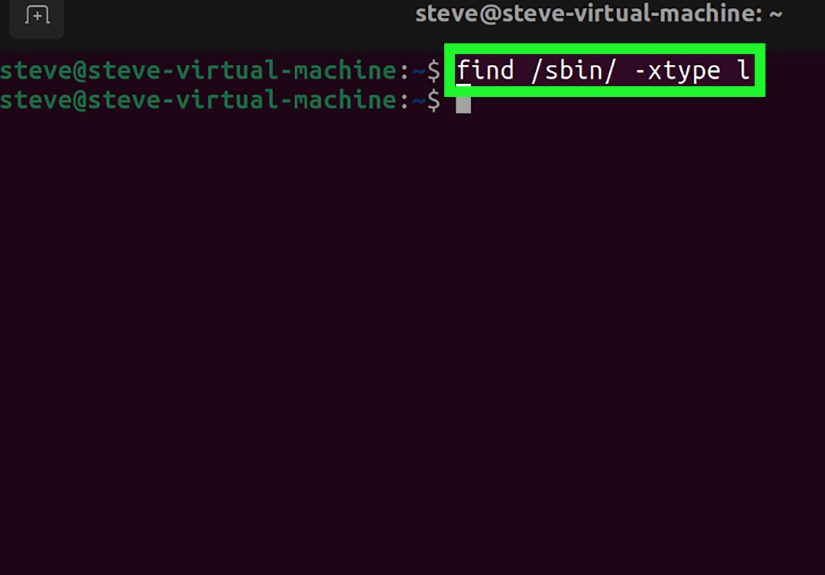
To find broken symlinks in a directory, you can use:
Then remove or fix them as needed.
Common Symlink Examples
Link a Project Folder to a Web Server Directory
This is common in local development. You keep the project where you like working, while the web server sees it where it expects to see it.
Link a Config File Into Place
This is popular with dotfile management. Your real configuration lives in a version-controlled folder, and symlinks place it where Linux programs expect it.
Link a Large Media Folder From Another Drive
This keeps your home directory convenient without filling your main drive with giant files named things like final_final_really_final_video.mp4.
Permissions and Symlinks: What Beginners Should Know
Symlink permissions can look confusing because the link itself often appears with broad permissions in ls -l. In practice, access is controlled by the target file or directory and the permissions of the directories along the path.
If you create a symlink to a file you cannot read, the symlink will not magically grant access. Linux is helpful, not a locksmith with questionable ethics.
For example, if a web server user needs to follow a symlink into your home directory, the server must have permission to access the target path. That may involve file permissions, directory execute permissions, ownership, service configuration, or security layers such as SELinux on some systems.
Troubleshooting Symlink Problems
Problem: “File exists”
The destination link name already exists. Check it first:
If it is safe to replace, use:
Problem: The Link Was Created Inside a Directory
If the second argument is an existing directory, ln may create the link inside that directory instead of replacing the directory name. Use a specific link path or consider -T when appropriate.
Problem: Permission Denied
Check the permissions of the target and every parent directory:
This command breaks down the path step by step, which is useful when one directory in the chain is blocking access.
Problem: The Symlink Is Broken
Inspect it:
If the target path is wrong, remove and recreate the link.
Best Practices for Linux Symlinks
Use descriptive link names. A symlink named current can be useful for deployments, but a folder full of links named thing1, thing2, and important-old-new-final is how future-you develops trust issues.
Prefer absolute paths for system services, cron jobs, and server configurations unless you have a strong reason to use relative paths. Services may run from different working directories, so clarity matters.
Use relative paths inside portable project folders, especially when the whole directory may move between machines, containers, or repositories.
Always verify important symlinks with ls -l, readlink, or realpath. One quick check can prevent an hour of debugging.
Be careful with sudo. If you need elevated privileges to create a symlink in a system folder, that is normal. But double-check the command before pressing Enter. Root privileges plus a typo is basically a tiny disaster wearing tap shoes.
Quick Cheat Sheet
Real-World Experiences: Lessons From Symlink Land
After using Linux symlinks in development, server administration, and everyday file organization, one lesson becomes obvious: symlinks are simple, but they reward careful habits. The command itself is tiny. The situations around it are where things get interesting.
One of the most common experiences is using symlinks for configuration files. Developers often keep dotfiles in a Git repository, then symlink files like .bashrc, .vimrc, .gitconfig, or application settings into the home directory. This makes a new machine feel familiar quickly. Instead of copying files manually and wondering which version is newest, the repository becomes the source of truth. It feels wonderfully organized, like your terminal finally put on a clean shirt.
Another practical experience is linking project directories into places required by tools. Web servers, local test environments, and older applications sometimes expect files in very specific directories. Rather than moving your whole project into a system folder, a symlink lets you keep your preferred structure while satisfying the software. This is especially useful when working with multiple local sites. You can keep everything under ~/projects and symlink only the active projects into the server’s document root.
Symlinks are also helpful for large storage drives. Many users keep videos, photos, backups, or datasets on a secondary disk mounted under /mnt or /media. A symlink from the home directory makes that storage easy to reach without memorizing the full mount path. It is cleaner than creating duplicate folders and much safer than copying huge files around for no reason.
The biggest beginner mistake is reversing the command order. People often type the desired shortcut first and the real target second. Unfortunately, ln -s expects the target first and link name second. When in doubt, say the command out loud: “Create a link to this real thing at this shortcut location.” It sounds silly, but it works.
The second classic mistake is forgetting that symlinks store paths, not file contents. If you move the original file, the symlink does not automatically follow it like a loyal puppy. It breaks. This is why stable target locations matter. If a folder is likely to move, consider using a relative symlink inside the same project structure or updating the symlink as part of your move process.
Another lesson comes from permissions. A symlink may look accessible, but the target might not be. This happens often with web servers, Docker volumes, shared folders, and scripts running as another user. The fix is not to “chmod the symlink” and hope for fireworks. Check the target file, parent directories, ownership, and the user running the process.
Finally, symlinks are excellent when documented. Leave a short README note in complex project folders explaining why a link exists. Future-you will appreciate it. Future-you is tired, probably drinking cold coffee, and does not want to solve a filesystem riddle at 11:43 p.m.
Conclusion
Learning how to symlink a file or directory in Linux gives you a cleaner, faster way to organize files without duplicating data. The essential command is ln -s TARGET LINK_NAME, and once you remember the order, symlinks become one of the most useful tools in your Linux toolkit.
Use symlinks for config files, development folders, mounted drives, shared assets, and server paths. Verify them with ls -l, troubleshoot them with readlink or realpath, and remove them safely with rm or unlink. With a little practice, symbolic links turn messy paths into elegant shortcuts. Linux still won’t make your coffee, but at least it can make your file structure less dramatic.