Table of Contents >> Show >> Hide
- What a Verizon Router Blinking White Usually Means
- Start Here Before You Change Any Settings
- Step-by-Step Troubleshooting for a Verizon Router Blinking White
- Step 1: Check the power connection
- Step 2: Check the incoming internet line
- Step 3: Reboot the router the right way
- Step 4: Check Verizon for an outage
- Step 5: Try the router admin page
- Step 6: Test with more than one device
- Step 7: Improve placement and ventilation
- Step 8: Know the difference between a reboot and a reset
- Step 9: Factory reset only after the basics fail
- Step 10: Contact Verizon support when the pattern is persistent
- Common Reasons a Verizon Router Keeps Blinking White
- Mistakes to Avoid While Troubleshooting
- When a Blinking White Light Is Probably Normal
- When It Is Time to Treat It as a Real Problem
- Real-World Experiences With a Verizon Router Blinking White
- Final Thoughts
A Verizon router blinking white can mean anything from “all good, I’m waking up” to “please stop staring at me and actually troubleshoot this.” That is the fun part of router lights: they communicate a lot, but never in plain English. If your Verizon router is stuck blinking white and your internet has gone from lightning-fast to decorative, do not panic. In many cases, the fix is simple. In other cases, the light is your router’s polite way of saying it cannot finish connecting, updating, or restarting.
This guide walks through what a blinking white light usually means, how to diagnose whether the problem is your router, your Wi-Fi, or Verizon’s network, and what steps to take before you go nuclear with a factory reset. We’ll also cover real-world situations people run into at home, because router problems rarely happen at a convenient time. They prefer work calls, game downloads, movie night, and homework deadlines. Very considerate.
What a Verizon Router Blinking White Usually Means
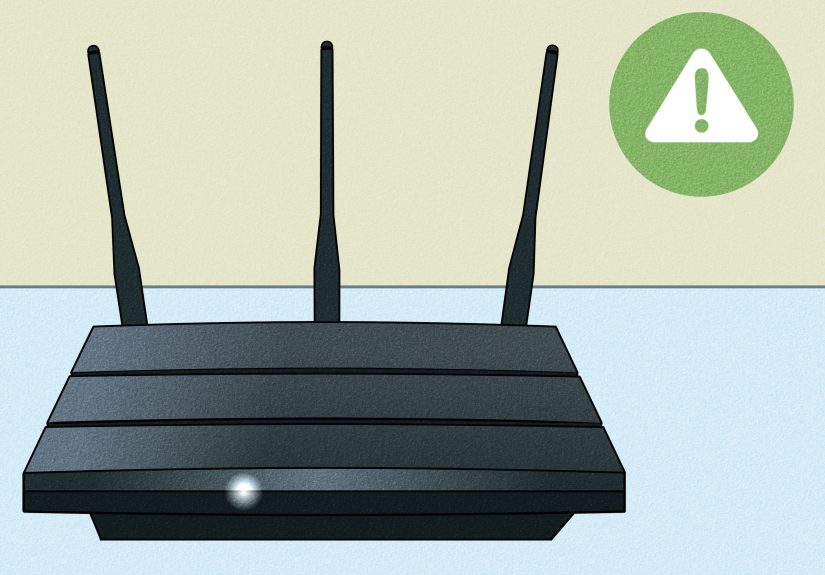
On Verizon equipment, a solid white light generally means normal operation. A blinking white light usually points to a router that is booting up, restarting, updating, or trying to complete its connection. The tricky part is that the exact behavior can vary a little by Verizon model, so context matters. If the light starts blinking right after you powered the router on, restarted it, or it received an update, that can be completely normal. If it keeps blinking and your network stays down, that is when you begin troubleshooting.
| Light behavior | What it usually means | What to do |
|---|---|---|
| Solid white | Router is on, connected, and working normally | Celebrate quietly and leave it alone |
| Blinking white | Startup, restart, firmware update, or connection in progress | Wait a few minutes, then troubleshoot if it never settles |
| Solid yellow | No internet connection | Check Verizon service, cables, and upstream connection |
| Blinking or solid red | Hardware issue, overheating, or update failure depending on model | Power cycle, cool the unit, and contact support if it returns |
| Blue | Pairing or WPS activity | Finish pairing or cancel it if it was accidental |
| Green | Wi-Fi turned off on certain Verizon routers | Turn Wi-Fi back on in settings if needed |
One useful rule: if your light is blinking white for only a short period, the router is probably just doing its job. If it is still blinking white after several minutes and your devices cannot get online, the router is likely stuck somewhere in the “almost there” phase. Which, to be fair, is also how many people feel before coffee.
Start Here Before You Change Any Settings
1. Wait a few minutes after startup
If you just plugged the router in, moved it, or rebooted it, give it time. Verizon equipment may blink white while starting up or processing an update. Interrupting that process too early by unplugging it again can make troubleshooting harder. Patience is not exciting, but it is often effective.
2. Figure out whether this is an internet problem or only a Wi-Fi problem
Check more than one device. If nothing in the house can connect, you are likely dealing with a router, service, or upstream connection issue. If only one phone, laptop, TV, or console is acting up, the router may be innocent and the problem could be limited to that device. Test a wired connection if you can. If Ethernet works but Wi-Fi does not, you have narrowed the problem down fast.
3. Ask the obvious question nobody likes to ask
Is Verizon having an outage? Many people waste half an hour rebooting equipment when the real issue is outside the house. Check Verizon’s service or network status tools before you start pressing buttons like a game show contestant.
Step-by-Step Troubleshooting for a Verizon Router Blinking White
Step 1: Check the power connection
A loose power cable can make a router behave like it is trying to boot forever. Make sure the power adapter is firmly seated in both the router and the wall outlet or power strip. If the router is plugged into a tired-looking surge protector that has survived several administrations and at least one mystery spill, move it to a known-good outlet and test again.
If the router keeps blinking white after a power flicker, storm, or sudden outage, unstable power may be part of the problem. That does not always mean the router is dead, but it does mean you should rule out the simple stuff first.
Step 2: Check the incoming internet line
For many Verizon home internet setups, the router still depends on an upstream connection, whether that is Ethernet from an ONT, coax in certain Fios configurations, or a gateway path in a wireless home internet setup. A blinking white light can appear when the router is powered on but cannot complete the handshake it needs to get online.
Inspect the WAN or internet cable and make sure it has not been pulled loose. If you recently cleaned behind the desk, moved furniture, or relocated the router, double-check every connection. Home internet problems love to begin with the sentence, “I barely touched it.”
Step 3: Reboot the router the right way
This is the classic fix because it works surprisingly often. Unplug the router from power, wait about a minute, then plug it back in. After that, wait several minutes for it to fully restart. Do not judge the router during this time. Let it finish its dramatic blinking.
If your setup includes separate upstream equipment, such as a modem-like device or ONT-related hardware in the chain, let that device finish powering up before expecting the router to connect. A router cannot establish internet service from an upstream device that is still half asleep.
Step 4: Check Verizon for an outage
If the router is blinking white and the service still does not return, check for an outage in your area. This is especially important if your issue started suddenly and every device in the home lost internet at once. An outage can make a perfectly healthy router look guilty.
Also keep in mind that Verizon’s broader troubleshooting tools may point you toward line tests, guided fixes, or service alerts. That is far more useful than guessing.
Step 5: Try the router admin page
If you can still access the router locally, sign in to the admin page and look for status details. On Verizon routers, this is commonly available through a local address such as 192.168.1.1 or Verizon’s local network settings portal. The default credentials are usually printed on the router label unless they were changed.
Inside the admin page, look for clues such as:
- WAN or internet status
- Whether the router thinks it is online or disconnected
- Firmware update status
- Device logs or alerts
- Whether Wi-Fi radios are enabled
If the admin page loads but shows no internet, your router may be fine while the upstream connection is not. If the admin page will not load at all, that points more toward a router issue.
Step 6: Test with more than one device
This is a small step that can save a lot of time. Try a phone, a laptop, a smart TV, and if possible, one device over Ethernet. If only one device fails, forget the network on that device and reconnect. If the router shows up in Wi-Fi but there is no internet, the issue is different from a router that is not broadcasting at all.
You can also try toggling the device’s Wi-Fi off and on, restarting it, or switching bands if your network exposes separate 2.4 GHz and 5 GHz options. Sometimes the router is not the diva in the room. Sometimes it is the tablet.
Step 7: Improve placement and ventilation
If your Verizon router has been tucked behind a television, shoved into a cabinet, crammed into a corner, or left in direct sunlight, it may be suffering from poor placement or overheating. Routers need airflow. They also work best in open, central, elevated spots away from thick walls, major electronics, and interference sources like microwaves and cordless devices.
If the router feels unusually hot, turn it off, let it cool, and move it to a better location. A router that overheats can behave unpredictably, reboot repeatedly, or struggle to maintain a stable connection. That can absolutely show up as “it just keeps blinking and never finishes.”
Step 8: Know the difference between a reboot and a reset
These are not the same thing. A reboot restarts the router. A factory reset wipes settings and returns the device to default configuration. That means custom Wi-Fi names, passwords, and other changes can vanish. Factory reset is useful, but it should not be your first move unless you enjoy reconnecting every smart plug, camera, thermostat, and television in the house one by one.
Verizon’s documentation varies by model, so reset-button hold times are not perfectly universal. In general, a longer press is used for a true factory reset. If you do reset, follow your specific model’s label or support guide and be prepared to set the network up again from scratch.
Step 9: Factory reset only after the basics fail
If the router still blinks white after checking cables, rebooting, checking for outages, confirming the issue on multiple devices, and letting the unit cool down, a factory reset becomes reasonable. Do it only when you are ready to rebuild the network settings. After the reset, give the router time to reinitialize fully. If it still cannot reach a stable white light, the problem may be outside the router or the hardware itself may be failing.
Step 10: Contact Verizon support when the pattern is persistent
It is time to call Verizon if the router keeps blinking white for an extended time after multiple full restarts, the Wi-Fi network never appears, the admin page becomes inaccessible, or the light pattern eventually changes to yellow or red. It is also worth contacting support if the issue keeps returning every few days, because repeated boot loops are not normal behavior.
Common Reasons a Verizon Router Keeps Blinking White
Normal startup or firmware update: This is the best-case scenario. The router is working through its startup process and simply has not finished yet.
Loose or damaged cabling: A router can power on just fine and still fail to get internet if the WAN or incoming connection is loose.
ISP outage: If Verizon is down in your area, your router may spend a lot of time trying to connect and never quite get there.
Overheating: Heat can make routers unstable, especially when they are boxed in or buried behind warm electronics.
Configuration corruption or firmware trouble: Occasionally a router gets stuck after an update or a bad state change. That is where a careful reboot or, in harder cases, a factory reset can help.
Failing hardware: If the same problem happens repeatedly and every other possibility has been ruled out, the router itself may be aging out.
Mistakes to Avoid While Troubleshooting
- Do not keep unplugging it every 20 seconds. Routers need time to boot.
- Do not factory reset first. Save that for later.
- Do not assume Wi-Fi equals internet. You can have one without the other.
- Do not ignore heat. A router in a hot cabinet is basically being slow-cooked.
- Do not troubleshoot only one device and declare victory. Test several.
- Do not forget to check for outages. Sometimes the problem is not in your house at all.
When a Blinking White Light Is Probably Normal
A blinking white light is often not a crisis when:
- You just powered the router on
- You just rebooted it
- There was a recent firmware update
- The light settles to solid white after a short wait
- Your devices reconnect and internet service returns
When It Is Time to Treat It as a Real Problem
You should actively troubleshoot when:
- The white blink never settles
- No device can get online
- Your Wi-Fi network disappears entirely
- The issue returns again and again
- The router feels unusually hot
- The light changes to yellow or red after the blink
Real-World Experiences With a Verizon Router Blinking White
In real homes, a Verizon router blinking white usually does not show up as a neat, textbook problem. It tends to arrive wearing chaos. One common situation is the power-outage scenario. The lights flicker, the TV comes back, the microwave resets to a suspiciously confident 12:00, and the router starts blinking white. In many homes, the fix is nothing more than waiting for all the network equipment to fully recover in the right order. The mistake people make is assuming the router is broken five seconds into the reboot process and yanking the plug again. That turns a normal recovery into an endless loop.
Another frequent experience happens after someone “just moved the router a little.” Maybe the desk got rearranged, the entertainment center got cleaned, or a new game console went in. Suddenly the Verizon router starts blinking white and the internet vanishes. In these cases, the culprit is often a cable that looks connected but is not fully seated, or a router that was moved into a more enclosed, hotter, or more interference-heavy spot. The router is not offended by interior design, but it definitely has preferences.
There is also the false alarm version of this problem. A person sees the blinking white light, assumes disaster, and starts troubleshooting aggressively. Meanwhile the router is simply applying an update or finishing startup. This is especially common when the household expects instant internet the moment power is restored. Routers, like people, are sometimes functional but not immediately conversational.
Then there is the “only one device is failing, but everyone blames the router” situation. A smart TV stops streaming, a phone hangs on an old saved password, or a laptop refuses to rejoin after sleep mode. The router gets accused because it has a blinking light and looks suspicious. But once you test another phone, another laptop, or a wired connection, the story changes. That is why experienced troubleshooters always test multiple devices before doing anything drastic.
Some households run into the overheating version of the problem without realizing it. The router lives behind a television, inside a cabinet, next to a window, or surrounded by other electronics. Everything works most of the time, but after long streaming sessions, gaming, or hot afternoons, the router gets flaky. The white blink becomes a repeating pattern rather than a one-time event. Moving the unit into an open, cooler location can make the problem disappear so completely it feels like magic. It is not magic. It is airflow. Much less mysterious, but very effective.
Another common experience involves people jumping straight to factory reset. That can solve the issue, but it also creates a brand-new side quest: reconnecting phones, laptops, cameras, printers, doorbells, thermostats, streaming boxes, and every smart gadget that ever learned the old password. For that reason, people who have been through this once usually learn a valuable lesson: reboot first, reset last.
Finally, there is the provider-side experience. The router keeps blinking white, everything inside the house looks correct, and nothing you do helps. Then you check Verizon’s outage tools and discover the network problem is external. This is both frustrating and oddly comforting. Frustrating because your internet is still down. Comforting because at least you are not crawling under furniture for no reason.
Final Thoughts
If your Verizon router is blinking white, start with the simplest explanation: it may just be starting up, reconnecting, or updating. But if the light keeps blinking and the internet never returns, work through the basics in order. Check power, inspect the incoming cable, reboot properly, look for an outage, test multiple devices, use the admin page if possible, and only then consider a factory reset. Most of the time, the problem comes down to connection, placement, heat, or service availability rather than some mysterious router curse.
The goal is not to outsmart the router. It is to avoid making the issue bigger than it already is. Be methodical, be patient, and resist the urge to press every button in the house. Your future self, and your Wi-Fi password, will thank you.