Table of Contents >> Show >> Hide
- Why Pin Programs to the Windows 10 Taskbar?
- Method 1: Pin a Program from the Start Menu
- Method 2: Pin a Program Using Windows Search
- Method 3: Pin a Program While It Is Already Open
- Method 4: Drag a Desktop Shortcut to the Taskbar
- Method 5: Create a Shortcut for a Hard-to-Pin Program, Then Pin It
- Bonus Tips for Managing Pinned Apps in Windows 10
- Common Problems When Pinning Programs to the Taskbar
- Real-World Examples of When Taskbar Pinning Helps Most
- Experience Section: What It Feels Like to Actually Use a Well-Pinned Taskbar
- Conclusion
- SEO Tags
If your Windows 10 desktop feels like a daily scavenger hunt, the taskbar is your rescue rope. Instead of digging through the Start menu, typing the same app name fifty times a week, or launching a small emotional support sigh every time you need Word, Chrome, or Calculator, you can pin your favorite programs to the taskbar and keep them one click away.
That is the beauty of the Windows 10 taskbar: it is simple, reliable, and shockingly good at saving time. Whether you want to pin a program from the Start menu, lock in an app while it is open, or create a shortcut for a stubborn tool that does not play nice, Windows 10 gives you several ways to do it. Once pinned, your app stays ready at the bottom of the screen like a loyal coworker who never takes lunch.
In this guide, you will learn five ways to pin a program to the Windows 10 taskbar, plus a few practical tips for organizing pinned apps, fixing common issues, and making your desktop workflow feel less like chaos in a trench coat.
Why Pin Programs to the Windows 10 Taskbar?
Before we jump into the how-to section, let’s talk about why this matters. Pinning a program to the Windows 10 taskbar is not just about neatness. It is about speed, consistency, and reducing tiny bits of friction that add up over a workday.
Here is what pinning helps you do:
- Open your most-used apps faster
- Keep your desktop and Start menu less cluttered
- Create a more predictable workflow
- Reduce time spent searching for programs
- Make multitasking easier when several apps are open
If you use the same handful of programs every day, such as Outlook, Excel, Chrome, Slack, Spotify, or File Explorer, pinning them to the taskbar is one of the easiest productivity upgrades you can make on a Windows 10 PC.
Method 1: Pin a Program from the Start Menu
This is probably the most familiar method, and for many users, it is the easiest place to start. The Start menu contains your app list, and Windows 10 makes it simple to send a program straight from there to the taskbar.
How to do it
- Click the Start button.
- Scroll through the app list to find the program you want.
- Right-click the app.
- Select More.
- Click Pin to taskbar.
That is it. The program icon will appear on the taskbar immediately.
When this method works best
This approach is perfect when:
- You already know where the app lives in the Start menu
- You are setting up a new computer and organizing several apps at once
- You want a clean, direct route without opening the app first
For example, if you just installed Zoom and want it permanently available, the Start menu method is often the quickest path. No fuss, no detours, no dramatic monologue.
Method 2: Pin a Program Using Windows Search
If your Start menu is crowded or you simply prefer typing over scrolling, the taskbar search box is your best friend. This method is especially helpful for finding programs quickly when you do not feel like hunting through alphabetized lists.
How to do it
- Click the Search box on the Windows 10 taskbar.
- Type the name of the app you want to pin.
- When the app appears in the results, right-click it.
- Select Pin to taskbar.
This method is fast, clean, and ideal for users who like keyboard shortcuts and speedy navigation.
Why users love this option
Search is often the fastest method when:
- You know the app name but not where it is listed
- You want to pin a system tool like Notepad, Paint, or Snipping Tool
- You prefer typing over clicking through menus
It is also handy for pinning older or less visible Windows 10 tools that tend to hide like they owe you money.
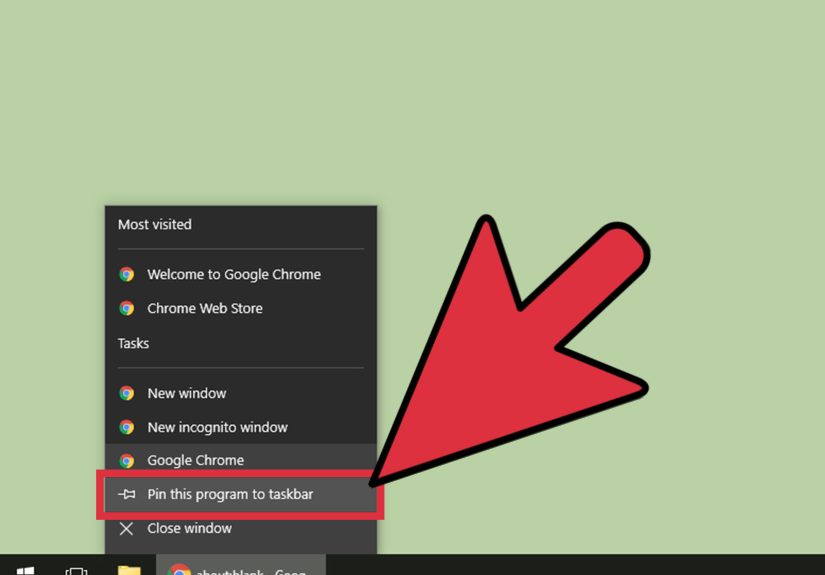
Method 3: Pin a Program While It Is Already Open
Sometimes the easiest time to pin a program is when you are already using it. If the app is running, its icon appears on the taskbar, which means you are only one right-click away from making it permanent.
How to do it
- Open the program as you normally would.
- Look for its icon on the taskbar.
- Right-click the icon.
- Click Pin to taskbar.
Now the app stays there even after you close it.
Why this method is so convenient
This is a great option when:
- You are already working in the app
- You suddenly realize, “Wow, I open this every single day”
- You want the fastest possible shortcut with the fewest steps
Let’s say you are in the middle of editing a report in Microsoft Word. Instead of promising yourself you will pin it later and absolutely forgetting, just right-click the Word icon on the taskbar and pin it right then. Future you will be impressed.
Method 4: Drag a Desktop Shortcut to the Taskbar
If you already have a desktop shortcut for a program, you can often pin it by dragging it directly to the Windows 10 taskbar. This method feels satisfyingly physical, like cleaning your desk by moving one useful thing exactly where it belongs.
How to do it
- Locate the program shortcut on your desktop.
- Click and hold the shortcut.
- Drag it down to the taskbar.
- Release it when Windows shows a pinning prompt or visual cue.
The program should now appear as a pinned icon on the taskbar.
Best use cases for drag-and-drop pinning
- You already keep app shortcuts on the desktop
- You prefer drag-and-drop actions over right-click menus
- You are organizing your screen and want to move frequently used apps to the taskbar
This method can feel especially natural for visual users. You see the shortcut, you move the shortcut, and suddenly your workflow improves. Tiny desktop miracle.
Method 5: Create a Shortcut for a Hard-to-Pin Program, Then Pin It
Some programs, utilities, or system tools are a little more stubborn. They may not show a straightforward Pin to taskbar option in the usual places. In those cases, the smart workaround is to create a shortcut first, then pin that shortcut.
How to do it
- Right-click an empty space on the desktop.
- Select New, then Shortcut.
- Browse to the program’s executable file or enter its path.
- Click Next.
- Name the shortcut.
- Click Finish.
- Right-click the new shortcut.
- Select Pin to taskbar.
Why this method matters
This is the method that saves the day when:
- You are pinning a custom tool
- You want to pin a script launcher or admin utility
- The program does not appear normally in Start or Search
- You are dealing with a special Windows component
For example, advanced users sometimes create shortcuts for tools like Local Group Policy Editor or specialty admin utilities, then pin those shortcuts to the taskbar for easier access. It takes a little more effort, but it is still much easier than opening a buried system tool from scratch every time.
Bonus Tips for Managing Pinned Apps in Windows 10
Once you know how to pin a program to the Windows 10 taskbar, the next step is making that taskbar work smarter.
Rearrange pinned icons
You can click and drag pinned taskbar icons left or right to change their order. Put your most-used apps near the Start button, group work apps together, or create your own little productivity lineup.
Remove what you do not use
If the taskbar starts to look like a crowded subway car, right-click any icon and choose Unpin from taskbar. Keep only the apps you actually use often.
Pin for routine, not for decoration
A good rule is simple: if you open it daily or several times a week, it deserves a spot. If you open it once every two months, it can probably stay in the Start menu.
Think in workflows
Instead of pinning random apps, pin apps that belong together. For example:
- Work setup: Outlook, Teams, Excel, Chrome
- Creative setup: Photoshop, Illustrator, Canva, File Explorer
- School setup: Word, OneNote, Chrome, Calculator
A taskbar organized by workflow helps your brain switch less and do more.
Common Problems When Pinning Programs to the Taskbar
Sometimes Windows 10 behaves beautifully. Sometimes it acts like it woke up on the wrong side of the motherboard. If pinning is not working, try these fixes.
The “Pin to taskbar” option does not appear
First, make sure you are right-clicking the app itself and not a file associated with the app. If the program still does not offer the option, try opening it first and pinning it from the active taskbar icon, or create a shortcut and pin that shortcut instead.
The shortcut pins incorrectly
If you drag something to the taskbar and it does not behave like a normal program, check whether you dragged a document or folder instead of the app shortcut. Windows often treats files differently from applications.
The taskbar is getting too crowded
Windows 10 taskbar space is limited. If you pin too many programs, finding the right icon becomes its own mini-adventure. In that case, remove apps you rarely use and keep the core group visible.
The app is pinned but difficult to recognize
Some apps have similar icons, which is not ideal when you are moving fast. Reordering icons can help. Place your most frequently used programs in a consistent position so muscle memory takes over.
Real-World Examples of When Taskbar Pinning Helps Most
Pinning apps sounds small, but in everyday use, it makes a real difference. Consider these common scenarios:
For office workers
If you start every morning with Outlook, Excel, Teams, and a browser, pinning them creates an instant launch pad. One click per app, and your day begins without the usual desktop treasure hunt.
For students
Students can pin Word, PowerPoint, OneNote, Calculator, and Chrome to make assignments easier to start and switch between.
For home users
Even casual users benefit from pinning the basics, such as Photos, File Explorer, a browser, and Settings. The less time you spend searching, the more time you spend actually doing the thing you sat down to do.
For multitaskers
If you jump between apps all day, a tidy taskbar becomes your control panel. It is one of the simplest ways to make Windows 10 feel more efficient without installing anything extra.
Experience Section: What It Feels Like to Actually Use a Well-Pinned Taskbar
One of the most relatable experiences with Windows 10 is realizing how much time gets wasted on tiny, repetitive actions. You sit down at your desk, power on the PC, and then do the same little dance: open Start, scroll for the app, get distracted by another icon, open the wrong thing, close it, and finally launch the program you wanted in the first place. It is not a disaster, but it is not exactly elegant either.
That is why learning how to pin a program to the Windows 10 taskbar often feels like such a small change with a surprisingly big payoff. Once your favorite apps are pinned, the whole computer starts to feel calmer. More intentional. Less like you are asking Windows for permission to work and more like Windows is finally cooperating.
For many people, the first noticeable difference is in the morning routine. Instead of rebuilding the same workspace from scratch every day, you click a browser, your email app, a document editor, and maybe File Explorer in a neat little row. It takes seconds. Your brain gets used to the pattern. After a while, you do not even think about it. Your hand just moves there automatically.
Another common experience is that taskbar pinning quietly reduces visual clutter. A lot of Windows 10 users rely on desktop shortcuts for everything, which can turn the desktop into a digital junk drawer. Once apps move to the taskbar, the desktop can breathe again. Suddenly there is less noise on the screen, and finding what matters gets easier.
There is also a nice psychological effect. People often feel more in control of their computers when the taskbar reflects how they actually work. A student might keep Chrome, Word, PowerPoint, and Spotify pinned. A remote worker might line up Teams, Outlook, Excel, Slack, and a browser. A designer might pin Adobe apps and File Explorer. It feels personal, useful, and weirdly satisfying, like alphabetizing a messy shelf and then admiring your own competence for a minute.
Even users who are not especially tech-savvy tend to appreciate how forgiving the taskbar is. If you pin too much, you can unpin. If the order feels wrong, you drag icons around. If one app turns out to be unnecessary, it is gone in two clicks. There is no complicated setup and no steep learning curve. It is one of those rare Windows features that is both simple and genuinely practical.
And then there are the little moments that really sell the habit. You are on a deadline, your browser crashes, and reopening it from the taskbar takes one second. You are hopping into a video call and do not have time to dig through the Start menu. You need Calculator right now, not after a search expedition. In those moments, a pinned taskbar stops being a convenience and starts feeling like basic survival equipment.
So yes, pinning programs to the Windows 10 taskbar is a small feature. But it is one of those small features that can make your whole computer feel better organized, easier to use, and more aligned with your real life. That is a pretty strong return for a right-click.
Conclusion
If you have been wondering how to pin a program to the Windows 10 taskbar, the good news is that you have options. You can do it from the Start menu, the Search box, an app that is already open, a desktop shortcut, or a custom shortcut you create yourself. Each method is simple, and together they cover almost every situation you are likely to run into.
The best method depends on how you use your PC, but the outcome is the same: faster access, less clutter, and a smoother Windows 10 experience. Pin the apps you use most, arrange them in a way that makes sense, and let your taskbar work like the shortcut bar it was meant to be.
Your future self, the one trying to open a program in a hurry while juggling twelve tabs and a rapidly cooling cup of coffee, will thank you.