Table of Contents >> Show >> Hide
- What Is the Root Password in Linux?
- Before You Change the Root Password
- Method 1: Change the Root Password When You Already Have Root Access
- Method 2: Change the Root Password with sudo
- Ubuntu and Similar Distributions: One Important Catch
- Method 3: Reset a Forgotten Root Password in Linux
- Distro-Specific Notes
- How to Choose a Strong New Root Password
- What to Do After Changing the Root Password
- Common Mistakes to Avoid
- Quick Command Summary
- When You Should Avoid Direct Root Login
- Final Thoughts
- Common Experiences and Lessons from Real Linux Password Changes
If Linux had a VIP lounge, root would be standing at the velvet rope with a clipboard and a suspicious expression. Root can do almost anything on the system, which is exactly why changing the root password is a task worth doing carefully. The good news is that it is not hard. The better news is that you do not need to wear a cape, speak fluent kernel, or sacrifice a keyboard to get it done.
This guide explains how to change the root password in Linux the simple way, the safe way, and the “I forgot it and now I am staring at the login screen like it owes me money” way. We will cover the standard command, distro differences, common mistakes, security tips, and a few real-world experiences that make this topic more interesting than it sounds. Yes, even passwords can have drama.
What Is the Root Password in Linux?
The root password protects the most powerful local account on a Linux system. With root privileges, you can install software, change system files, manage users, alter services, and fix or break the machine with breathtaking efficiency. That is why Linux distributions treat root access seriously.
On some systems, especially server-focused distributions, the root account is active and has its own password. On others, such as many Ubuntu installations, the root account is often locked by default and administrative work is usually done with sudo. That is not Linux being difficult. That is Linux trying to keep you from turning one typo into an unforgettable afternoon.
Before You Change the Root Password
Before you touch the password, make sure you know which situation you are in:
- You already know the current root password and can switch to root.
- You do not know the root password, but you have a user account with
sudoprivileges. - You forgot the root password and cannot log in normally.
The method changes depending on the scenario. In all cases, choose a new password that is strong, unique, and not something like root123, password, or the name of your dog plus an exclamation mark. Linux has seen all of those before, and it is not impressed.
Method 1: Change the Root Password When You Already Have Root Access
This is the cleanest method. If you can already become root, changing the password is quick.
Step 1: Open a Terminal
Launch your terminal. On a desktop distribution, that is usually the easiest place to work. On a server, you are probably there already.
Step 2: Switch to the Root Account
If your system uses a real root password and allows switching users, run:
Enter the current root password when prompted. If the command succeeds, your shell will switch to a root session.
Step 3: Run the Password Command
Now run:
Follow the on-screen prompts and enter the new root password. Type it again to confirm. If the password meets the system’s policy requirements, Linux will update it.
Example
That is it. Two commands. No fireworks. No ancient scrolls. Just straightforward Linux administration.
Method 2: Change the Root Password with sudo
This is one of the most common methods on modern Linux systems. If you have an administrative user account and sudo rights, you can change or set the root password without logging in as root first.
Use This Command
You will usually be asked for your own password first, because sudo is verifying that you are an authorized administrator. Then you enter the new password for root.
Why This Method Is Popular
It is simple, fast, and fits the way many distributions handle administration today. Instead of signing in directly as root for routine tasks, you stay on your normal user account and elevate privileges only when needed.
Example
If the command succeeds, root now has the new password you entered.
Ubuntu and Similar Distributions: One Important Catch
On Ubuntu, the root account is often locked by default. That means you usually do not log in as root directly, and you do not normally use su with a root password because there may not be one set at all.
In that environment, the usual admin workflow is still sudo. If you specifically want to set a root password, you can do it with:
That said, many Ubuntu administrators prefer to leave root locked and continue using sudo for daily management. It is often cleaner and safer, especially on systems used by more than one person or where audit trails matter.
In plain English: just because you can set a root password does not mean you must. Sometimes the best root password strategy is not using direct root login at all.
Method 3: Reset a Forgotten Root Password in Linux
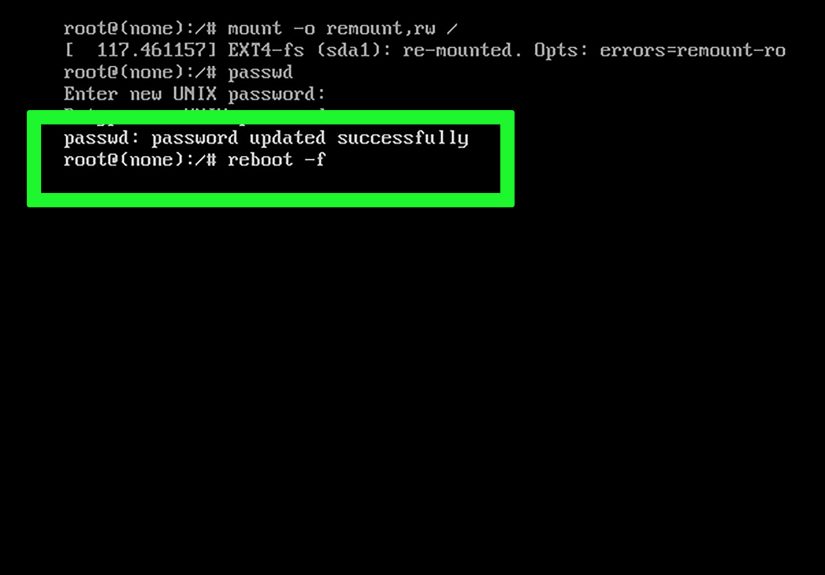
Now we reach the “well, this is awkward” section. If you forgot the root password and cannot use sudo, you generally have to reset it from a recovery or rescue environment. The exact steps vary a bit by distribution, but the general flow is similar.
The Usual Recovery Pattern
- Reboot the machine.
- Open the GRUB boot editor or boot into rescue or maintenance mode.
- Get a shell with enough access to the system.
- Remount the root filesystem as read-write if needed.
- Run
passwd root. - Reboot the machine normally.
A General Example
Depending on your distro, you may need commands similar to these:
Not every system uses exactly those commands, and not every distro needs the same boot parameter or path. But the overall idea stays the same: boot into a recovery shell, make the root filesystem writable, change the password, and reboot.
Why the Read-Write Step Matters
If the root filesystem is mounted read-only, the password change may fail even though the command looks correct. That is one of the oldest Linux admin traps in the book. It is right up there with “editing the wrong config file at 2:00 a.m.”
Why SELinux May Matter
On some Red Hat-style systems, changing a password from an offline or rescue environment may require a relabel on reboot. That is why you may see the touch /.autorelabel step in rescue workflows. It helps the system restore proper labels after filesystem changes.
Distro-Specific Notes
RHEL, Fedora, Rocky, Alma, and Oracle Linux Style Systems
These distributions often document root password changes with passwd and rescue-mode resets through GRUB, maintenance mode, or installation media. If you are already root, use:
If you are an admin user with sudo access, use:
If you are locked out completely, use the distro’s rescue or maintenance process and reset the password there.
Ubuntu
Ubuntu frequently expects administrators to use sudo rather than direct root login. If you truly need a root password, set it with sudo passwd root. If you do not need direct root login, staying with sudo is usually the cleaner choice.
Debian
Debian can be configured either way. During installation, a root password may be set, or the root account may be disabled and sudo configured for the first user. So the right command depends on how the system was installed and managed.
How to Choose a Strong New Root Password
Changing the root password is not useful if the new one is weak enough to guess during a coffee refill. A strong root password should be:
- Long enough to resist brute-force guessing
- Unique to that machine or environment
- Not based on obvious words, birthdays, usernames, or hostnames
- Stored in a secure password manager or operational vault
Many Linux systems enforce password quality rules through PAM and password-quality modules. So if Linux rejects your new password, it is not being rude. It is being a decent sysadmin.
A good pattern is to use a long passphrase rather than a short, complicated mess you will forget tomorrow. Something memorable, random, and unique usually works better than a “clever” eight-character puzzle you have to decode every time.
What to Do After Changing the Root Password
Once the password is changed, do not just close the terminal and declare victory like a movie hero walking away from an explosion. Take a few extra steps:
- Test it locally. Confirm that the new password works.
- Update your documentation. If your team uses a secure credential vault, update it immediately.
- Review who really needs root. In many environments,
sudois better for day-to-day work. - Check password aging policies. Some systems may enforce expiration rules.
- Avoid sharing root casually. Shared root credentials age badly, like milk in a server rack.
Common Mistakes to Avoid
1. Changing the Password on the Wrong Account
If you run plain passwd as a normal user, you are changing your own password, not root’s. That is not wrong, but it is not the mission.
2. Forgetting sudo Privileges
If your account is not allowed to use sudo, sudo passwd root will not help. You need proper admin rights first.
3. Ignoring Distro Differences
Ubuntu, Debian, RHEL, Fedora, Oracle Linux, and cloud images may handle root access a little differently. The command may be the same, but the surrounding policy is not always identical.
4. Using a Weak Password
A weak root password defeats the purpose of the change. This is the sysadmin equivalent of installing a bank vault door on a tent.
5. Forgetting Rescue Environment Details
If you reset the password offline, remember the root filesystem may be read-only, and some systems may need relabeling before reboot.
Quick Command Summary
If You Know the Current Root Password
If You Have sudo Access
If You Forgot the Root Password
Boot into rescue or maintenance mode, get a recovery shell, make the filesystem writable if needed, then run:
When You Should Avoid Direct Root Login
Here is the truth many admins learn sooner or later: setting a root password is not always the best long-term move. In some environments, especially shared servers, using sudo for individual administrators is more secure and easier to audit. It also reduces the chances of “Who changed this?” turning into “Well, it was probably root, which is not very helpful.”
So if your goal is simply to perform admin tasks, you may not need to enable or rely on direct root login at all. Change the password only when it serves a clear operational purpose.
Final Thoughts
How to change the root password in Linux sounds intimidating until you realize the core tool is just passwd. If you have root access, use passwd. If you have administrative rights through sudo, use sudo passwd root. If you forgot the password entirely, use the recovery path your distribution provides.
The important part is not just changing the password. It is changing it in a way that respects your distro, your security model, and your future self. Because future you does not want to be locked out of a production box on a Friday night, whispering apologies to the GRUB menu.
Common Experiences and Lessons from Real Linux Password Changes
Anyone who has managed Linux systems for a while ends up with at least one root-password story. Usually it begins with confidence, continues with a tiny assumption, and ends with somebody saying, “Wait, why is the filesystem read-only?” One of the most common experiences is on Ubuntu, where an admin expects su - to work, only to remember that Ubuntu often uses sudo and may not have a root password set at all. That moment is harmless, but it teaches a useful lesson: not every Linux distribution treats root the same way.
Another common experience happens on enterprise systems. An admin knows the correct command, runs passwd root, and still gets stuck because the password policy rejects the new value. The reaction is usually something like, “But it has numbers!” Linux does not care. If the policy says the password is too weak, too short, or too similar to the old one, it is going back to the drawing board. That is frustrating for about thirty seconds and helpful for much longer.
Recovery mode stories are even more memorable. People often do the hard part correctly: reboot, edit GRUB, get a shell, and run the password command. Then the change does not stick because the root filesystem was not writable. This is one of those classic Linux experiences that feels deeply unfair the first time and completely obvious the second time. After that, many admins become religious about checking mount status before doing anything in rescue mode.
There is also the team-management side of the story. In smaller environments, people sometimes share the root password across several admins. It feels convenient until someone changes it and forgets to update the credential vault, or until an urgent fix is needed and half the team has the old value. That is when many organizations switch to better sudo practices, tighter documentation, and role-based admin access. Pain is a wonderful teacher, even if it has terrible bedside manners.
Perhaps the most universal experience is that changing the root password is rarely the hard part. Remembering the environment, the distro defaults, the password rules, the recovery steps, and the post-change documentation is the real challenge. That is why simple checklists matter. The admins who look calm are usually not calmer than everyone else. They just wrote things down before the server got dramatic.
In the end, the best experience is the boring one: the password changes cleanly, the test works, the credential vault is updated, and nobody has to explain to a manager why “simple guide” somehow became “incident report.” In Linux administration, boring is beautiful.