Table of Contents >> Show >> Hide
- What Is the Firefox Cache, Exactly?
- Cache vs. Cookies: Do Not Let the Browser Jargon Win
- When Should You Clear Cache in Firefox?
- How to Clear Cache in Firefox on Desktop
- How to Clear Cache in Firefox on Android
- How to Clear Cache in Firefox on iPhone and iPad
- What Happens After You Clear Firefox Cache?
- Tips Before You Clear Cache in Firefox
- Firefox Cache Not Clearing the Problem? Try These Fixes
- Should You Clear Firefox Cache Regularly?
- Real-World Experiences With Clearing Cache in Firefox
- Final Thoughts
If Firefox has been acting like a moody roommate, showing old pages, loading sites weirdly, or refusing to display recent updates, the cache may be the culprit. The good news is that clearing cache in Firefox is easy once you know where Mozilla tucked the buttons. Whether you use Firefox on a Windows laptop, a Mac, an Android phone, or an iPhone, this guide walks you through the exact steps in plain English.
We will also cover what the Firefox cache actually does, when you should clear it, what happens after you do, and how to avoid wiping more data than necessary. Because yes, there is a difference between clearing cache and accidentally sending your saved logins into the void.
What Is the Firefox Cache, Exactly?
The Firefox cache stores temporary website files such as images, scripts, and page elements on your device. That way, when you revisit a site, Firefox can load parts of it faster instead of downloading everything again. In other words, cache is the browser’s version of keeping leftovers in the fridge. Very useful until something gets old and starts causing trouble.
Most of the time, cached files help Firefox feel faster. But when those files become outdated, corrupted, or mismatched with a website’s latest version, you can run into problems like:
- Pages not loading correctly
- Broken layouts or missing images
- Buttons not responding
- Login loops
- Seeing an old version of a page after a site update
Cache vs. Cookies: Do Not Let the Browser Jargon Win
When people search for how to clear cache in Firefox, they often end up staring at options for cookies, history, site data, active logins, and other terms that sound like they were designed by a committee of robots. Here is the simple version:
- Cache stores temporary website files to speed things up.
- Cookies store information such as login state, preferences, and shopping cart details.
- History records the pages you visited.
- Site data may include offline content and local storage tied to websites.
If your goal is only to clear cache in Firefox, you usually do not need to remove cookies too. That matters because clearing cookies may sign you out of websites. If you enjoy remembering zero passwords, proceed carefully.
When Should You Clear Cache in Firefox?
You do not need to clear Firefox cache every day like it is some kind of digital flossing routine. In fact, leaving cache alone often helps performance. Clear it when there is a reason, such as:
- A website looks broken or outdated
- You made changes to a website and cannot see them live
- Images fail to load properly
- Firefox feels glitchy on one specific site
- You want to troubleshoot page loading or formatting issues
If Firefox is slow everywhere, cache might be part of the issue, but it is not always the whole story. Extensions, too many tabs, low storage, or a flaky connection can all crash the party too.
How to Clear Cache in Firefox on Desktop
If you use Firefox on Windows, Mac, or Linux, you have two easy methods. One clears cached files through Settings. The other uses the History panel and is handy if you want more control over the time range.
Method 1: Clear Firefox Cache Through Settings
- Open Firefox.
- Click the menu button in the upper-right corner.
- Select Settings.
- Click Privacy & Security in the sidebar.
- Scroll to Cookies and Site Data.
- Click Clear Data or Clear browsing data, depending on your version.
- Make sure the cache option is selected. In recent Firefox versions, this may appear as Temporary cached files and pages.
- Uncheck cookies or site data if you only want to clear cache.
- Click Clear.
This is the best method if your main goal is to remove cached files without wiping everything else. It is fast, simple, and much less dramatic than a full browser reset.
Method 2: Clear Recent History in Firefox
- Open Firefox.
- Click the menu button.
- Select History.
- Click Clear Recent History.
- Choose a time range, such as the last hour or everything.
- Expand the details if needed.
- Select the cache option, usually labeled Temporary cached files and pages.
- Uncheck anything you want to keep.
- Click Clear.
This route is useful if you only want to clear a recent batch of temporary files instead of the entire cache. It is also the method many people use during troubleshooting because it bundles several cleanup options in one place.
Keyboard Shortcut for Faster Cache Clearing
If you like doing things the speedy way, Firefox supports a shortcut to open the clear history window:
- Windows and Linux: Ctrl + Shift + Del
- Mac: Command + Shift + Delete
That shortcut jumps straight to the cleanup dialog, which is handy when a page goes weird and you do not feel like navigating menus like it is a browser scavenger hunt.
How to Clear Firefox Cache Automatically When You Close the Browser
If you want Firefox to clean up after itself, you can set it to clear cache automatically when the browser closes.
- Open Firefox.
- Go to Settings > Privacy & Security.
- Scroll to the History section.
- From the drop-down menu next to Firefox will, choose Use custom settings for history.
- Check Clear history when Firefox closes.
- Click Settings next to that option.
- Select Cache and any other items you want cleared on exit.
- Save your choices and close the window.
This is useful if you share a computer, test websites often, or simply prefer a clean slate. Just remember that clearing too much on exit can also mean more frequent sign-ins and slower first loads on websites you visit often.
How to Clear Cache in Firefox on Android
Firefox for Android makes this fairly painless. You can clear cache manually or tell the app to delete selected browsing data when you quit.
Clear Cache Manually on Firefox Android
- Open the Firefox app.
- Tap the three-dot menu.
- Tap Settings.
- Scroll to Privacy and security.
- Tap Delete browsing data.
- Select Cached images and files.
- Uncheck other items if you only want to clear cache.
- Tap Delete browsing data, then confirm.
On Android, you may also see options for open tabs, browsing history, cookies and site data, site permissions, and downloads. That is helpful, but it also means one careless tap can turn a small cleanup into a full spring-cleaning event.
Automatically Delete Cache on Quit in Firefox Android
- Open Firefox.
- Tap the three-dot menu.
- Go to Settings.
- Under Privacy and security, tap Delete browsing data on quit.
- Turn the feature on.
- Select Cached images and files and any other items you want Firefox to remove whenever you quit the app.
This is a nice option for people who use Firefox heavily on mobile and want less buildup over time. It is especially useful for testing, shared devices, or phones with limited storage.
How to Clear Cache in Firefox on iPhone and iPad
Firefox for iOS works a little differently from desktop and Android. You will not always see a button labeled exactly like “cached images and files.” Instead, Firefox for iPhone and iPad places this cleanup under Data Management and Website Data.
Clear Site Data in Firefox for iOS
- Open the Firefox app on your iPhone or iPad.
- Tap the menu button. On iPhone, it is usually at the bottom of the screen. On iPad, it may appear at the top right.
- Tap Settings.
- Under Privacy, tap Data Management.
- Tap Website Data to manage stored data for specific sites.
- Select the site you want to clear, or clear broader private data if needed.
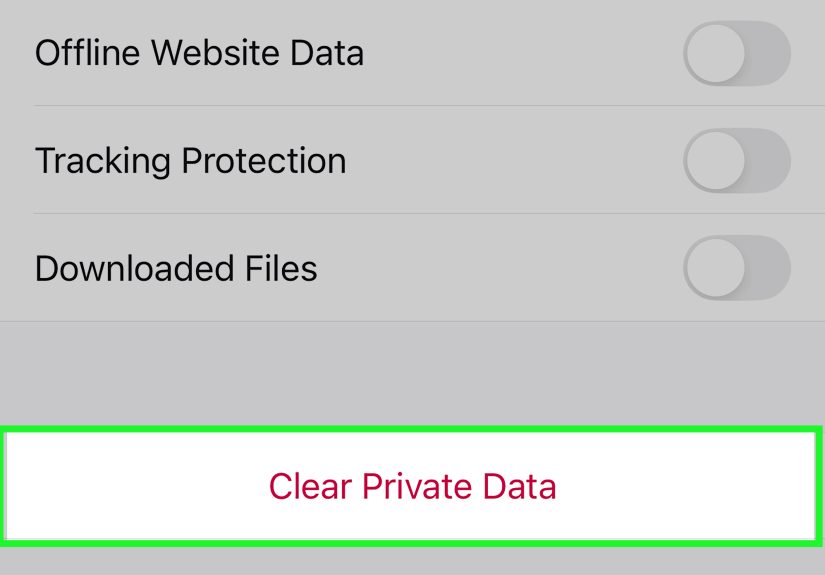
Clear Private Data in Firefox for iPhone
- Open Firefox.
- Tap Menu > Settings.
- Tap Data Management.
- Choose the data you want to remove.
- Tap Clear Private Data.
If you only want to remove one site’s stored data, use Website Data rather than wiping everything. That gives you a more surgical fix and helps you avoid logging out of every site just because one page decided to throw a tantrum.
What Happens After You Clear Firefox Cache?
Usually, one of three things happens:
- The problem disappears immediately and you feel like a genius.
- The site loads a little slower the first time because Firefox has to rebuild fresh cached files.
- Nothing changes, which means the issue may be caused by cookies, extensions, network problems, or the website itself.
That slower first load is normal. After you clear cache, Firefox has to fetch fresh content again. Once it does, performance usually stabilizes.
Tips Before You Clear Cache in Firefox
- If only one site is broken, try clearing data for that site first instead of wiping everything.
- If you want to stay signed in, avoid deleting cookies unless necessary.
- Try a hard refresh before clearing cache. Sometimes that is enough.
- Close and reopen Firefox after clearing data if the site still looks stuck.
- If problems continue, disable extensions one by one to rule out conflicts.
Firefox Cache Not Clearing the Problem? Try These Fixes
If clearing Firefox cache does not solve the issue, here are a few next steps worth trying:
1. Refresh the Page Fully
Use a hard refresh or reload the page after clearing cache. Sometimes the browser simply needs one more push to fetch the new version.
2. Clear Cookies for the Specific Site
If a page still behaves badly, stale cookies or site data may be involved. In Firefox desktop, you can manage data for individual websites instead of deleting everything.
3. Disable Extensions Temporarily
Ad blockers, privacy tools, script managers, and security add-ons can interfere with websites. If a site still looks broken after clearing cache, an extension could be stepping on the hose.
4. Update Firefox
An outdated browser can cause compatibility issues with modern websites. If Firefox has a pending update, install it and test again.
5. Restart the Device
Simple? Yes. Effective? Also yes. Restarting can clear minor system-level hiccups that make browser issues look more mysterious than they really are.
Should You Clear Firefox Cache Regularly?
Sometimes, but not obsessively. Clearing cache in Firefox every once in a while is fine, especially if you troubleshoot websites often or work with web development. But for everyday users, it is better treated as a fix rather than a ritual. Firefox uses cache to help pages load faster, so deleting it too often can make browsing feel less smooth, not more.
A smart rule is this: clear cache when a site looks wrong, loads stale content, or starts behaving strangely. Otherwise, let the browser do its job.
Real-World Experiences With Clearing Cache in Firefox
In real life, clearing cache in Firefox usually feels less like “advanced troubleshooting” and more like that one practical trick people forget until the browser starts acting possessed. A common example is when someone visits a favorite website every day and suddenly the page looks off. The menu is misaligned, images are missing, or a button refuses to work. Nothing on the internet appears to make sense. Then they clear the Firefox cache, reload the page, and the site magically behaves again. It is not exactly wizardry, but it does feel close.
People who manage websites have this experience all the time. They update a banner, swap a product image, or publish a redesigned homepage, only to discover Firefox is still showing yesterday’s version. Meanwhile, visitors on other devices are seeing the update correctly. The fastest way to confirm whether cached files are the issue is often to clear cache in Firefox and try again. When the updated page finally appears, the relief is immediate. So is the mild annoyance that the fix was so simple.
On mobile, the experience is a little different. Android users often notice problems when storage gets tight or a site stops loading properly inside the Firefox app. Clearing cached images and files can make the app feel lighter and reduce weird display issues. It is not a miracle cure for every slow phone, but it can absolutely help when browsing data has piled up over time. Many users are surprised by how much smoother a few problem websites feel afterward.
iPhone and iPad users usually run into the issue when a site keeps serving old content, refuses to log in properly, or gets stuck in a loop after a password change. Because Firefox for iOS separates history from website data, people sometimes clear history first and wonder why the actual problem is still there. Once they head into Data Management and remove the right site data, the site often starts working again. That moment usually comes with a very specific expression that says, “Well, that would have been nice to know sooner.”
Another real-world pattern is accidental over-clearing. Someone means to remove only cached files and ends up clearing cookies, active sessions, and site settings too. Suddenly every site wants a login code, every preference is reset, and what started as a tiny cleanup turns into a full digital identity check. That is why learning the difference between cache and cookies matters so much. It saves time, frustration, and an unnecessary scavenger hunt for forgotten passwords.
There is also the classic shared-device scenario. On family computers, school devices, or work machines, clearing cache in Firefox can be part of basic privacy and troubleshooting hygiene. It helps remove leftover temporary files and can prevent one user from seeing stale content tied to another person’s browsing session. Pair that with automatic clearing on exit, and Firefox becomes much easier to manage.
Overall, the experience of clearing Firefox cache is usually positive because it solves visible problems fast. It is one of those small browser skills that pays off again and again. Once you know where the settings live on desktop and mobile, the whole process stops feeling technical. It just becomes another useful fix you can do in under a minute, like restarting Wi-Fi, except with fewer blinking lights and less emotional damage.
Final Thoughts
If you know how to clear cache in Firefox, you already have one of the simplest and most effective browser troubleshooting tricks in your toolkit. On desktop, you can clear cached files through Settings or Clear Recent History. On Android, you can remove cached data manually or set Firefox to clean up on quit. On iPhone and iPad, you manage site data through Data Management and Website Data.
The key is knowing what you are clearing. If a site looks outdated or broken, cache is the first suspect. If you are stuck in login problems, cookies and site data may be involved too. And if everything still goes sideways, extensions or browser updates are the next places to look.
Either way, the next time Firefox starts behaving like it slept through an update, you will know exactly what to do.