Table of Contents >> Show >> Hide
- What Is an Unturned Server?
- Before You Start: Requirements for an Unturned Server
- Method 1: Create an Unturned Server with the Steam Library App
- Method 2: Create an Unturned Server with SteamCMD
- Launch Your First Unturned Server
- Understand the Main Unturned Server Files
- Make Your Server Public: GSLT, Fake IP, and Port Forwarding
- Add Steam Workshop Mods and Custom Maps
- Configure Gameplay Rules
- How to Join Your Unturned Server
- Keep the Server Updated
- Backups: The Boring Thing That Saves the Day
- Troubleshooting Common Unturned Server Problems
- Practical Experience: Lessons from Running an Unturned Server
- Conclusion
Creating an Unturned server is one of those gaming projects that sounds intimidating until you realize the whole thing is mostly downloading the right dedicated server files, editing a few text files, and resisting the urge to name your server something like “Definitely Not a Zombie Trap.” Whether you want a private survival world for friends, a public PvE community, a modded roleplay server, or a chaotic PvP arena where trust disappears faster than canned beans, learning how to create an Unturned server gives you control over the experience.
This guide walks through the practical setup process for Windows and Linux, explains SteamCMD, server configuration, ports, Game Server Login Tokens, mods, maps, backups, performance, and troubleshooting. The goal is not just to get a server running once. The goal is to build one that players can actually join, enjoy, and return to without needing a ritual sacrifice to the router gods.
What Is an Unturned Server?
An Unturned server is a dedicated multiplayer world hosted through the Unturned Dedicated Server tool, also known as U3DS. Instead of one player simply opening a temporary game session, a dedicated server runs as its own application. That means your friends or community can connect to the same world, keep progress, use custom settings, install Steam Workshop content, and play under rules you define.
You can host a small LAN server for people on the same network, a private Internet server using server codes or Steam invites, or a public server that appears in the server browser. Public hosting usually requires more attention because players expect stable uptime, low ping, clear rules, regular moderation, and a server name that does not look like it was typed by a raccoon walking across a keyboard.
Before You Start: Requirements for an Unturned Server
Unturned is lightweight compared with many modern survival games, but a good server still needs reliable hardware and a stable network connection. For a small private server, a normal gaming PC can often work. For a public server, a VPS or dedicated game host is usually better because it offers stronger uptime, better bandwidth, and fewer awkward moments when your family’s video streaming causes everyone in-game to rubber-band into a tree.
Recommended Basics
- Operating system: Windows or Linux. Current official server hosting support is focused on Windows and Linux, not macOS.
- CPU: A modern dual-core can work for small groups, but a stronger multi-core CPU is better for larger servers or heavy mods.
- RAM: Start with at least 4 GB for small servers. Use more if you plan to run many players, large maps, or Workshop content.
- Storage: Keep at least 10 GB free, with extra space for maps, mods, logs, and backups.
- Network: Stable upload speed matters. A server with good download speed but poor upload speed will still feel laggy.
- Steam access: You will use either the Unturned Dedicated Server app from Steam or SteamCMD for a more advanced setup.
Method 1: Create an Unturned Server with the Steam Library App
The easiest method is to install the Unturned Dedicated Server tool directly through Steam. This is best for beginners who want a simple private server for friends. Open Steam, go to your Library, enable the tools filter if needed, and search for Unturned Dedicated Server. Install it like any other Steam tool.
After installation, launch the tool. A console window will open and begin generating the server files. The first startup may take a few minutes because the server creates folders, loads default world data, and prepares configuration files. Once loading reaches 100%, the server is running. You can then invite friends through Steam or share the server code shown by the console.
This simple setup is excellent for testing, but it has limits. By default, the server is not automatically listed as a public Internet server. For wider access, you will need to configure a Game Server Login Token, use Fake IP or port forwarding, and edit the server’s configuration files.
Method 2: Create an Unturned Server with SteamCMD
SteamCMD is the command-line version of Steam used to install and update dedicated server applications. It is the better choice for VPS hosting, Linux servers, automation, multiple server instances, and serious public communities. In plain English, SteamCMD is Steam without the shiny buttons. It may look less friendly, but it is very good at doing server chores.
Install SteamCMD
On Windows, download SteamCMD from Valve, extract it into a folder such as C:steamcmd, and run steamcmd.exe. On Linux, install SteamCMD through your distribution’s package manager or Valve’s recommended setup instructions. Many Ubuntu-based servers can install it with package commands, but the exact method depends on your system and repository settings.
Download the Unturned Dedicated Server Files
Once SteamCMD is open, enter these commands:
The app ID 1110390 is the Unturned Dedicated Server application. The force_install_dir line tells SteamCMD where to place the server files. On Linux, you might use a path like this:
The same app_update 1110390 validate command can also be used later to update the server. That is useful after Unturned receives a game update, because outdated servers may fail to appear correctly or block players from joining.
Launch Your First Unturned Server
After installing the files, go to the Unturned Dedicated Server directory. If you used the default SteamCMD location, the files are usually inside a folder named U3DS. Your launch command determines whether the server starts as a LAN server or Internet server, and it also defines the server ID. The server ID is important because it becomes the folder name for saved data and configuration.
Windows Launch File
Create a new batch file such as MyServer.bat in the server directory. Add this for an Internet server:
For a LAN-only server, use:
Linux Launch Command
On Linux, navigate to the server directory and run:
For LAN:
When the server finishes loading, type shutdown in the server console. This safely saves and closes the server, while also creating the server folder where you will edit settings.
Understand the Main Unturned Server Files
After the first launch, look inside the Servers folder. If your server ID is MyServer, your files will be stored under something like Servers/MyServer. This folder is the command center for your Unturned server.
Commands.dat
The Commands.dat file controls basic startup settings. It is usually found inside the server’s Server folder. Each command goes on its own line. You can set the server name, map, max players, password, perspective, difficulty, PvE mode, cheats, and more.
Here is a beginner-friendly example:
Replace YOUR_STEAM_ID_64 with your own SteamID64 if you want owner/admin privileges. Use a password if you want a private server. Leave it blank or remove it for public access.
Config.txt and Older Config.json Files
Modern Unturned servers use Config.txt for many gameplay and browser settings. Older server folders may still have Config.json, but newer versions convert or use the newer text-based configuration format. This file can control difficulty values, spawn chances, browser settings, and other advanced behavior.
Do not edit configuration files while the server is running unless you know the setting supports runtime changes. For most edits, shut down the server first, change the file, save it, and restart.
WorkshopDownloadConfig.json
This file tells the server which Steam Workshop mods and maps to download. If you want custom maps, curated maps, vehicles, items, or other Workshop content, this is where you list the Workshop file IDs. Players who join the server will automatically download required Workshop content during connection.
Make Your Server Public: GSLT, Fake IP, and Port Forwarding
If you only want to play with friends, Steam invites and server codes may be enough. If you want your server to appear in the public Internet server list, you need a valid Game Server Login Token, usually called a GSLT.
What Is a Game Server Login Token?
A Game Server Login Token links your server to Steam. Without a GSLT, Internet servers are treated as anonymous and hidden from the public server list. A token can also keep server-code behavior more consistent between sessions. To create one, log in to Steam’s game server management page, use Unturned’s game app ID 304930, and add a memo so you remember which server the token belongs to.
You can usually add the token through the server configuration under browser settings or by using the GSLT command in Commands.dat. Keep this token private. Treat it like a password, not like a fun server slogan.
Fake IP vs. Port Forwarding
Modern Unturned hosting can use Fake IP through Steam networking, which lets players join without traditional port forwarding. This is easier for many home hosts because router settings can be confusing, especially when every router interface looks like it was designed during a thunderstorm.
Port forwarding is still useful if you want players to connect directly using an IP address or domain name. By default, Unturned commonly uses port 27015 and the next consecutive port 27016. If you run multiple servers on the same machine, each server should use its own port range, such as 27015/27016 for the first and 27017/27018 for the second.
Add Steam Workshop Mods and Custom Maps
Mods can turn a standard Unturned server into something memorable. You can add curated maps, custom vehicles, roleplay assets, new items, and quality-of-life additions. To install Workshop content, find the mod or map on Steam Workshop and copy the numeric file ID from its URL.
For example, a Workshop URL may end with something like:
The file ID is:
Open WorkshopDownloadConfig.json and place file IDs inside the File_IDs list:
Restart the server. During startup, the server downloads and updates the listed Workshop items. Be careful not to install too many mods immediately. Add them gradually, test each batch, and keep notes. Nothing says “server admin character development arc” like discovering that one outdated mod broke the entire economy.
Configure Gameplay Rules
A good Unturned server is not just technically online; it has a clear identity. Before inviting players, decide what type of experience you want. Is it relaxed PvE survival? Competitive PvP? Vanilla with small quality-of-life changes? Roleplay? Hardcore survival with scarce loot and no mercy from the weather?
Popular Server Settings to Adjust
- Map: PEI, Washington, Russia, Germany, Yukon, or a Workshop map.
- MaxPlayers: Keep this realistic. More players require more CPU, memory, and bandwidth.
- PvE or PvP: PvE disables player-versus-player combat, which is better for casual groups.
- Perspective: Both, First, Third, or Vehicle depending on your preferred fairness and play style.
- Difficulty: Easy, Normal, or Hard, with additional options in configuration files.
- Password: Useful for private friend servers or testing before launch.
- Owner/Admin: Add trusted admins carefully. Power is fun until someone spawns chaos at 2 a.m.
How to Join Your Unturned Server
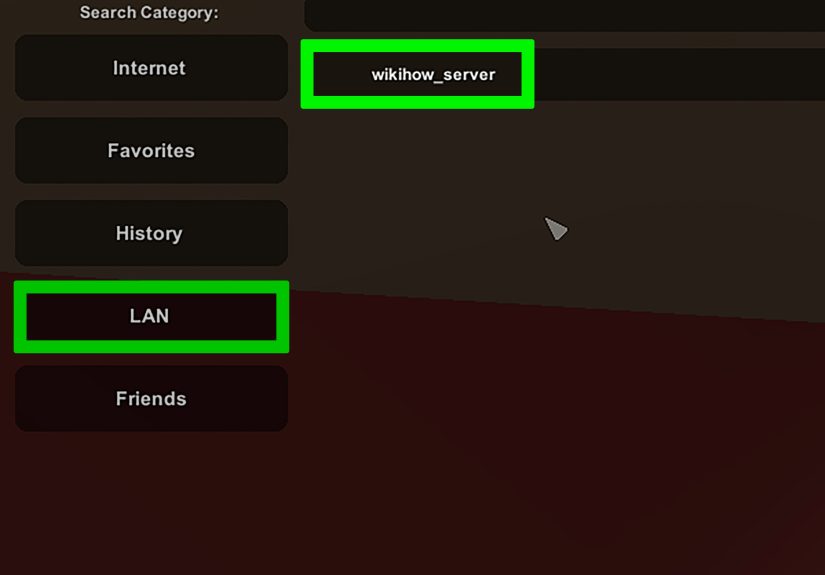
Once the server is running, launch Unturned, open the multiplayer menu, and use direct connection, server code, Steam invite, LAN listing, or the public server browser depending on your setup. If you are hosting on the same machine, you may be able to connect locally. Friends outside your network will need the server code, Fake IP address, public listing, or forwarded IP and port.
If players cannot connect, check these basics first: server version, GSLT, password, firewall rules, port settings, Fake IP configuration, Workshop mod downloads, and whether the server has finished loading. Many connection problems are not dramatic. They are usually one missing token, one blocked firewall rule, or one typo sitting there with the smug confidence of a final boss.
Keep the Server Updated
When Unturned updates, your server should update too. With SteamCMD, stop the server safely and run:
On Linux, use your server path instead of the Windows path. Always shut down the server before updating. Updating while the server is active can cause file conflicts or corrupted saves. Also update Workshop content by restarting the server after changes, because Workshop items are checked during startup.
Backups: The Boring Thing That Saves the Day
Backups are not exciting until the day your server crashes, a mod misbehaves, or someone discovers an admin mistake with the emotional impact of a meteor. Back up the entire server folder, especially world saves, player data, configuration files, and Workshop configuration. For public servers, create backups before every major mod change or update.
A simple backup routine can be as basic as copying the Servers/MyServer folder to another location. More advanced hosts can automate compressed backups on a schedule. Keep several versions, not just one. If your only backup is from after the problem happened, congratulations, you have created a museum exhibit of regret.
Troubleshooting Common Unturned Server Problems
The Server Does Not Start
Check that the dedicated server files were installed correctly, your launch script points to the right helper file, and SteamCMD finished downloading the app. Run app_update 1110390 validate again if files may be missing.
Friends Cannot Join
Confirm whether you are hosting as LAN or Internet. For public access, use a GSLT and configure either Fake IP or port forwarding. Also check Windows Firewall, Linux firewall rules, router settings, and server password.
The Server Is Not Showing in the Browser
Make sure you have a valid GSLT, your server follows hosting rules, and the server is launched as an Internet server. Give the browser a little time to refresh. If you changed major settings, restart cleanly.
Mods Are Not Downloading
Verify the Workshop file IDs, JSON formatting, and whether the Workshop items are public and compatible. A missing comma in JSON can break the entire file, which is deeply unfair but technically your fault.
Lag or Rubber-Banding
Reduce max players, remove heavy mods, switch to a smaller map, check CPU and RAM usage, and test network upload speed. If you host from home, other household traffic may affect performance.
Practical Experience: Lessons from Running an Unturned Server
The first real lesson of hosting an Unturned server is that “online” and “good” are not the same thing. Getting the console to launch is step one. Creating a server people enjoy is the bigger project. A private server with five friends can be wonderfully simple. You pick PEI or Washington, set a password, maybe enable PvE, and spend the evening arguing over who gets the good backpack. A public server, however, needs structure. Players want to know the rules, whether wipes happen, what mods are installed, and whether admins are active.
Start small. Many new hosts create a 48-player server with 30 mods before testing whether three people can connect smoothly. That is like opening a restaurant before checking whether the oven works. Begin with vanilla settings, confirm the server starts, invite one friend, test saving and shutdown, then add features one at a time. If something breaks, you will know what caused it.
Another hard-earned tip: keep a changelog. It does not need to be fancy. A simple text file with dates, settings changed, mods added, and backups created can save hours later. When players report lag after “nothing changed,” your changelog may politely reveal that you added a giant map, five vehicle packs, and a plugin that apparently hates happiness.
Moderation matters more than many beginners expect. Even a small server benefits from basic rules: no harassment, no exploiting, no griefing on PvE servers, and no impersonating admins. Choose admins carefully. Giving admin permissions to every enthusiastic player is tempting, but trust should be earned. A good admin calms problems. A bad admin creates them and then announces “it was just a test.”
Performance is also about restraint. Mods are fun, but every mod increases complexity. Large Workshop maps and content packs can make the server feel fresh, but they can also increase loading times and cause compatibility issues. If your community wants a modded experience, create a short mod list with a clear purpose. A focused survival server usually feels better than a bloated server where players spend longer downloading content than actually playing.
Finally, communicate with players. Add a short welcome message, publish rules somewhere visible, and tell players before wipes or major updates. A server community grows when players feel the host is present and fair. You do not need to act like a corporate support department. Just be clear, consistent, and willing to fix mistakes. In Unturned, players can survive zombies, hunger, and suspiciously empty gas cans. What they cannot survive for long is a server with no direction.
Conclusion
Learning how to create an Unturned server gives you the freedom to shape your own multiplayer survival world. The core process is straightforward: install the Unturned Dedicated Server tool, launch a server instance, edit Commands.dat and Config.txt, configure access with server codes, Fake IP, GSLT, or port forwarding, then add Workshop content if desired. The real craft comes after launch: keeping backups, updating safely, choosing balanced settings, moderating fairly, and creating a server identity players remember.
For a small group, keep things simple and private. For a public server, take time to configure it properly and test everything before advertising. A stable Unturned server does not need to be complicated. It just needs clean setup, smart settings, regular care, and maybe one less mod than your heart wants. Your heart loves mods. Your server RAM does not.
Note: This article is written for web publishing and is based on current Unturned dedicated server practices, including SteamCMD setup, U3DS configuration, GSLT requirements, Fake IP, port forwarding, Workshop mods, server updates, and practical server-management experience.