Table of Contents >> Show >> Hide
- What Is Automatic Logon in Windows XP?
- Before You Enable Auto Login: Read This First
- Method 1: Enable Automatic Logon with control userpasswords2
- Method 2: Enable Auto Login with Microsoft Sysinternals Autologon
- Method 3: Enable Automatic Logon Through the Windows Registry
- Which Method Should You Choose?
- How to Disable Automatic Logon in Windows XP
- How to Bypass Automatic Logon Temporarily
- Troubleshooting: Why Windows XP Auto Login Is Not Working
- Best Practices for Using Windows XP Auto Login Safely
- Common Use Cases for Automatic Logon in Windows XP
- Real-World Experiences with Enabling Automatic Logon in Windows XP
- Final Thoughts
Windows XP may be old enough to have a favorite chair and complain about “kids these days,” but many people still meet it in real life: in a workshop computer, a point-of-sale terminal, a lab machine, an old family PC, a virtual machine, or that one mysterious office desktop nobody dares unplug. If you are using one of these legacy systems, you may want Windows XP to start directly into a specific account without stopping at the logon screen every single time.
That is exactly what automatic logon in Windows XP does. Instead of asking for a user name and password during startup, Windows signs in to a chosen account automatically. It is convenient, especially for single-purpose computers, but it is not something to enable casually. Automatic logon trades security for speed. In plain English: the computer becomes easier for you to use, and also easier for anyone standing in front of it to use. That “anyone” part is the tiny gremlin hiding inside this feature.
This guide explains how to enable automatic logon in Windows XP using the built-in Advanced User Accounts tool, the registry method, and Microsoft Sysinternals Autologon. It also covers when auto login makes sense, when it is a bad idea, how to reverse it, and what to check when it refuses to work. Let’s make XP log in automaticallywithout turning your computer into a welcome mat.
What Is Automatic Logon in Windows XP?
Automatic logon is a Windows feature that signs in to a selected user account during startup without requiring manual input at the logon screen. In Windows XP, this can be configured through the hidden Advanced User Accounts window, through registry values under the Winlogon key, or through a tool such as Microsoft Sysinternals Autologon.
The feature is commonly called Windows XP auto login, automatic sign-in, or AutoAdminLogon. The last name comes from the registry value that controls the behavior. When properly configured, Windows XP starts, loads the chosen user profile, and lands directly on the desktop.
This is useful for a home desktop used by one person, a media PC, a kiosk-style workstation, a test machine, a virtual machine, or a computer that launches a dedicated program after startup. However, it should not be used on computers that store sensitive files, connect to risky networks, or sit where strangers can access them.
Before You Enable Auto Login: Read This First
Automatic logon is convenient, but convenience can sometimes wear a fake mustache and pretend to be security. Before enabling it, consider these points.
Windows XP Is No Longer Supported
Windows XP reached the end of extended support in April 2014. That means Microsoft no longer provides regular security updates for it. If the machine is connected to the internet, it is exposed to risks that modern versions of Windows are designed to handle better. If possible, keep Windows XP offline or isolated, especially if it controls old software or hardware that cannot be upgraded.
Anyone With Physical Access Can Use the Account
When automatic logon is enabled, a person does not need to know the password to access the desktop after startup. If the account has administrator rights, that person may also be able to change system settings, install software, view files, or make a mess large enough to deserve its own weather forecast.
Use a Limited Account When Possible
If automatic logon is only needed to run one program or display information, consider using a limited user account instead of an administrator account. A limited account reduces the damage that accidental clicks, old software, or curious hands can cause.
Back Up the Registry Before Editing It
If you use the registry method, create a backup first. The Windows Registry is not a place for freestyle jazz. One wrong change can create annoying startup problems. The built-in method using control userpasswords2 is easier and safer for most users.
Method 1: Enable Automatic Logon with control userpasswords2
The easiest built-in way to enable automatic logon in Windows XP is through the Advanced User Accounts tool. This tool is not shown directly in the regular Control Panel, but it opens quickly from the Run dialog.
Step-by-Step Instructions
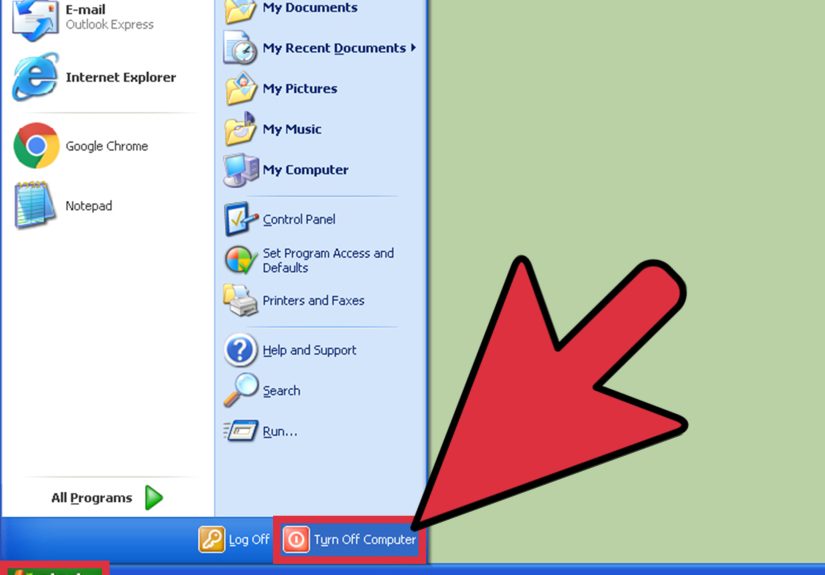
- Click Start.
- Click Run.
- Type
control userpasswords2and press Enter. - In the User Accounts window, select the user account that should log in automatically.
- Uncheck the box labeled Users must enter a user name and password to use this computer.
- Click Apply.
- When prompted, enter the password for the selected account and confirm it.
- Click OK.
- Restart the computer to test automatic logon.
If everything is entered correctly, Windows XP should boot straight into the selected account. No password prompt, no Welcome screen pause, no dramatic waiting room music.
Important Tip About Passwords
Make sure you type the password correctly when Windows asks for it. The tool does not always warn you if the password is wrong. If you mistype it, Windows may try to log in automatically, fail, and return you to the logon screen. If that happens, repeat the steps and re-enter the correct password.
Method 2: Enable Auto Login with Microsoft Sysinternals Autologon
Microsoft Sysinternals Autologon is a small utility designed to configure Windows automatic logon more safely and easily. It uses the built-in Windows auto logon mechanism, but it stores the password in an encrypted form in the registry rather than leaving it as a plain-text value.
This makes Sysinternals Autologon a cleaner choice for many users, especially if you do not want to edit the registry manually. It does not make the computer magically secureanyone who can physically access the already-logged-in desktop still has accessbut it avoids one of the biggest weaknesses of the manual registry method.
How to Use Sysinternals Autologon
- Run the Autologon utility on the Windows XP machine.
- Enter the user name for the account that should log in automatically.
- Enter the domain name or computer name if required. For a normal home PC, this is usually the local computer name.
- Enter the account password.
- Click Enable.
- Restart the computer and confirm that Windows XP logs in automatically.
To disable it later, open the same tool and click Disable. That is much easier than digging through registry values while muttering, “I am the captain now,” at a beige desktop tower.
Method 3: Enable Automatic Logon Through the Windows Registry
The registry method gives you direct control over automatic logon settings. It is useful if the graphical method does not appear, if the machine belongs to a domain, or if you are configuring a special-purpose legacy system. However, it should be handled carefully.
Registry Path
The main registry key used for automatic logon is:
Required Registry Values
Inside the Winlogon key, Windows XP uses several string values to control automatic sign-in:
AutoAdminLogonset this to1to enable automatic logon.DefaultUserNameset this to the user account name.DefaultPasswordset this to the account password.DefaultDomainNameset this to the domain name, workgroup, or local computer name when needed.
Step-by-Step Registry Instructions
- Click Start.
- Click Run.
- Type
regeditand press Enter. - Navigate to
HKEY_LOCAL_MACHINESOFTWAREMicrosoftWindows NTCurrentVersionWinlogon. - Find
DefaultUserName. If it exists, double-click it and enter the user name. - If
DefaultPassworddoes not exist, create it by choosing Edit > New > String Value, then name itDefaultPassword. - Double-click
DefaultPasswordand enter the account password. - Find or create a string value named
AutoAdminLogon. - Set
AutoAdminLogonto1. - If the computer is on a domain, confirm
DefaultDomainNameis correct. - Close Registry Editor and restart the computer.
If the settings are correct, Windows XP should sign in automatically on the next startup.
Warning About DefaultPassword
The manual registry method may store the account password in a readable registry value. That is why it should only be used on tightly controlled machines. If this makes you uncomfortableand it should at least make one eyebrow riseuse Sysinternals Autologon instead.
Which Method Should You Choose?
For most people, the best method is control userpasswords2. It is built into Windows XP, quick to use, and does not require manual registry editing. For users who want a more polished approach, Sysinternals Autologon is usually the better choice because it simplifies setup and handles the stored credential more carefully.
The registry method should be reserved for advanced troubleshooting, domain setups, kiosk systems, or cases where the normal user interface is unavailable. It works, but it also gives you enough rope to lasso the moon or trip over your own keyboard.
How to Disable Automatic Logon in Windows XP
Disabling automatic logon is just as important as enabling it. Maybe you are moving the computer to a shared room, giving it to someone else, or finally admitting that the “temporary” XP machine has somehow been temporary since 2008.
Disable Auto Login with control userpasswords2
- Click Start, then Run.
- Type
control userpasswords2and press Enter. - Check the box labeled Users must enter a user name and password to use this computer.
- Click Apply, then OK.
- Restart the computer to confirm the logon screen appears again.
Disable Auto Login in the Registry
Go back to the Winlogon key and change AutoAdminLogon from 1 to 0. For better security, remove the DefaultPassword value if it exists. Do not remove unrelated Winlogon values unless you enjoy turning simple problems into weekend hobbies.
How to Bypass Automatic Logon Temporarily
If automatic logon is enabled but you need to sign in as a different user, hold down the Shift key during startup or immediately after logging off. This can interrupt the automatic logon process and bring back the regular logon screen.
This is helpful when you need to perform maintenance with another account, troubleshoot a user profile, or sign in as an administrator without permanently changing the auto login configuration.
Troubleshooting: Why Windows XP Auto Login Is Not Working
Automatic logon is usually simple, but older Windows systems can be fussy. If Windows XP refuses to sign in automatically, check the following issues.
The Password Is Incorrect
This is the most common problem. If the stored password is wrong, Windows XP cannot complete automatic logon. Reopen the Advanced User Accounts tool or Autologon utility and enter the password again carefully.
The Account Password Was Changed
If the user account password changes after automatic logon is configured, the stored password must be updated too. Windows will not magically know the new password. It is Windows XP, not a mind reader with a Start menu.
DefaultPassword Is Missing
When using the registry method, automatic logon may disable itself if the DefaultPassword value is missing. Confirm that DefaultPassword exists and contains the correct password.
AutoAdminLogon Is Set to 0
If AutoAdminLogon is set to 0, automatic logon is disabled. Change it to 1 only when the rest of the values are correct.
The Wrong User Name Is Stored
The DefaultUserName value must match the account that should log in automatically. On some systems, Windows updates this value based on the last user who logged in manually, which can break automatic logon if multiple users access the machine.
A Logon Banner or Policy Is Blocking It
Some business or domain computers display a legal notice before logon. These interactive logon messages can prevent automatic sign-in because Windows must wait for a user to acknowledge the message.
The Computer Is Part of a Domain
Domain environments can require additional configuration, including the correct DefaultDomainName. If the XP machine belongs to a company network, automatic logon may also be restricted by policy. In that case, talk to the administrator instead of wrestling Group Policy like it owes you money.
Best Practices for Using Windows XP Auto Login Safely
Automatic logon is not automatically reckless. It depends on where and how the computer is used. Follow these best practices to reduce risk.
Use It Only on Controlled Machines
Enable auto login only on computers in trusted physical locations. A locked home office, a lab cabinet, a kiosk enclosure, or an offline workshop machine is much safer than a shared lobby computer.
Avoid Administrator Accounts
If the computer only needs to run one program, use a limited user account. This is especially important for old systems that may still be connected to equipment or networks.
Keep Sensitive Files Elsewhere
Do not store tax records, personal documents, passwords, client data, or private files on a machine that logs in automatically. If the desktop opens without a password, assume the files are easier to reach.
Consider Disconnecting from the Internet
Because Windows XP is unsupported, internet exposure is a serious concern. If the machine is used for legacy software, old hardware, or offline tasks, keep it disconnected from the internet whenever possible.
Lock the Session When Needed
Even with automatic logon enabled, you can still lock the computer by pressing Windows Key + L. This is useful if you step away but do not want to shut down the system.
Common Use Cases for Automatic Logon in Windows XP
Automatic logon makes the most sense when the computer has a narrow job. For example, a Windows XP machine might run old accounting software, control a scanner, display a dashboard, operate a CNC-related utility, or launch a media player after boot. In these cases, the goal is not general computing; the goal is to get one job running with as little human effort as possible.
It is also useful in virtual machines. If you run Windows XP inside virtualization software for testing, training, or legacy applications, auto login can save time. A virtual XP machine that is isolated from the internet and used for one purpose is a more reasonable candidate than a daily-driver computer full of personal files.
Another common scenario is a family computer with one user account and no sensitive data. Even then, automatic logon should be used carefully. A password may feel annoying, but it also prevents accidental access by guests, children, or anyone who thinks clicking every desktop icon is a valid troubleshooting method.
Real-World Experiences with Enabling Automatic Logon in Windows XP
In real-world use, enabling automatic logon in Windows XP is usually less about luxury and more about practicality. Many people who still work with XP are not doing it because they enjoy living dangerously in a digital museum. They are doing it because a specific machine, program, driver, or piece of equipment depends on it. In those situations, automatic logon can make an old system feel less stubborn.
One common example is a workshop PC connected to older hardware. The computer may not store private data or browse the internet. Its entire job might be to open one control program after startup. Without automatic logon, every reboot requires someone to walk over, type a password, wait for the desktop, and launch the software. That may sound minor until the machine restarts during a busy day. Auto login turns that process into: power on, wait, done. The machine becomes closer to an appliance than a personal computer.
Another experience comes from virtual machines. Many technicians keep a Windows XP virtual machine for testing old applications, reading legacy files, or checking how older software behaved. In that environment, automatic logon saves time because the virtual machine is often started and stopped repeatedly. Since the VM can be isolated from the network and rolled back with snapshots, the risk is lower than on a physical PC connected to the internet. It is not risk-free, but it is controlled.
Small offices have also used automatic logon for reception displays, time-clock software, or shared machines that launch one business application. The key lesson from those setups is simple: the account should be limited. When the auto-login account has administrator rights, every accidental download, misclick, or unauthorized change becomes more serious. When the account is restricted, the system is easier to recover and harder to ruin.
The biggest mistake people make is forgetting that automatic logon stores or uses credentials behind the scenes. They set it once, change the user password later, and then wonder why the machine stops logging in automatically. Another common mistake is using the registry method and misspelling DefaultUserName, DefaultPassword, or AutoAdminLogon. Windows registry values are not forgiving. A missing capital letter usually does not matter, but a missing character absolutely does. Computers are famously bad at “knowing what you meant.”
Physical security matters too. A computer that boots directly to the desktop should not sit somewhere public unless it is locked down for kiosk use. Even in a home, automatic logon may expose files to anyone who presses the power button. For old XP systems, the safest pattern is: limited account, controlled location, minimal data, no unnecessary internet, and a clear reason for enabling the feature.
The best experience is when automatic logon is treated as a tool, not a shortcut around all security. Used thoughtfully, it can make a legacy Windows XP setup smoother and more reliable. Used carelessly, it can turn an already outdated system into a very polite security problem that says, “Welcome,” while opening the front door.
Final Thoughts
Learning how to enable automatic logon in Windows XP is straightforward, but the decision to use it should be intentional. The simplest method is control userpasswords2. The more polished method is Microsoft Sysinternals Autologon. The advanced method is editing the Winlogon registry values directly.
For a personal, offline, single-purpose, or virtual Windows XP machine, auto login can save time and reduce repetitive startup steps. For a shared, internet-connected, or data-heavy computer, it is usually a bad trade. Windows XP already carries modern security risks because it is unsupported, so removing the logon barrier should only happen when the environment is controlled.
Note: This guide is intended for legacy Windows XP systems used in controlled, personal, offline, lab, kiosk, or virtual machine environments. Automatic logon reduces login security, so do not enable it on computers that store sensitive data or can be accessed by untrusted people.