Table of Contents >> Show >> Hide
- Before You Start: Product Key vs. Digital License
- Method 1: Find Your Windows 11 Product Key with Command Prompt
- Method 2: Find Your Windows 11 Product Key with PowerShell or Windows Terminal
- Method 3: Check the Windows Registry for BackupProductKeyDefault
- Method 4: Find Your Product Key in Your Email, Microsoft Account, Packaging, or PC Documentation
- What If You Still Cannot Find the Product Key?
- Common Mistakes to Avoid When Looking for a Windows 11 Product Key
- Which Method Should You Try First?
- Real-World Experience: What Usually Happens When People Look for a Windows 11 Product Key
- Conclusion
Somewhere between “I should probably reinstall Windows” and “Why is my PC asking me for a 25-character code like it’s guarding a treasure chest?” you may realize you need your Windows 11 product key. Don’t panic. Your product key is not a mythical creature. It is usually hiding in plain sight, tucked into your computer’s firmware, your email inbox, your Microsoft account history, the Windows Registry, or the packaging from a purchase you made back when you still believed you would keep every important receipt forever.
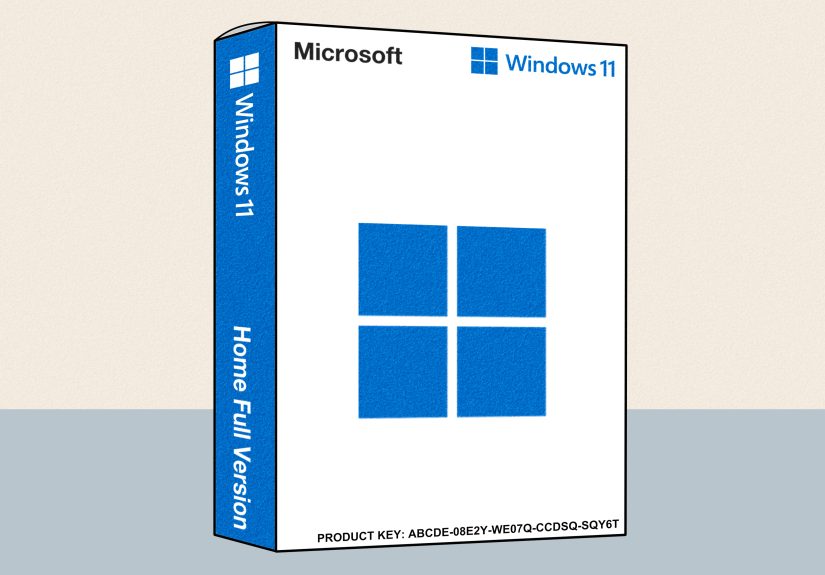
A Windows 11 product key is a 25-character code used to activate Windows. It normally looks like this: XXXXX-XXXXX-XXXXX-XXXXX-XXXXX. However, many modern Windows 11 PCs do not require you to manually type a product key during reinstallations because activation is handled through a digital license or an OEM key embedded in the motherboard firmware. That is good news, because nobody wants to squint at tiny sticker text like they are decoding an ancient scroll.
In this guide, you will learn four easy ways to find your Windows 11 product key, when each method works best, why some commands return a blank result, and what to do if Windows says it is activated with a digital license instead of showing a key. Whether you are preparing for a clean install, replacing hardware, upgrading to Windows 11 Pro, or simply doing responsible digital housekeeping, these steps will help you track down the information you need without downloading sketchy “miracle” software from the internet’s darker alleys.
Before You Start: Product Key vs. Digital License
Before digging for your Windows 11 product key, it helps to understand one important difference: a product key and a digital license are not always the same thing.
What Is a Windows 11 Product Key?
A Windows 11 product key is a 25-character activation code. You may receive one when you buy a boxed copy of Windows, purchase a digital copy from an authorized retailer, or activate a retail license that can sometimes be moved to another computer. If you bought Windows 11 directly from Microsoft or another authorized seller, the product key may be in your confirmation email, online order history, or digital locker.
What Is a Digital License?
A digital license, also called a digital entitlement, activates Windows without requiring you to enter a traditional product key. If your PC came with Windows 11 preinstalled, the license may be tied to the device hardware. If you upgraded from Windows 10 to Windows 11 for free, your computer may use a digital license instead of a visible product key. If your activation page says “Windows is activated with a digital license linked to your Microsoft account,” that means your license is connected to your Microsoft account and can help with reactivation after certain hardware changes.
To check your activation status, open Settings > System > Activation. Under Activation state, Windows will tell you whether it is activated, activated with a digital license, or activated with a digital license linked to your Microsoft account. This page is the best starting point because it tells you whether you actually need to hunt for a product key at all.
Method 1: Find Your Windows 11 Product Key with Command Prompt
The Command Prompt method is the quickest way to check for an OEM product key stored in your computer’s firmware. It is especially useful on laptops and desktops that came with Windows 11 preinstalled from brands such as Dell, HP, Lenovo, ASUS, Acer, and other major PC makers.
Steps to Use Command Prompt
- Click the Start button.
- Type cmd or Command Prompt.
- Right-click Command Prompt and choose Run as administrator.
- Copy and paste this command:
- Press Enter.
- If Windows finds an embedded OEM key, it will display the 25-character product key below the command.
This method checks the OA3xOriginalProductKey, which refers to an original equipment manufacturer key embedded in the BIOS or UEFI firmware. In normal human language, that means the key may be stored directly on the motherboard by the manufacturer. If you reinstall the same Windows edition that originally came with the PC, Windows can usually detect that key automatically during installation or activation.
Why Command Prompt Might Show a Blank Result
If the command returns a blank line, do not assume your Windows license has vanished into the digital mist. A blank result can mean several things. Your PC may be activated with a digital license rather than a firmware-stored key. You may be using a retail key that was entered manually instead of an OEM key. You may have upgraded editions, such as moving from Windows 11 Home to Windows 11 Pro. Or the manufacturer may handle activation in a way that does not expose the key through this command.
In short, blank does not always mean broken. It often means Windows is activated in a different way. Check Settings > System > Activation before assuming there is a problem.
Method 2: Find Your Windows 11 Product Key with PowerShell or Windows Terminal
If Command Prompt feels a little too old-school, PowerShell offers another way to retrieve the same embedded key. Windows 11 encourages users toward Windows Terminal, which can run PowerShell, Command Prompt, and other shells in one place. Think of it as the modern command center, but without the spinning chair and dramatic lighting.
Steps to Use PowerShell
- Right-click the Start button.
- Select Terminal or Terminal (Admin).
- If Terminal opens in PowerShell, continue. If not, click the small arrow at the top and choose Windows PowerShell.
- Paste this command:
- Press Enter.
If your device has an embedded Windows 11 product key, PowerShell should display it. You can also run the WMIC command in PowerShell, although WMIC is older and Microsoft has gradually moved many administrative tasks toward PowerShell-based tools.
When PowerShell Is the Better Option
PowerShell is especially helpful if you are already comfortable with Windows Terminal or if you are documenting a setup process for multiple computers. For example, an IT technician checking several laptops before a clean install may prefer PowerShell because it fits neatly into scripts and administrative workflows.
For everyday users, though, Command Prompt and PowerShell are basically two roads to the same bakery. If one command returns a product key, great. If both return nothing, move on to the next methods rather than running the command ten more times while whispering encouraging words at your monitor.
Method 3: Check the Windows Registry for BackupProductKeyDefault
The Windows Registry is a large database where Windows stores system settings, application configuration, licensing information, and other important data. It can sometimes include a value called BackupProductKeyDefault, which may show a product key associated with your Windows installation.
This method can work, but it deserves a caution label. You are only looking, not editing. The Registry is not the place to experiment like a raccoon in a toolbox. Changing random registry values can cause system problems, so follow the steps carefully and avoid modifying anything.
Steps to Check the Registry
- Press Windows + R to open the Run dialog box.
- Type regedit and press Enter.
- If User Account Control asks for permission, select Yes.
- In Registry Editor, paste this path into the address bar:
- Press Enter.
- Look on the right side for BackupProductKeyDefault.
- If it appears, double-click it to view the value data.
- Write down the key and store it somewhere secure.
Important Registry Safety Tips
If you are nervous about opening the Registry, that is not a bad instinct. A little caution keeps Windows from having a bad day. Before doing anything in Registry Editor, you can create a restore point or export the key you are viewing by selecting File > Export. Again, you are not changing values here. You are simply checking whether Windows stored a backup product key in this location.
Also remember that the key shown in the Registry may not always be the original retail key you expect. Depending on how Windows was installed, upgraded, or activated, the Registry may show a generic key, an upgrade-related key, or no useful key at all. If the key you find does not activate Windows, verify your activation status and check your purchase records.
Method 4: Find Your Product Key in Your Email, Microsoft Account, Packaging, or PC Documentation
Sometimes the easiest way to find your Windows 11 product key is not inside Windows at all. It may be in your purchase history, email inbox, retail box, certificate, or device documentation. This is especially true if you bought Windows 11 as a standalone product instead of receiving it preinstalled on a PC.
Where to Look If You Bought Windows 11 Online
If you bought a digital copy of Windows 11, search your email for terms such as Windows 11, Microsoft order, product key, digital download, or the name of the retailer. Authorized retailers may provide the product key in a confirmation email or through a digital locker attached to your account.
If you bought Windows from Microsoft, check your Microsoft account order history. Use the same account you used when making the purchase. In some cases, Windows 11 Pro upgrades purchased through the Microsoft Store app are provided as a digital license rather than a visible product key, so you may see purchase confirmation but not a traditional code.
Where to Look If You Bought a Boxed Copy
If you bought a physical copy of Windows 11, check the card, label, or insert inside the box. The product key may be printed on a sticker or card. Do not throw away the packaging until you are absolutely sure the license is safely stored somewhere else. Windows packaging is not exactly museum-worthy, but that little code can be more useful than the box itself.
Where to Look If Windows Came Preinstalled
If your PC came with Windows 11 preinstalled, you may not have a printed product key at all. Many modern devices store the OEM key in the BIOS or UEFI firmware. That means Windows can read the key during installation and activate automatically when connected to the internet. Some older systems had a Certificate of Authenticity sticker, but on newer Windows 11 computers, manufacturers generally avoid printing the full key to reduce theft and misuse.
What If You Still Cannot Find the Product Key?
If none of the four methods reveal a key, your next step depends on what you are trying to do. If Windows 11 is already activated, you may not need the key. Check Settings > System > Activation. If it says your system is activated with a digital license, especially one linked to your Microsoft account, write down that status and make sure you know which Microsoft account is connected.
If you are reinstalling Windows 11 on the same PC, you can usually skip the product key screen by choosing I don’t have a product key. After installation, select the same edition of Windows that was previously activated, connect to the internet, and Windows should reactivate automatically if the license is valid for that device.
If you changed major hardware, especially the motherboard, activation can become more complicated. Windows treats the motherboard as a major part of the device identity. If your license is linked to your Microsoft account, you may be able to use the Activation troubleshooter and choose the option indicating you recently changed hardware. If your key is OEM, it may be tied to the original device and may not transfer to a new motherboard or a different PC.
Common Mistakes to Avoid When Looking for a Windows 11 Product Key
Do Not Confuse Product ID with Product Key
Windows may show a Product ID in system settings, but that is not the same as your product key. A Product ID identifies the installed Windows product information. It is not the 25-character activation code you can use to reinstall or activate Windows.
Do Not Share Your Product Key Publicly
Your Windows 11 product key should be treated like a password for your license. Do not post it in forums, screenshots, emails to strangers, or support chats unless you are working with official Microsoft support. If someone else uses your key, activation problems may follow. Nobody wants their operating system license to become community property.
Be Careful with Third-Party Key Finder Tools
Some reputable key finder tools can display Windows product keys, but be cautious. Downloading random executable files from unknown websites is risky. A tool that promises to “unlock every Windows key instantly” may also unlock a complimentary malware subscription, which is not the kind of bundle anyone needs. If you choose a third-party tool, use a widely known source, scan downloads, and avoid tools that ask for unnecessary permissions.
Do Not Buy Suspiciously Cheap Keys Without Understanding the Risk
Low-cost Windows keys exist, but not all of them are equal. Some may be OEM keys, volume license keys, region-restricted keys, or keys that later stop working. For the safest route, buy Windows from Microsoft or an authorized retailer. If a website offers a Windows 11 Pro key for the price of a sandwich and a suspiciously confident smile, investigate before paying.
Which Method Should You Try First?
If you want the fastest path, start with Settings > System > Activation. If Windows is activated with a digital license, you may not need a product key. If you specifically need the key, try Command Prompt first, then PowerShell, then the Registry. If those do not work, check your email, Microsoft account, packaging, or retailer account.
Here is a simple rule: if Windows came preinstalled, the firmware method is usually your best bet. If you bought Windows separately, your email or retail packaging is more likely to help. If you upgraded from Windows 10, your license may be digital. If you are moving Windows to another PC, you must know whether your license is retail, OEM, or digital, because transfer rights are not the same for every license type.
Real-World Experience: What Usually Happens When People Look for a Windows 11 Product Key
In real life, finding a Windows 11 product key is rarely as dramatic as people fear, but it can be confusing because Windows activation has changed over the years. Many users expect to find a sticker on the bottom of the laptop, just like older Windows machines. Then they flip the laptop over, find nothing except tiny ventilation slots and a few crumbs of questionable origin, and assume the key is gone. In most cases, it is not gone. It is simply embedded in firmware or replaced by digital activation.
One common situation happens after a user decides to install a new SSD. The old drive is slow, Windows feels heavy, and the computer is begging for a fresh start. Before reinstalling, the user runs the Command Prompt command and gets a blank result. Panic begins. But when they reinstall the same edition of Windows 11 and connect to the internet, activation completes automatically. Why? Because the license was already tied to the device hardware or digital entitlement. The product key was not needed during setup.
Another frequent case involves upgrading from Windows 11 Home to Windows 11 Pro. A laptop may come from the factory with a Home license embedded in the motherboard. Later, the owner buys a Pro upgrade through the Microsoft Store. After that, the firmware key still points to Home, while the Pro activation may be handled through a digital license. If the user reinstalls Windows, setup may automatically choose Home unless they manually select or install Pro properly. This is why knowing both the original edition and current activation status matters.
Small businesses run into a different version of the same puzzle. An office might have several laptops from different manufacturers, some with OEM licenses, some upgraded through Microsoft accounts, and some activated with retail keys. When an employee leaves or a machine is reassigned, the person managing the devices may need to document activation status before wiping computers. In that case, the best workflow is to check Activation settings, record the Windows edition, confirm whether a Microsoft account is linked, and only then retrieve any available firmware key with Command Prompt or PowerShell. A little documentation saves a lot of future “which laptop had which license?” detective work.
Home builders face another issue. If you build your own desktop PC and buy a Windows 11 retail key, your license is usually not embedded in firmware by a manufacturer. That means the Command Prompt firmware command may return nothing. Your best source is the purchase email, Microsoft account order history, or the key card from the retail package. If you later replace the motherboard, a retail license is generally more flexible than an OEM license, but activation may still require troubleshooting through your Microsoft account.
The most useful lesson is this: do not wait until disaster strikes to find your product key or confirm your activation type. Before replacing hardware, reinstalling Windows, selling a PC, or wiping a drive, open Activation settings and take notes. Save purchase emails as PDFs. Store product keys in a password manager or secure document. Link your digital license to your Microsoft account when appropriate. These tiny habits are boring in the best possible way. They prevent the kind of tech emergency where you are staring at an activation screen at midnight, bargaining with your computer like it is a stubborn vending machine.
Finally, remember that activation is not just about finding a code. It is about matching the correct license to the correct device and Windows edition. A Windows 11 Home key will not activate Windows 11 Pro. An OEM key may not move to another PC. A digital license may depend on signing in with the right Microsoft account. Once you understand those basics, finding your Windows 11 product key becomes less of a treasure hunt and more of a checklist.
Conclusion
Finding your Windows 11 product key is easier when you know where Windows hides activation information. Start by checking your activation status in Settings. Then use Command Prompt or PowerShell to look for an embedded OEM key. If needed, check the Windows Registry carefully or search your email, Microsoft account, retail packaging, and device documentation. If your PC uses a digital license, you may not need a visible product key at all, especially when reinstalling Windows 11 on the same device.
The smartest move is to record your activation details before you need them. Save your product key securely, note whether your license is digital or retail, and keep purchase records in a safe place. Future you will be grateful. Future you may even make coffee in your honor.