Table of Contents >> Show >> Hide
- What Is Always-On Display, Exactly?
- Why Turn Off Always-On Display?
- How to Turn Off Always-On Display on iPhone
- How to Turn Off Always-On Display on Android
- How to Turn Off Always-On Display on Google Pixel
- How to Turn Off Always-On Display on Samsung Galaxy
- How to Turn Off Always-On Display on Motorola
- How to Turn Off Always-On Display on OnePlus and Other Android Phones
- What to Do If Your Screen Still Lights Up After Turning AOD Off
- Best Reasons to Leave AOD Off Long-Term
- Real-World Experiences With Turning Off Always-On Display
- Final Thoughts
Always-On Display sounds helpful in theory: your phone whispers the time, notifications, and battery level without making you fully wake it up. In real life, though, it can feel like your screen is never truly off. Some people love that futuristic “my phone is alive” vibe. Others look at it and think, “Please stop glowing at me from across the room like a tiny dramatic moon.”
If you want to turn off Always-On Display on an iPhone or Android phone, the good news is that it usually takes less than a minute. The slightly less fun news is that Android brands like to give the feature different names, bury it in different menus, and occasionally act like they’re hiding treasure. This guide walks you through the fastest way to disable Always-On Display on iPhone, Samsung Galaxy, Google Pixel, Motorola, OnePlus, and most other Android phones. It also covers what to do if the setting is missing, why your screen still seems to wake up after you turned AOD off, and which related settings may be causing the confusion.
Whether your goal is to save a little battery life, reduce lock screen distractions, protect privacy, or simply enjoy the deeply underrated experience of a completely dark screen, here’s how to turn off Always-On Display without losing your patience.
What Is Always-On Display, Exactly?
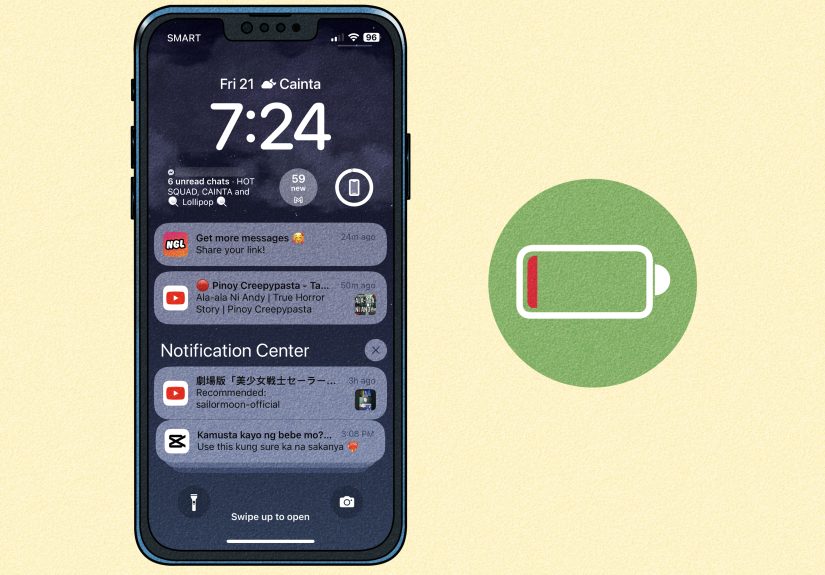
Always-On Display, often shortened to AOD, is a lock screen feature that keeps a small amount of information visible even when your phone is technically asleep. Depending on the device, that may include the time, date, battery percentage, notifications, widgets, music controls, or wallpaper.
On OLED and LTPO displays, this works by lighting only part of the screen and lowering refresh rate and brightness. That is why phone makers market AOD as a low-power feature rather than a full-on screen takeover. Still, “low power” is not the same as “free,” and many people prefer to disable it for battery, privacy, or comfort reasons.
In plain English: Always-On Display is useful if you want quick glanceable info. It is annoying if you want your phone to behave like a phone and not a bedside clock with opinions.
Why Turn Off Always-On Display?
There is no single right answer here. Some users keep AOD on forever and never think twice. Others turn it off five minutes after setting up a new phone. Common reasons include:
- Battery savings: Even an efficient display still uses power.
- Less distraction: A glowing screen can pull your attention way too often.
- More privacy: Notifications, time, or wallpaper may stay visible when you would rather keep things discreet.
- Better sleep setup: If your phone sits near your bed, AOD can be more annoying than helpful.
- A cleaner look: Some people simply prefer a phone screen that goes fully black when locked.
The nice thing is that you do not have to choose forever. On many phones, you can also schedule AOD, limit it to taps, or show it only for new notifications instead of leaving it active all day.
How to Turn Off Always-On Display on iPhone
If your iPhone supports Always-On Display, Apple makes the off switch pretty simple. The hardest part is usually realizing the feature is enabled in the first place.
Steps for iPhone
- Open Settings.
- Tap Display & Brightness.
- Tap Always On Display or Always On, depending on the version shown on your device.
- Turn the feature off.
That is it. Once disabled, your iPhone’s lock screen should go fully dark after it sleeps instead of staying dimly visible.
If You Want a Middle Ground
On some iPhone software versions, Apple also lets you adjust what appears on the Always-On Display instead of disabling it completely. For example, you may be able to hide the wallpaper or notifications while keeping the clock and essential info visible. That can be a solid compromise if you like the convenience but hate the “my wallpaper is now haunting the room” effect.
If the Setting Is Missing
If you do not see an Always-On Display toggle under Display & Brightness, your iPhone may not support the feature. In that case, there is nothing to disable because it is not available on that model. This is one of those moments where iPhone settings can feel brutally honest: no toggle, no feature, no drama.
Related iPhone Settings That Can Be Confusing
Sometimes people turn off AOD and still feel like the phone “wakes up too much.” Usually, a different setting is involved:
- Raise to Wake: The screen lights when you pick up the phone.
- Tap to Wake: A tap can light the screen.
- StandBy: When charging in landscape mode, the iPhone can show a special screen that is different from AOD.
- Notifications on Lock Screen: These can make the phone seem active even when AOD is off.
If your goal is a truly quiet lock screen, check those settings too. Turning off Always-On Display helps, but it does not automatically silence every other screen-waking feature Apple tucked into iOS.
How to Turn Off Always-On Display on Android
On Android, the process depends on the brand. The general idea is the same, but the wording changes. You may see the setting called Always-On Display, Always show time and info, Ambient Display, Peek Display, or something equally creative.
The fastest shortcut on most Android phones is this: open Settings and use the search bar. Type terms like always on display, ambient display, lock screen, or peek display. That often gets you there faster than wandering through menus like a confused tourist.
How to Turn Off Always-On Display on Google Pixel
Pixel phones usually keep the process fairly straightforward, although menu names can shift slightly with Android updates.
Common Pixel Path
- Open Settings.
- Tap Display or Display & touch.
- Tap Lock screen or Always-on display.
- Turn off Always show time and info.
On some newer Pixel interfaces, AOD-related controls may also appear inside the broader lock screen customization area. If you cannot find the toggle right away, use Settings search and look for Always show time and info.
Pixel Settings People Often Mix Up
- Tap to check phone
- Lift to check phone
- Adaptive timeout
- Notifications on lock screen
These do not always equal Always-On Display, but they can make the phone appear active even after AOD is disabled. If your Pixel still lights up more than you want, these are the first suspects.
How to Turn Off Always-On Display on Samsung Galaxy
Samsung has offered AOD for years, and Galaxy phones usually give you several ways to control it. That is great for flexibility and slightly less great for anyone who just wants one clean off switch.
Samsung Galaxy Steps
- Open Settings.
- Tap Lock screen and AOD, Lock screen, or search for Always On Display.
- Tap Always On Display.
- Turn it off.
On many Galaxy phones, Samsung also lets you choose how AOD behaves rather than simply enabling or disabling it. Available options may include:
- Always
- Tap to show
- As scheduled
- For new notifications
- Auto
If you like the idea of AOD but not the constant screen glow, switching from Always to Tap to show or As scheduled can be a smart compromise.
Samsung Battery Tip
Samsung’s power saving mode can affect Always-On Display behavior. So if AOD seems to turn itself off, power saving may be doing it. If AOD seems to stay available but you want the phone to be less visually busy, disabling it manually is still the cleanest option.
How to Turn Off Always-On Display on Motorola
Motorola often uses the name Peek Display or manages it through the Moto app. If you are hunting for “Always-On Display” and not finding anything, that naming difference may be the whole mystery.
Motorola Steps
- Open Settings.
- Tap Display.
- Tap Peek Display or check the Moto app under display features.
- Turn Peek Display off.
Motorola also offers related options like tap to wake, approach to wake, and notification previews. If your screen still seems lively after disabling Peek Display, one of those extra wake features may be the reason.
How to Turn Off Always-On Display on OnePlus and Other Android Phones
On OnePlus phones, the feature is often tucked under Display as Ambient Display or AOD. Depending on the software version, you may also see timing choices such as All Day, Scheduled, or gesture-based wake options.
Typical OnePlus Path
- Open Settings.
- Tap Display.
- Open Ambient Display or Always-On Display.
- Turn it off, or switch from all-day mode to a schedule.
For other Android brands, try these search terms inside Settings:
- Always On Display
- Ambient Display
- Lock screen display
- Always show time and info
- Peek Display
If the search bar fails you, check Display, Lock screen, or Wallpaper & style. Android loves giving the same feature four addresses and expecting you to know them all by heart.
What to Do If Your Screen Still Lights Up After Turning AOD Off
This is a very common complaint, and it does not necessarily mean the setting failed. More often, the phone is waking for a different reason.
Check These Settings Next
- Raise to Wake or Lift to check phone
- Tap to Wake or Tap to check phone
- Lock screen notifications
- Screen saver while charging
- StandBy on iPhone
- Motion or gesture controls
- Power saving modes that change display behavior automatically
If your phone still seems too active, think of the problem as a lock screen behavior issue, not only an AOD issue. Turning off AOD is step one; turning down other wake triggers is step two.
Best Reasons to Leave AOD Off Long-Term
Some settings are fun to toggle for a week and then quietly forget. Always-On Display is one of them. Many people test it, enjoy the novelty, and then decide that a dark screen is simpler and calmer. Leaving AOD off long-term can make sense if you:
- prefer fewer interruptions during work or school,
- keep your phone face-up on a desk and hate visual clutter,
- want a little extra battery buffer by the end of the day,
- use your phone beside the bed,
- or just do not need lock screen information visible every minute.
That does not make you anti-technology. It just means you have reached the advanced level of modern phone ownership where peace and quiet suddenly feel luxurious.
Real-World Experiences With Turning Off Always-On Display
A lot of people do not turn off Always-On Display because they hate the feature. They turn it off because of how the feature fits into everyday life. That difference matters. On paper, AOD sounds efficient, elegant, and futuristic. In practice, user experiences tend to be much more personal.
For example, office workers often notice that a phone sitting face-up on a desk becomes a tiny distraction machine. Even without unlocking the device, they keep glancing at the clock, notification icons, and wallpaper. Turning off Always-On Display makes the phone look inactive again, which subtly reduces the urge to check it every five minutes. It is a small change, but for some people it helps them stay focused during meetings, study sessions, or long stretches of desk work.
Nighttime is another big reason users disable AOD. A phone on a nightstand can be surprisingly bright in a dark room, even when the display is dim. Some people find that they start checking the time whenever they wake up, which turns a quick glance into a habit. Others get annoyed by notification icons silently glowing beside the bed like a digital gremlin that refuses to sleep. Once AOD is off, the room feels calmer, and the phone fades back into the background where it belongs.
Battery experience also plays a role, though results vary. Heavy users who stream music, take a lot of photos, use navigation, or spend long days away from a charger sometimes feel better squeezing out every bit of battery life they can. They may not see a magical transformation after disabling AOD, but they often appreciate the extra margin by evening. Even a small improvement can matter when your battery is limping toward 8 percent and your charger is nowhere nearby.
Privacy-minded users have their own reasons. Even if AOD only shows limited information, some people do not want the time, date, or notification previews visible on a desk, kitchen counter, or classroom table. Disabling the feature gives the lock screen a little more privacy by making the phone look fully asleep unless someone intentionally wakes it.
Then there are the users who simply like a cleaner visual experience. They do not want wallpaper, widgets, clocks, or little floating icons hanging around when the phone is locked. They want the screen to go black and stay black. No glow. No subtle motion. No “look at me” energy. Just done. And honestly, that preference is more relatable than phone companies may want to admit.
Interestingly, some people end up coming back to AOD later, but in a more controlled way. After turning it off completely, they realize they miss quick glances at the time or notifications. Instead of switching back to full-time AOD, they use scheduled modes, tap-to-show options, or notification-only modes. That middle ground often feels like the sweet spot: useful without being clingy.
The most common experience, though, is simple. Users try Always-On Display because it is new, flashy, and built into their phone. Then, after a few days or weeks, they ask themselves a brutally practical question: “Do I really need this?” If the answer is no, they turn it off and never look back. The screen goes dark, the phone feels quieter, and life somehow continues without a permanently visible clock. Miraculous, really.
Final Thoughts
If you are wondering how to turn off Always-On Display on iPhone or Android, the process is usually quick once you know where to look. On iPhone, head to Settings > Display & Brightness. On Android, search for Always On Display, Ambient Display, Peek Display, or Always show time and info, then disable it from the relevant menu.
The bigger takeaway is that Always-On Display is optional. It is not a phone law. You are allowed to decide that a feature designed for convenience is not actually convenient for you. If your lock screen feels too busy, too bright, too public, or just a little too eager, turning off AOD is a perfectly sensible fix.
And if your screen finally goes fully black and you feel weirdly satisfied afterward, congratulations. You have experienced one of modern tech’s greatest hidden pleasures: making your phone slightly less needy.