Table of Contents >> Show >> Hide
- Can You Charge a Laptop with HDMI?
- Why HDMI Can’t Charge Your Laptop (Even Though It Has a 5V Power Pin)
- “But I’ve Seen Devices That Charge While Using HDMI!”
- How Much Power Does a Laptop Actually Need to Charge?
- If HDMI Won’t Charge a Laptop, What Should You Do Instead?
- Common Myths (and What’s Actually Happening)
- Troubleshooting: “I Plugged In an HDMI Adapter and My Laptop Isn’t Charging”
- Bonus: Real-World Experiences People Have with “Charging a Laptop with HDMI” (About )
- Conclusion: The Clean Answer (and the Best Workaround)
If you’re here because your laptop is gasping for battery life and the only cable you can find is HDMI, I’ve got news: HDMI is an excellent video cable, a decent audio cable, and a truly terrible “laptop charger.” If HDMI could charge laptops, we’d all be living in a one-cable utopia where desk clutter is banned by international treaty. Sadly, we are not.
Still, the internet is full of phrases like “charge through HDMI” and products that look like they’re doing exactly that. So let’s clear it up with real-world, practical answers: what HDMI power actually is, why it won’t charge your laptop, what people confuse it with, and what to do instead.
Can You Charge a Laptop with HDMI?
In normal, everyday laptop setups: no. HDMI ports on laptops are designed to send (or receive) audio/video signals, not to deliver charging power like a USB-C Power Delivery (PD) port or a traditional AC adapter.
HDMI does include a small amount of power on the cable, but it’s meant for “handshakes” and basic electronicsnot for charging a laptop battery that typically needs 45W, 65W, 90W, 140W, or more.
The simple comparison
- HDMI power: tiny “support power” for signaling and compatibility
- Laptop charging power: a lot more wattage, with negotiation and safety protections
So if you plug HDMI from your laptop into a TV or monitor and hope your battery climbs from 12% to 13%… it won’t. Your laptop will keep running, the screen will look great, and the battery will keep drainingjust on a bigger display.
Why HDMI Can’t Charge Your Laptop (Even Though It Has a 5V Power Pin)
Here’s where the confusion starts: an HDMI connection includes a +5V line. That sounds promising until you learn the purpose and limits of that power.
What HDMI’s +5V line is actually for
HDMI’s small power line is used so devices can do things like:
- Identify that something is connected
- Support display “handshakes”
- Allow the source device to read display capability data (like resolution support) from the display
- Power tiny circuits in certain accessories (for example, some active cables or inline signal helpers)
What HDMI’s +5V line is not for
- Running a laptop
- Charging a laptop battery
- Replacing a USB-C PD charger or barrel charger
In other words, HDMI’s power is like the little coin-cell battery in a key fob: it has a job, it matters, but it’s not starting a truck.
“But I’ve Seen Devices That Charge While Using HDMI!”
You probably haveand you’re not imagining things. The trick is that in most “HDMI charging” situations, HDMI is not the thing doing the charging. Something else is.
Scenario 1: USB-C to HDMI adapters with a charging port
Many USB-C-to-HDMI adapters (and some USB-C-to-HDMI cables) include an extra USB-C port labeled something like:
- PD
- Power
- Charge
- USB-C In
In that setup:
- HDMI handles video/audio to the display
- USB-C PD handles charging back into your laptop
So yesyou can end up “connected via HDMI” while charging. But the charging is coming from USB-C Power Delivery, not from HDMI itself.
Scenario 2: Monitors that charge laptops (but only over USB-C)
Some monitors can charge a laptop with a single cable. This is real and very convenient. But typically the single cable is:
- USB-C (carrying video + data + power via USB-C PD)
- or Thunderbolt (USB-C connector, with more bandwidth and often power delivery)
If you connect your laptop to that same monitor using HDMI instead, the monitor will usually not send charging power back through HDMI. You’d need to plug in your laptop charger separately (or switch to USB-C/Thunderbolt for the one-cable experience).
Scenario 3: MHL (mostly phones/tablets, not laptops)
There’s also a technology called MHL (Mobile High-Definition Link) that was designed for phones/tablets to output video (often through a shared connector) while receiving enough power to maintain or recharge the device. This is the rare situation where an HDMI-shaped port on a TV (MHL-enabled) might provide meaningful charging power for a compatible mobile device.
But for modern laptops, MHL is typically not the solution. Laptops generally rely on their standard charging methodsbarrel connector, proprietary connector, or (increasingly) USB-C PD.
How Much Power Does a Laptop Actually Need to Charge?
Let’s put numbers on it, because watts make the truth very unromantic (and therefore very useful).
Typical laptop charging wattages
- Ultrabooks / thin laptops: often 45W–65W
- Mainstream laptops: commonly 65W–90W
- Workstations / performance laptops: 90W–140W+ (sometimes much more with proprietary adapters)
Now compare that to HDMI’s tiny support power. Even if a device provided a generous 5V line, it’s not built to push anything close to the wattage your laptop expects for charging. Your battery is a swimming pool; HDMI is a drinking straw.
If HDMI Won’t Charge a Laptop, What Should You Do Instead?
Here are practical, realistic alternatives that actually workplus how to tell which one applies to your laptop.
Option 1: Use USB-C Power Delivery (if your laptop supports it)
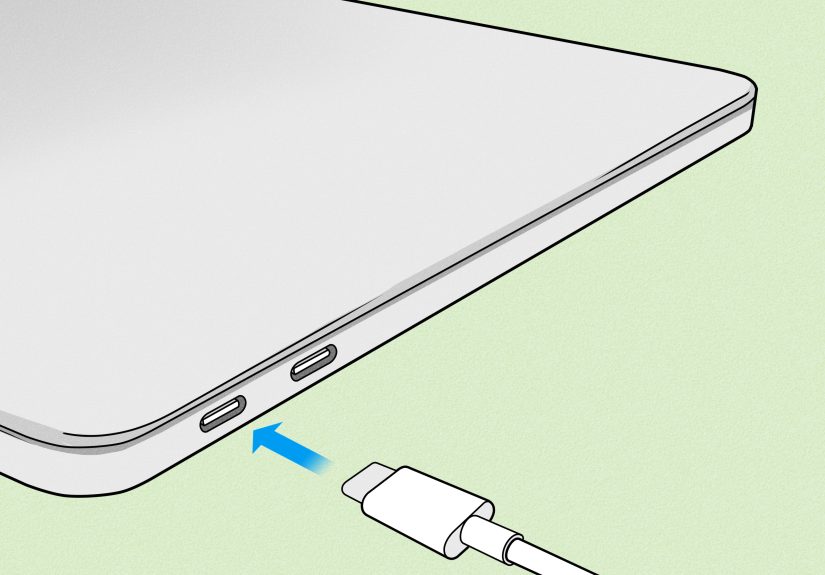
Many modern laptops can charge via USB-C Power Delivery. This is the closest thing we have to universal laptop charging right now.
How to check quickly:
- Look for a USB-C port with a lightning bolt icon (often indicates Thunderbolt) or a battery/charging icon
- Check your laptop’s specs for “USB-C charging” or “Power Delivery”
- If you’re unsure, search your laptop model + “USB-C PD charging”
Pro tip: Not every USB-C port charges. Some are data-only. Some do video but not power in. And some do everything. USB-C is the “mystery box” of portslabeling matters.
Option 2: Use the correct wattage charger (don’t underfeed it)
Even with USB-C charging, wattage matters. A small phone charger may technically connect, but it can be too low-power to charge effectively while you’re using the laptop. The result looks like:
- Battery percentage stays flat while you work
- Battery charges only when sleeping
- You get a warning like “slow charger”
Match (or exceed) the wattage your laptop recommends when possible.
Option 3: Use a USB-C dock that provides power + HDMI
If your real goal is: “I want HDMI video to my monitor and charging through one setup,” a dock is often the cleanest solution. A good USB-C/Thunderbolt dock can:
- Plug into your laptop with USB-C/Thunderbolt
- Provide charging power back to the laptop
- Give you HDMI (or DisplayPort) outputs for monitors
- Add USB ports, Ethernet, audio, etc.
In that setup, HDMI is just the video highway. The dock is the power station.
Option 4: Charge from a monitor (with USB-C PD), not from HDMI
If your monitor supports USB-C PD (sometimes labeled “USB-C 65W” or similar), you can get a true single-cable desk setup:
- Connect laptop to monitor via USB-C (or Thunderbolt)
- Monitor sends video and power over that same cable
- Enjoy the clean desk look you deserve
If you connect by HDMI instead, plan on using your laptop charger as well.
Option 5: Use a PD power bank (for travel)
For airports, coffee shops, and “my outlet is behind a couch that weighs as much as regret,” a USB-C PD power bank can be a lifesaverif it outputs enough wattage for your laptop.
Look for PD support and wattage that matches your laptop’s needs.
Common Myths (and What’s Actually Happening)
Myth: “HDMI 2.1 can probably charge because it’s newer.”
Newer HDMI versions improve bandwidth and features for audio/video, but they don’t turn HDMI into a laptop charging standard. Charging is the job of USB-C PD and dedicated power connectors.
Myth: “My laptop has HDMI in/out, so it should accept power too.”
HDMI direction (source vs. sink) is about video signals, not power delivery like a charger. Laptops are built to charge through specific power circuits and portsnot through the HDMI interface.
Myth: “If I use an HDMI power injector, I can charge the laptop.”
Injecting 5V into an HDMI line doesn’t magically connect to your laptop’s battery charging system. At best, you’ll power some HDMI accessory behavior. At worst, you risk confusing or damaging ports and devices. If you need power, use a charging method designed for it.
Troubleshooting: “I Plugged In an HDMI Adapter and My Laptop Isn’t Charging”
If you’re using a USB-C-to-HDMI adapter that claims charging support, and you’re not getting power, here’s the checklist.
1) Confirm the adapter supports USB-C Power Delivery input
Many adapters have a USB-C port that looks identical to every other USB-C port on Earth, but only some are meant for PD pass-through. Look for labels like PD or a power icon.
2) Confirm your charger is a USB-C PD charger (not just “USB-C shaped”)
A USB-C connector doesn’t guarantee Power Delivery support. Use a charger that explicitly supports USB-C PD and provides adequate wattage.
3) Confirm your laptop’s USB-C port supports charging
Some laptops have multiple USB-C ports, and only one accepts charging. If your laptop has a designated charging USB-C port, use that one.
4) Use a capable cable
For higher wattage charging, cable quality matters. A low-grade cable can limit charging power, cause disconnects, or trigger warnings.
Bonus: Real-World Experiences People Have with “Charging a Laptop with HDMI” (About )
Experience #1: The hotel TV miracle that never happens. A common moment: you’re traveling, your laptop charger is buried in a suitcase labyrinth, and the hotel room has a TV with an HDMI cable sitting right therelike it’s offering help. You plug it in, the TV displays your desktop beautifully, and you think, “Wow, modern technology!” Thirty minutes later, your battery is lower than it was before. The HDMI cable did exactly what it was hired to do (video), and absolutely nothing you wanted it to do (power).
Experience #2: “My monitor charges my laptop… but only sometimes?” In offices and home setups, people often use a monitor that can charge laptops via USB-C. Then one day they switch to HDMImaybe because the USB-C cable is missing, maybe because HDMI “just works,” maybe because the cable is longer. The monitor still shows the picture, but the charging stops. This can feel like the monitor is being moody. In reality, it’s consistent: charging happens over USB-C Power Delivery, not HDMI.
Experience #3: The dongle with the secret second port. Another frequent story: someone buys a “USB-C to HDMI” adapter for presentations. It works, but during a long meeting their battery dips. Later they notice a second USB-C port on the adapter labeled “PD.” That’s the moment everything clicks: the adapter isn’t charging through HDMIit’s letting the laptop charge through USB-C while the HDMI connection handles the projector. Once they plug their USB-C charger into the PD port, the setup becomes a neat “one adapter, one HDMI, one charger” system.
Experience #4: The “I swear my device charged through HDMI once” memory. Some people remember older phones or tablets charging while connected to a TV via HDMI. That memory can be realbecause certain mobile standards (like MHL on compatible gear) were designed to maintain charge while outputting video. The confusion happens when that expectation gets carried over to laptops. Modern laptops largely don’t use HDMI for power in; they use dedicated charging ports or USB-C PD.
Experience #5: The DIY temptation (and why it’s a bad idea). Tech-curious folks sometimes consider “injecting” power into HDMI lines. In practice, even if you manage to add 5V to an HDMI cable, you’re not plugging into the laptop’s battery charger circuitry. You’re messing with a signal interface that expects a very specific electrical environment. The usual outcome isn’t “free charging”it’s instability, flaky connections, or damaged equipment. The most satisfying solution is the boring one: use USB-C PD, the proper adapter, or the original charger.
Conclusion: The Clean Answer (and the Best Workaround)
You can’t charge a laptop with HDMI in any normal, standards-based way. HDMI includes a small +5V support line for signaling and compatibility, but it’s not meant to deliver the kind of power a laptop needs for charging.
If you want a setup that feels like “charging while using HDMI,” the real solution is usually one of these:
- Use a USB-C to HDMI adapter with USB-C PD pass-through
- Use a USB-C/Thunderbolt dock that provides power + HDMI outputs
- Use a USB-C PD monitor and connect via USB-C instead of HDMI
HDMI is the messenger. USB-C Power Delivery (or your original charger) is the meal. Don’t ask the messenger to cook dinner.