Table of Contents >> Show >> Hide
- What Windows Home Server 2011 Actually Does
- Before You Connect Anything
- How To Connect a Windows PC to Windows Home Server 2011
- How To Connect a Mac to Windows Home Server 2011
- Common Problems and How To Fix Them
- Best Practices for a Smoother WHS 2011 Setup
- Is It Still Worth Connecting a PC or Mac to Windows Home Server 2011?
- Final Thoughts
- Experience: What It’s Really Like To Connect a PC or Mac to Windows Home Server 2011
- SEO Tags
If you still have a Windows Home Server 2011 box humming away in a closet, first of all: respect. That little machine was the overachiever of the early home-network era. It backed up PCs, shared files, streamed media, and quietly acted like the family’s digital butler without demanding a standing ovation. Connecting a PC or Mac to Windows Home Server 2011 is not especially hard, but it does require a little patience, a little network sanity, and just enough old-school troubleshooting to remind you that the cloud was not always the center of the universe.
This guide walks you through how to connect a Windows PC or a Mac to Windows Home Server 2011, what the Connector software actually does, where the process usually goes sideways, and how to make the whole setup feel less like archaeology and more like a practical home-lab project. Think of it as a friendly field guide for anyone trying to make WHS 2011 earn its keep one more time.
What Windows Home Server 2011 Actually Does
Before you start clicking things with heroic optimism, it helps to know what Windows Home Server 2011 was designed to do. At its best, WHS 2011 acts as a central storage and backup hub for a home or tiny office. On Windows PCs, the magic ingredient is the Connector software. Once installed, it can tie the computer to the server, add Launchpad access, enable health monitoring, and set up automated client backup. That is why the Windows side usually feels smoother than the Mac side: WHS 2011 was built with Windows clients very much in mind.
For Macs, the experience is more limited and more dependent on era-appropriate software behavior. You can still connect to shared folders and, in some setups, use the Mac-side Connector or Launchpad tools that shipped around that generation. But if you are expecting the exact same feature set you get on a Windows PC, WHS 2011 may politely clear its throat and stare at you in 2011.
Before You Connect Anything
Save yourself from unnecessary drama by checking a few basics first. Make sure the server is fully installed and reachable on your local network. You should know the server name, the administrator password, and the IP address just in case name resolution gets moody. Your PC or Mac should be on the same local network, preferably through a stable router, not through a random Wi-Fi dead zone that only works when the moon is in the correct phase.
Also, remember the obvious-but-important caveat: Windows Home Server 2011 is an old, unsupported platform. That does not mean it cannot work. It does mean you should treat it like a legacy system. Keep it on a trusted home network, patch it as much as the platform allows, and do not assume modern operating systems will cooperate with the same cheerful enthusiasm they show for current services.
Quick Checklist
- Server and client are on the same network
- You know the server name and password
- You can ping or otherwise reach the server
- Shared folders are already created on the server
- You understand this is legacy software, not a fresh 2026 product
How To Connect a Windows PC to Windows Home Server 2011
This is the cleaner path, and thankfully Microsoft designed it to be fairly friendly. The standard method is to open a browser on the PC and go to the server’s connection page.
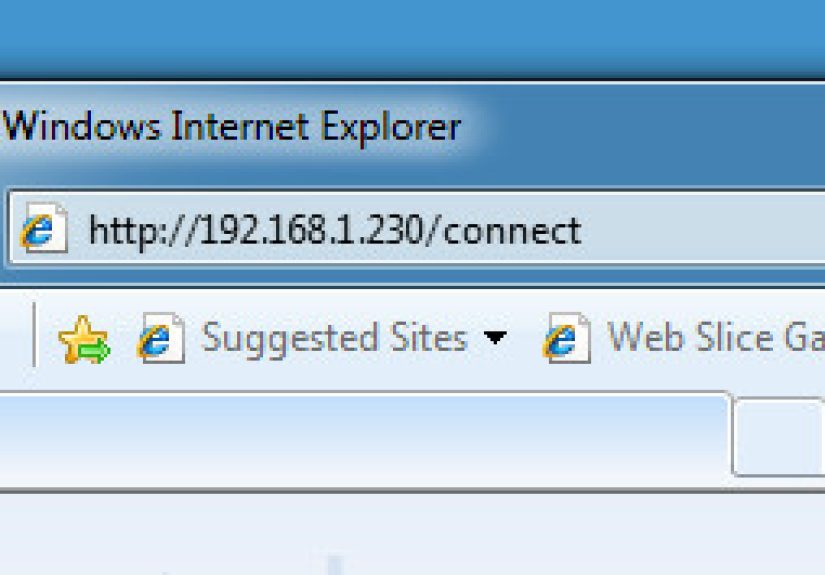
- Open a web browser on the PC. In the address bar, type
http://YourServerName/connect. Replace YourServerName with the actual name of your WHS 2011 machine. - Download the Connector software. The server should present the download for the client connection package.
- Run the installer as an administrator. On some systems, especially if User Account Control is feeling dramatic, right-clicking and choosing “Run as administrator” is the safer move.
- Enter the server password when prompted. This is how the client joins the WHS 2011 environment and establishes trust with the server.
- Let the installation complete. The process may install Launchpad, add Dashboard access, and configure backup-related services.
- Restart the PC if requested. Legacy Microsoft software loves a reboot the way grandmas love plastic on the sofa.
- Confirm the connection. After setup, open Launchpad or the Dashboard shortcut and verify that the PC appears in the server console.
Once that is done, your PC can usually access shared folders, participate in nightly or scheduled backups, and show health alerts through the WHS ecosystem. This is the version of the product that made people forgive a lot of Microsoft weirdness, because when it worked, it really worked.
How To Verify the PC Connected Correctly
Do not stop after the installer says “done.” Legacy systems can smile and lie. Open the Dashboard and check whether the PC appears in the list of client computers. Then make sure shared folders open normally from File Explorer. Finally, verify that backup is enabled and that the next scheduled backup is visible. If the PC shows up but backup does not, you are halfway married, not fully married.
How To Connect a Mac to Windows Home Server 2011
Connecting a Mac is possible, but this is where the story gets more vintage. WHS 2011-era Mac integration depended on older OS X behavior, and Microsoft released fixes for Mac Lion and Mountain Lion issues involving Launchpad and installation security settings. In plain English, this means the Mac side can work, but it may require more coaxing than the Windows side.
- Start by testing basic network access. From Finder, try connecting to the server’s shared folders using the server name or IP address. If you can browse shared folders, your network path is probably fine.
- Use the server’s connection page if available. On compatible setups, the server may offer the Mac-side connection package or related software from the same connection workflow.
- Install the Mac connector or Launchpad package. If macOS or OS X blocks the installer, check your security settings. Older Gatekeeper behavior was known to interfere with these installs.
- Authenticate with the server. Use the server credentials when prompted.
- Confirm folder access and server visibility. The immediate goal on a Mac is usually reliable access to shared content and basic server interaction, not necessarily a mirror image of the Windows backup experience.
If your Mac is from a much newer era than the server, prepare for a few compatibility surprises. WHS 2011 was never written with modern macOS expectations in mind, so success often depends on how old the Mac software stack is, whether older connector files are still available, and whether security settings can be adjusted long enough to complete the install.
What Mac Users Should Expect
For a Mac, Windows Home Server 2011 is best thought of as a shared-file destination with optional legacy integration, not as a modern Apple-native backup platform. If your real goal is simply to access photos, documents, music, or household archives stored on the server, Finder-based access to shared folders may be all you truly need. And honestly, that is often enough. Not every project needs a full symphony when a decent acoustic guitar will do.
Common Problems and How To Fix Them
The Server Name Does Not Resolve
If http://YourServerName/connect does not load, the most common issue is name resolution. The server might be alive and well while your client acts like it has never heard of it. In that situation, verify that the client and server are on the same subnet, confirm the router is handing out sane network settings, and test access with the server’s IP address. On some older community-documented setups, users also had luck with alternate local connection pages such as a direct server port path. That is less elegant, but legacy networking is often more “practical wizardry” than “best practice.”
The Connector Refuses To Install
Microsoft documented cases where a client would fail to connect because another installation was in progress or because a reboot was pending. If the installer complains, restart the client completely, let Windows finish whatever unfinished business it has hiding in the hallway, and try again. On old machines, that alone fixes more than people like to admit.
The Mac Installer Gets Blocked
This one was famous enough to earn its own update fixes. If the Mac connector or Launchpad installer is blocked, check security settings and confirm the server itself is updated as far as WHS 2011 allows. Microsoft also documented issues involving Mountain Lion, Lion, and installer trust behavior. Translation: the server may not be the only stubborn old man in the room.
The Client Connects but Backups Fail
If the Windows PC appears in the Dashboard but backups are failing, check disk space on the server, verify that the client volumes are healthy, and confirm backup services are running. WHS 2011 had specific client backup fixes in later rollups, so an under-updated server can act connected while quietly dropping the ball in the backup department.
Bonjour or Network Services Interfere
Microsoft documented cases where Apple Bonjour running on the server side could interfere with client connector behavior. If your setup is weirdly inconsistent and includes mixed Apple software components, that is worth investigating. In mixed-platform homes, the network sometimes resembles a family reunion where everyone is technically related but nobody agrees on politics.
Best Practices for a Smoother WHS 2011 Setup
- Prefer wired Ethernet for the first connection whenever possible.
- Use a fixed server name and note its IP address so you are not guessing later.
- Check updates and rollups before connecting multiple clients.
- Test one client first before adding the whole household.
- Keep expectations realistic on modern Macs and newer Windows builds.
- Verify backups manually after installation instead of assuming they are working.
Is It Still Worth Connecting a PC or Mac to Windows Home Server 2011?
Surprisingly, yes, in the right scenario. If you are running a nostalgic home lab, reviving old hardware, maintaining a trusted archive machine, or using WHS 2011 as a dedicated local storage and backup box on a private network, it can still be useful. The Windows PC workflow remains the strongest use case because that is where the Connector, Launchpad, health monitoring, and client backup features were meant to shine.
For Mac users, the answer is more conditional. If all you want is file access, a Mac can still fit into the picture reasonably well. If you want deep integration that feels modern, polished, and Apple-friendly, WHS 2011 is going to show its age faster than a social network profile from 2010 with a “rawr means I love you in dinosaur” status update.
Final Thoughts
Connecting a PC or Mac to Windows Home Server 2011 is one part networking task, one part legacy-software adventure, and one part reminder that local storage once felt gloriously empowering. On a Windows PC, the process is usually straightforward: visit the connection page, install the Connector, authenticate, and verify backup and shared-folder access. On a Mac, the path is more fragile, but shared folders and basic server access can still make the setup worthwhile.
The real key is to treat WHS 2011 for what it is: a capable but aging system that rewards careful setup. If you go in expecting a modern plug-and-play experience, you may end the day muttering at your router. If you go in expecting a smart little legacy server that still knows a few good tricks, you might come away impressed.
Experience: What It’s Really Like To Connect a PC or Mac to Windows Home Server 2011
There is a very specific feeling that comes with connecting a computer to Windows Home Server 2011, and it is hard to explain unless you have lived through that era of home networking. Modern services want you to upload everything to somebody else’s infrastructure and smile politely about it. WHS 2011, by contrast, feels like you are building your own little digital kingdom in a closet, under a desk, or beside a modem that has seen things.
On a Windows PC, the experience is often oddly satisfying. You type the server address, grab the Connector, and suddenly the machine starts feeling like part of a bigger system instead of a lonely island full of screenshots, tax PDFs, and a Downloads folder that looks like a garage after a tornado. When the Dashboard shows the PC and backup begins working, it creates the kind of joy only backup nerds understand. It is not flashy joy. It is “my files now have a second chance at life” joy.
The first successful backup feels especially good because WHS 2011 was built around the comforting idea that your household computers should not be one spilled coffee away from emotional collapse. There is something deeply reassuring about knowing one central box is quietly watching over the fleet, even if the fleet is just a laptop, an old desktop, and one machine no one wants to touch because it still runs a printer that everybody fears.
Connecting a Mac is usually more of a relationship than a transaction. The server and the Mac do not instantly become best friends; they become cautious neighbors who slowly agree to exchange sugar. Sometimes the Mac sees the shares right away and everything feels almost suspiciously civilized. Other times you get blocked installers, permission prompts, and that classic legacy-tech vibe where one successful folder mount feels like winning a small battle against time itself.
But even then, there is charm in it. Once the Mac can browse shared folders reliably, the server starts feeling useful again. Old family photos, music libraries, archived documents, project folders, and random household records suddenly have a proper home. Not a rented home in the cloud. A home home. A machine you can point at and say, “That box in the corner has our stuff.” It is both technologically outdated and emotionally elite.
The funniest part is that WHS 2011 still teaches good habits. It reminds you to name machines clearly, document passwords, test backups, and verify network paths instead of assuming everything is fine because an icon exists. In other words, it teaches discipline. It is basically the strict but competent shop teacher of home server software.
So yes, the experience can be clunky. Yes, some steps feel older than your favorite streaming subscription. But when it all works, connecting a PC or Mac to Windows Home Server 2011 delivers a kind of hands-on control that many modern tools no longer even try to offer. It may be legacy tech, but it is legacy tech with backbone.